


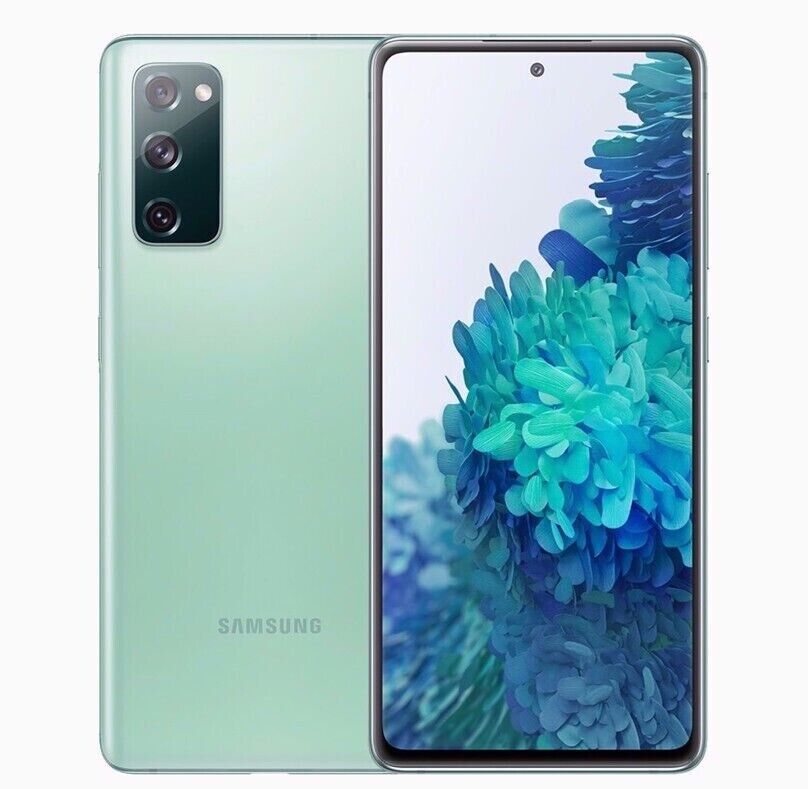



Samsung Galaxy S20 FE 5G SM-G781U 128GB Unlocked for GSM+CDMA on All Carriers – Brand New,
Instructions for Using the Samsung Galaxy S20 FE 5G
Getting Started
- Insert the SIM card into the SIM card slot.
- Charge the phone using the provided charger and cable.
- Power on the phone by pressing and holding the power button until the Samsung logo appears.
Setting up the Phone
- Select your preferred language and follow the on-screen prompts to complete the initial setup.
- Connect to a Wi-Fi network to access the internet.
- Sign in to your Google account or create a new account if you don’t have one.
- Follow the prompts to set up your fingerprint and facial recognition for added security.
Using the Phone
Home Screen Navigation
- Swipe up from the bottom of the screen to access the app drawer.
- Swipe down from the top of the screen to view notifications and quick settings.
- Tap and hold an app icon to access options such as uninstalling or moving the app.
Using the Camera
- Open the camera app by tapping on the camera icon.
- Tap on the shutter button to take a photo.
- Swipe left or right to switch between different camera modes such as photo, video, and portrait.
- Tap on the gallery icon to view and manage your photos and videos.
Making Phone Calls
- Tap on the phone icon on the home screen.
- Enter the phone number using the keypad.
- Tap on the green call button to make the call.
Browsing the Web
- Open the internet browser by tapping on the web browser icon.
- Type a website address in the address bar and press enter to navigate to the webpage.
- Swipe up or down to scroll through the webpage.
- Tap on links or buttons to interact with the webpage.
Adjusting Settings
- Open the settings app by tapping on the settings icon.
- Scroll through the settings options to customize various aspects of the phone, such as display, sound, and connectivity.
- Tap on a setting to modify its configuration.
Managing Apps
- Open the app drawer by swiping up from the bottom of the screen.
- Tap and hold an app icon to move it around or uninstall it.
- Tap on the three dots icon to access additional options for an app.
, , Samsung




Reviews
There are no reviews yet.