


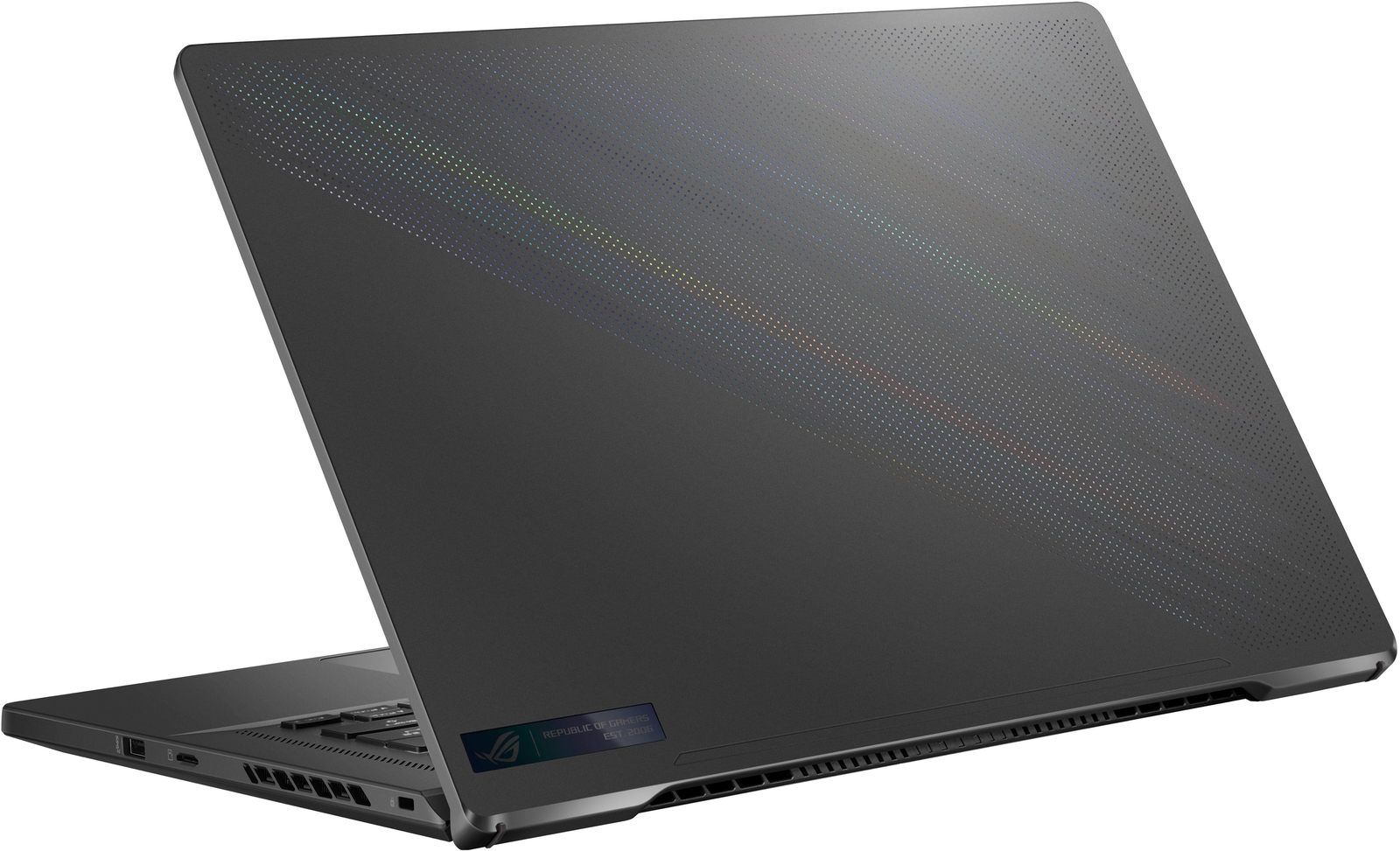

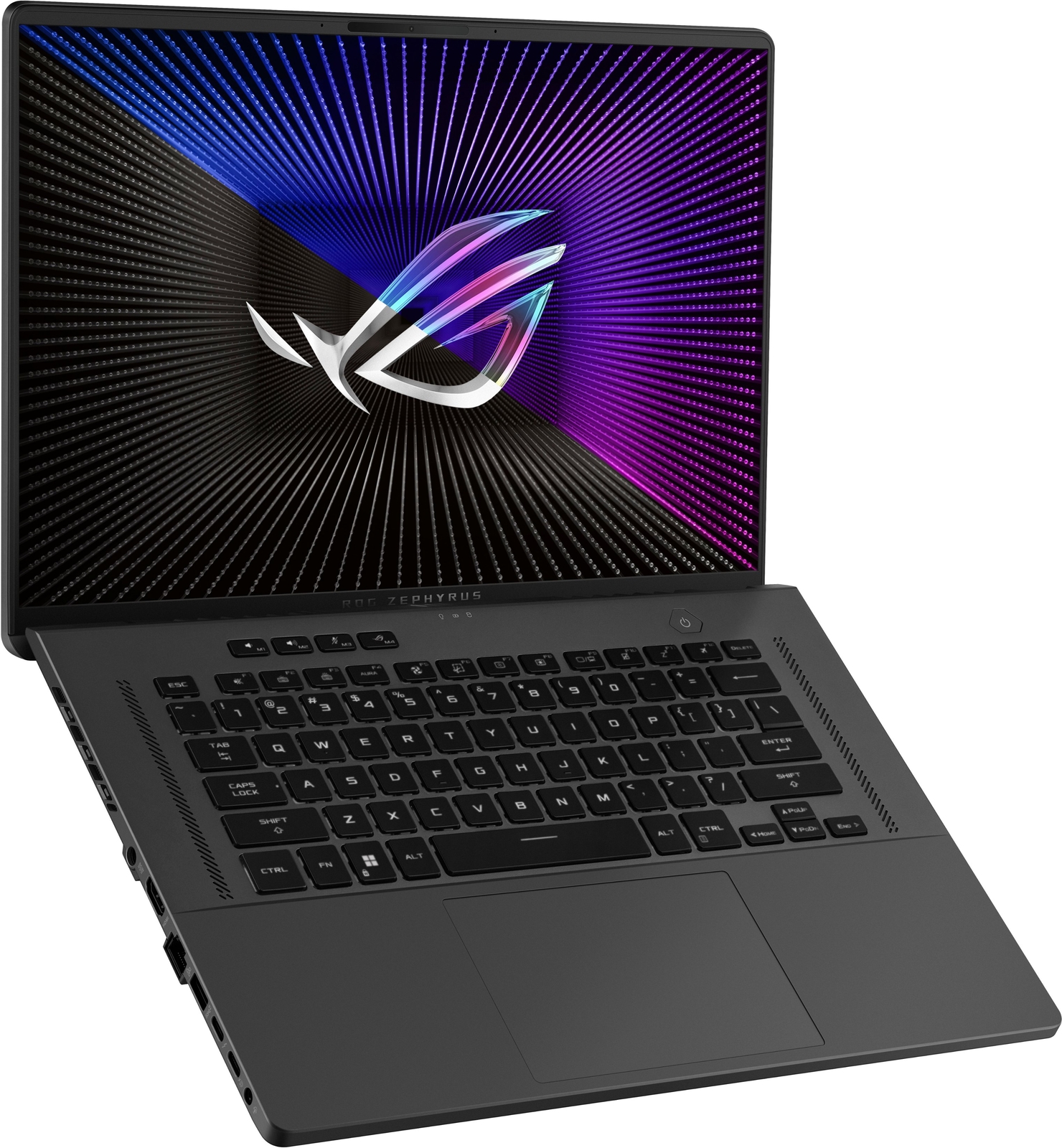



ASUS – ROG Zephyrus G16 16″ 165Hz FHD Gaming Laptop with Intel 13th Gen Core i7,
How to use ASUS – ROG Zephyrus G16 16″ 165Hz Gaming Laptop FHD-Intel 13th Gen Core i7 with 16GB Memory-NVIDIA GeForce RTX 4060-512GB SSD
Getting Started
- Unbox the laptop and remove all packaging materials
- Ensure the laptop is charged or connect it to a power source using the included power supply
- Press the power button to turn on the laptop
Setting up Windows 11
- Follow the on-screen instructions to set up Windows 11
- Create a Microsoft account or sign in with an existing account
- Select your preferred language, region, and keyboard layout
- Agree to the terms and conditions
- Customize your Windows 11 settings according to your preference
Connecting to Wi-Fi
- Click on the Wi-Fi icon in the taskbar
- Select your Wi-Fi network from the list of available networks
- Enter your Wi-Fi password, if required
- Click on the “Connect” button to connect to the Wi-Fi network
Using the Desktop
- Click on the desktop tile on the Windows 11 Start menu
- Use the mouse or touchpad to navigate and click on icons and shortcuts
Opening and Closing Applications
- To open an application, click on its icon on the desktop or in the Start menu
- To close an application, click on the “X” button in the top right corner of the application window
Browsing the Internet
- Open your preferred web browser, such as Microsoft Edge or Google Chrome
- Type a website URL or search term in the address bar
- Press Enter or click on the Go button to navigate to the website or perform a search
Playing Games
- Install your favorite games from digital distribution platforms or insert game discs if applicable
- Launch the game from the desktop shortcut or through the game launcher
- Follow the on-screen instructions to play the game using keyboard, mouse, or a connected game controller
Adjusting Settings
- Open the Windows Start menu
- Click on the Settings icon (gear icon)
- Explore the various settings categories to customize your laptop’s performance, display, sound, network, and more
Shutting Down or Restarting
- Click on the Start button in the lower-left corner of the screen
- Click on the Power icon
- Select either “Shut down” or “Restart” from the options
, , ASUS







Reviews
There are no reviews yet.