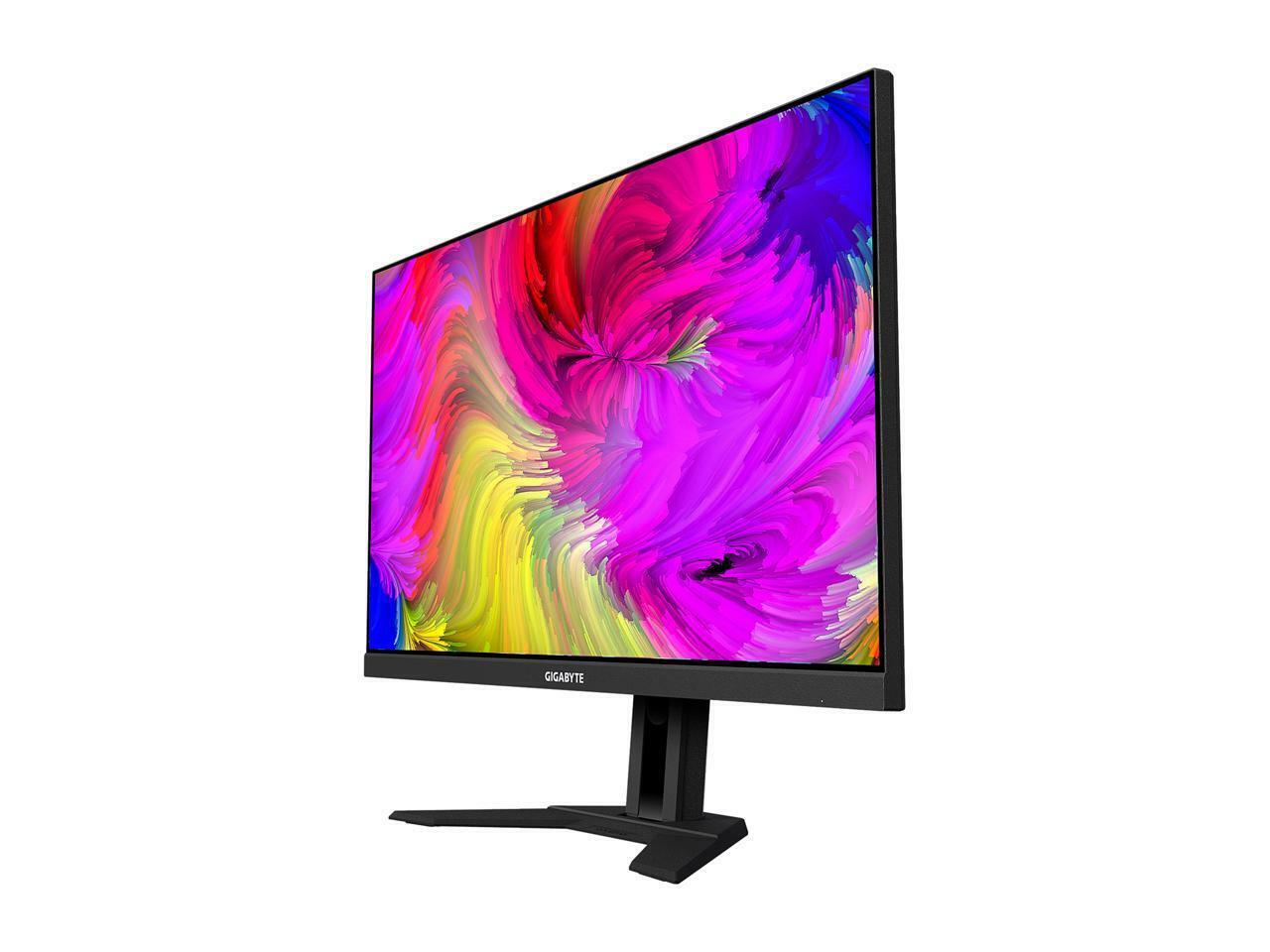
GIGABYTE M28U 28-inch 144Hz 2160P UHD 4K Gaming Monitor with 3840 x 2160 Resolution, 1ms Response Time, SS IPS Panel, and 94% DCI-P3 Color Gamut

GIGABYTE M28U 28-inch 144Hz 2160P UHD 4K Gaming Monitor with 3840 x 2160 Resolution, 1ms Response Time, SS IPS Panel, and 94% DCI-P3 Color Gamut

$911.80

  • 28″ 4K UHD IPS display
  • 144Hz refresh rate and 1ms response time
  • 94% DCI-P3 color gamut
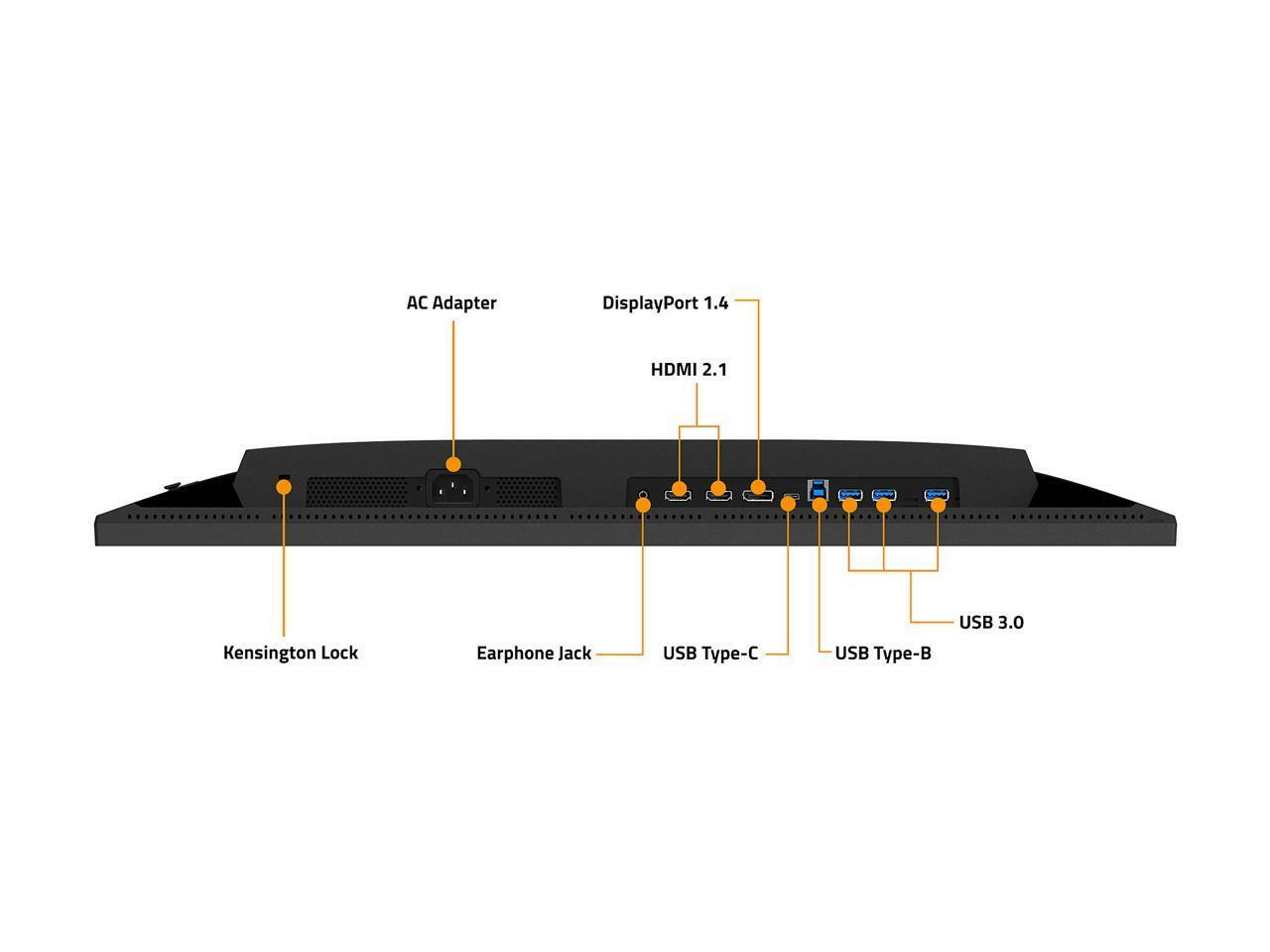
  • DisplayPort and HDMI inputs
  • Suitable for gaming
  • Tiltable design
  • 300 cd/m² brightness
  • 1000:1 contrast ratio
(0 customer reviews)

Free worldwide shipping on all orders over $50

  • 30 days easy returns
  • Order yours before 2.30pm for same day dispatch
Guaranteed Safe Checkout

GIGABYTE M28U 28-inch 144Hz 2160P UHD 4K Gaming Monitor with 3840 x 2160 Resolution, 1ms Response Time, SS IPS Panel, and 94% DCI-P3 Color Gamut
$911.80
Callback Form

GIGABYTE M28U 28-inch 144Hz 2160P UHD 4K Gaming Monitor with 3840 x 2160 Resolution, 1ms Response Time, SS IPS Panel, and 94% DCI-P3 Color Gamut,

How to Use the GIGABYTE M28U 28″ Monitor

Getting Started

  • Check that all the components are included in the package
  • Connect the monitor to a power source using the included power cable
  • Connect your computer to the monitor using either the DisplayPort or HDMI cable
  • Press the power button on the monitor to turn it on

Adjusting the Display

  • Use the buttons on the monitor or the included remote control to access the monitor’s menu
  • Navigate through the menu to find the display settings
  • Adjust the brightness, contrast, and color settings according to your preferences

Navigating the On-Screen Display Menu

  • Press the menu button on the monitor to access the OSD menu
  • Use the navigation buttons to move through the menu options
  • Press the menu button again to select a menu option
  • Use the navigation buttons to adjust the settings within each menu option
  • Press the menu button to exit the OSD menu

Tilting the Monitor

  • Gently hold the edges of the monitor
  • Adjust the tilt angle by pushing the monitor up or down
  • Release the monitor when you have reached the desired tilt angle

Changing the Refresh Rate

  • Access the display settings through the OSD menu
  • Navigate to the refresh rate option
  • Select the desired refresh rate (e.g., 144 Hz)

Powering Off the Monitor

  • Press the power button on the monitor to turn it off
  • Unplug the power cable from the monitor and the power source

, , GIGABYTE
Additional information

Weight 5 lbs
Aspect Ratio

16:9

Color
UPC

0889523024898

Screen Size

28 in

Brightness

300 cd/m²

Response Time

1 ms

Refresh Rate

144 Hz

Video Inputs

DisplayPort, HDMI Standard

MPN

M28U

Most Suitable For

Gaming

Brand
Display Type

IPS LED

Maximum Resolution

3840 x 2160

Contrast Ratio

1000:1

Model

GIGABYTE M28U

Features

Tiltable

Reviews

There are no reviews yet.

Only logged in customers who have purchased this product may leave a review.