

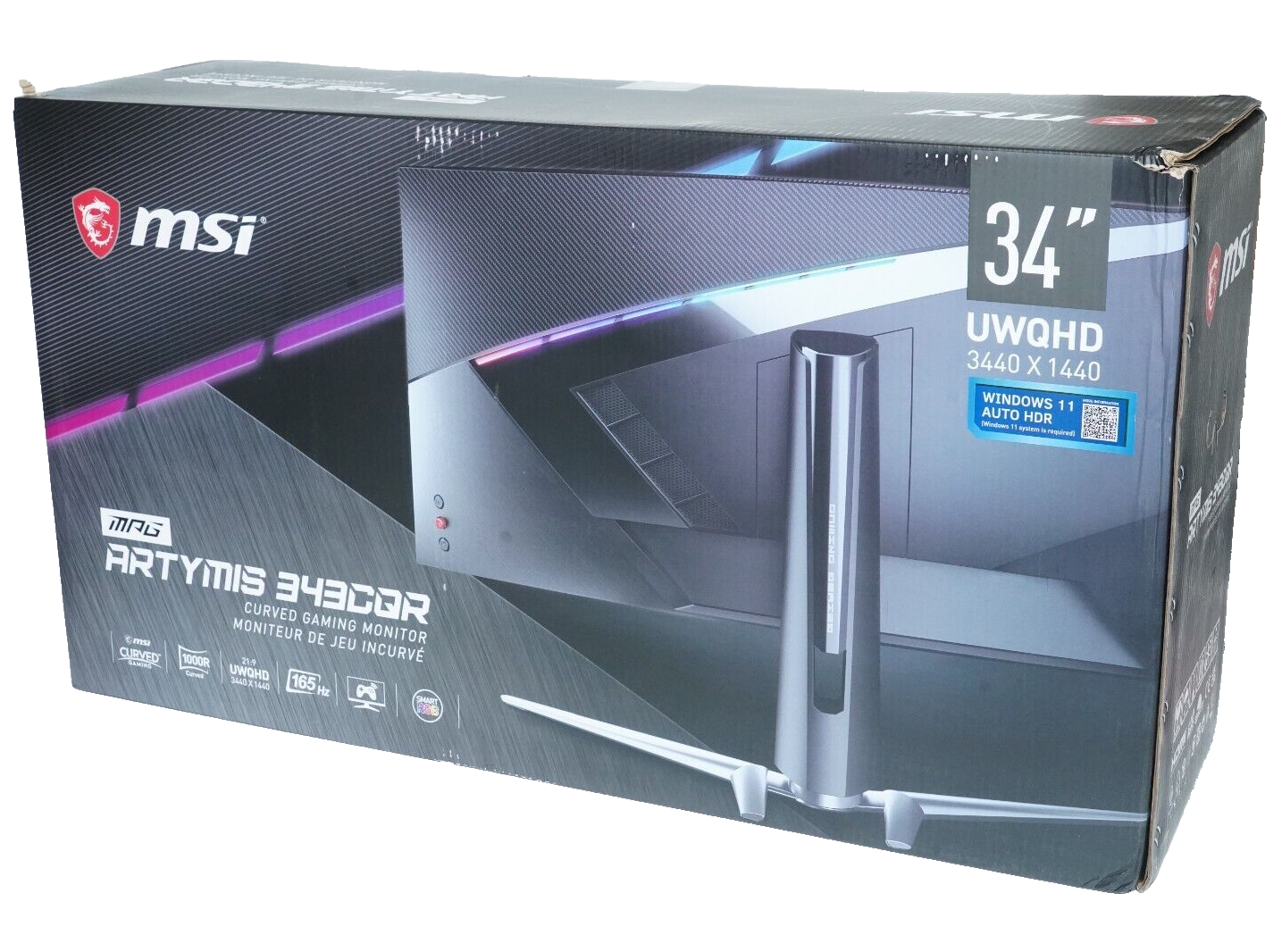


MSI MPG ARTYMIS 343CQR 3440 x 1440 (UWQHD) 165Hz 1ms 34″ Curved Gaming Monitor,
How to Use the MSI MPG ARTYMIS 343CQR Curved Gaming Monitor
Setup
- Unbox the monitor and remove all packaging materials.
- Place the monitor on a flat and stable surface.
- Connect the power cord to the monitor and plug it into a power outlet.
- Connect the HDMI or DisplayPort cable from your computer to the corresponding port on the monitor.
- If using USB devices, connect them to the USB ports on the monitor.
- If desired, mount the monitor on a wall using a VESA mount.
- Turn on the monitor using the power button located at the bottom-right corner.
Adjusting Settings
- Press the menu button located on the bottom-right corner of the monitor.
- Use the arrow buttons to navigate the on-screen menu.
- Adjust settings such as brightness, contrast, color, and audio volume according to your preferences.
- Save any changes made by navigating to the “Save” option and pressing the menu button.
Optimizing Gaming Experience
- Ensure that your computer’s graphics drivers are up-to-date for optimal performance.
- Set your computer’s display settings to match the monitor’s resolution of 3440 x 1440 pixels.
- Enable FreeSync technology in your computer’s graphics settings for smoother gameplay.
- Adjust the monitor’s refresh rate to 165Hz for a more fluid gaming experience.
- Explore the monitor’s gaming features, such as the curved screen and ultra-wide aspect ratio, to enhance immersion.
- Experiment with different color settings and display modes to find the one that suits your gaming style.
Adjusting Position and Ergonomics
- Tilt the monitor forward or backward within the range of -5° to 15° to find a comfortable viewing angle.
- Swivel the monitor to the left or right within the range of -30° to 30° for flexible positioning.
- Adjust the height of the monitor within the range of 0-100mm for optimal eye-level alignment.
For more detailed information and troubleshooting, refer to the user manual provided with the monitor.
, , MSI
![XAMMUE OneXPlayer Mini [AMD R7-5800U- 1TB M.2 SSD] 7 Inches Handheld PC Video Game Console One X Player Portable Win 11 OS Laptop 1920×1200 Mini Pocket Tablet PC 16GB RAM](https://m.media-amazon.com/images/I/611nYH+3b8L._AC_SL520_.jpg "XAMMUE OneXPlayer Mini [AMD R7-5800U- 1TB M.2 SSD] 7 Inches Handheld PC Video Game Console One X Player Portable Win 11 OS Laptop 1920×1200 Mini Pocket Tablet PC 16GB RAM")





Reviews
There are no reviews yet.