
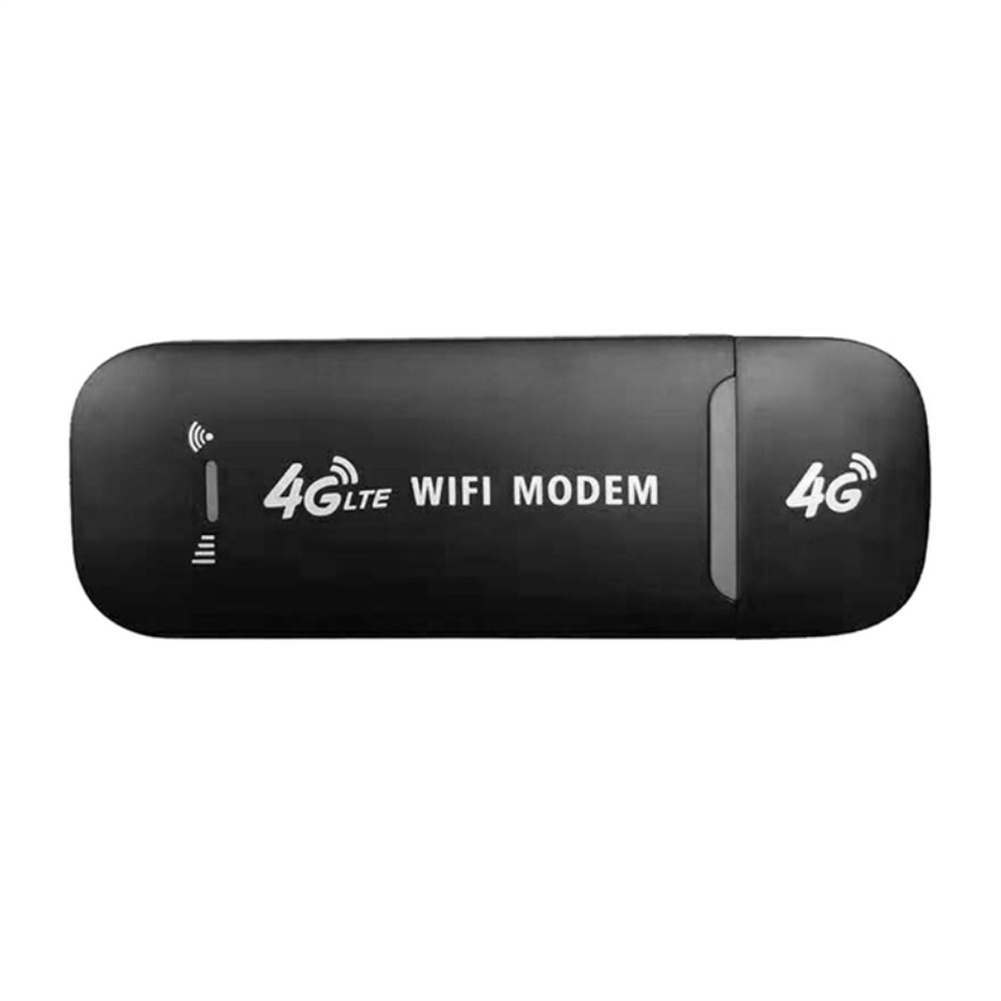
Black USB Modem Stick – Portable 4G LTE USB 150Mbps Modem for Wireless WiFi Adapter, Home Office, and Mobile Broadband,
How to Use the 4G LTE USB Modem Stick
Step 1: Insert the SIM Card
- Make sure the modem stick is unplugged from your device.
- Locate the SIM card slot on the side of the modem stick.
- Insert your SIM card into the slot, ensuring it is correctly positioned according to the instructions.
- Slide the SIM card slot back into the modem stick until it clicks securely in place.
Step 2: Connect the Modem Stick
- Plug the modem stick into an available USB port on your device (e.g. laptop, PC).
- Wait for the device to recognize and install the necessary drivers. This may take a few minutes.
Step 3: Connect to a Network
- Once the modem stick is connected, open the network settings on your device.
- Select the appropriate network connection option: 3G, 4G, or Wi-Fi.
- If you are using a SIM card for mobile broadband, choose the corresponding network provider and enter any required credentials or settings.
Step 4: Configure the Settings
- If necessary, access the modem stick’s settings by opening the provided software or accessing the web interface (consult the user manual for details).
- Adjust the settings according to your preferences, such as Wi-Fi name (SSID), security settings, or access restrictions.
- Save the settings and wait for the modem stick to apply the changes.
Step 5: Enjoy Wireless Internet
- Once the modem stick is connected to a network and the settings are configured, you can start using it to access the internet.
- Open your web browser or any application that requires an internet connection.
- You should now be able to browse the internet, stream videos, or perform any online activities.
, ,

Reviews
There are no reviews yet.