


Brand New Unlocked Samsung Galaxy S20+ Plus 5G SM-G986U in Black Gray – 128GB – Compatible with GSM+CDMA Networks
$467.40
- Unlocked for any carrier worldwide
- Brand new in box, 10/10 condition
- Original box and all original accessories included
- 60-day money back guarantee
- 60-day free returns
- Octa-core processor
- 6.7-inch screen size
- 128GB storage capacity
Buy more, save more
Buy 2–4 of this item and save 5%.
Buy 5 or more of this item and save 10%.
Discount is automatic in your cart on regular-priced items. It cannot be combined with coupon codes or sale prices.
Buy 2–4 of this item and save 5%.
Buy 5 or more of this item and save 10%.
Discount is automatic in your cart on regular-priced items. It cannot be combined with coupon codes or sale prices.
Country suggested using IP or browser language; you can change it. Shipping is confirmed at checkout.
Description
Brand New Unlocked Samsung Galaxy S20+ Plus 5G SM-G986U in Black Gray – 128GB – Compatible with GSM+CDMA Networks,
How to Use the NEW UNLOCKED SAMSUNG GALAXY S20+ PLUS 5G SM-G986U 128GB BLACK GRAY GSM+CDMA
1. Getting Started
- Remove the phone from the box and check all the contents:
- Phone
- Charger cable
- Manual
- Connect the charger cable to the phone and plug it into a power source to charge the device.
- Power on the device by pressing and holding the power button until the Samsung logo appears.
- Follow the on-screen prompts to set up the phone.
2. The Home Screen
- The home screen is where you can access all of your apps and widgets.
- You can swipe up or down to view all of your apps.
- Tap on an app to open it, or long-press to access additional options.
- You can customize the home screen by adding widgets or rearranging apps.
3. Making Calls and Sending Messages
- To make a call, tap on the phone app from the home screen.
- Enter the phone number using the keypad and tap the call button.
- To send messages, tap on the messages app from the home screen.
- Tap on the compose button to create a new message, enter the recipient’s phone number or select a contact, and type your message.
- Tap the send button to send the message.
4. Using Apps and Features
- Explore the various pre-installed apps on your device such as camera, gallery, email, internet browser, and more.
- Access the app drawer by swiping up on the home screen to find all of your installed apps.
- Explore the settings menu to customize the device according to your preferences.
- Use the camera app to capture photos and videos with the high-resolution camera.
5. Storing and Managing Data
- The Samsung Galaxy S20+ comes with 128GB of built-in storage which can be expanded with a MicroSD card.
- To insert a MicroSD card, locate the tray on the side of the phone, use the provided tool to eject the tray, and insert the card.
- You can transfer files between the phone and a computer using the provided charger cable and connecting it to the computer’s USB port.
- Manage your files and data by accessing the file manager app on your device.
6. Troubleshooting and Support
- If you encounter any issues with the device, refer to the manual or contact the seller for support.
- To perform a factory reset, go to Settings > General Management > Reset > Factory Data Reset.
- Remember to back up your important data before performing a reset, as it will erase all data on the device.
, , Samsung
| Weight | 5 lbs |
|---|---|
| Processor | Octa Core |
| Screen Size | 6.7 in |
| Memory Card Type | MicroSD |
| Model Number | SM-G986u |
| Lock Status | Factory Unlocked |
| SIM Card Slot | Single SIM |
| Brand | |
| Network | Unlocked |
| Model | Samsung Galaxy S20+ 5G |
| Style | Bar |
| Connectivity | 2G, 3G, 4G, 4G+, 5G |
| Operating System | Android |
| Features | 4K Video Recording, AMOLED Display |
| Storage Capacity | 128 GB |
| CountryRegion of Manufacture | Korea, Republic of |
| Contract | Without Contract |
| Camera Resolution | 12.0 – 15.9 MP |
| RAM | 12 GB |
Only logged in customers who have purchased this product may leave a review.
Special deals for you

New C-280T Wire Pipe Numbering Machine U Disk Import Connect Computer For Heat-shrinkable Tube Tape Label typewriter printing
Original price was: $604.02.$600.31Current price is: $600.31.
Add to cart
Wire Marker ID Printer Pvc Pipe Marking Machine USB Drive Import USB Connection PC Computer Electronic Engraving Machine C-280T
Original price was: $600.12.$596.23Current price is: $596.23.
Add to cart
WAINLUX K6 3000mW Mini CNC Laser Engraver
Original price was: $128.37.$127.16Current price is: $127.16.
Add to cart
Lville Android 13 Tablet - 10 inch Octa-Core Tablet with 8GB RAM, 128GB ROM, 1TB TF Expandable Storage, Bluetooth 5.0, WiFi 6, Fast Charging, Dual Camera - Black
Original price was: $4,270.00.$235.00Current price is: $235.00.
Add to cartPopular items in this category

Exclusive Access Modern Two-Wheel 3000W Electric Motorcycle with Racing Design for Adults
$2,133.00
Add to cart
Unlock Your Potential Hiseeu 4MP/5MP PTZ IP Camera Outdoor Security AI Human Detection H.265X Wireless WiFi Video Surveillance Cameras iCsee P2P
$16.10
Add to cart
Empowering Solutions Hiseeu 4MP+4MP Dual Lens Wifi PTZ IP Camera 2.8+12mm 8X Zoom CCTV Video Surveillance Camera Color Night Vision Ai Human Cam
$16.10
Add to cart
Best HD Auto Zoom Photochromic Reading Glasses for Business with Near Far Anti-blue Light for Presbyopia
$16.10
Add to cartSimilar items you might like

Best Deal Adjustable Intensity Electric Muscle Stimulation Neck Therapy Device with 6 Modes - Portable Pain Relief Tool with Ergonomic Design
$16.10
Add to cart
Uncover Your True Potentialy Men's Anti-Blue Light TR90 Reading Glasses with High Definition, Ultralight Sport Design and Non-Slip Feature - Ideal for Presbyopia and Hyperopia up to +3.5 Diopters
$16.10
Add to cart
Your Perfect Match Outdoor Driving and Fishing Sunglasses with Photochromic Polarized Lenses, UV400 Protection, Anti-Glare, and Case
$16.10
Add to cart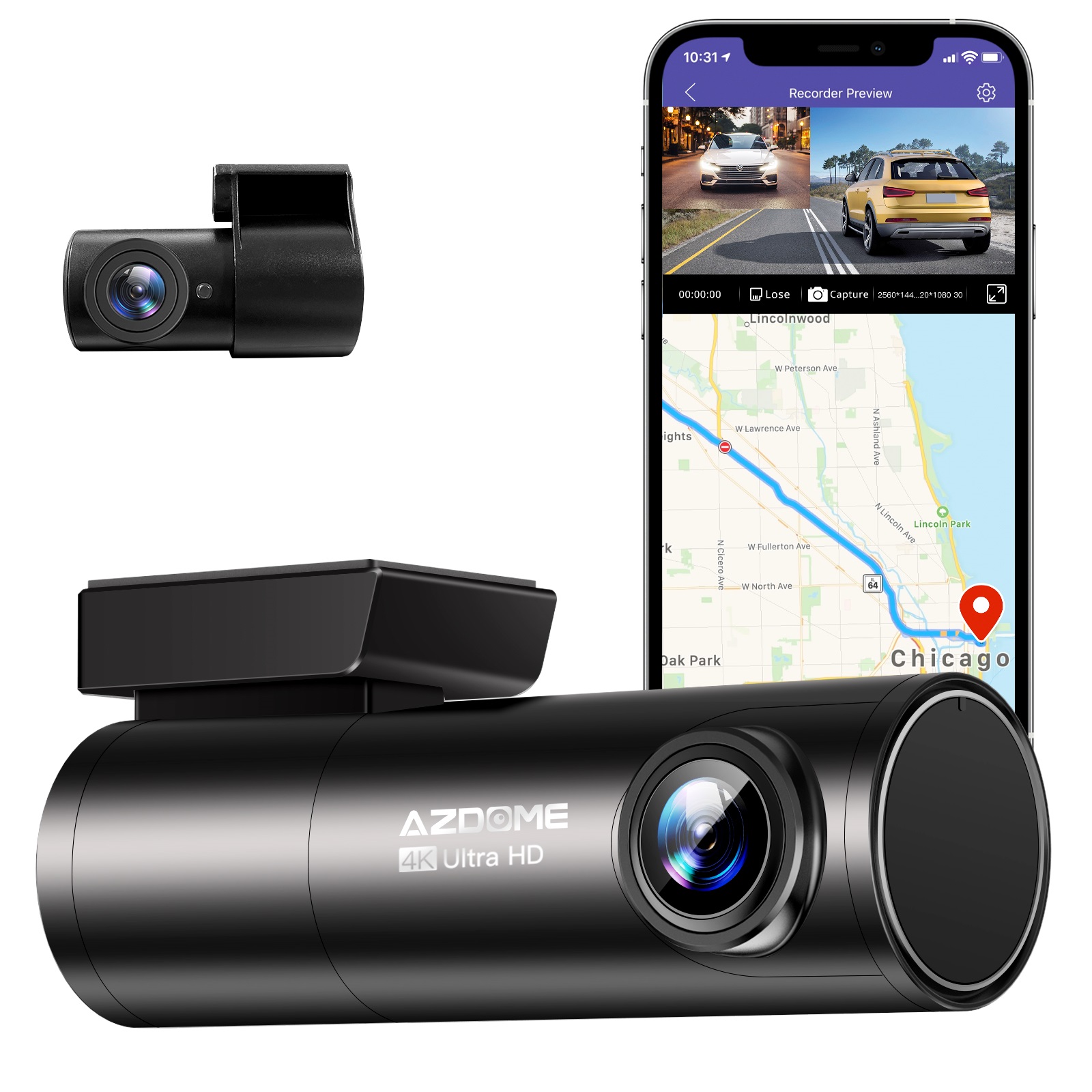
Instant Gratification Azdome HD 1080P Dash Cam Wifi Gps Recorder G-sensor Dashcam Black
$247.10
Add to cartProducts related to this item

12 Tablets 10" Android Tablet with Quad-Core T618, 2+32GB, Dual Camera, and 6000mah Battery
$751.90
Add to cart
Amazon Fire HD 8 Black - 8" Tablet with HD Display, 32GB, 10th / 12th Gen 2022 - R2SP8T
$15,980.30
Add to cart
6 in 1 External CD/DVD Drive with USB 3.0 Type-C, SD/TF & USB3.0 Slots - Optical Drives for PC and Laptop
$16.10
Add to cart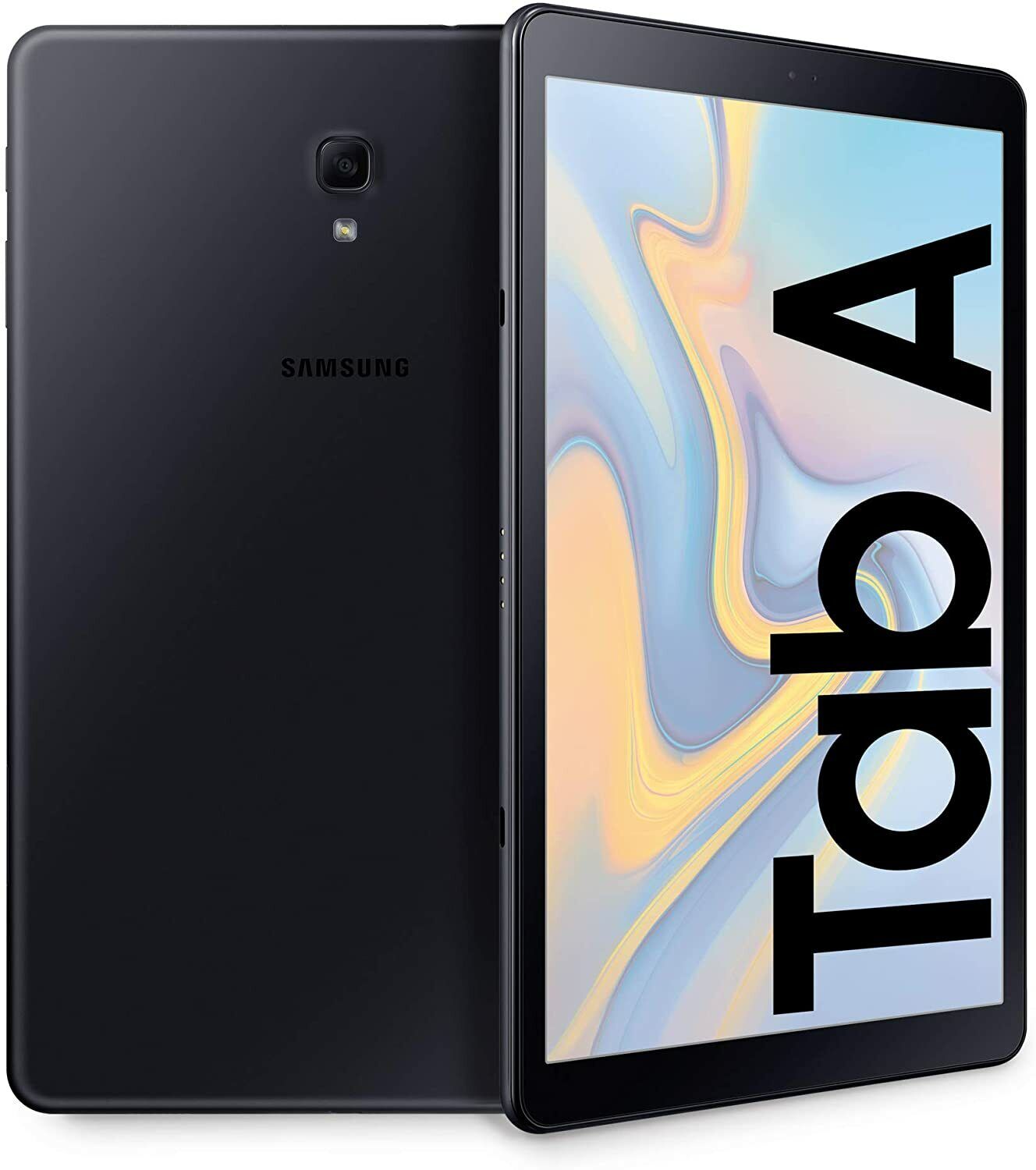
New Samsung Galaxy Tab A 8-inch 32GB SM-T387A Tablet for AT&T and GSM Unlocked
$141.00
Add to cartProducts you may also like

2022 10th / 12th Gen Amazon Fire HD 8 Tablet with 8” HD Display, Black, 32GB R2SP8T
$111.60
Add to cart
Blackview Mini Desktop Computer Mini PC 16GB RAM 512GB SSD Dual 4K HDMI Display
$173.90
Add to cart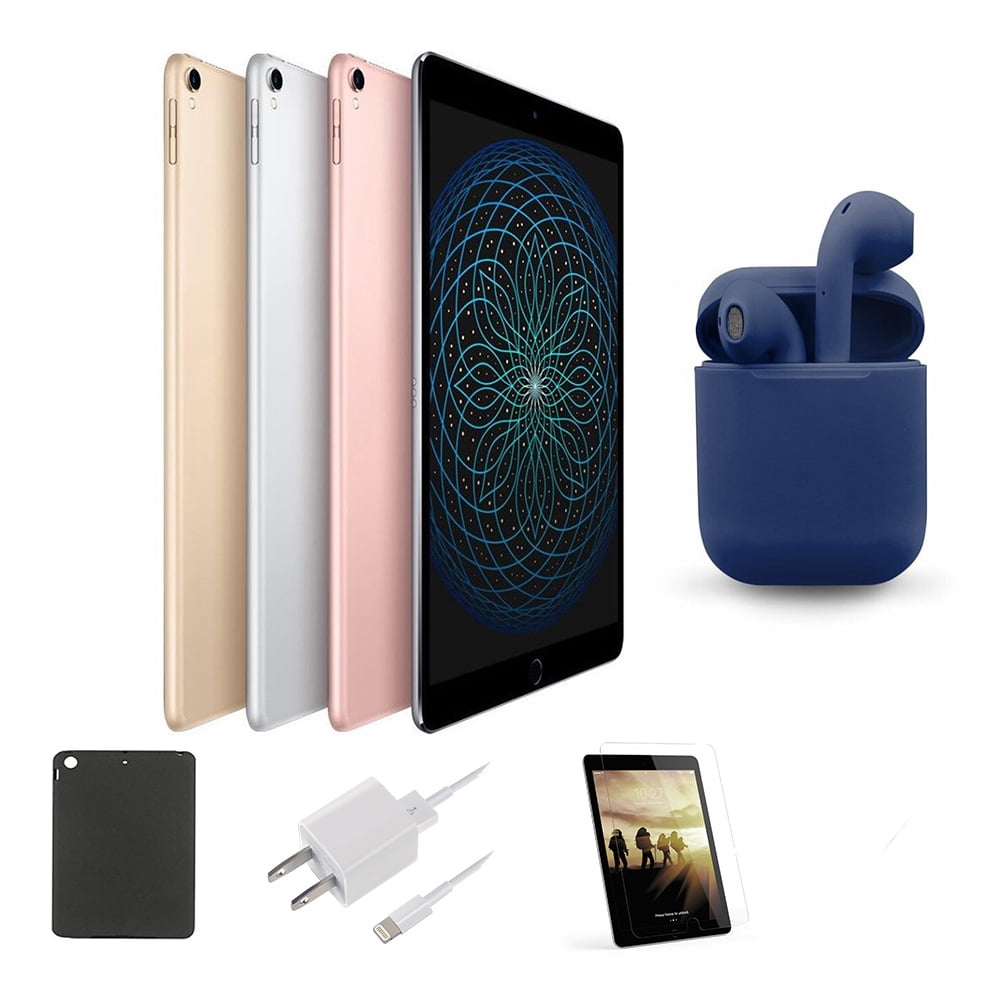
Restored | Apple iPad Pro | 10.5-inch Retina | 256GB | Wi-Fi Only | Latest OS | Bundle: Case, Pre-Installed Tempered Glass, Rapid Charger, Bluetooth/Wireless Airbuds By...
$349.00
Add to cart
JUHOR DDR4 RAM Memory - 8GB or 16GB - High-Performance Memory for Computers and Laptops - 2666MHz Speed - Low-Voltage 1.2V RAMs
$16.10
Add to cartRecommended for You

Untapped Women Orgasm Gel Libido Enhancer Sex Spray Vagina Stimulant Intense Sex Drop Exciter Strong Enhance Climax Vaginal Tight Oil 30ml
$15.90
Add to cart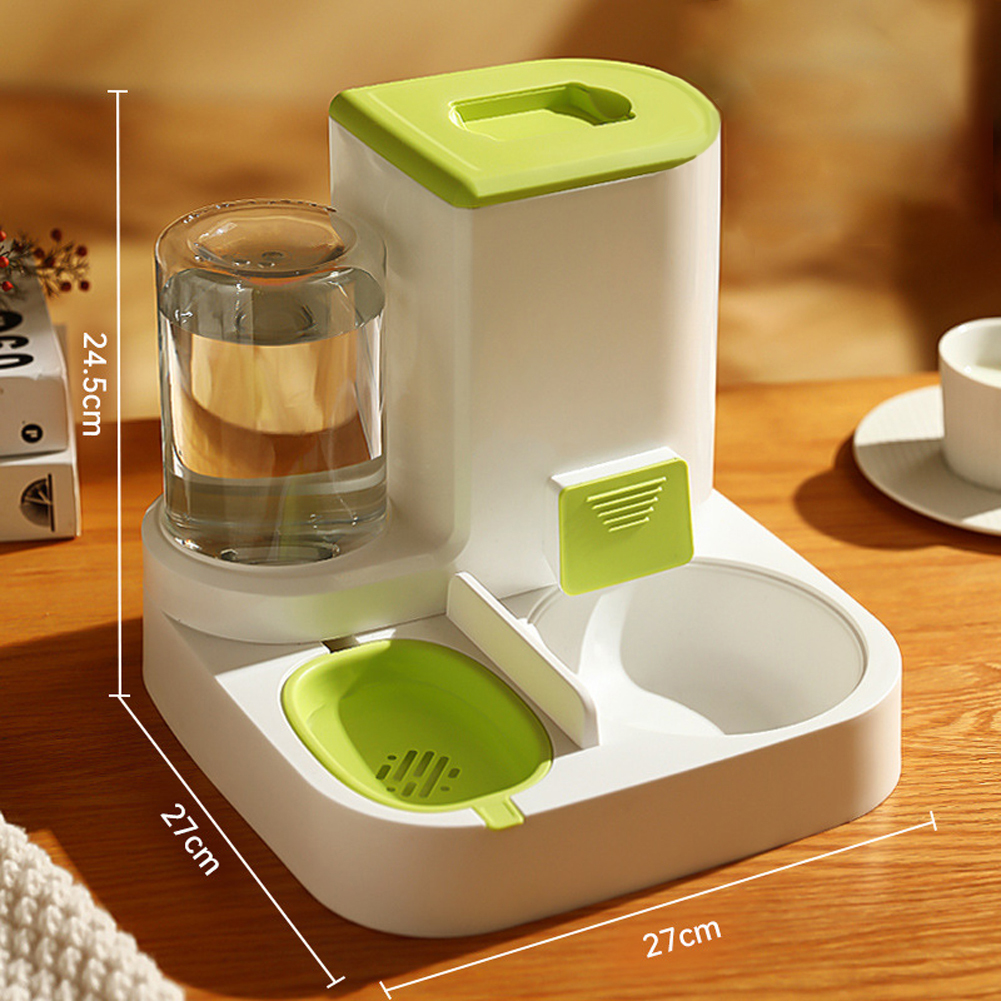
Unbeatable 2-in-1 Pet Automatic Feeder Dog Cat Drinking Fountain Water Dispenser Food Bowl Pet Supplies Green
$57.90
Add to cart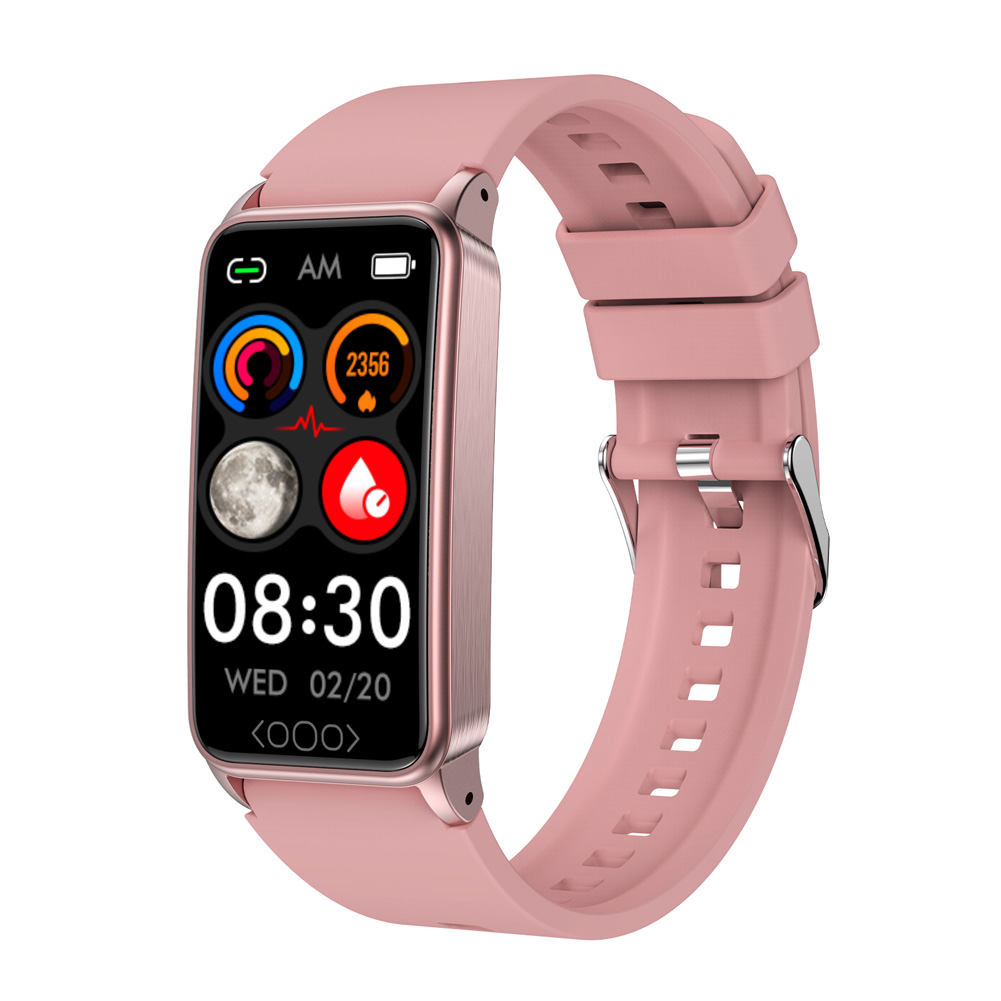
Premium TK71Pro Smart Watch 1.47 Inch Touch Screen Fitness Watch Waterproof Activity Trackers Blood Lipid Monitoring Pink
$47.40
Add to cart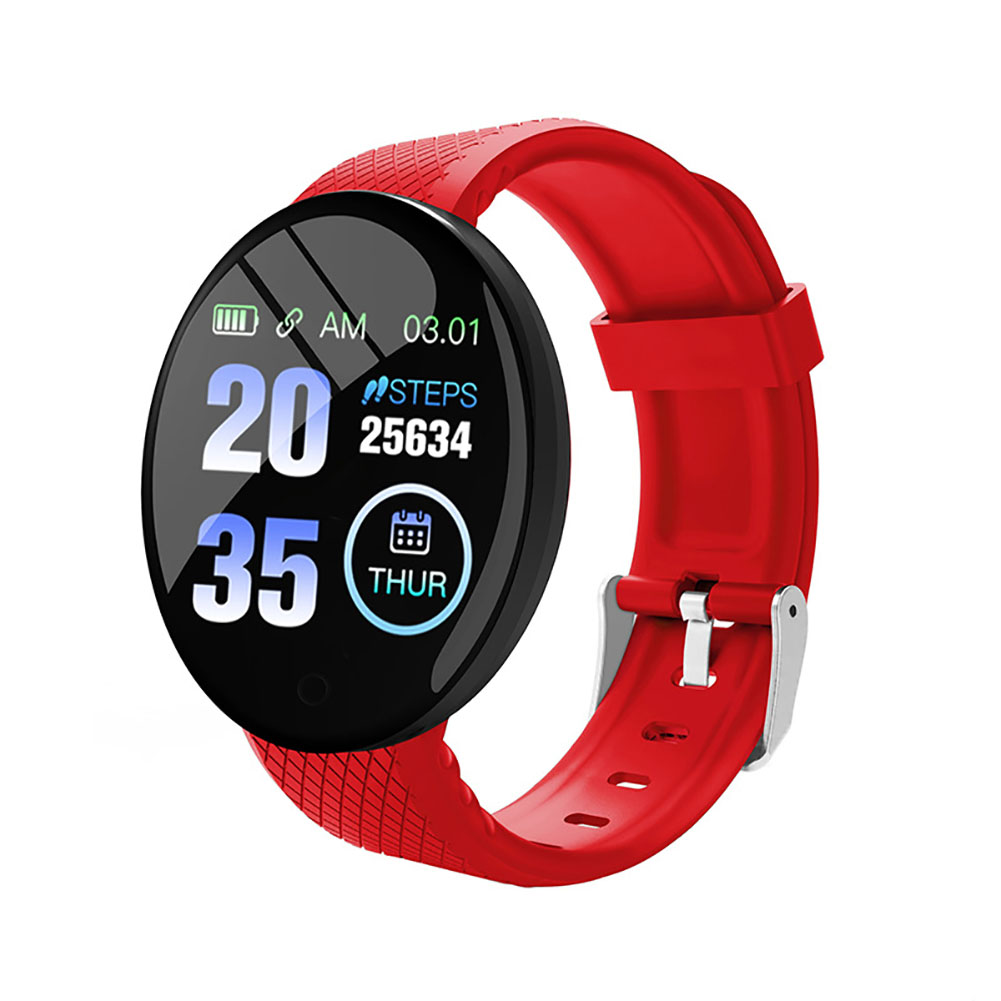
Find Your Perfect Match D18 1.44 Inch Sports Smart Watch Round Screen Smart Bracelet Heart Rate Blood Pressure Sleep Monitor red
$26.10
Add to cartRelated products
-
New Samsung Galaxy Tab A 8-inch 32GB SM-T387A Tablet for AT&T and GSM Unlocked
$141.00 -
SALE 
New C-280T Wire Pipe Numbering Machine U Disk Import Connect Computer For Heat-shrinkable Tube Tape Label typewriter printing
Original price was: $604.02.$600.31Current price is: $600.31. -

Apple iPad 5th Generation 9.7″ 32GB/128GB Gray/Silver Wi-Fi/Cellular Unlocked with Good Condition
$246.70 -
SALE 
Wire Marker ID Printer Pvc Pipe Marking Machine USB Drive Import USB Connection PC Computer Electronic Engraving Machine C-280T
Original price was: $600.12.$596.23Current price is: $596.23.

 English
  French
  Spanish
  German
  Portuguese
  Arabic
Reviews
There are no reviews yet.