
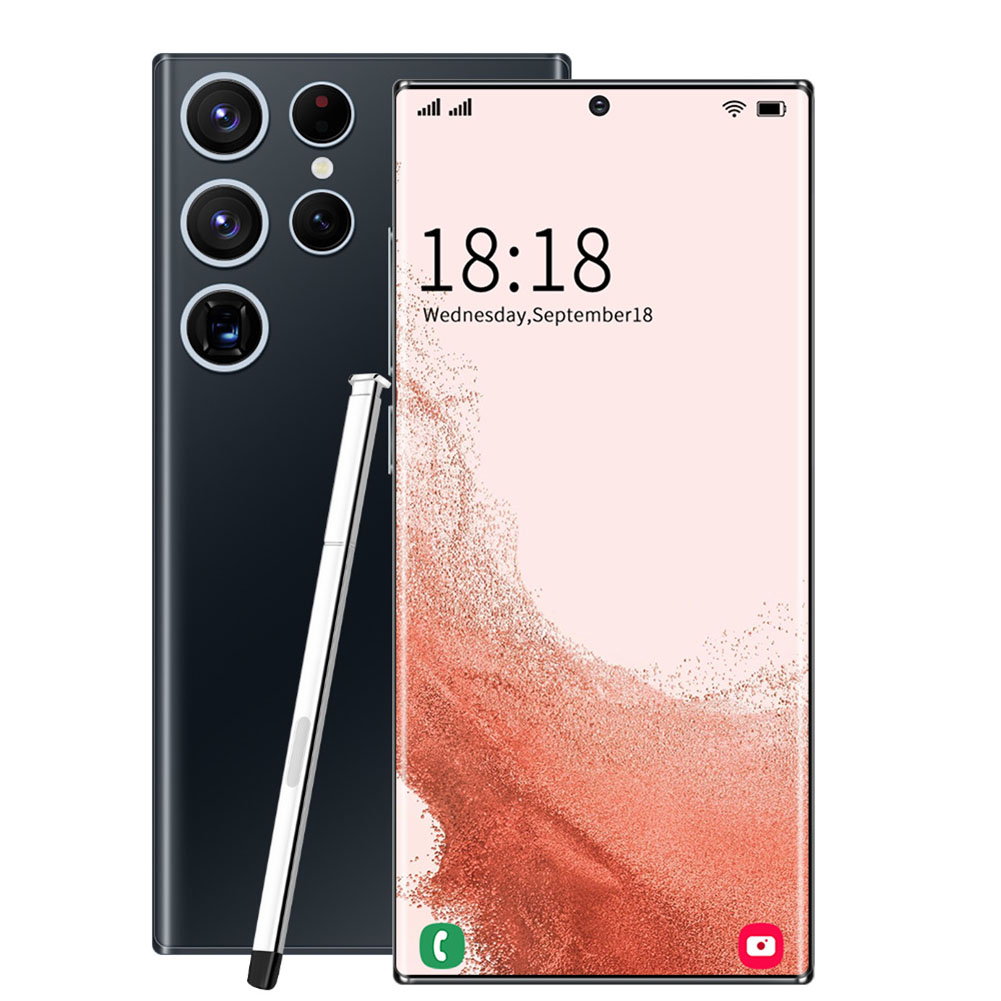
Black EU Plug 6.5 Inch HD S22ultra Smartphone with MTK6580P Quad-core, 2GB RAM, 16GB ROM, Face Recognition, and Android 8.1 OS
$274.10
- MTK6580P mobile platform with 28mm process technology
- Compatible with Android 8.1
- Dual SIM card supports TF card
- Supports the world’s 50 largest communication operator networks
- 6.5″ Infinity-O Display
- 2MP front-facing camera for crisp, stylish selfies
- 8MP Rear HD Camera
- Face Access feature for easy and fun face recognition unlocking
Buy more, save more
Buy 2–4 of this item and save 5%.
Buy 5 or more of this item and save 10%.
Discount is automatic in your cart on regular-priced items. It cannot be combined with coupon codes or sale prices.
Buy 2–4 of this item and save 5%.
Buy 5 or more of this item and save 10%.
Discount is automatic in your cart on regular-priced items. It cannot be combined with coupon codes or sale prices.
Country suggested using IP or browser language; you can change it. Shipping is confirmed at checkout.
Description
Black EU Plug 6.5 Inch HD S22ultra Smartphone with MTK6580P Quad-core, 2GB RAM, 16GB ROM, Face Recognition, and Android 8.1 OS,
How to Use the 6.5 Inch HD S22Ultra Smartphone
Table of Contents
- Power On/Off
- Inserting SIM and TF Card
- Unlocking with Face Recognition
- Taking Photos with the Front and Rear Cameras
1. Power On/Off
- To power on the smartphone, press and hold the power button located on the side or top of the device.
- To power off the smartphone, press and hold the power button again until the power options menu appears. Select “Power Off” to turn off the device.
2. Inserting SIM and TF Card
- Locate the SIM card slot on the smartphone. It may be different depending on the model, but it is usually found on the side or back of the device.
- Open the SIM card slot using a SIM card ejector tool or a paperclip.
- Insert the SIM card(s) into the available slot(s) according to the provided instructions.
- If desired, insert a TF card into the dedicated slot to expand the storage capacity.
- Close the SIM card slot carefully.
3. Unlocking with Face Recognition
- On the home screen, go to the “Settings” menu.
- Select “Security and Face Recognition”.
- Follow the prompts to set up the face recognition feature. Make sure you are in a well-lit environment and position your face within the designated frame.
- Once face recognition is set up, you can use it to unlock your smartphone by simply looking at the front-facing camera.
4. Taking Photos with the Front and Rear Cameras
- To take a photo using the front camera, open the camera app and switch to the front camera mode by tapping the camera icon with two circular arrows.
- Aim the front camera at the subject and tap the shutter button to capture the photo.
- To take a photo using the rear camera, open the camera app and switch to the rear camera mode by tapping the camera icon with a single circular arrow.
- Aim the rear camera at the subject and tap the shutter button to capture the photo.
- Use the various camera settings and features available in the camera app to enhance your photos, such as adjusting brightness, applying filters, or enabling HDR mode.
- Locate the SIM card slot on the smartphone. It may be different depending on the model, but it is usually found on the side or back of the device.
- Open the SIM card slot using a SIM card ejector tool or a paperclip.
- Insert the SIM card(s) into the available slot(s) according to the provided instructions.
- If desired, insert a TF card into the dedicated slot to expand the storage capacity.
- Close the SIM card slot carefully.
3. Unlocking with Face Recognition
- On the home screen, go to the “Settings” menu.
- Select “Security and Face Recognition”.
- Follow the prompts to set up the face recognition feature. Make sure you are in a well-lit environment and position your face within the designated frame.
- Once face recognition is set up, you can use it to unlock your smartphone by simply looking at the front-facing camera.
4. Taking Photos with the Front and Rear Cameras
- To take a photo using the front camera, open the camera app and switch to the front camera mode by tapping the camera icon with two circular arrows.
- Aim the front camera at the subject and tap the shutter button to capture the photo.
- To take a photo using the rear camera, open the camera app and switch to the rear camera mode by tapping the camera icon with a single circular arrow.
- Aim the rear camera at the subject and tap the shutter button to capture the photo.
- Use the various camera settings and features available in the camera app to enhance your photos, such as adjusting brightness, applying filters, or enabling HDR mode.
- To take a photo using the front camera, open the camera app and switch to the front camera mode by tapping the camera icon with two circular arrows.
- Aim the front camera at the subject and tap the shutter button to capture the photo.
- To take a photo using the rear camera, open the camera app and switch to the rear camera mode by tapping the camera icon with a single circular arrow.
- Aim the rear camera at the subject and tap the shutter button to capture the photo.
- Use the various camera settings and features available in the camera app to enhance your photos, such as adjusting brightness, applying filters, or enabling HDR mode.
, ,
| Weight | 5 lbs |
|---|
Only logged in customers who have purchased this product may leave a review.
Special deals for you
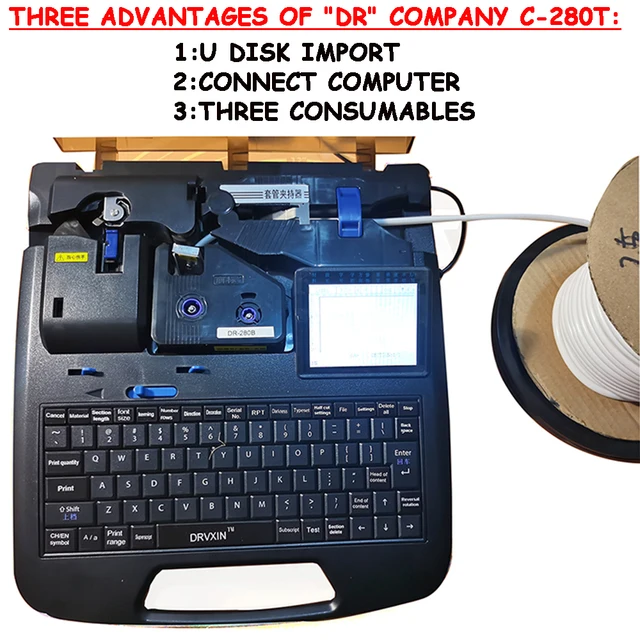
New C-280T Wire Pipe Numbering Machine U Disk Import Connect Computer For Heat-shrinkable Tube Tape Label typewriter printing
Original price was: $604.02.$600.31Current price is: $600.31.
Add to cart
Wire Marker ID Printer Pvc Pipe Marking Machine USB Drive Import USB Connection PC Computer Electronic Engraving Machine C-280T
Original price was: $600.12.$596.23Current price is: $596.23.
Add to cart
WAINLUX K6 3000mW Mini CNC Laser Engraver
Original price was: $128.37.$127.16Current price is: $127.16.
Add to cart
Lville Android 13 Tablet - 10 inch Octa-Core Tablet with 8GB RAM, 128GB ROM, 1TB TF Expandable Storage, Bluetooth 5.0, WiFi 6, Fast Charging, Dual Camera - Black
Original price was: $4,270.00.$235.00Current price is: $235.00.
Add to cartPopular items in this category

Exclusive Access Modern Two-Wheel 3000W Electric Motorcycle with Racing Design for Adults
$2,133.00
Add to cart
Unlock Your Potential Hiseeu 4MP/5MP PTZ IP Camera Outdoor Security AI Human Detection H.265X Wireless WiFi Video Surveillance Cameras iCsee P2P
$16.10
Add to cart
Empowering Solutions Hiseeu 4MP+4MP Dual Lens Wifi PTZ IP Camera 2.8+12mm 8X Zoom CCTV Video Surveillance Camera Color Night Vision Ai Human Cam
$16.10
Add to cart
Best HD Auto Zoom Photochromic Reading Glasses for Business with Near Far Anti-blue Light for Presbyopia
$16.10
Add to cartSimilar items you might like

Best Deal Adjustable Intensity Electric Muscle Stimulation Neck Therapy Device with 6 Modes - Portable Pain Relief Tool with Ergonomic Design
$16.10
Add to cart
Uncover Your True Potentialy Men's Anti-Blue Light TR90 Reading Glasses with High Definition, Ultralight Sport Design and Non-Slip Feature - Ideal for Presbyopia and Hyperopia up to +3.5 Diopters
$16.10
Add to cart
Your Perfect Match Outdoor Driving and Fishing Sunglasses with Photochromic Polarized Lenses, UV400 Protection, Anti-Glare, and Case
$16.10
Add to cart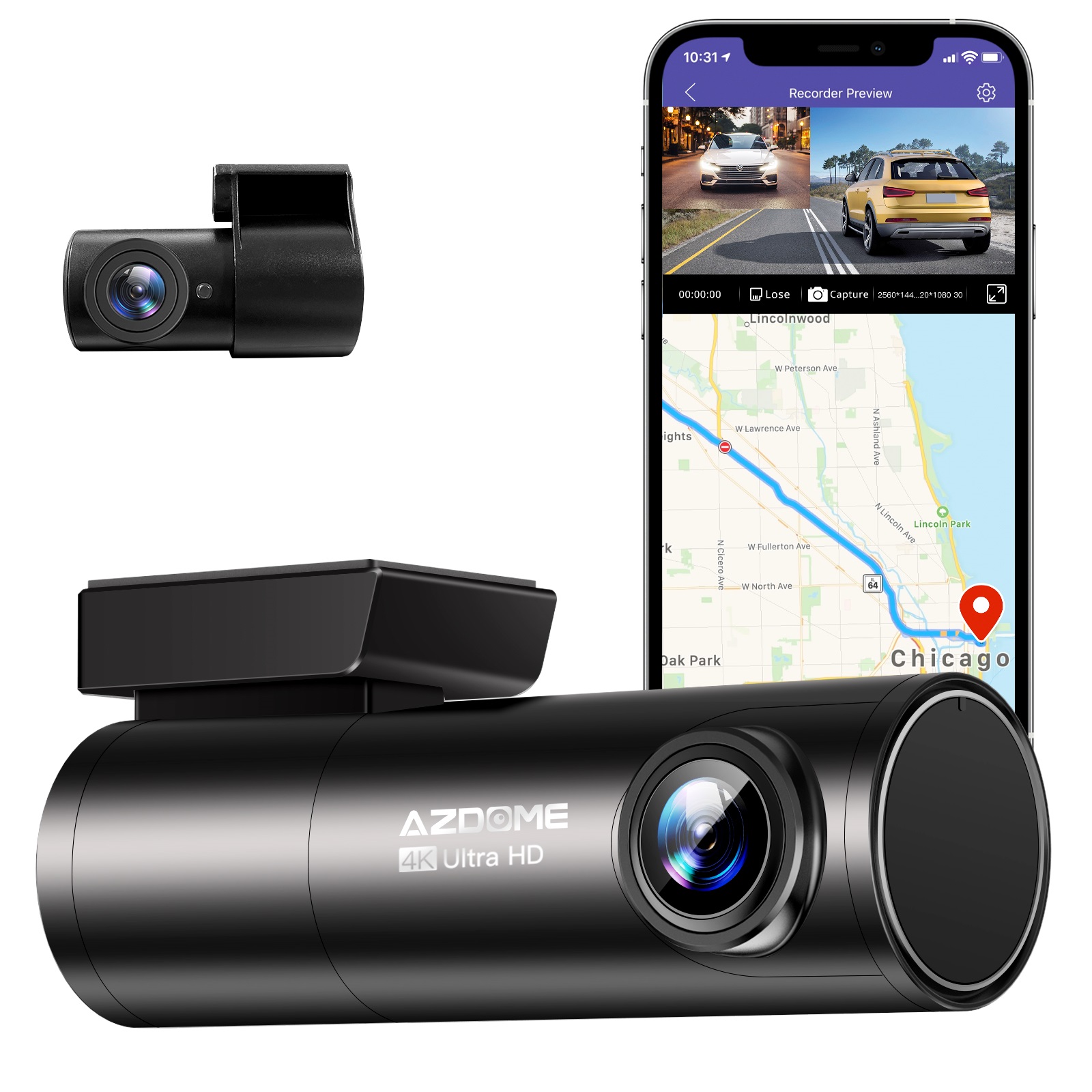
Instant Gratification Azdome HD 1080P Dash Cam Wifi Gps Recorder G-sensor Dashcam Black
$247.10
Add to cartProducts related to this item
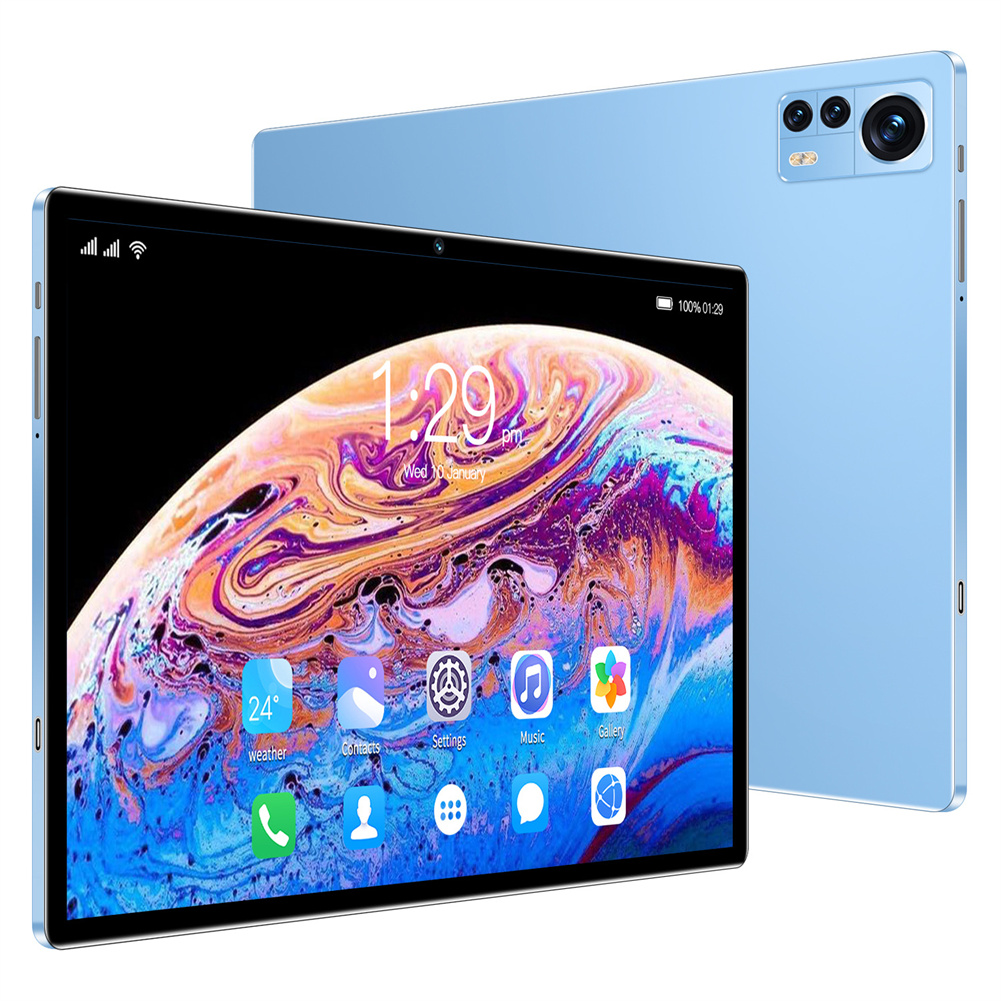
Blue EU Plug X12 Smart Tablet with 10.1-inch HD Capacitive Touch Screen, 5000mah Battery, and Wifi Connectivity
$261.20
Add to cart
Apple iPad 7th Generation (2019) - 32GB WiFi Version - Multiple Color Options
$223.40
Add to cart
4-in-1 External DVD Burner with USB3.0 Type C, Multi-function Recorder, CD Player, and TF/SD Interface for PC Notebook
$16.10
Add to cart
Reset Space Gray Apple 9.7" iPad 6 (6th Generation) with 32GB Storage A1893, iOS 17.0.2
$41,113.50
Add to cartProducts you may also like

Blackview Mini Desktop Computer Mini PC 16GB RAM 512GB SSD Dual 4K HDMI Display
$173.90
Add to cart
4040 handicraft laser engraving machine computer acrylic non-metal laser cutting machine
$903.76
Add to cart
(Brand New) 2020 10th Gen Amazon Fire HD 8 Tablet - 32GB Storage, Wi-Fi, Alexa, 8 Inch Display - PLUM
$16,447.90
Add to cart
2017 5th Generation Apple iPad 9.7" Retina Display 128GB Space Gray Wi-Fi
$62,578.60
Add to cartRecommended for You

My Arcade Atari GameStation Pro Video Game Console 200+ Games Wireless Joysticks
$232.70
Add to cart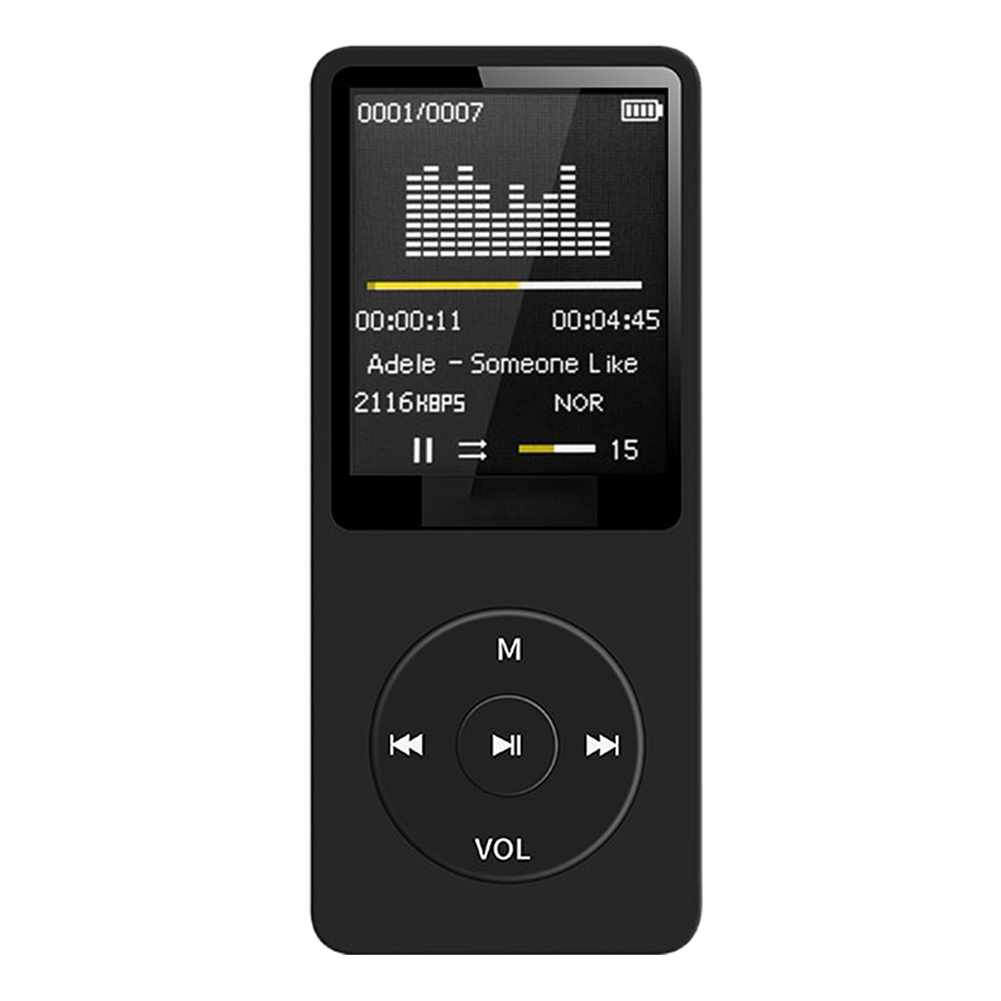
Epic Bluetooth MP3 Music Player Lossless Portable Fm Radio External Ultra-thin Student MP3 Recorder Black
$42.10
Add to cart
Introducing the Latest Model for 2023: NetFu 15.6" FHD IPS Laptop with 12th Generation Core i7 CPU and Iris Xe GPU
$602.20
Add to cart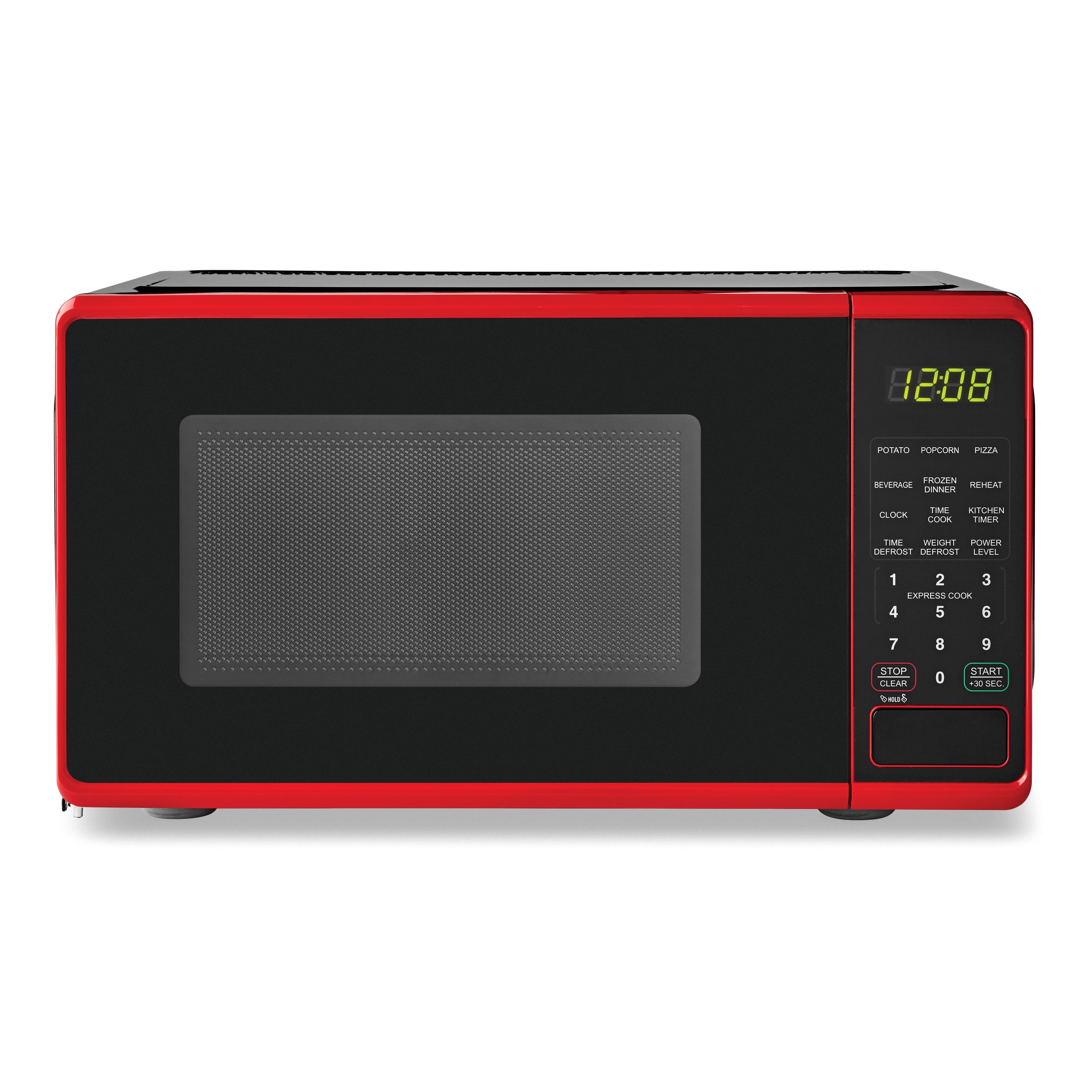
Brand New Mainstays 0.7 cu. ft. Countertop Microwave Oven - 700 Watts (Red)
$137.50
Add to cartRelated products
-

Grade A Condition Apple iPad Mini A1432, 7.9in, Wi-Fi or Cellular Unlocked, 16GB/32GB
$93.90 -
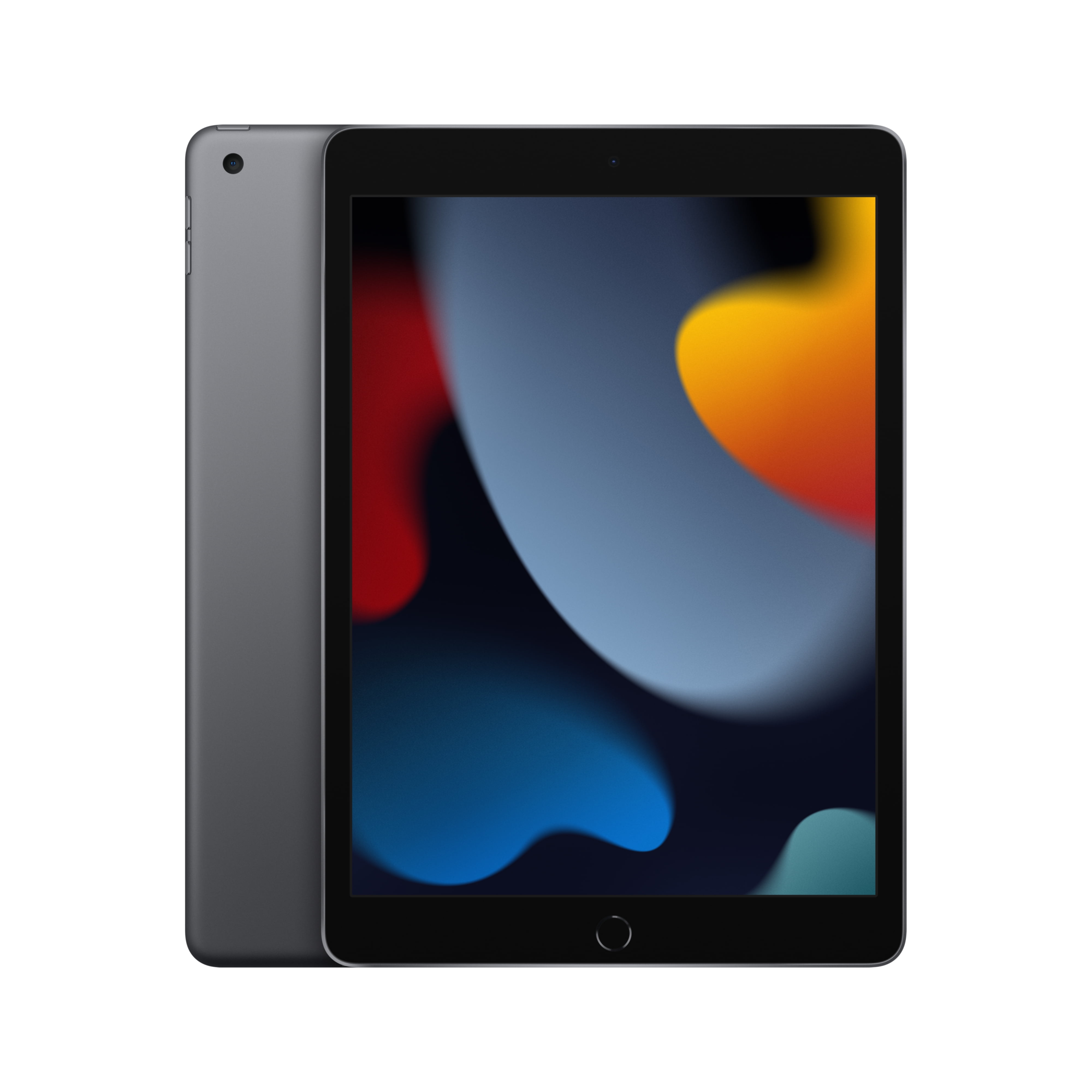
Step-by-Step Buying Guide: Choosing the Perfect Apple 10.2-inch iPad Wi-Fi 64GB – Space Gray (9th Generation) for You
$249.00 -
New Samsung Galaxy Tab A 8-inch 32GB SM-T387A Tablet for AT&T and GSM Unlocked
$141.00 -
Excellent 2018 Apple iPad 6 (6th Generation) – Gray, 32GB, Wi-Fi, 9.7
$282.00

Reviews
There are no reviews yet.