
Best Label Printer for a Small Business: Bluetooth, USB or Wi-Fi?
Choose a small-business label printer by matching its label size, print method, connection, software compatibility and ongoing media costs to your shipping, product or inventory workflow.

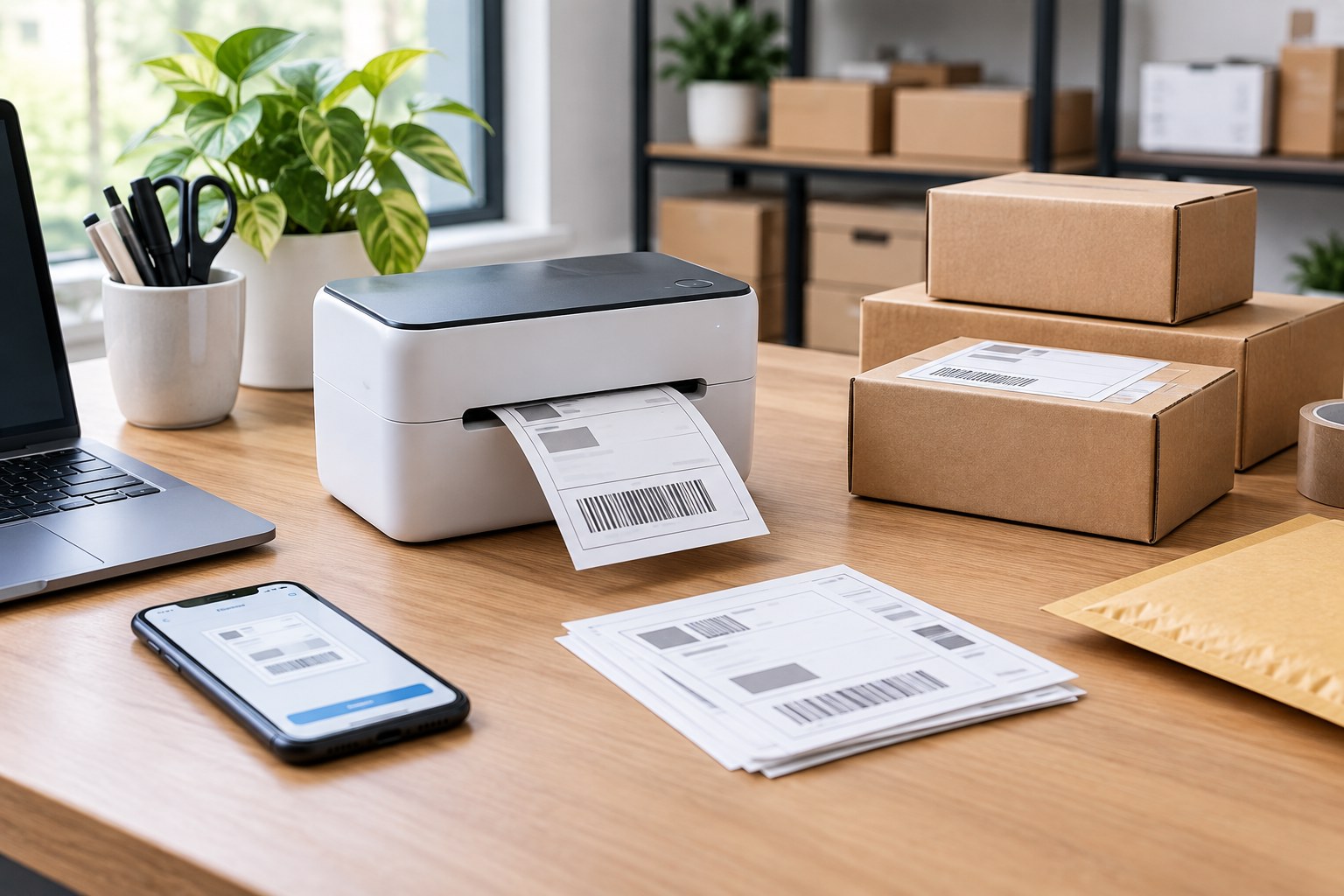
The best label printer for a small business is the one that matches the labels you actually print, the software that creates them and the number of people who need to use the device. A seller printing parcel labels at a packing bench has a different requirement from a shop labelling shelves, jars, stock bins or products. Start with the label format and job, then choose the print method, connection and ongoing supplies.
This guide compares Bluetooth, USB and networked label printers, explains direct-thermal and thermal-transfer printing, and gives you a checklist to use before buying. It is a buying framework, not a claim that GradeZO has independently tested or ranked every printer mentioned.
Start with the job: shipping, product, barcode or address labels?
Write down the labels your business produces in a normal week. Include the largest and smallest formats, whether they need adhesive backing, whether they carry barcodes, and how long they must remain readable. Do not choose a printer based only on its product title or the word “thermal”.
| Label job | What to check first | Common mismatch |
|---|---|---|
| Parcel and shipping labels | Maximum printable width, carrier or marketplace template size, roll or fanfold media, and shipping-platform compatibility | Buying a narrow pocket label maker that cannot print the full shipping label layout |
| Product and shelf labels | Label width and height, adhesive, material, barcode layout, and whether labels must resist handling or moisture | Choosing a label that peels, smears or is too small for the required information |
| Inventory and asset labels | Expected label life, surface material, exposure to heat/light/moisture, and barcode readability | Using short-life direct-thermal stock where a longer-lasting label is required |
| Receipts and queue tickets | Paper width, roll diameter, feed method and point-of-sale software support | Assuming a receipt printer can also produce adhesive labels |
For parcel labels, download a real sample from the carrier or sales platform you use. Confirm the exact page or label dimensions and printable area. Label formats are not universal across every country, carrier and marketplace. A printer that supports a four-inch roll may still need the correct driver, template and media setting to print your particular label without cropping.
Bluetooth, USB, Wi-Fi or Ethernet: choose around the workflow
Bluetooth for phone-led or mobile work
Bluetooth can suit a small shop where staff create labels on a phone or tablet and print near a counter, shelf or packing table. It can reduce cable clutter and make a compact printer easier to move. The trade-off is dependence on the manufacturer’s app, operating-system support and pairing process.
Before buying, check the exact printer model in the app store or manufacturer’s compatibility list. Confirm whether the app can import the PDF, image or label file you use, whether multiple staff devices can be paired, and whether a connection is required every time the printer wakes. “Bluetooth” alone does not mean the printer will work directly with every shipping website or desktop application.
USB for a fixed packing bench
USB is often a practical choice when one computer creates labels and the printer stays in one place. It avoids wireless pairing and can be straightforward to troubleshoot. Check the connector type, included cable, driver support and compatibility with the computer’s operating system.
Ask whether the label software can select the printer directly, whether it requires a manufacturer driver, and whether the printer supports the page size you need. For a Windows or Mac workstation, read the current driver notes for the exact model rather than relying on a generic “PC compatible” claim.
Wi-Fi or Ethernet for a shared team printer
A network-connected printer can help when several authorised workstations need access to one device. Wi-Fi avoids a long cable run; Ethernet can be useful for a stable fixed installation where the router or network switch is nearby. Network capability is not the same as effortless sharing: check whether the printer supports the required network protocol, user permissions, operating systems and print application.
For a one-person business, a network model may add setup complexity without solving a real problem. For a team, it may prevent staff from moving a USB cable or relying on one person’s laptop. Choose based on the number of users and where the work happens.
Direct thermal or thermal transfer?
These are different printing methods, and the label media must match the printer. Zebra explains that direct-thermal printing uses heat-sensitive material and does not need a ribbon. Thermal-transfer printing heats a ribbon so the image transfers onto the label material. See Zebra’s thermal-printer explanation.
| Method | Consumable | Good fit | Important trade-off |
|---|---|---|---|
| Direct thermal | Compatible heat-sensitive labels or paper; no ink cartridge, toner or ribbon | Many parcel labels, receipts, tickets and short-life labels | Heat, light and abrasion can affect the printed image; the media itself must be compatible |
| Thermal transfer | Compatible label stock plus the correct ribbon | Longer-life product, asset, warehouse or identification labels when the media/ribbon combination is designed for the environment | More consumable choices and a ribbon to load and replace |
Avery’s direct-thermal versus thermal-transfer guide notes that direct-thermal labels can darken or become less readable with excessive heat and light, while thermal-transfer printing can produce more durable images when paired with suitable ribbon and stock. Zebra also provides a label and tag material guide showing that material properties differ. The right method depends on how long the label must last and what it will encounter—not simply on which printer is cheaper.
For ordinary parcels that travel through a delivery network and are discarded after delivery, direct thermal may be a sensible, simple approach. For stock identification that must remain legible on a shelf, outdoors, in a freezer or through repeated handling, investigate the durability of the exact label material and ribbon combination. Keep a digital record when the label carries information that must be retained.
Check width, roll type and label compatibility
Maximum media width is one of the most important specifications. A compact handheld printer may be designed for narrow adhesive tape, while a desktop shipping-label printer may accept much wider rolls or fanfold stacks. A product description that says “label printer” does not tell you whether it can print the size used by your carrier.
- Confirm the supported label width and the maximum printable width, not just the outer roll width.
- Check roll diameter, core size, fanfold support and how labels are loaded.
- Verify whether the printer uses continuous tape, die-cut labels, receipt paper or a specific proprietary cartridge.
- Check sensor support for gaps, black marks or continuous media, and confirm the driver setting for your label stock.
- Confirm whether compatible replacement labels are sold where your business operates.
Do not assume two rolls with the same width are interchangeable. The adhesive, coating, backing, core and sensing marks can differ. Zebra’s printer documentation explains that printers may support different media formats, including standard adhesive labels, continuous rolls and tag stock; the exact printer guide is the place to confirm the approved media.
Resolution, barcode quality and print speed
Resolution is usually shown in dots per inch (DPI). Higher resolution can help with small text, compact symbols and detailed graphics, but it does not automatically make a barcode scannable. The label layout, barcode size, print darkness, media, printhead condition and scanner all matter.
Before using a printer for live orders, print a sample at the actual label size. Scan the barcode with the scanner or phone app used by your carrier or inventory system. Check the full label at normal working distance, including small text, address lines, quiet zones and any QR code. Do not enlarge or shrink a carrier label to make it fit without checking the carrier’s instructions.
Print speed should be considered alongside the number of labels you produce per day. A low-volume shop may not benefit from a faster model, while a busy fulfilment bench should check the manufacturer’s recommended duty cycle, feed reliability and maintenance requirements. A headline speed figure does not tell you how often a user must reload labels or clear misfeeds.
Software and platform compatibility matter as much as hardware
List the systems your business uses: online marketplace, ecommerce store, courier portal, point-of-sale application, inventory system and accounting package. Then confirm the exact printer model and driver are supported by those systems. Test a sample label before committing to a large order of printers or media.
Check whether the application prints directly, exports PDF files, or requires a dedicated mobile app. Confirm if it supports the label dimensions and barcode formats you need. Also check whether staff can save templates, print batches and reprint a failed label without creating a duplicate shipment or stock record.
Calculate the full cost, not just the printer price
Compare the printer purchase price with the supplies and maintenance needed over a realistic period. For each model, record the cost per label using the actual roll size and label count, whether a ribbon is needed, shipping for replacement media, and any required app or software subscription. Also consider the cost of downtime if the printer is hard to maintain or its consumables are difficult to source.
A low-cost device that uses a proprietary label cartridge may be more expensive over time than a slightly higher-priced printer that accepts widely available compatible rolls. The reverse can also be true if generic labels cause feed or print-quality problems. Verify compatibility rather than assuming that a cheaper roll will work.
Examples of label-printer formats listed at GradeZO
GradeZO’s listings illustrate why buyers should match the product format to the job instead of treating every thermal printer as a shipping-label machine:
- P15 portable Bluetooth label printer: the listing describes a handheld label maker with adhesive label tape. Confirm the tape width, label length, app and template support for your use before ordering.
- Xiaomi Mijia portable smart label printer set: the listing describes a compact thermal sticker printer and narrow roll media. This is a different use case from a full-width parcel-label printer.
- Niimbot D110 pocket label printer: the listing is positioned for thermal price stickers and labels. Check its supported label stock and dimensions against the labels you need to produce.
Product details, variants, stock and supported supplies can change. The linked listings are examples of different product formats, not GradeZO laboratory test results or a ranking of the best-performing models. Verify the live product information and seller’s compatibility guidance before purchase.
Small-business label printer buying checklist
- List every label type you print and the dimensions required by the relevant carrier, marketplace or business process.
- Choose direct thermal for appropriate short-life labels or thermal transfer when a durable label/media combination is required.
- Confirm the maximum printable width, media type, roll or fanfold format, core and sensor compatibility.
- Choose Bluetooth, USB, Wi-Fi or Ethernet based on the devices and number of staff who will print.
- Check operating-system drivers, mobile apps and integration with your shipping or inventory software.
- Print and scan a real sample before using the printer for customer orders.
- Calculate the cost of compatible labels, ribbons, subscriptions, shipping and maintenance.
- Check the warranty, support route, replacement parts and availability of consumables in your country.
Frequently asked questions
Is Bluetooth better than USB for a small business?
Neither is universally better. Bluetooth is convenient for compatible phones and mobile work; USB is often straightforward for a dedicated computer at a fixed station. Choose the connection that works with your label software and staff devices.
Do all thermal label printers print 4 × 6 shipping labels?
No. Some thermal printers are designed for narrow stickers, price labels, receipts or small-format tape. Check the maximum printable width and verify the exact carrier or marketplace template before buying.
Does a direct-thermal printer need ink or a ribbon?
Direct-thermal printing uses compatible heat-sensitive media and does not require ink, toner or a ribbon. Thermal-transfer printing does require a compatible ribbon.
Are direct-thermal labels permanent?
Do not assume they are. Heat, light and abrasion can affect direct-thermal print. For labels that must remain readable for a long time or face demanding conditions, investigate an appropriate thermal-transfer printer, ribbon and label material.
Can one small printer handle product labels and shipping labels?
Only if the printer supports the required widths, media types, sensor settings and software for both jobs. A narrow pocket label maker should not be assumed to print a full parcel label.
What should I test before using a new label printer for orders?
Print the actual label template at its intended dimensions, verify addresses and barcodes, scan the barcode, and check that the adhesive and media feed correctly. Test from the computer or phone and application your staff will use every day.