
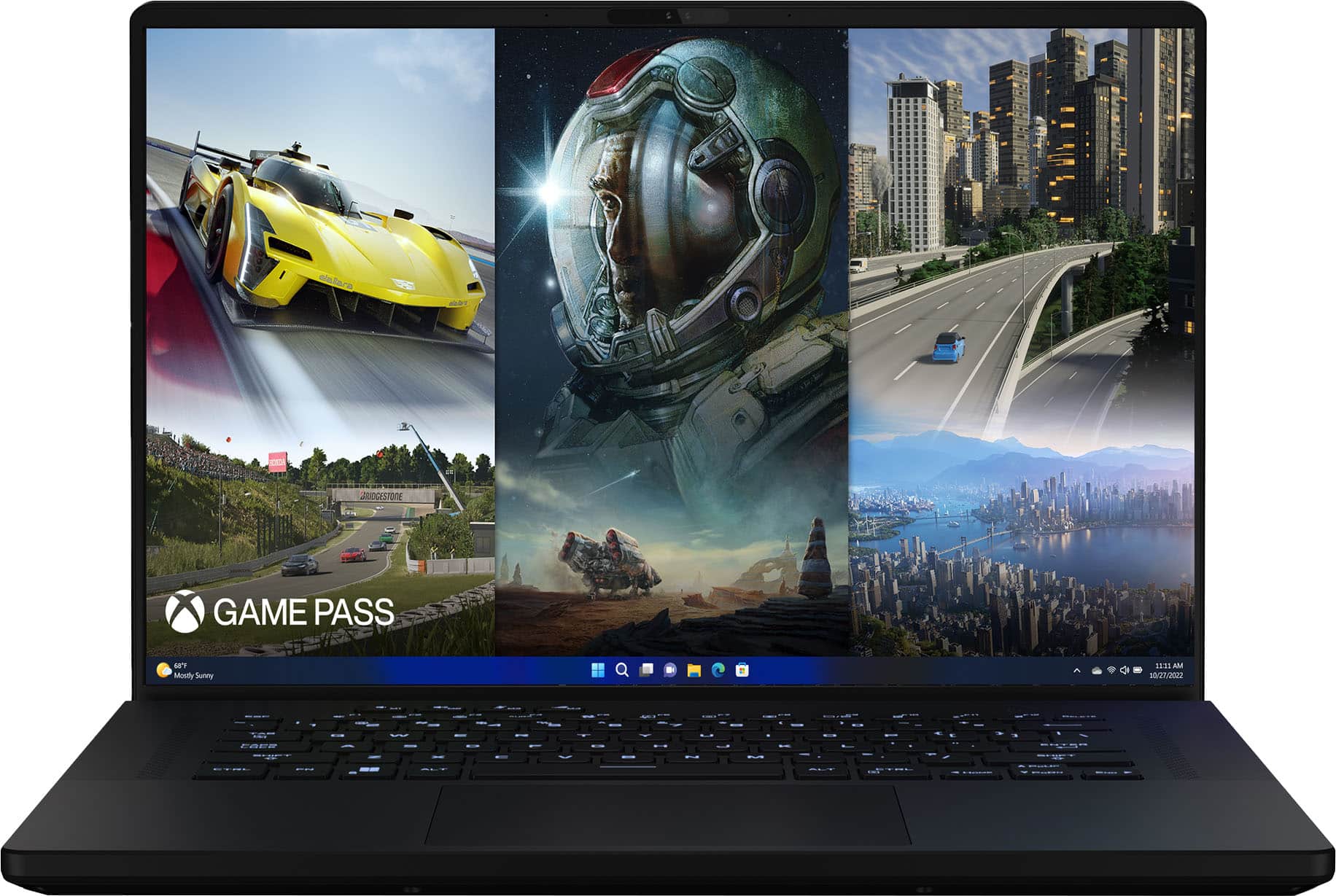
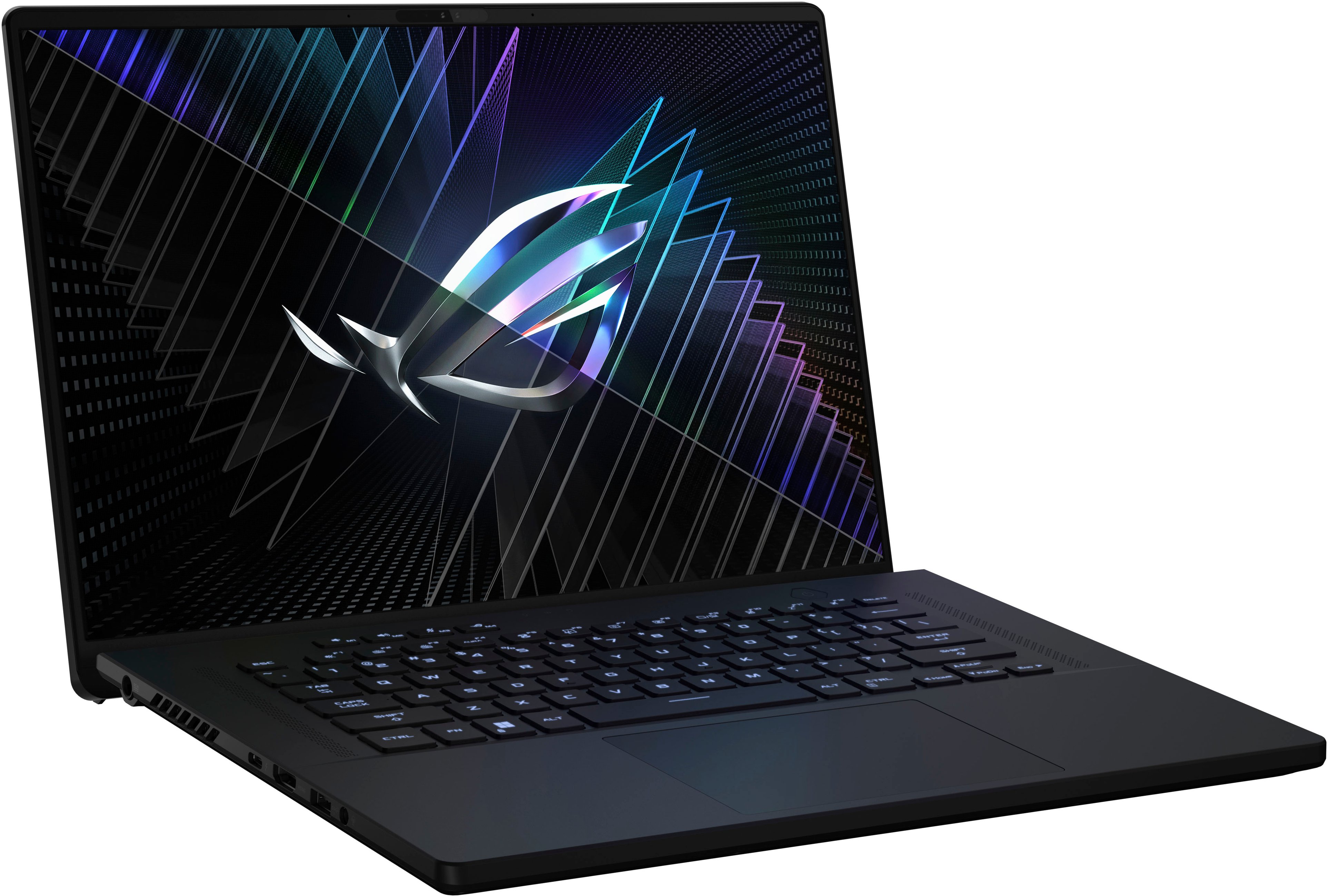
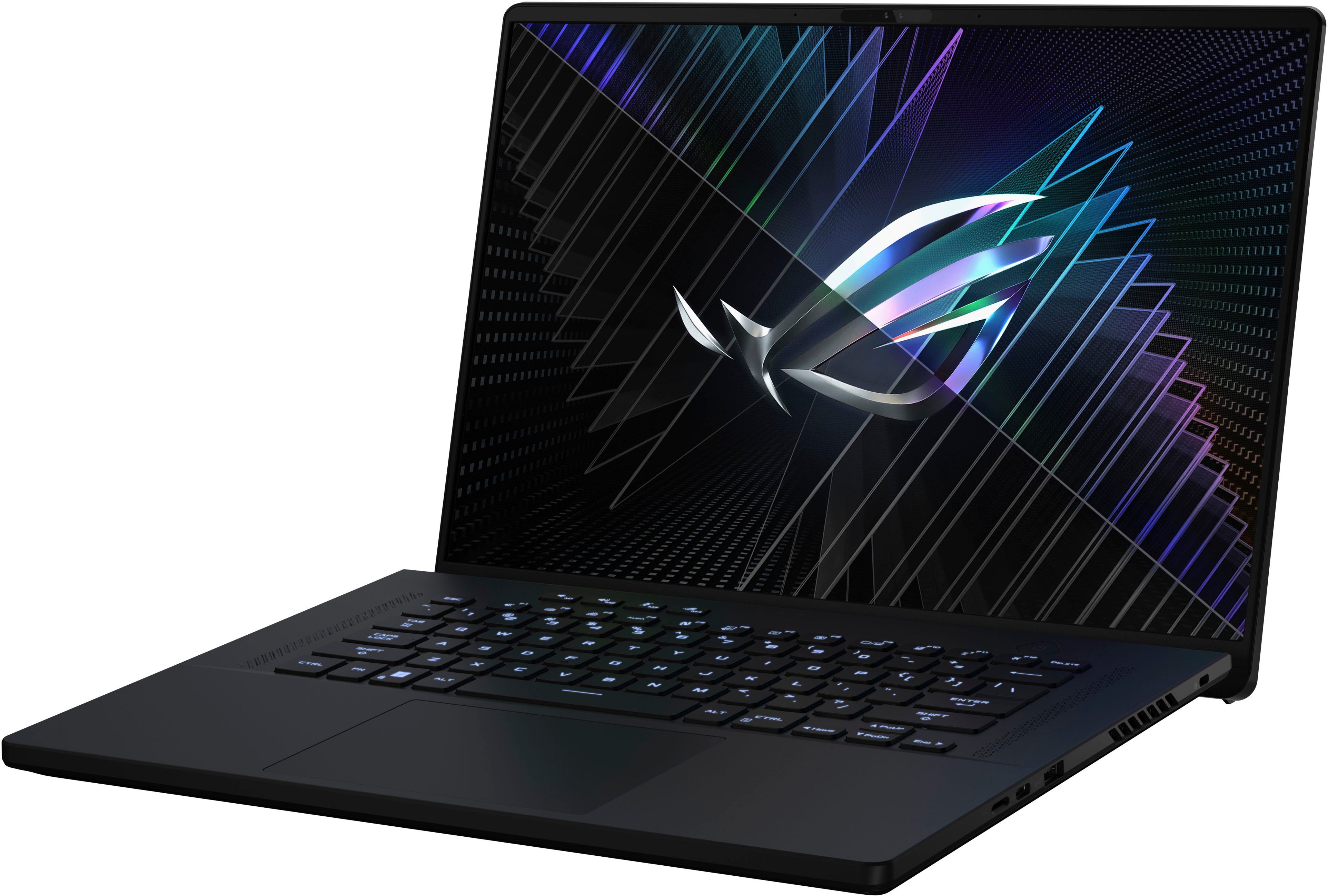
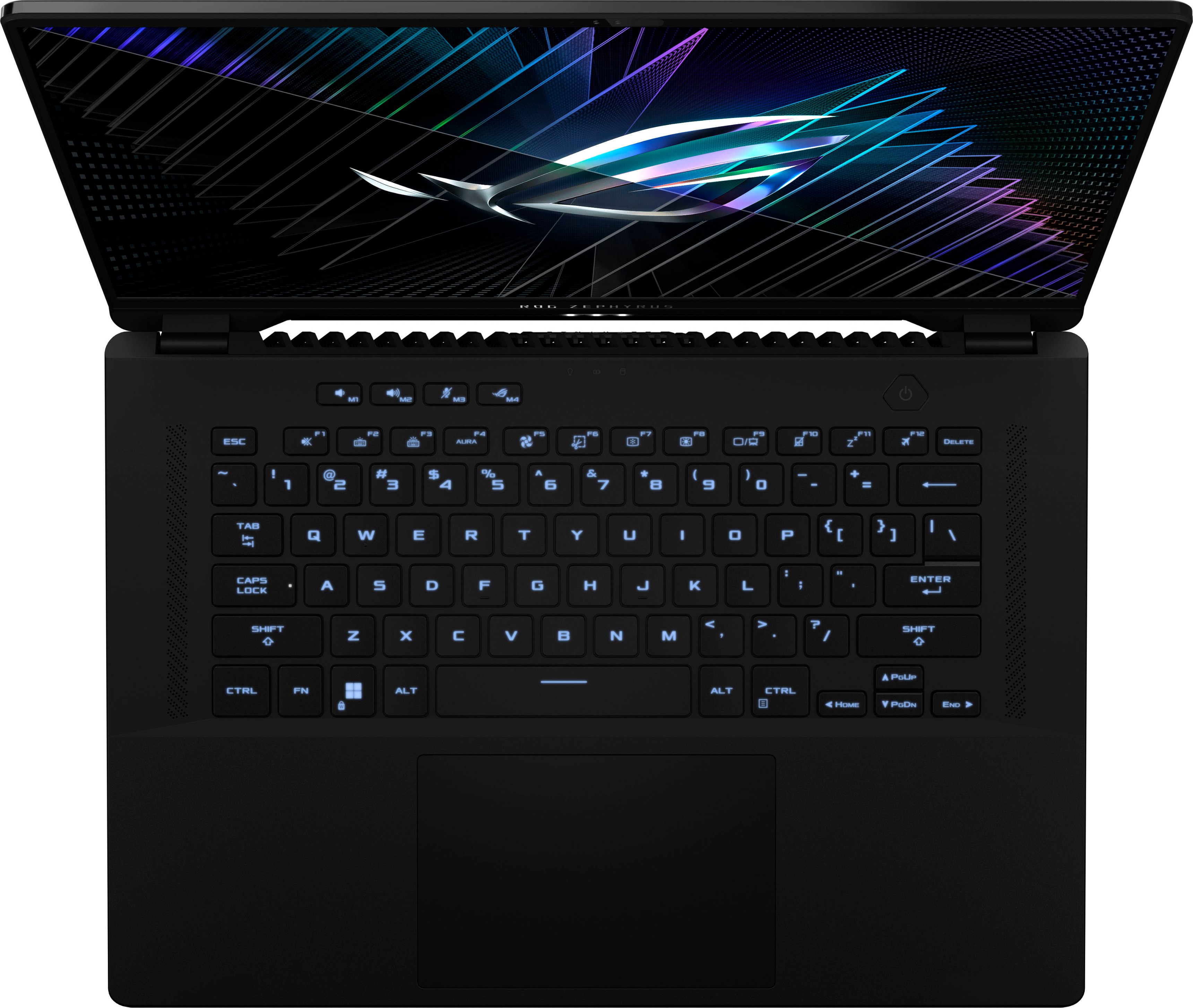


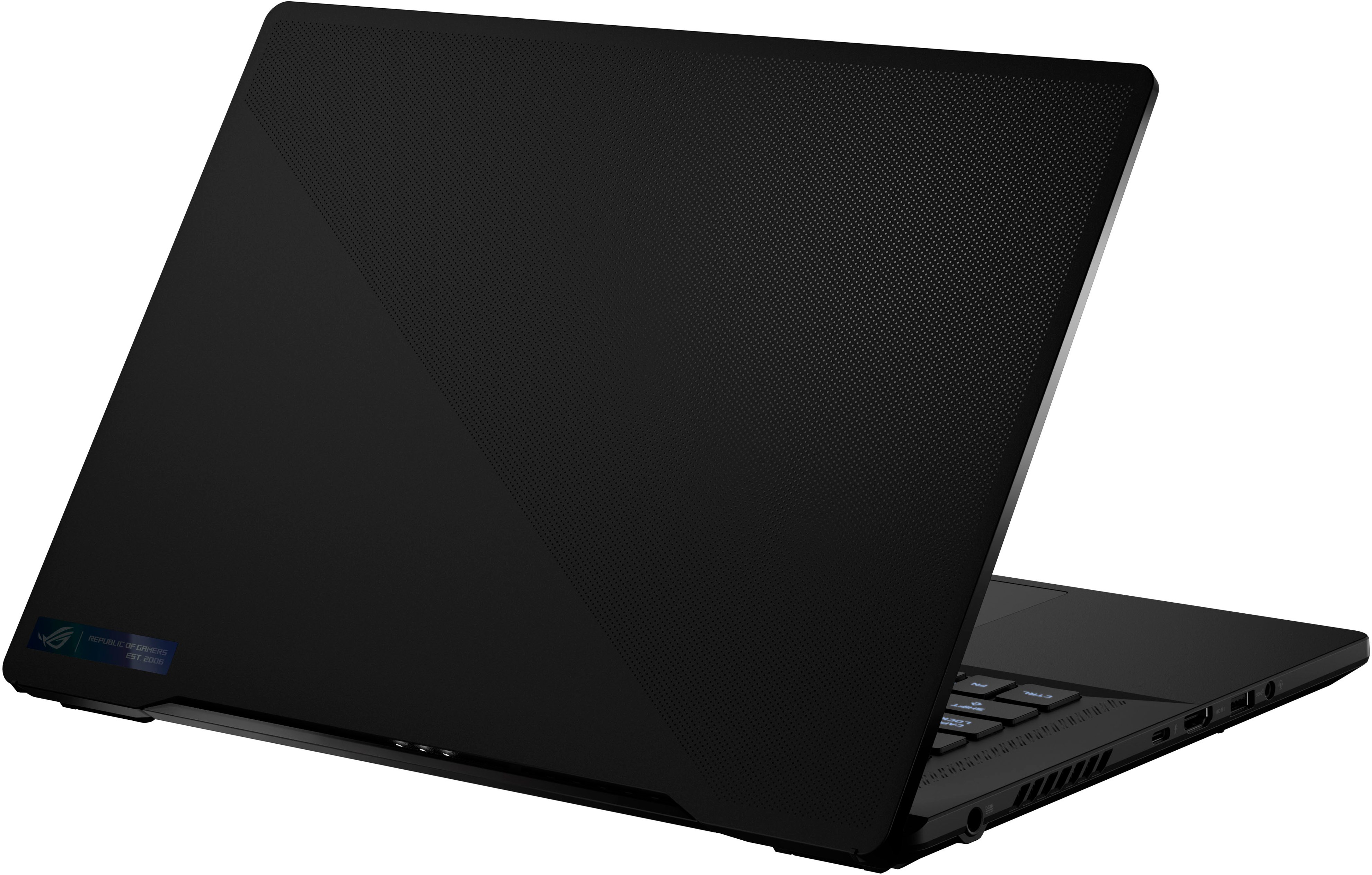
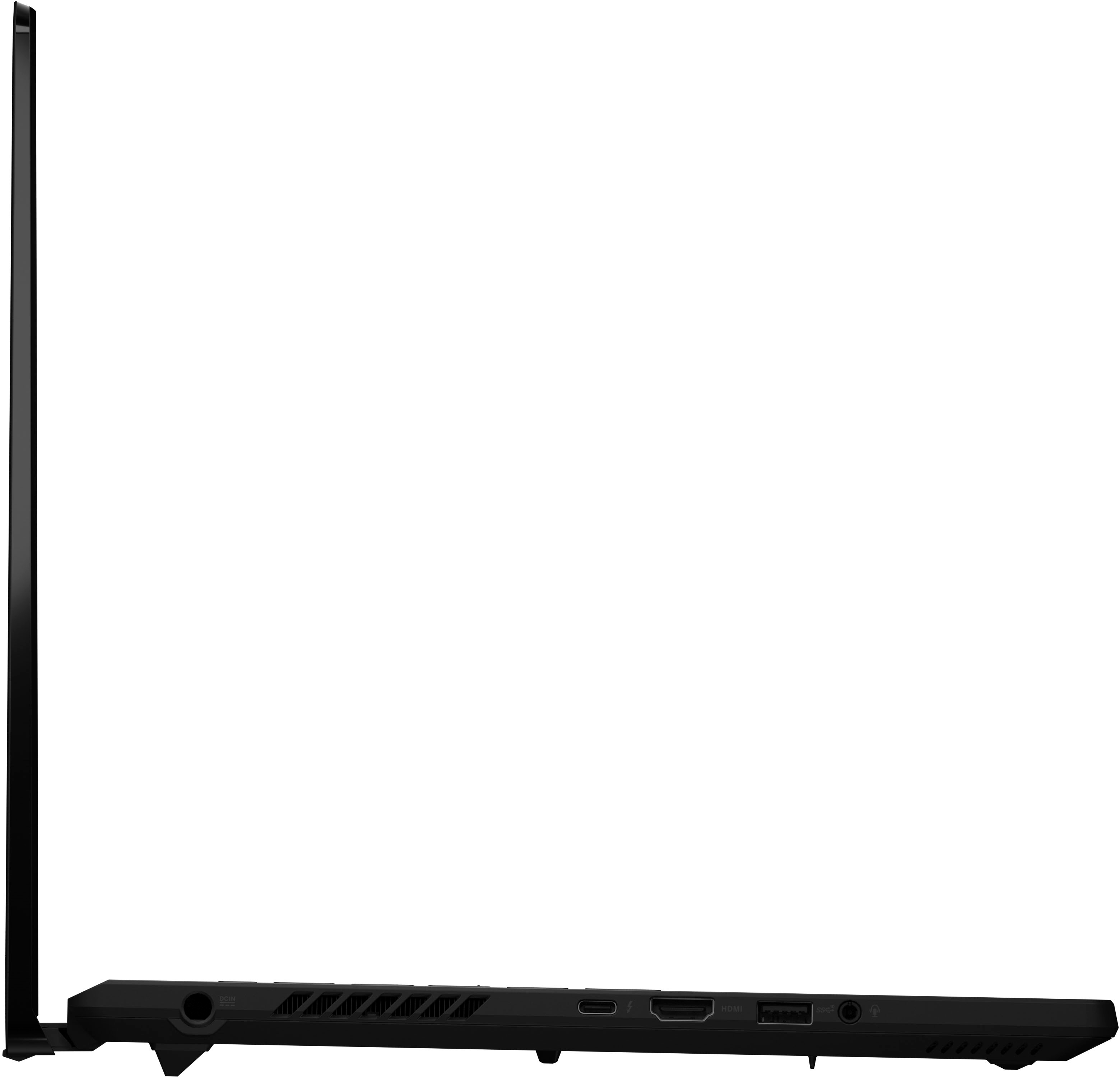
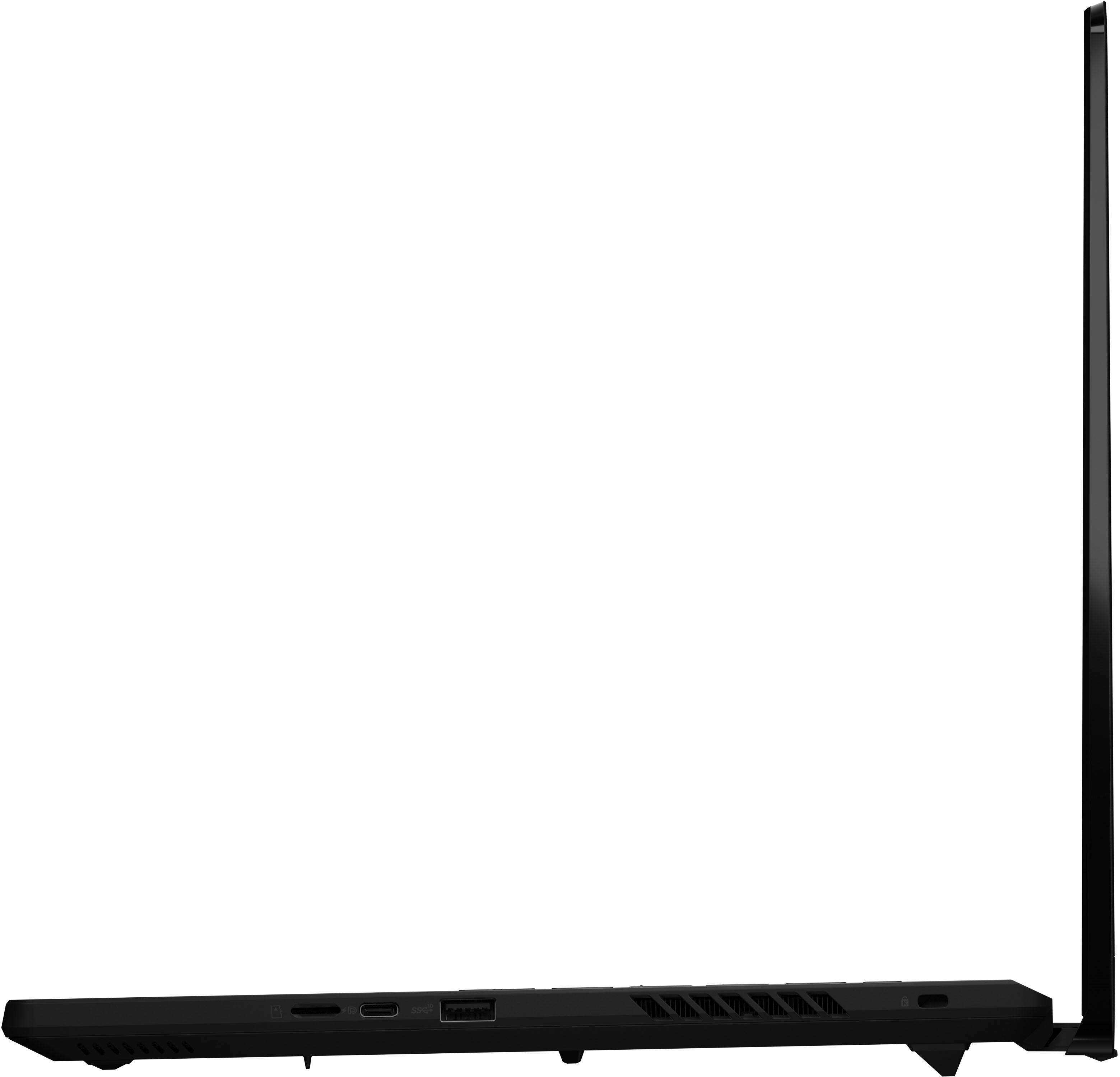
ASUS – ROG Zephyrus M16 16″ 240Hz QHD Gaming Laptop – Intel 13th Gen Core i9, 16GB Memory, NVIDIA GeForce RTX 4070, 1TB SSD – Off Black
$2,185.50
- ASUS ROG Zephyrus M16 – 16″ gaming laptop
- Intel 13th Gen Core i9 processor
- NVIDIA GeForce RTX 4070 graphics
- 16GB memory
- 1TB SSD storage
- 240Hz refresh rate
- Thin and lightweight design (4.63 lbs)
- Windows 11 operating system
Buy more, save more
Buy 2–4 of this item and save 5%.
Buy 5 or more of this item and save 10%.
Discount is automatic in your cart on regular-priced items. It cannot be combined with coupon codes or sale prices.
Buy 2–4 of this item and save 5%.
Buy 5 or more of this item and save 10%.
Discount is automatic in your cart on regular-priced items. It cannot be combined with coupon codes or sale prices.
Country suggested using IP or browser language; you can change it. Shipping is confirmed at checkout.
Description
ASUS – ROG Zephyrus M16 16″ 240Hz QHD Gaming Laptop – Intel 13th Gen Core i9, 16GB Memory, NVIDIA GeForce RTX 4070, 1TB SSD – Off Black,
How to Use the ASUS ROG Zephyrus M16 Gaming Laptop
Table of Contents
- Turning On the Laptop
- Connecting to Wi-Fi
- Adjusting Settings
- Enhancing Your Gaming Experience
- Managing Storage
1. Turning On the Laptop
- Locate the power button on the laptop’s keyboard.
- Press and hold the power button until the laptop turns on.
2. Connecting to Wi-Fi
- Click on the Wi-Fi icon located in the taskbar.
- Select your desired Wi-Fi network from the list.
- Enter the network password if prompted.
3. Adjusting Settings
- Click on the Start menu in the bottom left corner of the screen.
- Select “Settings” to open the Settings app.
- Navigate to the desired settings category (e.g., Display, Sound, etc.).
- Make the necessary adjustments and click “Apply” or “Save” to save the changes.
4. Enhancing Your Gaming Experience
- Make sure you have installed your preferred gaming platform (e.g., Steam, Epic Games, etc.).
- Launch the gaming platform and sign in or create an account if necessary.
- Find and select the game you want to play.
- Adjust the in-game settings for optimal performance.
- Enjoy your gaming experience on the ASUS ROG Zephyrus M16!
5. Managing Storage
- Click on the Start menu in the bottom left corner of the screen.
- Select “File Explorer” to open the file management app.
- Navigate to the desired location where you want to manage your files.
- You can create new folders, move or copy files, and delete unwanted files as needed.
- Click on the Wi-Fi icon located in the taskbar.
- Select your desired Wi-Fi network from the list.
- Enter the network password if prompted.
3. Adjusting Settings
- Click on the Start menu in the bottom left corner of the screen.
- Select “Settings” to open the Settings app.
- Navigate to the desired settings category (e.g., Display, Sound, etc.).
- Make the necessary adjustments and click “Apply” or “Save” to save the changes.
4. Enhancing Your Gaming Experience
- Make sure you have installed your preferred gaming platform (e.g., Steam, Epic Games, etc.).
- Launch the gaming platform and sign in or create an account if necessary.
- Find and select the game you want to play.
- Adjust the in-game settings for optimal performance.
- Enjoy your gaming experience on the ASUS ROG Zephyrus M16!
5. Managing Storage
- Click on the Start menu in the bottom left corner of the screen.
- Select “File Explorer” to open the file management app.
- Navigate to the desired location where you want to manage your files.
- You can create new folders, move or copy files, and delete unwanted files as needed.
- Make sure you have installed your preferred gaming platform (e.g., Steam, Epic Games, etc.).
- Launch the gaming platform and sign in or create an account if necessary.
- Find and select the game you want to play.
- Adjust the in-game settings for optimal performance.
- Enjoy your gaming experience on the ASUS ROG Zephyrus M16!
5. Managing Storage
- Click on the Start menu in the bottom left corner of the screen.
- Select “File Explorer” to open the file management app.
- Navigate to the desired location where you want to manage your files.
- You can create new folders, move or copy files, and delete unwanted files as needed.
, , ASUS
449 reviews for ASUS – ROG Zephyrus M16 16″ 240Hz QHD Gaming Laptop – Intel 13th Gen Core i9, 16GB Memory, NVIDIA GeForce RTX 4070, 1TB SSD – Off Black
Only logged in customers who have purchased this product may leave a review.
Special deals for you

Canon imageFORMULA R40 Office Document Scanner For PC and Mac, Color Duplex Scanning, Easy Setup For Office Or Home Use, Includes Scanning Software
Original price was: $4,270.00.$538.20Current price is: $538.20.
Add to cart
Epson Workforce ES-C220 Compact Desktop Document Scanner with 2-Sided Scanning and Auto Document Feeder (ADF) for PC and Mac
Original price was: $3,244.40.$517.00Current price is: $517.00.
Add to cart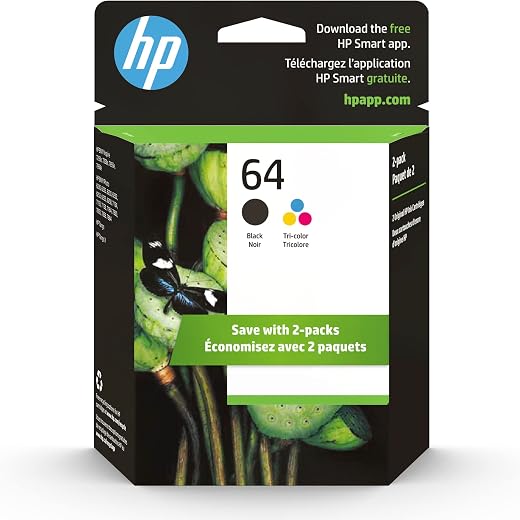
HP 64 Black/Tri-color Ink Cartridges (2-pack) | Works with HP ENVY Inspire 7950e; ENVY Photo 6200, 7100, 7800; Tango Series | Eligible for Instant Ink | X4D92AN
Original price was: $1,038.20.$121.90Current price is: $121.90.
Add to cart
TN660 Toner Cartridge Replacement Compatible for Brother TN 660 TN-660 TN630 High Yield to use with HL-L2380DW HL-L2320D HL-L2340DW DCP-L2540DW MFC-L2700DW MFC-L2720DW Printer...
Original price was: $1,512.00.$86.90Current price is: $86.90.
Add to cartPopular items in this category

Retro HDMI Game Console – 4K Output and Gamepad Controllers
$40.00
Add to cart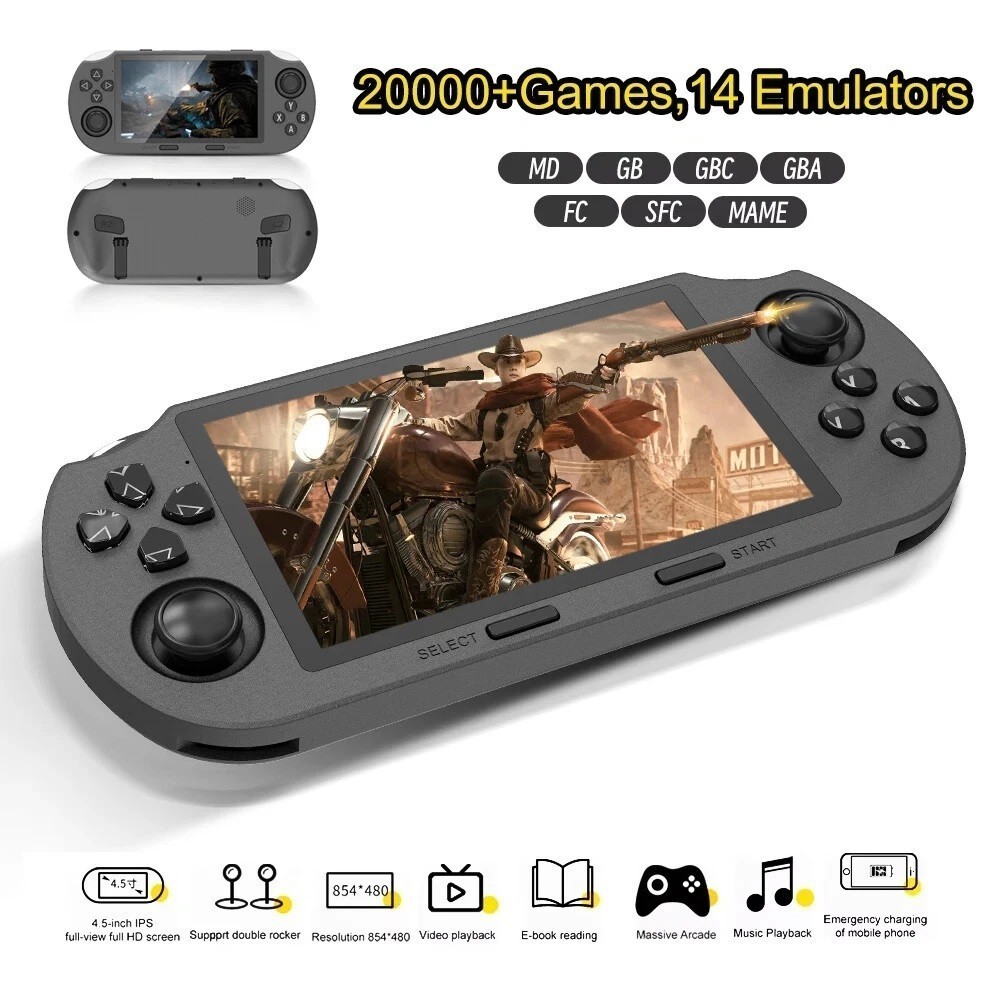
SF3000 Retro Handheld Game Console – 4.5-Inch IPS Display
$94.00
Add to cart
Blackview PlayPop 8 AI Motion Gaming Console for Families
$349.99
Add to cart4K HDMI Retro Game Console – Plug and Play, 20,000+ Games
$40.00
Add to cartSimilar items you might like

Blackview PlayPop 8 AI Motion Gaming Console – 8GB RAM, 128GB Storage
$379.99
Add to cart
R36S Retro Handheld Game Console, 64GB, 3.5-Inch IPS Screen
$86.90
Add to cart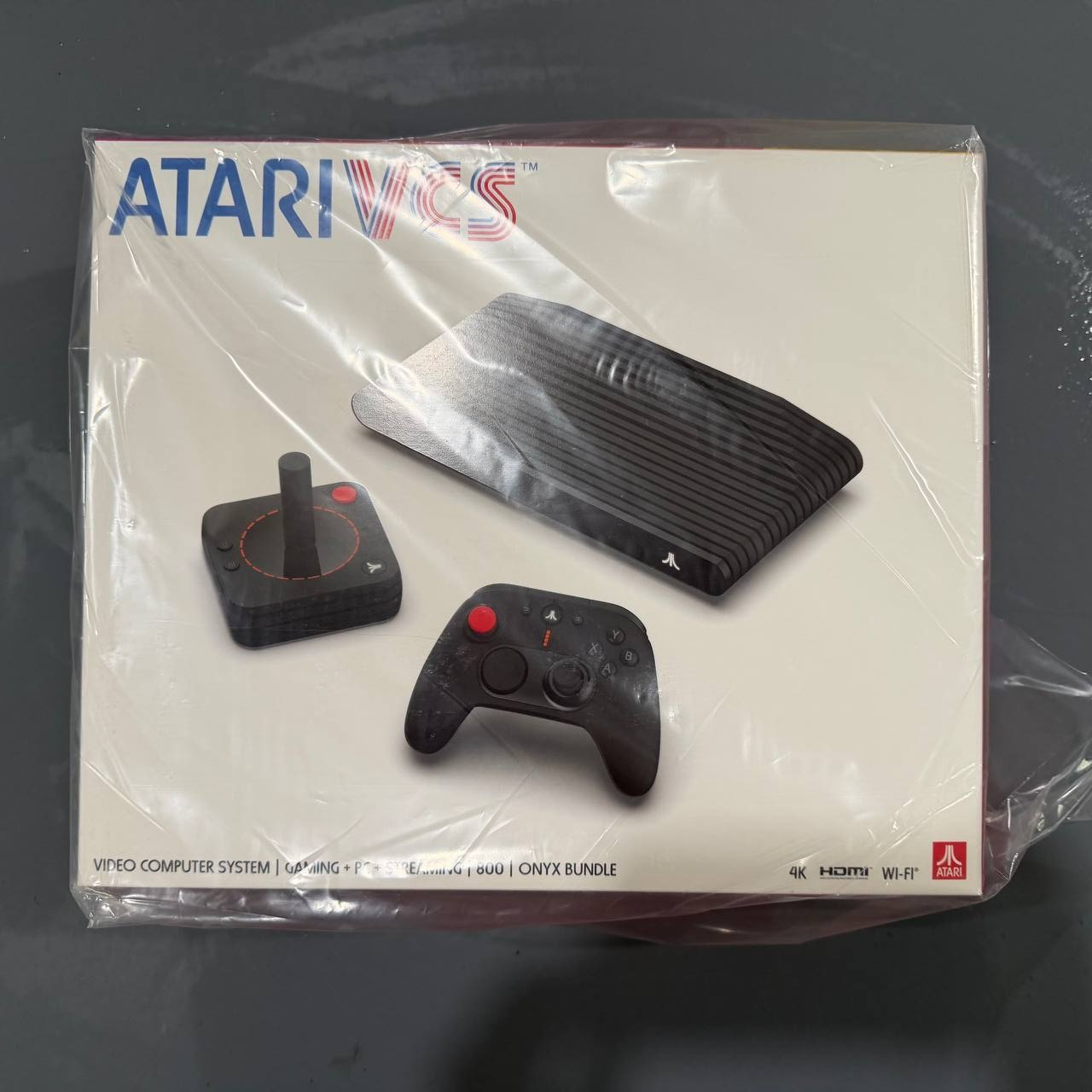
New Sealed Atari VCS 800 Onyx All-In Bundle
$379.99
Add to cart
Budget Desktop PC – Intel Core i7 4th Gen, 16GB DDR3, SSD Options
$499.99
Add to cartProducts related to this item

For Samsung Galaxy Z flip Foldable Cellphone Shell Electroplated Painted Folding Phone Case A20 emerald
$44.30
Add to cart
ASUS WS C246 Pro Motherboard
$752.00
Add to cart
1.8M HDMI to VGA Cable HD 1080P HDMI Male to VGA Male Video Converter Adapter for PC Laptop
$17.00
Add to cart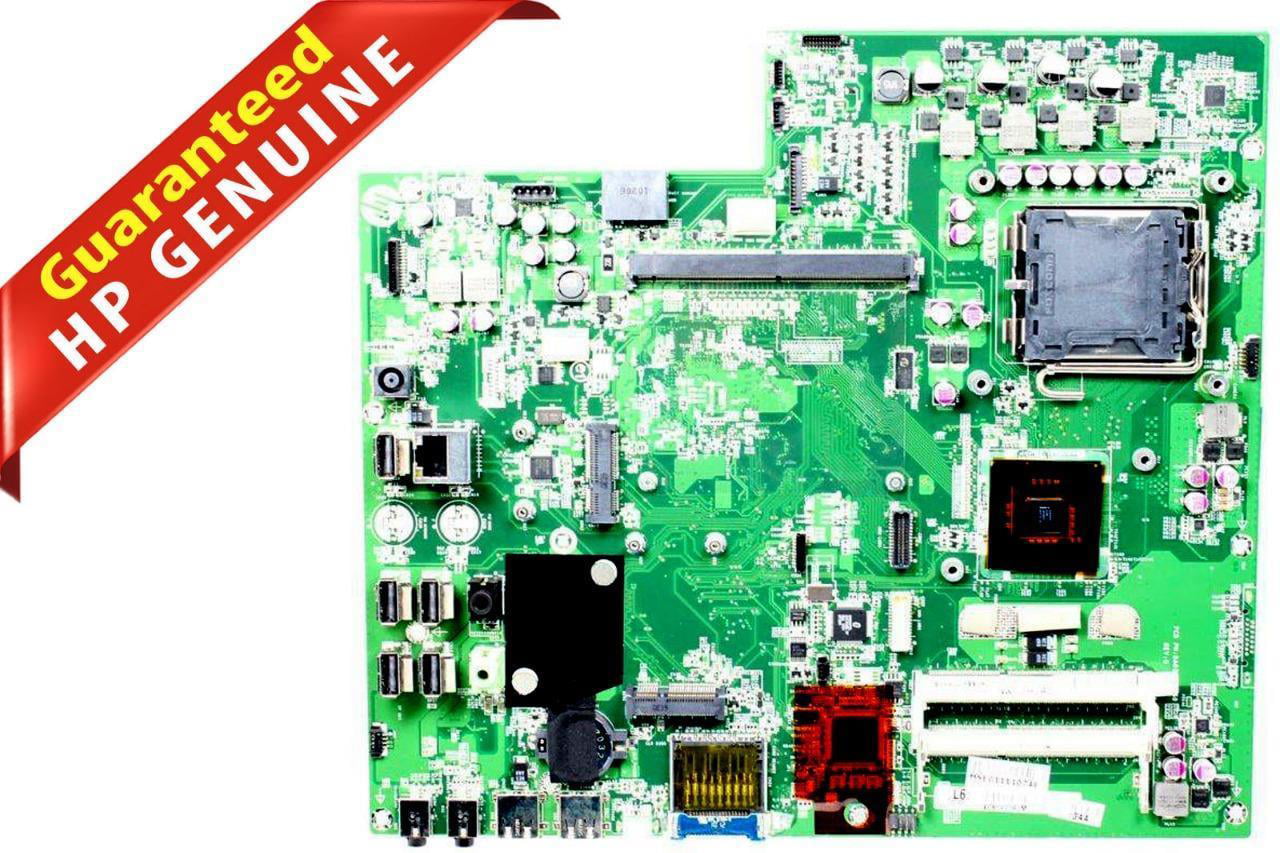
Genuine OEM HP All-In-One 200 Boma-D Motherboard DA0ZN6MB6G0 588313-001
$42.40
Add to cartProducts you may also like

Computer Keyboard Colorful 87-key Gaming Keyboard Office Mechanical Keyboard black
$73.10
Add to cart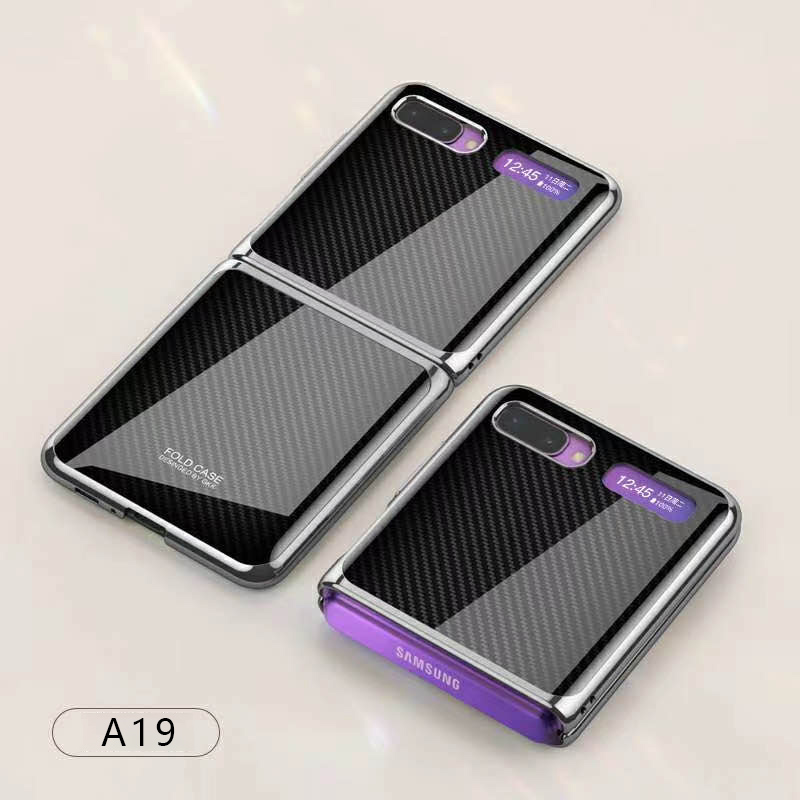
For Samsung Galaxy Z flip Foldable Cellphone Shell Electroplated Painted Folding Phone Case A19 carbon fiber pattern
$44.00
Add to cart
ASRock B550M Pro4 AM4 Motherboard
$22,141.00
Add to cart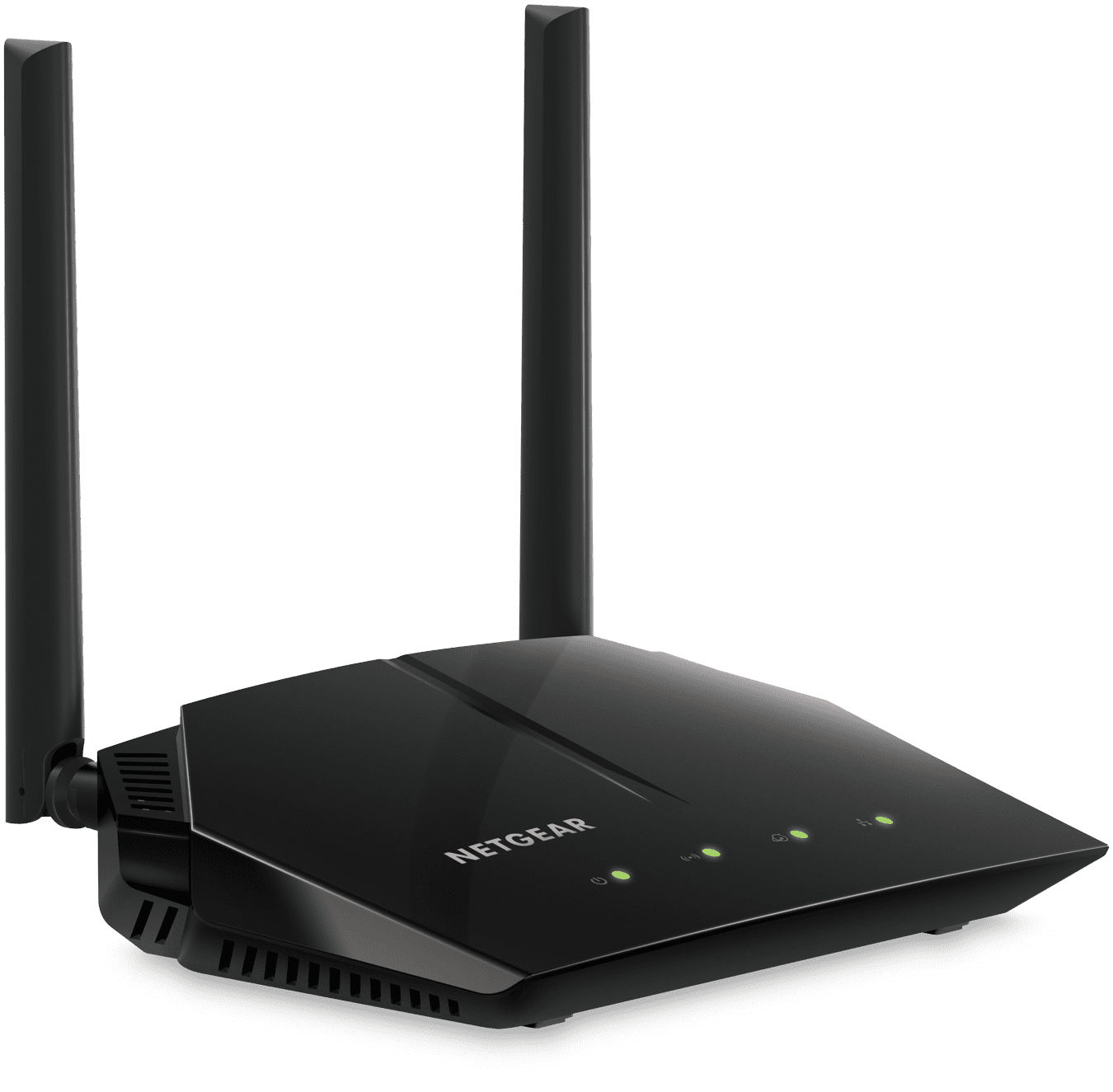
NETGEAR - AC1000 WiFi Router with 1Gbps Speed (R6080)
$97.50
Add to cartRecommended for You
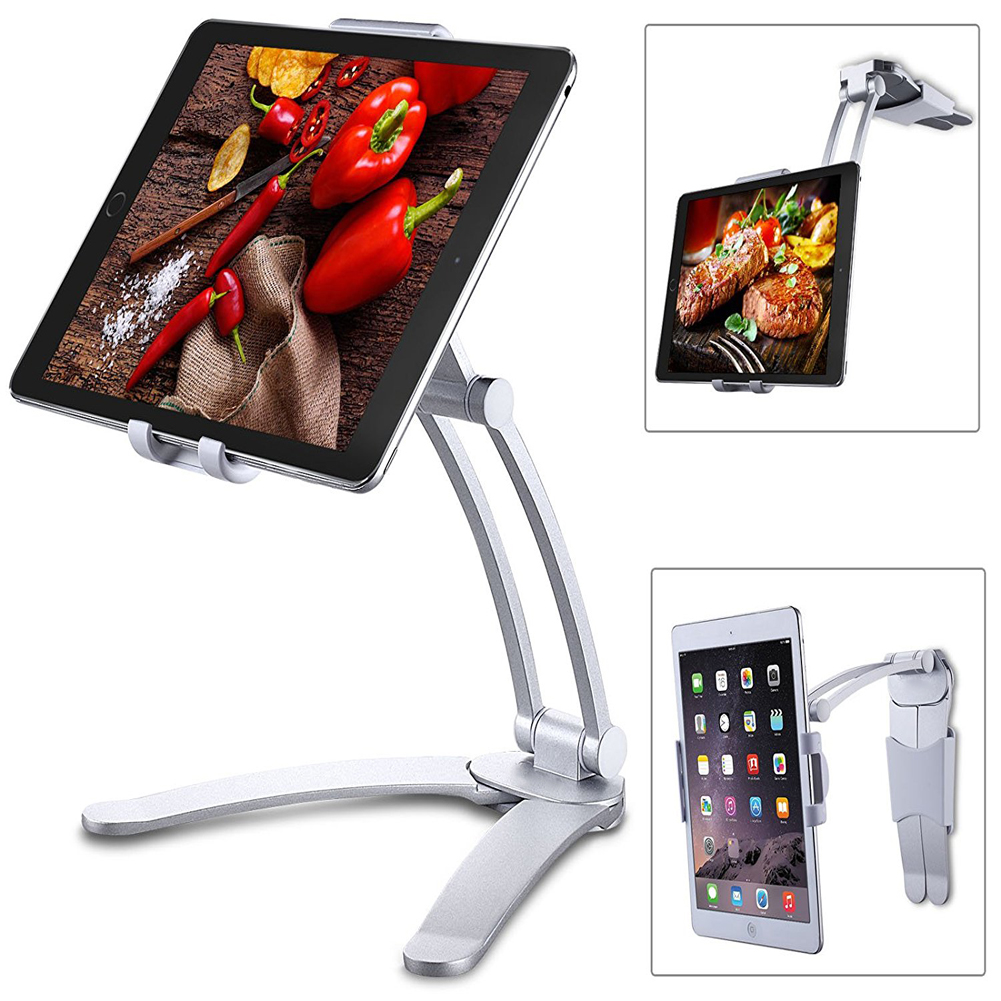
Kitchen Tablet pc iPad Stand Adjustable Holder Wall Mount - Silver (for 4-10.5 Inch)
$48.10
Add to cart
Maximize Your Productivity 72MP Digital Camera,12X Optical Zoom 4K Vlogging Video Camcorder w/ 3Inch Screen
$658.00
Add to cart
Best 5K Video Camera Camcorder Digital Camera 56MP 30FPS WiFi IR Night Vision 16XZoom
$305.50
Add to cart
HP 414A Black Toner Cartridge | Works with HP Color LaserJet Enterprise M455dn, MFP M480f; HP Color LaserJet Pro M454 Series, HP Color LaserJet Pro MFP M479 Series | W2020A
$260.60
Add to cart



Westley –
I’m a full-time web designer that uses a windows desktop as my main work station. I wanted to have something equal in power to my desktop for work + gaming that I could take mobile and this laptop…
Brandon –
First and foremost. I am blown away by this laptop. For gaming, editing videos, pictures, and general power using it’s top notch.
This thing has some serious horsepower. 4070, and a i9 it’s…
DucatiDaddy71 –
Asus Zephyrus line has been the low-key gaming laptop of choice for me for the past two generations. I had the G15 2021 3070 RTX Ryzen model and updated to the M16 2023 this year. This upgrade was…
Cluzl –
it’s a good deal for a laptop with this spec at $1500
the pros:
– Screen is bright and color accurate (use DCI-P3 color profile)
– can run fanless but get quite warm
– There is advanced optimus so…
OLin –
The ASUS ROG Zephyrus 16 is extremely capable of gaming at even the highest settings.
The Pros involve that It has a fan control, an adjustable RGB keyboard that you can change to whatever color…
DigaVerse –
Overall it’s a really great laptop for gaming. Only limited by it’s base specs. I’ve upgraded my memory to 64GB and my hard drive space to 6Tb (which includes the stock 1Tb SSD, an additional 4Tb…
ZachariahA –
Fantastic hardware.
The Asus software is… okay, but honestly caused more issues than benefits.
After removing the Asus bloatware and installing some replacement, third-party controls, it’s been…