


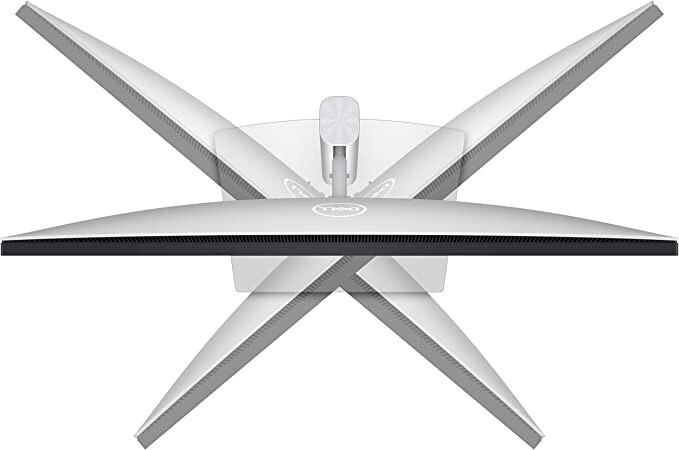

Brand new Dell UltraSharp U2723QE 27-inch 4K USB-C Widescreen IPS LED Monitor
$142,360.90
- Dell UltraSharp U2723QE 27 inch 4K USB-C Widescreen IPS LED Monitor
- Brand new and sealed
- Features industry’s first IPS Black technology for brilliant color and contrast
- Wide color gamut and VESA certified Display HDR 400 for true-to-life visuals
- USB-C Hub for easy connectivity to Ethernet and other devices
- Dual 4K monitor set up for increased productivity
- Virtually borderless InfinityEdge design for edge-to-edge views
- ComfortView Plus reduces blue light emissions without compromising color
Buy more, save more
Buy 2–4 of this item and save 5%.
Buy 5 or more of this item and save 10%.
Discount is automatic in your cart on regular-priced items. It cannot be combined with coupon codes or sale prices.
Buy 2–4 of this item and save 5%.
Buy 5 or more of this item and save 10%.
Discount is automatic in your cart on regular-priced items. It cannot be combined with coupon codes or sale prices.
Country suggested using IP or browser language; you can change it. Shipping is confirmed at checkout.
Description
Brand new Dell UltraSharp U2723QE 27-inch 4K USB-C Widescreen IPS LED Monitor,
How to Use the Dell UltraSharp U2723QE 27 inch 4K USB-C Widescreen IPS LED Monitor
Getting Started
- Unbox the monitor and remove all packaging materials.
- Connect the power cable to the power connector on the monitor and plug the other end into a power outlet.
- Connect your computer or device to the monitor using one of the available video inputs: DisplayPort or USB-C. Use the appropriate cable for your device.
- Make sure your computer or device is powered on.
- Press the power button on the monitor to turn it on.
Adjusting Settings
- To adjust the settings of the monitor, press the menu button located on the control panel at the bottom of the monitor.
- Use the navigation buttons to scroll through the different options in the menu.
- Press the menu button again to select an option.
- Use the navigation buttons to adjust the selected option.
- Press the menu button to exit the menu and save your changes.
Using USB-C Hub
- The monitor features a USB-C hub that allows you to connect various devices.
- To use the USB-C hub, simply plug your USB-C compatible devices into the USB-C downstream port on the monitor.
- You can connect devices such as smartphones, tablets, keyboards, mice, and external storage devices.
- The USB-C hub also allows for fast data transfer speeds and can charge compatible devices.
Adjusting Display Settings
- To adjust the display settings, press the menu button and navigate to the “Display” or “Picture” options in the menu.
- From there, you can adjust settings such as brightness, contrast, color temperature, and more.
- Experiment with different settings to find the best viewing experience for you.
- Press the menu button to exit the menu and save your changes.
Additional Features
- This monitor supports a 4K resolution, providing exceptional clarity and detail in your visual content.
- It also features IPS LED technology, offering wide viewing angles and accurate colors.
- Enjoy the borderless InfinityEdge design that provides an immersive viewing experience.
If you have any further questions or need assistance, please consult the user manual or contact Dell customer support.
, , Dell
| Weight | 5 lbs |
|---|---|
| Manufacturer Warranty | 1 Year |
| Screen Size | 27 in |
| Brightness | 400 cd/m² |
| Refresh Rate | 60 Hz |
| Video Inputs | DisplayPort, USB-C |
| Color | |
| MPN | U2723QE |
| Aspect Ratio | 16:9 |
| Brand | |
| Display Type | IPS LED |
| Maximum Resolution | 3840 x 2160 |
| Contrast Ratio | 2000:1 |
| Model | UltraSharp U2723QE |
| Features | Flat Screen |
| Product Line | UltraSharp |
Only logged in customers who have purchased this product may leave a review.
Special deals for you
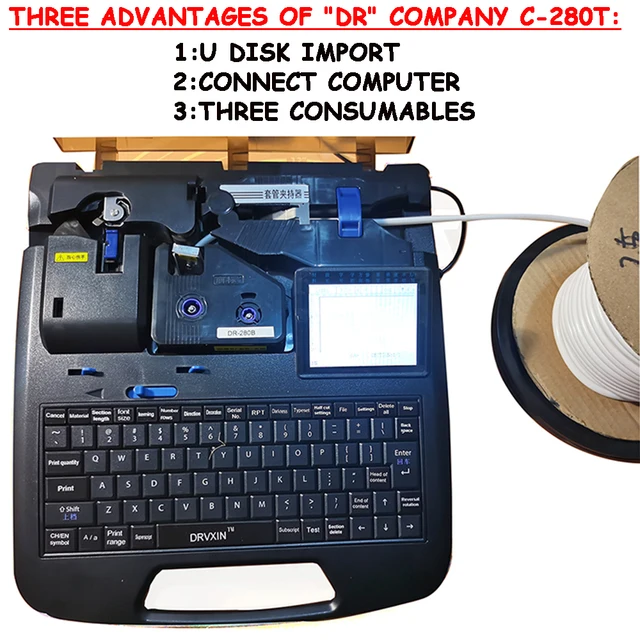
New C-280T Wire Pipe Numbering Machine U Disk Import Connect Computer For Heat-shrinkable Tube Tape Label typewriter printing
Original price was: $604.02.$600.31Current price is: $600.31.
Add to cart
Wire Marker ID Printer Pvc Pipe Marking Machine USB Drive Import USB Connection PC Computer Electronic Engraving Machine C-280T
Original price was: $600.12.$596.23Current price is: $596.23.
Add to cart
WAINLUX K6 3000mW Mini CNC Laser Engraver
Original price was: $128.37.$127.16Current price is: $127.16.
Add to cart
Lville Android 13 Tablet - 10 inch Octa-Core Tablet with 8GB RAM, 128GB ROM, 1TB TF Expandable Storage, Bluetooth 5.0, WiFi 6, Fast Charging, Dual Camera - Black
Original price was: $4,270.00.$235.00Current price is: $235.00.
Add to cartPopular items in this category

Exclusive Access Modern Two-Wheel 3000W Electric Motorcycle with Racing Design for Adults
$2,133.00
Add to cart
Unlock Your Potential Hiseeu 4MP/5MP PTZ IP Camera Outdoor Security AI Human Detection H.265X Wireless WiFi Video Surveillance Cameras iCsee P2P
$16.10
Add to cart
Empowering Solutions Hiseeu 4MP+4MP Dual Lens Wifi PTZ IP Camera 2.8+12mm 8X Zoom CCTV Video Surveillance Camera Color Night Vision Ai Human Cam
$16.10
Add to cart
Best HD Auto Zoom Photochromic Reading Glasses for Business with Near Far Anti-blue Light for Presbyopia
$16.10
Add to cartSimilar items you might like

Best Deal Adjustable Intensity Electric Muscle Stimulation Neck Therapy Device with 6 Modes - Portable Pain Relief Tool with Ergonomic Design
$16.10
Add to cart
Uncover Your True Potentialy Men's Anti-Blue Light TR90 Reading Glasses with High Definition, Ultralight Sport Design and Non-Slip Feature - Ideal for Presbyopia and Hyperopia up to +3.5 Diopters
$16.10
Add to cart
Your Perfect Match Outdoor Driving and Fishing Sunglasses with Photochromic Polarized Lenses, UV400 Protection, Anti-Glare, and Case
$16.10
Add to cart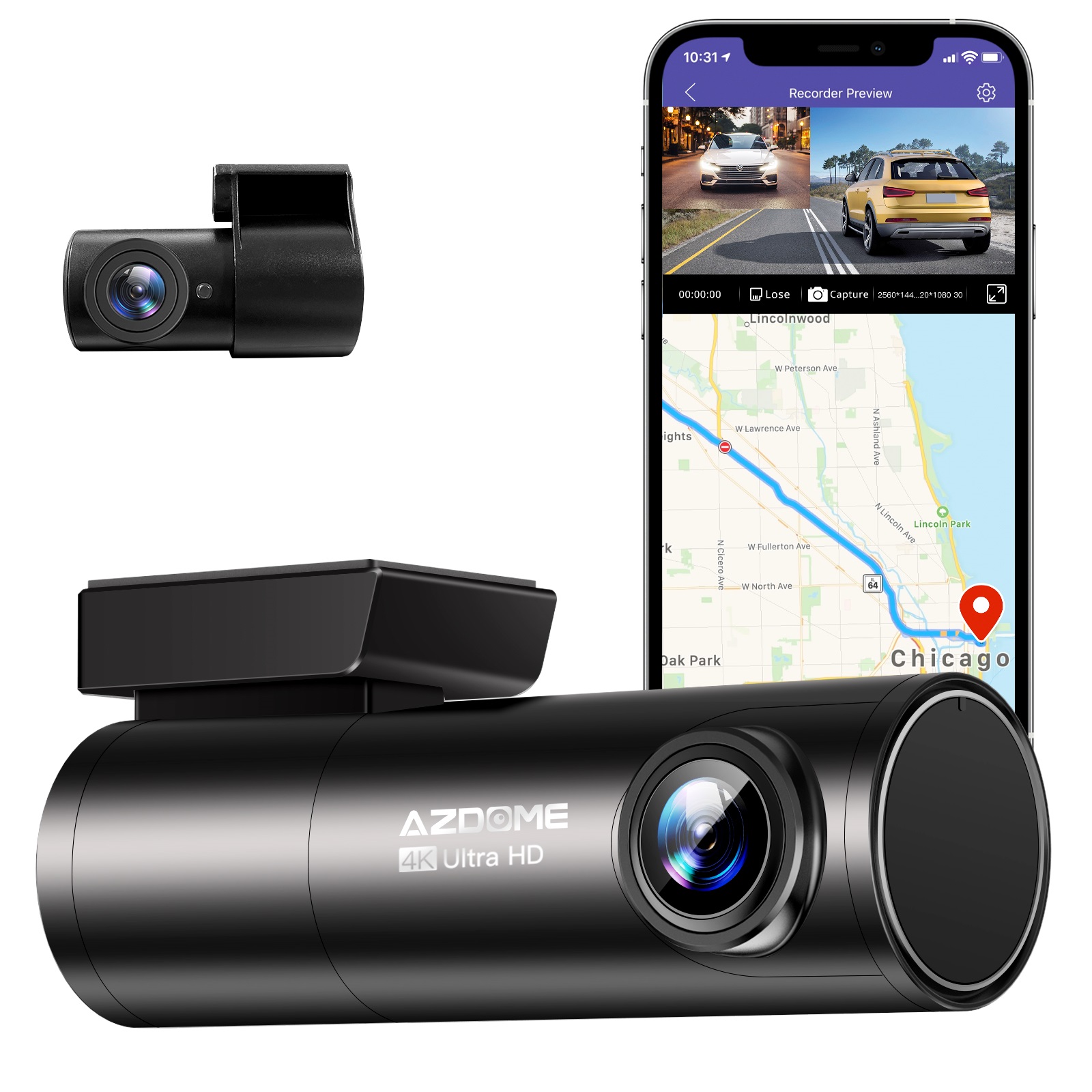
Instant Gratification Azdome HD 1080P Dash Cam Wifi Gps Recorder G-sensor Dashcam Black
$247.10
Add to cartProducts related to this item
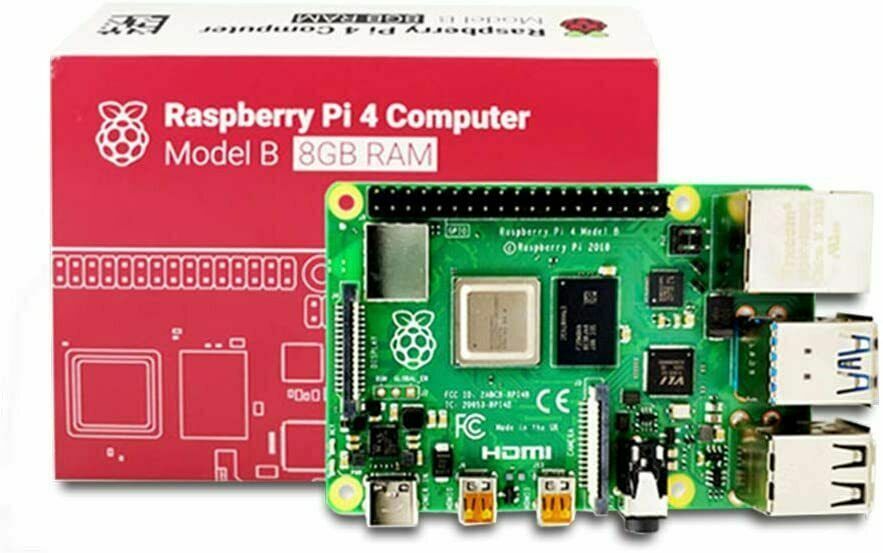
Raspberry Pi 4 8GB DDR4 RAM Single Board Computer - RPI4-MODBP-8GB
$46,998.00
Add to cart
Apple iPad Mini 2 A1489 16GB Wi-Fi iOS 12.5.7 Space Gray ME779LL/A 7.9-inch
$133.90
Add to cart
ALLEGIANCE Gaming PC: 18 Core Intel (i9/Xeon), RTX 3060 TI, +128GB RAM, 2TB SSD
$2,350.00
Add to cart
Brand New 2020 10th Gen Amazon Fire HD 8 Tablet with Alexa, 32GB, Wi-Fi, 8 Inch Display - BLACK
$176.30
Add to cartProducts you may also like

(Brand New) 2020 10th Gen Amazon Fire HD 8 Tablet - 32GB Storage, Wi-Fi, Alexa, 8 Inch Display - PLUM
$16,447.90
Add to cart
Ematic 10.1" Quad-Core Tablet Bundle with 16GB Storage and Bluetooth - Purple EGQ236BDPR
$141.00
Add to cart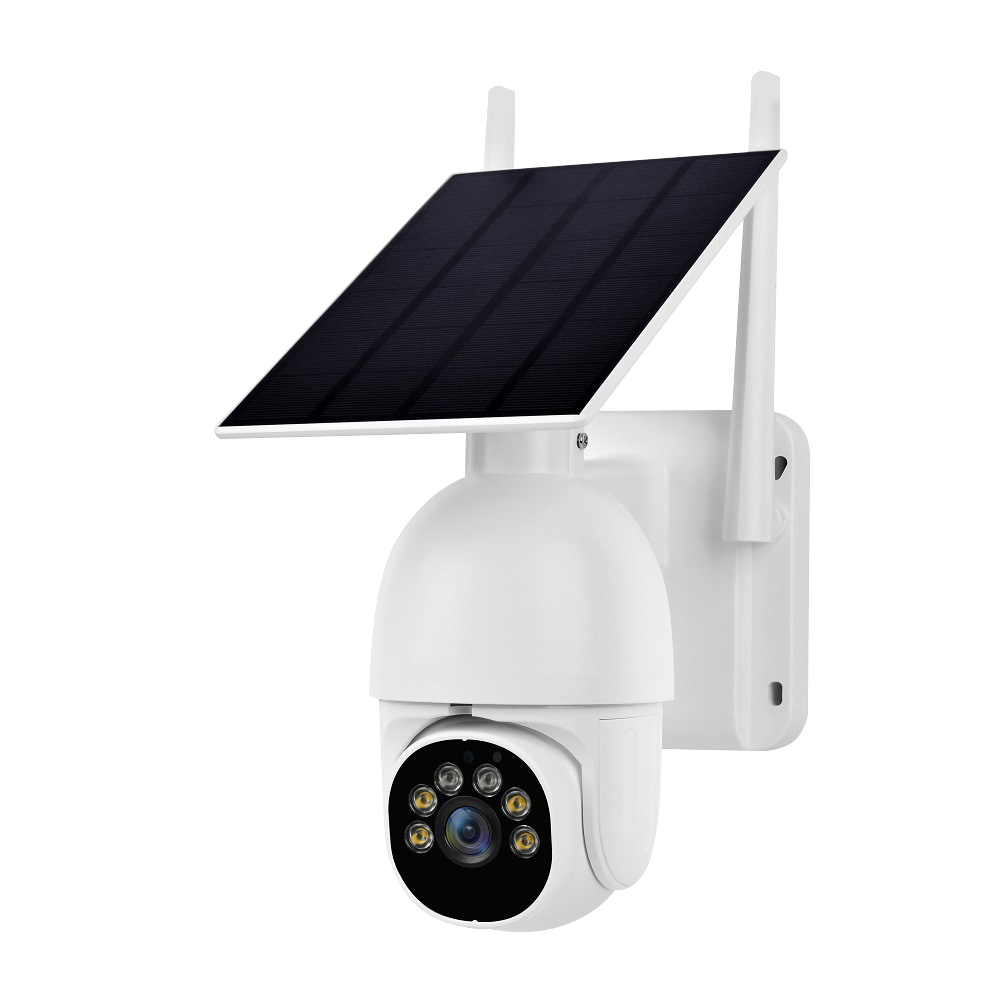
A20 Solar Camera: Versatile 1080P HD Security Camcorder with Intelligent Features, Wide-angle Lens, Rainproof Design, and Wifi Connectivity, in White
$174.90
Add to cart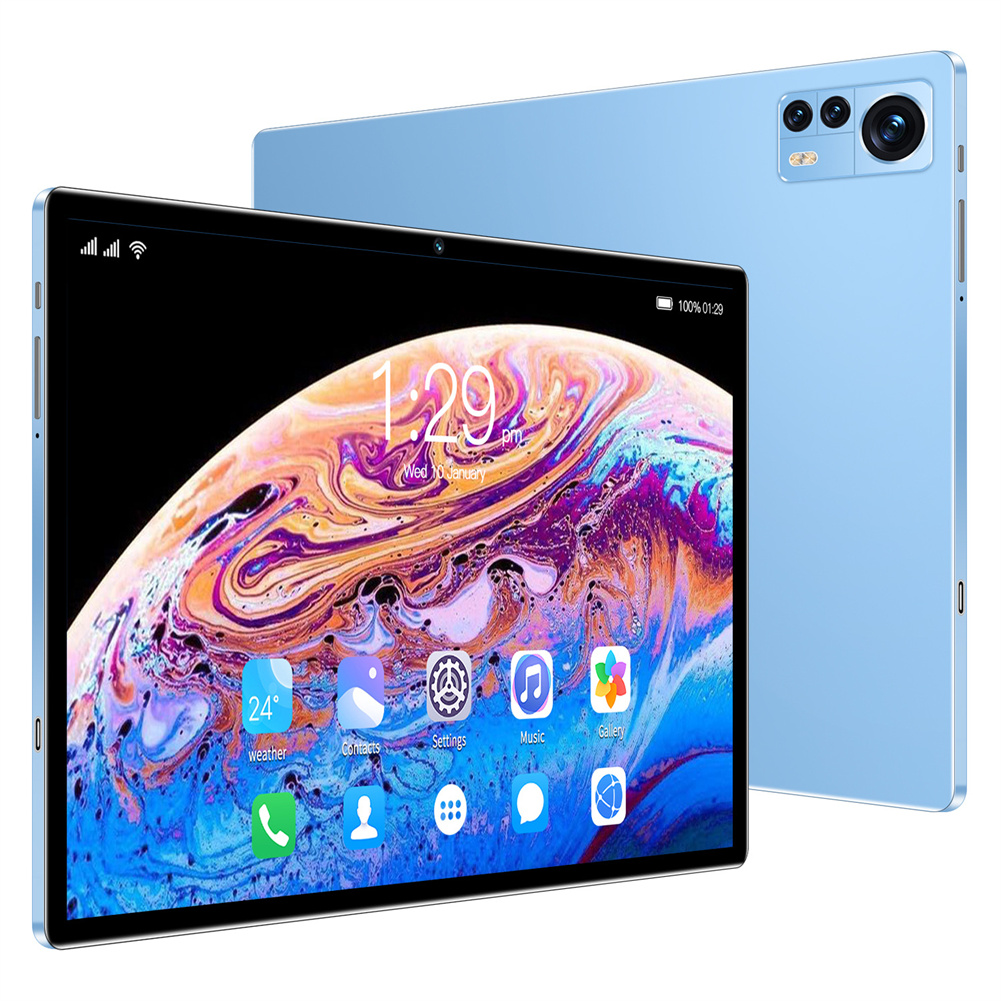
Blue EU Plug X12 Smart Tablet with 10.1-inch HD Capacitive Touch Screen, 5000mah Battery, and Wifi Connectivity
$261.20
Add to cartRecommended for You
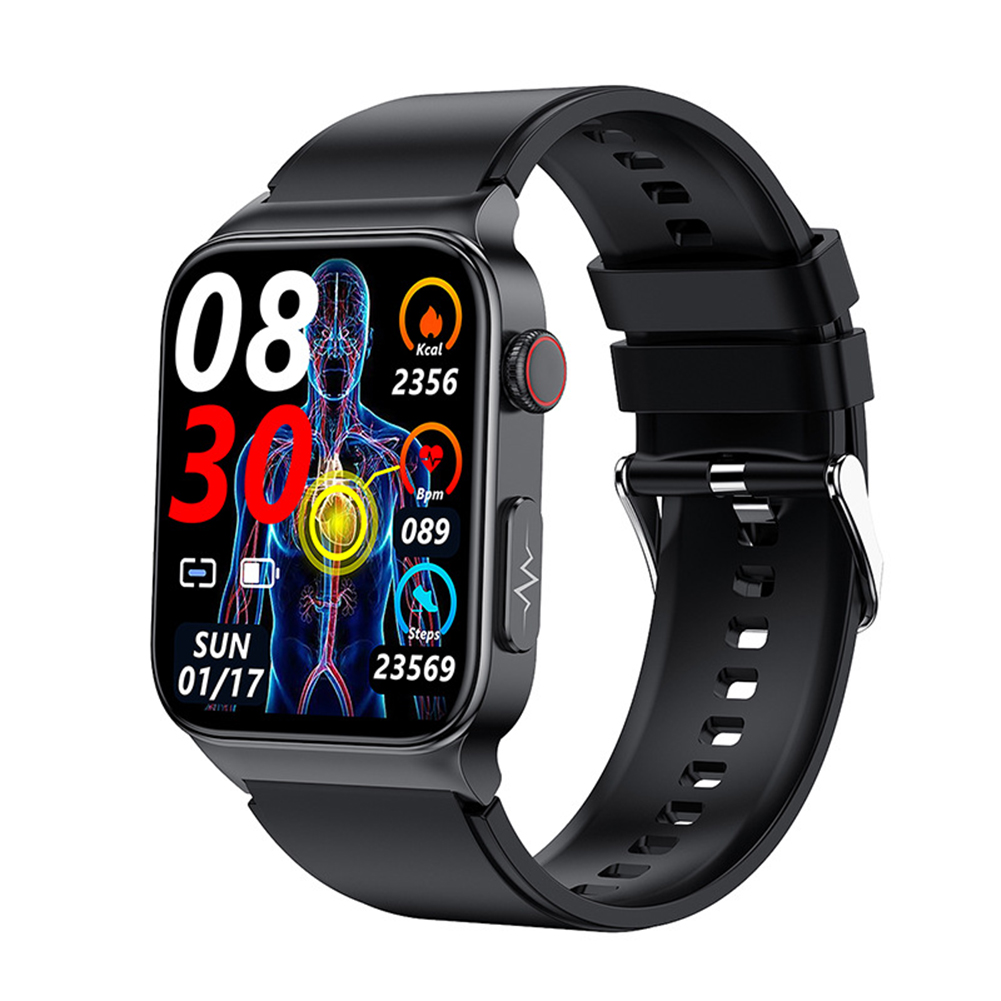
Best E500 Smart Watch Touch Screen Real-Time Blood Sugar Ecg Ppg Monitoring Sports Fitness Smartwatch Black Rubber Belt
$112.10
Add to cart
Upgrade Portable Bicycle Speaker IPX7 Waterproof Outdoor 10h Play Time Speaker For Bicycle Riding Hiking Beach Golfing red
$53.60
Add to cart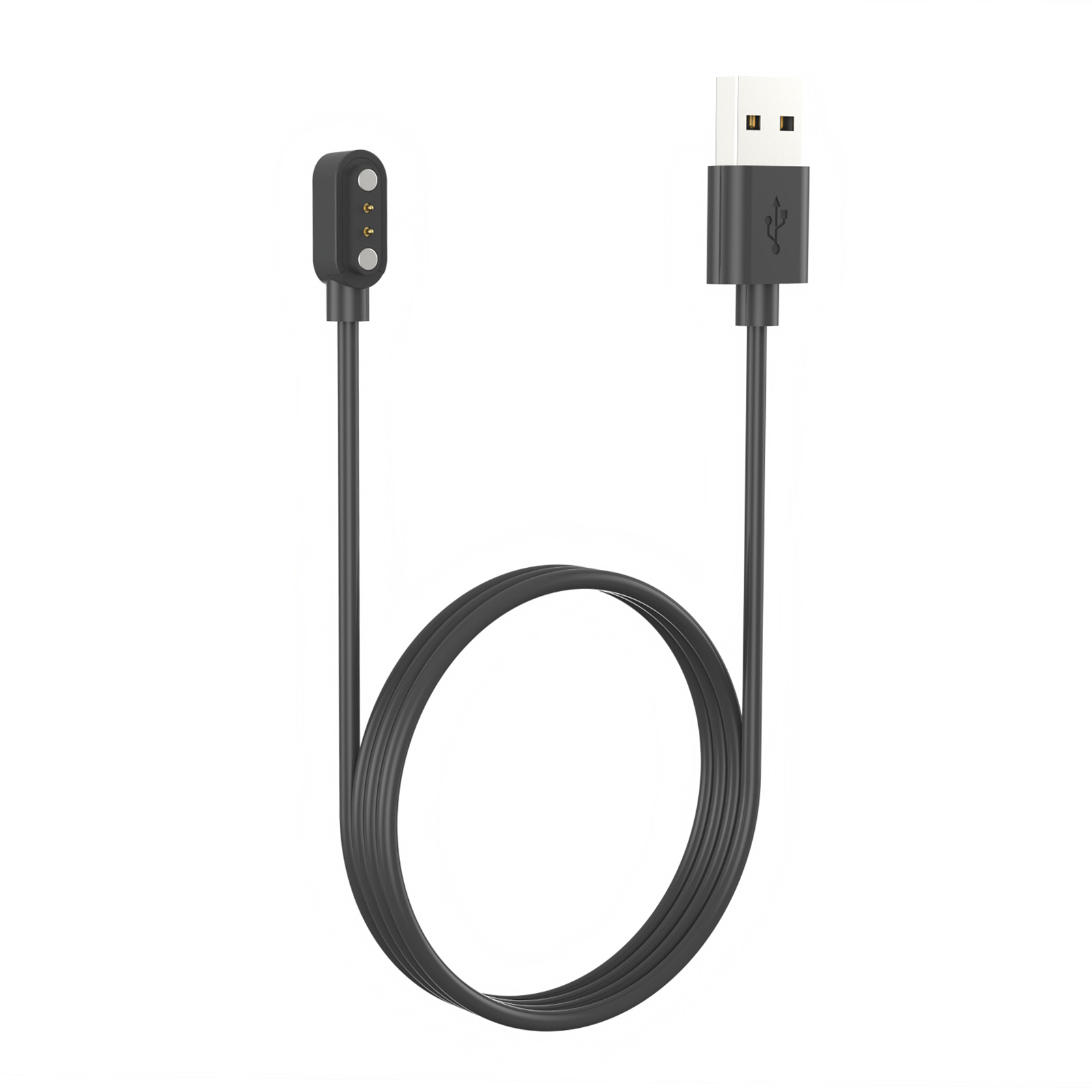
Best Offer Smartwatch Charger Usb Charging Cable Magnetic Charging Line Adapter Compatible For Xiaomi Haylou Gs Ls09a black
$13.30
Add to cart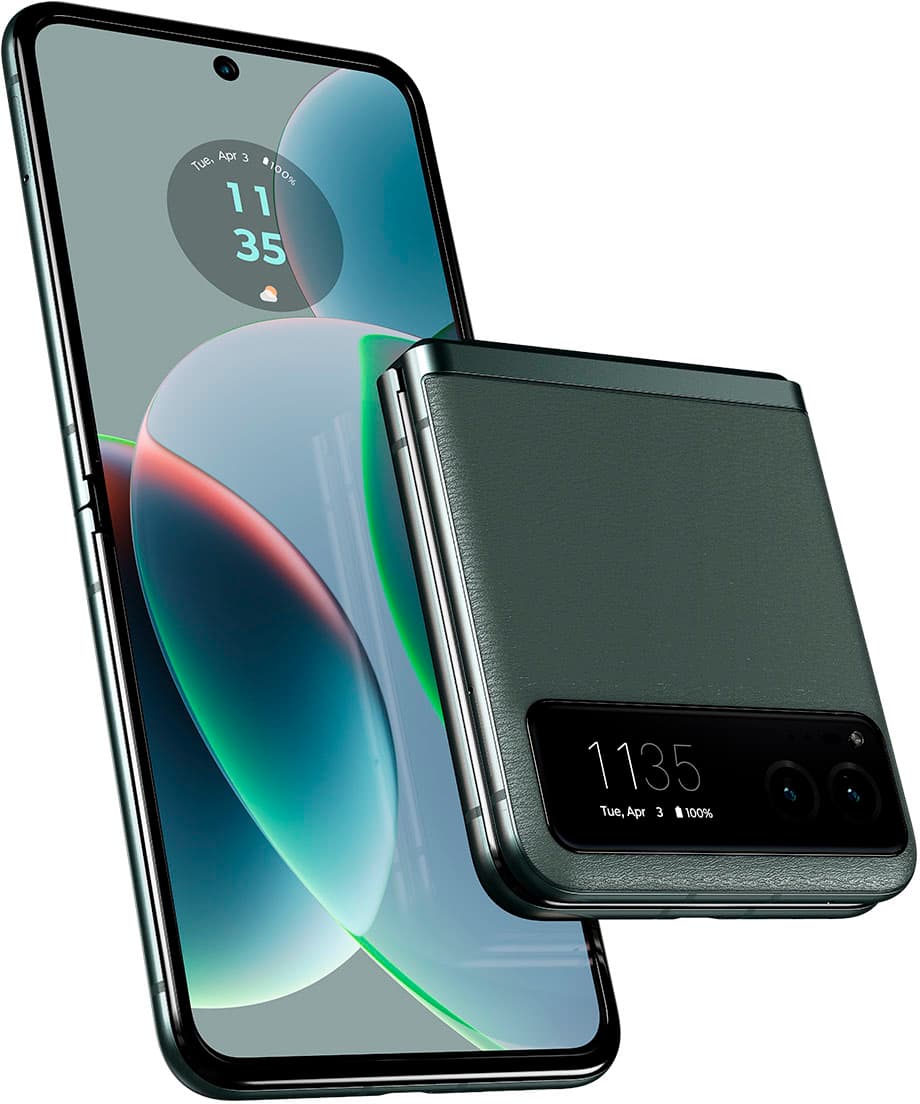
Motorola - razr 2023 Unlocked Smartphone - 128GB, Sage Green
$822.50
Add to cartRelated products
-

4040 handicraft laser engraving machine computer acrylic non-metal laser cutting machine
$903.76 -

Introducing the latest Apple iPad 9th Generation with a 10.2″ Retina Display, 64GB of storage, Wifi connectivity, Touch ID, and includes a Stylus
$658.00 -

10.1″ Android 11.0 Tablet with WIFI, 32GB HD, Quad-Core Processor, Dual Camera, and Netflix Support
$148.00 -
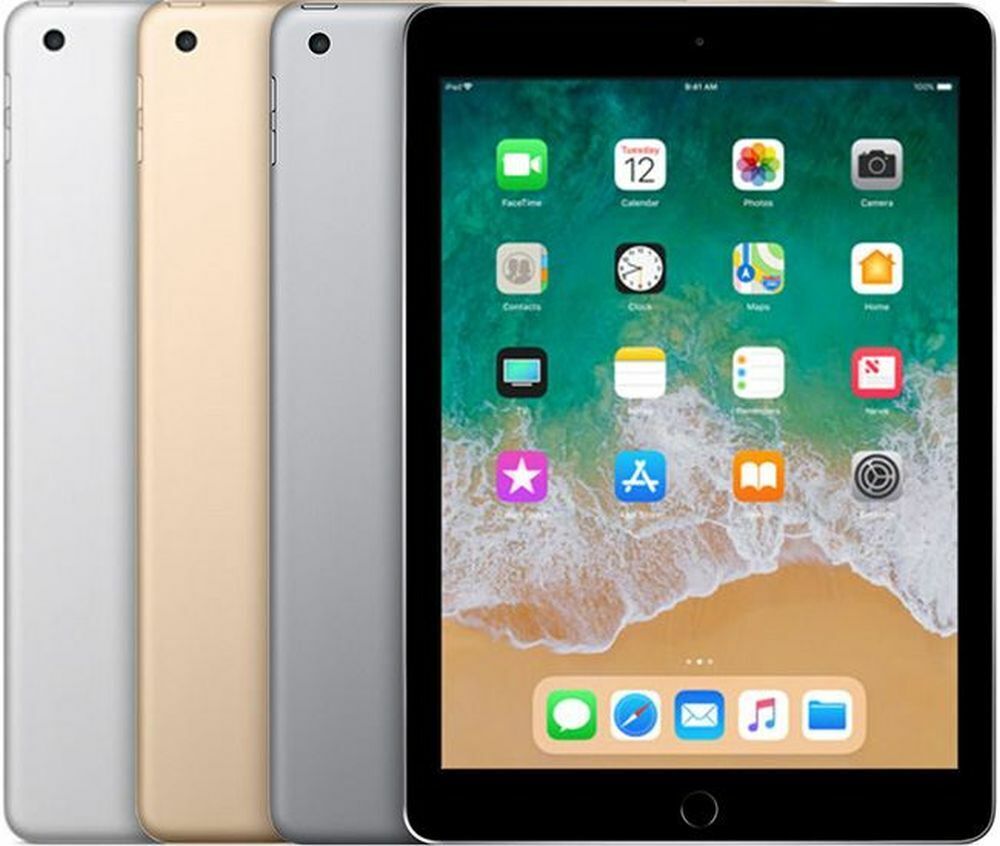
Excellent 2018 Apple iPad 6 (6th Generation) – Gray, 32GB, Wi-Fi, 9.7
$282.00

Reviews
There are no reviews yet.