Dell S3222DGM 32-Inch Curved QHD FreeSync Gaming Monitor with LED Technology (DisplayPort, HDMI…)
$652.10
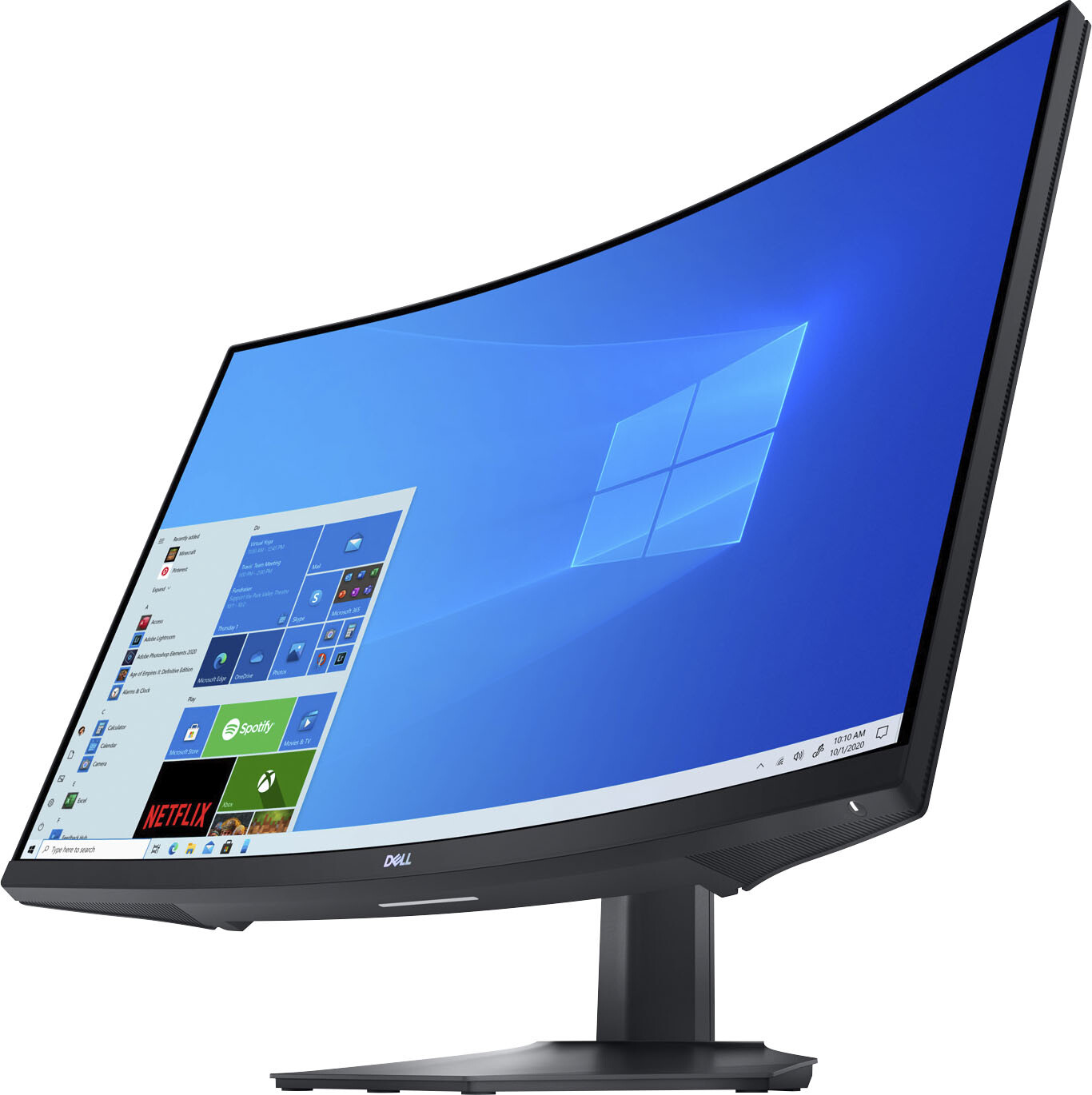
Dell 32″ LED Curved QHD FreeSync Gaming Monitor
2560 x 1440 resolution with 16:9 aspect ratio
VESA DisplayHDR400 technology for lifelike fidelity and striking color
165Hz refresh rate for smooth action
Curved screen for extra immersion
AMD FreeSync technology for adaptive synchronization
One DisplayPort and two HDMI inputs
Adjustable stand for tilt and height adjustments
Buy more, save more Buy 2–4 of this item and save 5%. Buy 5 or more of this item and save 10%. Discount is automatic in your cart on regular-priced items. It cannot be combined with coupon codes or sale prices.
Country suggested using IP or browser language; you can change it. Shipping is confirmed at checkout.
Dell S3222DGM 32-Inch Curved QHD FreeSync Gaming Monitor with LED Technology (DisplayPort, HDMI…),
How to Use the Dell S3222DGM 32″ LED Curved QHD FreeSync Gaming Monitor
Step 1: Setup
Unbox the monitor and remove all packaging materials.
Place the monitor on a flat surface.
Connect the power cable to the monitor and a power outlet.
If using a desktop computer, connect the appropriate cable (DisplayPort or HDMI) from your computer’s graphics card to the corresponding port on the monitor.
If using a gaming console or other device, connect the HDMI cable from the device to the HDMI port on the monitor.
Adjust the tilt and height of the stand to your preferred viewing angle.
Step 2: Power On
Press the power button located on the bottom-right corner of the monitor.
The monitor will display the Dell logo and then enter the desktop mode.
Step 3: Display Settings
Press the menu button on the bottom-right corner of the monitor to access the OSD (On-Screen Display) menu.
Use the arrow keys or the navigation joystick to navigate through the menu options.
Select “Display” or “Picture” to adjust settings like brightness, contrast, color temperature, and sharpness.
Choose your preferred settings based on your personal preference.
Step 4: Gaming Features
Press the menu button and navigate to the “Gaming” section in the OSD menu.
Explore features like Timer, Frame Rate Counter, and Dark Stabilizer to enhance your gaming experience.
Adjust these settings according to your preference.
Step 5: Additional Settings
Use the OSD menu to access additional settings like audio, input source selection, and power saving options.
Explore these settings and customize them according to your needs.
Step 6: Power Off
To turn off the monitor, press the power button located on the bottom-right corner of the monitor.
The monitor will enter standby mode.
Note: For more detailed instructions and troubleshooting information, refer to the included quick setup guide or the manufacturer’s website.
<html></body>
, , Dell
Weight
5 lbs
Brand
MPN
S3222DGM
UPC
884116395911
Manufacturer Warranty
Yes
Warranty - Parts
1 year
Warranty - Labor
1 year
Screen Size
N/A
Reviews
There are no reviews yet.
Only logged in customers who have purchased this product may leave a review.














Reviews
There are no reviews yet.