


HP 24-D 24-dp0160 24″ All-in-One Touchscreen with Borderless LCD Screen and 23.8″ FHD Display
$658.00
- 23.8 inch borderless LCD screen
- Full HD resolution (1920×1080) with 92 PPI
- Antiglare, hard coating treatment
- 250 cd/m² luminance and 1000:1 contrast ratio
- 89/89/89/89 viewing angles (CR≥10)
- 14ms response time
- In-Cell touch technology
- All-in-One form factor with touchscreen feature
Buy more, save more
Buy 2–4 of this item and save 5%.
Buy 5 or more of this item and save 10%.
Discount is automatic in your cart on regular-priced items. It cannot be combined with coupon codes or sale prices.
Buy 2–4 of this item and save 5%.
Buy 5 or more of this item and save 10%.
Discount is automatic in your cart on regular-priced items. It cannot be combined with coupon codes or sale prices.
Country suggested using IP or browser language; you can change it. Shipping is confirmed at checkout.
Description
HP 24-D 24-dp0160 24″ All-in-One Touchscreen with Borderless LCD Screen and 23.8″ FHD Display,
How to Use the HP 24-D 24-dp0160 All-in-One Touchscreen Desktop
Setting up the All-in-One Touchscreen Desktop
- Unbox the HP 24-D All-in-One Touchscreen Desktop.
- Place the desktop on a stable surface.
- Plug in the power cord into an electrical outlet.
- Connect the keyboard and mouse to the available USB ports.
- Turn on the power switch located on the back of the desktop.
- Follow the on-screen prompts to complete the initial setup.
Using the Touchscreen
- Gently tap the screen to navigate through menus and options.
- Swipe your finger across the screen to scroll through documents or webpages.
- Pinch two fingers together or apart to zoom in or out.
- Use your finger to press and hold on an app or icon to access additional options.
Using the Keyboard and Mouse
- Use the keyboard to type and enter text.
- Move the mouse cursor by sliding the mouse across the surface.
- Click the left mouse button to select items or open applications.
- Click the right mouse button to access context menus or additional options.
Adjusting Settings and Display
- Access the Start menu by clicking the Windows icon located on the taskbar.
- Click “Settings” to open the settings menu.
- Adjust display settings such as brightness and color by selecting “Display” from the settings menu.
- Customize other settings like sound, network, and power options according to your preferences.
Shutting Down the All-in-One Touchscreen Desktop
- Click the Start menu.
- Select the power icon located at the bottom left corner.
- Choose “Shut down” to turn off the desktop.
, , HP
| Weight | 5 lbs |
|---|---|
| Brand | |
| Series | HP Pavilion |
| Form Factor | All-In-One |
| Type | All-in-One |
| Screen Size | 23.8 in |
| Model | HP Pavilion |
| Features | Touchscreen |
Only logged in customers who have purchased this product may leave a review.
Special deals for you
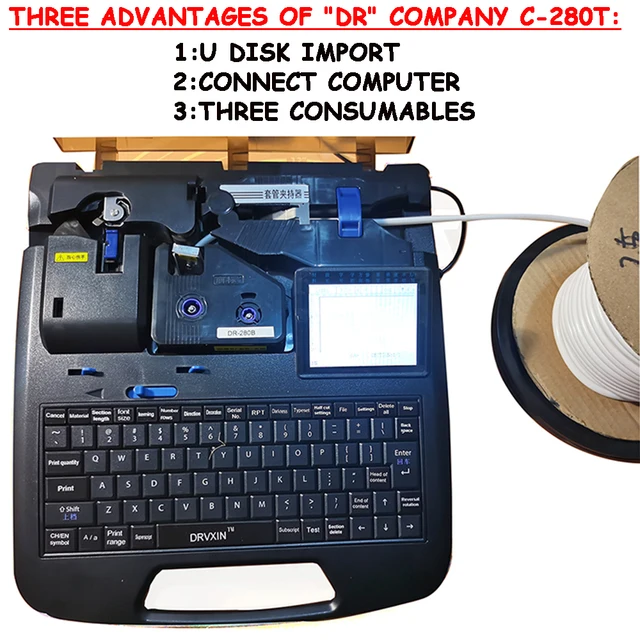
New C-280T Wire Pipe Numbering Machine U Disk Import Connect Computer For Heat-shrinkable Tube Tape Label typewriter printing
Original price was: $604.02.$600.31Current price is: $600.31.
Add to cart
Wire Marker ID Printer Pvc Pipe Marking Machine USB Drive Import USB Connection PC Computer Electronic Engraving Machine C-280T
Original price was: $600.12.$596.23Current price is: $596.23.
Add to cart
WAINLUX K6 3000mW Mini CNC Laser Engraver
Original price was: $128.37.$127.16Current price is: $127.16.
Add to cart
Lville Android 13 Tablet - 10 inch Octa-Core Tablet with 8GB RAM, 128GB ROM, 1TB TF Expandable Storage, Bluetooth 5.0, WiFi 6, Fast Charging, Dual Camera - Black
Original price was: $4,270.00.$235.00Current price is: $235.00.
Add to cartPopular items in this category

Exclusive Access Modern Two-Wheel 3000W Electric Motorcycle with Racing Design for Adults
$2,133.00
Add to cart
Unlock Your Potential Hiseeu 4MP/5MP PTZ IP Camera Outdoor Security AI Human Detection H.265X Wireless WiFi Video Surveillance Cameras iCsee P2P
$16.10
Add to cart
Empowering Solutions Hiseeu 4MP+4MP Dual Lens Wifi PTZ IP Camera 2.8+12mm 8X Zoom CCTV Video Surveillance Camera Color Night Vision Ai Human Cam
$16.10
Add to cart
Best HD Auto Zoom Photochromic Reading Glasses for Business with Near Far Anti-blue Light for Presbyopia
$16.10
Add to cartSimilar items you might like

Best Deal Adjustable Intensity Electric Muscle Stimulation Neck Therapy Device with 6 Modes - Portable Pain Relief Tool with Ergonomic Design
$16.10
Add to cart
Uncover Your True Potentialy Men's Anti-Blue Light TR90 Reading Glasses with High Definition, Ultralight Sport Design and Non-Slip Feature - Ideal for Presbyopia and Hyperopia up to +3.5 Diopters
$16.10
Add to cart
Your Perfect Match Outdoor Driving and Fishing Sunglasses with Photochromic Polarized Lenses, UV400 Protection, Anti-Glare, and Case
$16.10
Add to cart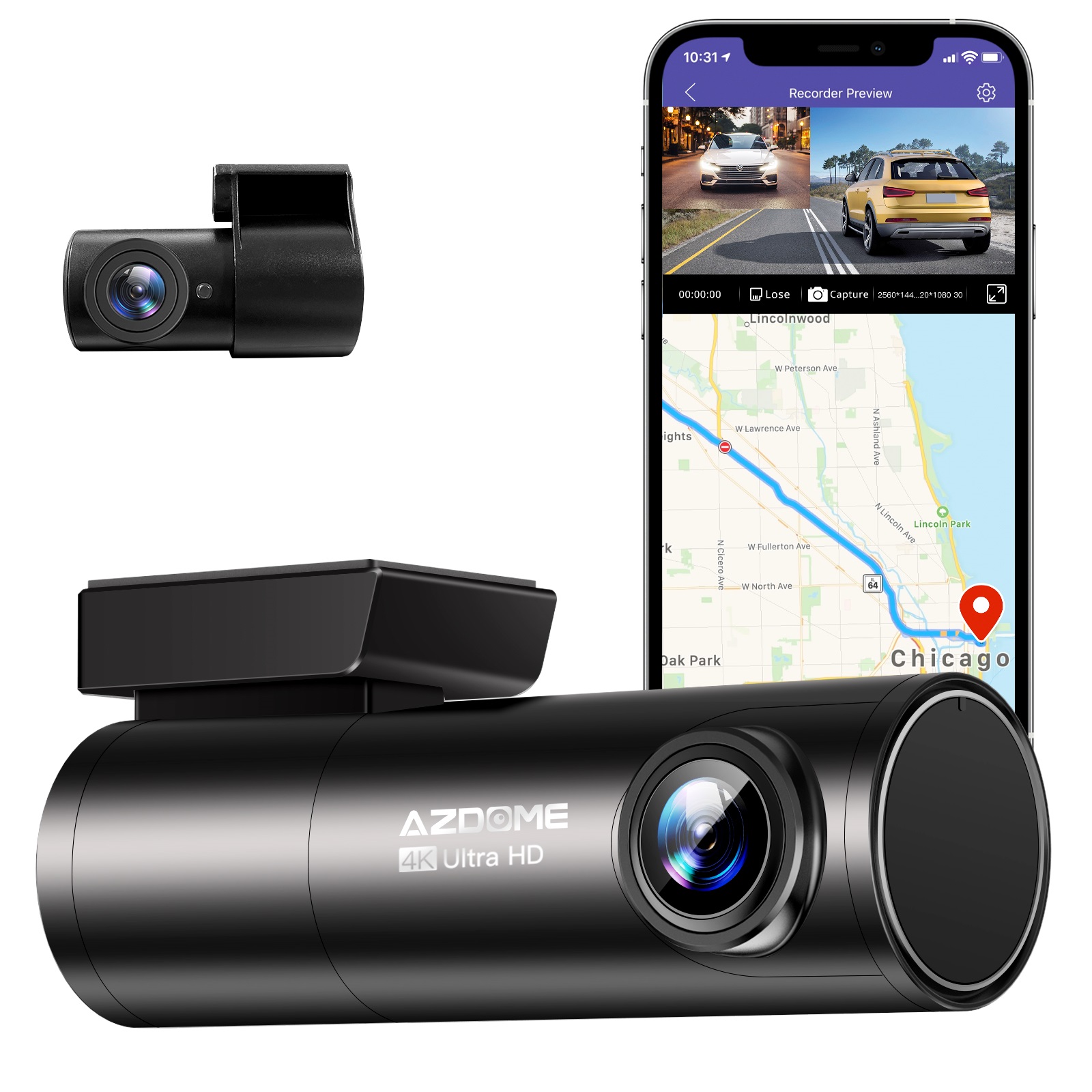
Instant Gratification Azdome HD 1080P Dash Cam Wifi Gps Recorder G-sensor Dashcam Black
$247.10
Add to cartProducts related to this item
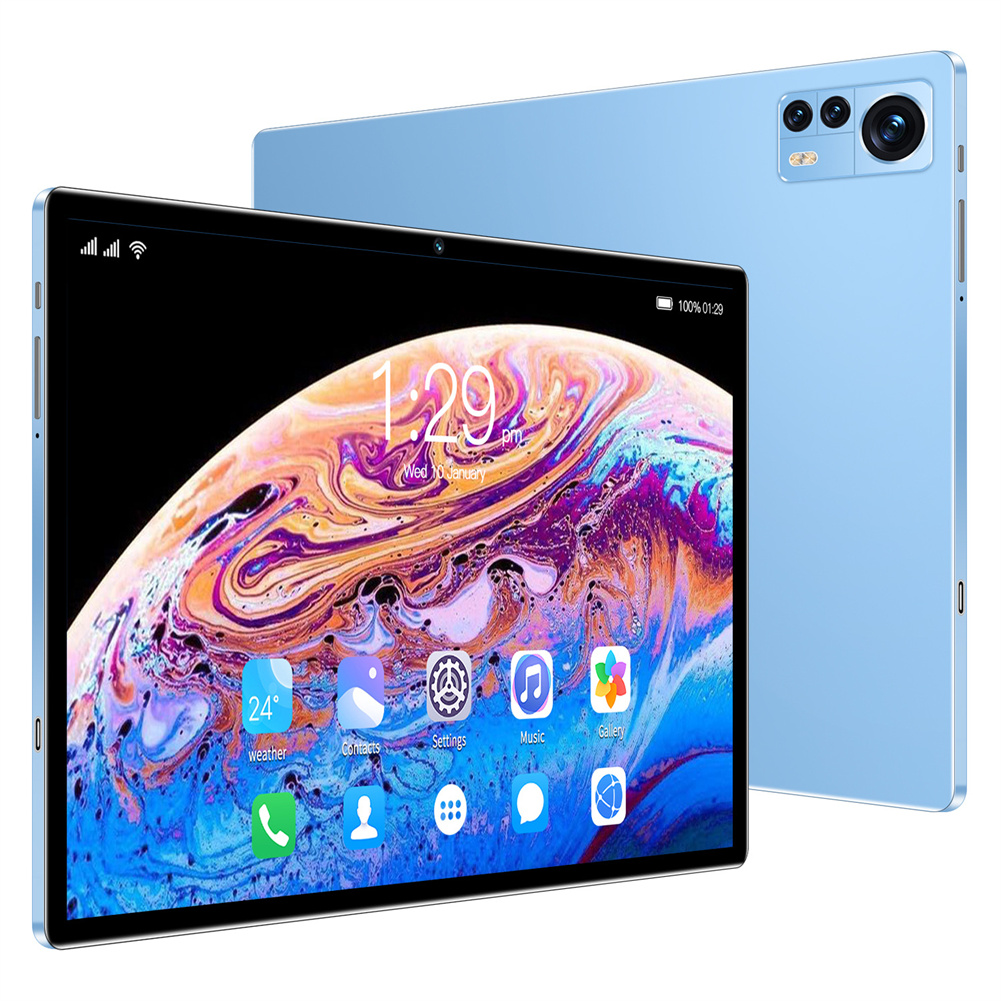
Blue EU Plug X12 Smart Tablet with 10.1-inch HD Capacitive Touch Screen, 5000mah Battery, and Wifi Connectivity
$261.20
Add to cart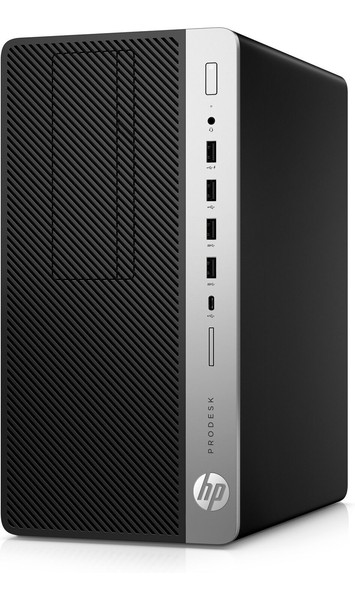
HP ProDesk 600 G5 Microtower PC Desktop Intel Core i7 32GB DDR4 RAM 1TB SSD
$997.50
Add to cart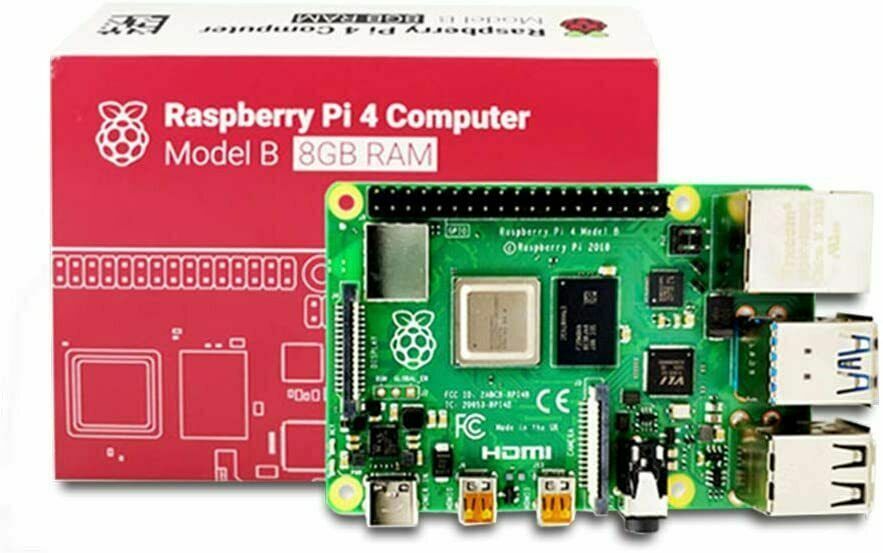
Raspberry Pi 4 8GB DDR4 RAM Single Board Computer - RPI4-MODBP-8GB
$46,998.00
Add to cart
Apple iPad 5th Generation 9.7" 32GB/128GB Gray/Silver Wi-Fi/Cellular Unlocked with Good Condition
$246.70
Add to cartProducts you may also like

Amazon Fire HD 8 Black - 8" Tablet with HD Display, 32GB, 10th / 12th Gen 2022 - R2SP8T
$15,980.30
Add to cart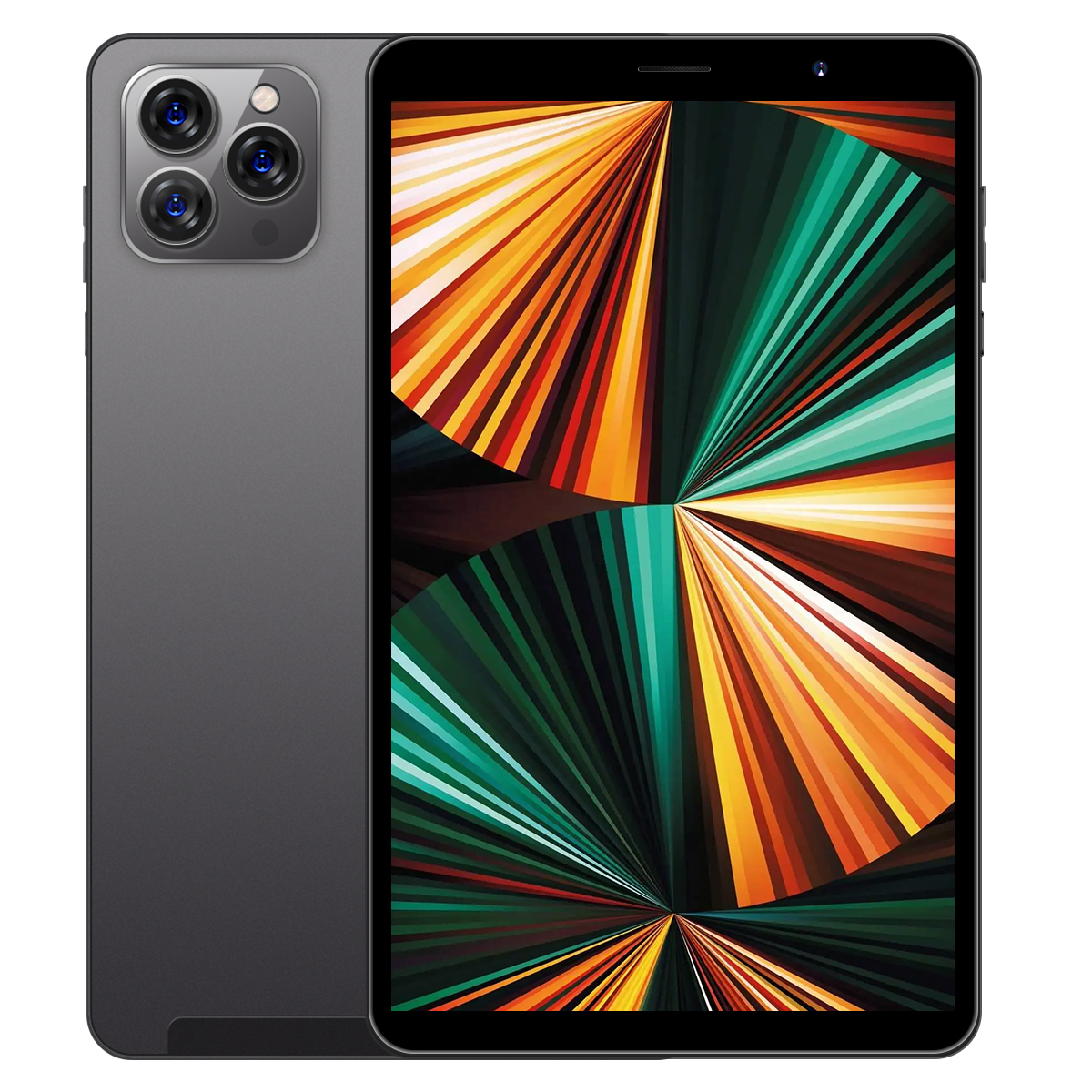
Tab14 8-inch Tablet with 1GB RAM, 16GB ROM, Bluetooth 4.0, 3G Calling, 2200mAh Battery, Android 5.0, Black Color, US Plug
$158.50
Add to cart
Sealed Fire Max 11 Tablet with Vivid 11" Display, 64GB Storage, 4GB RAM, and Octa-Core Processor
$31,018.40
Add to cart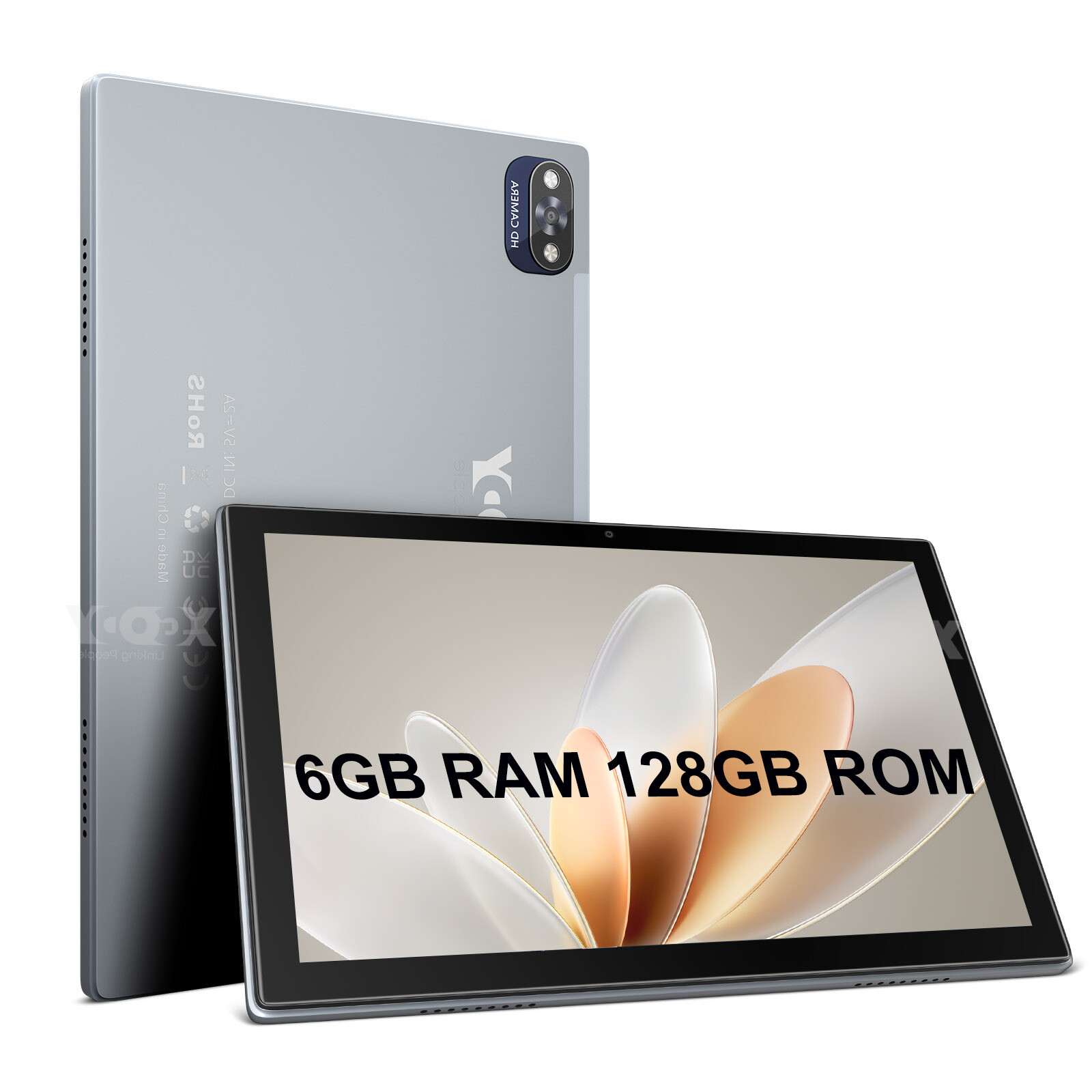
10-inch Android 12 Tablet with 6GB+128GB Storage, FHD Display, and Quad-Core Processor
$211.50
Add to cartRecommended for You
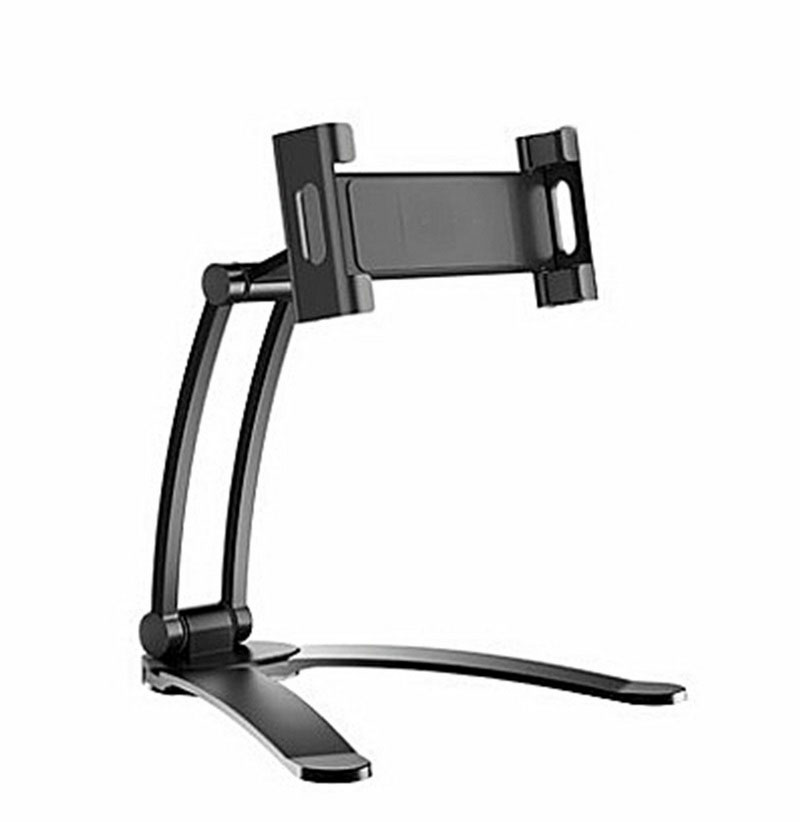
2 in 1 Flexible Lazy Bracket Pull-Up Desktop/Wall Cell Phone Tablet Holder Stand Adjustable Mount black
$64.20
Add to cart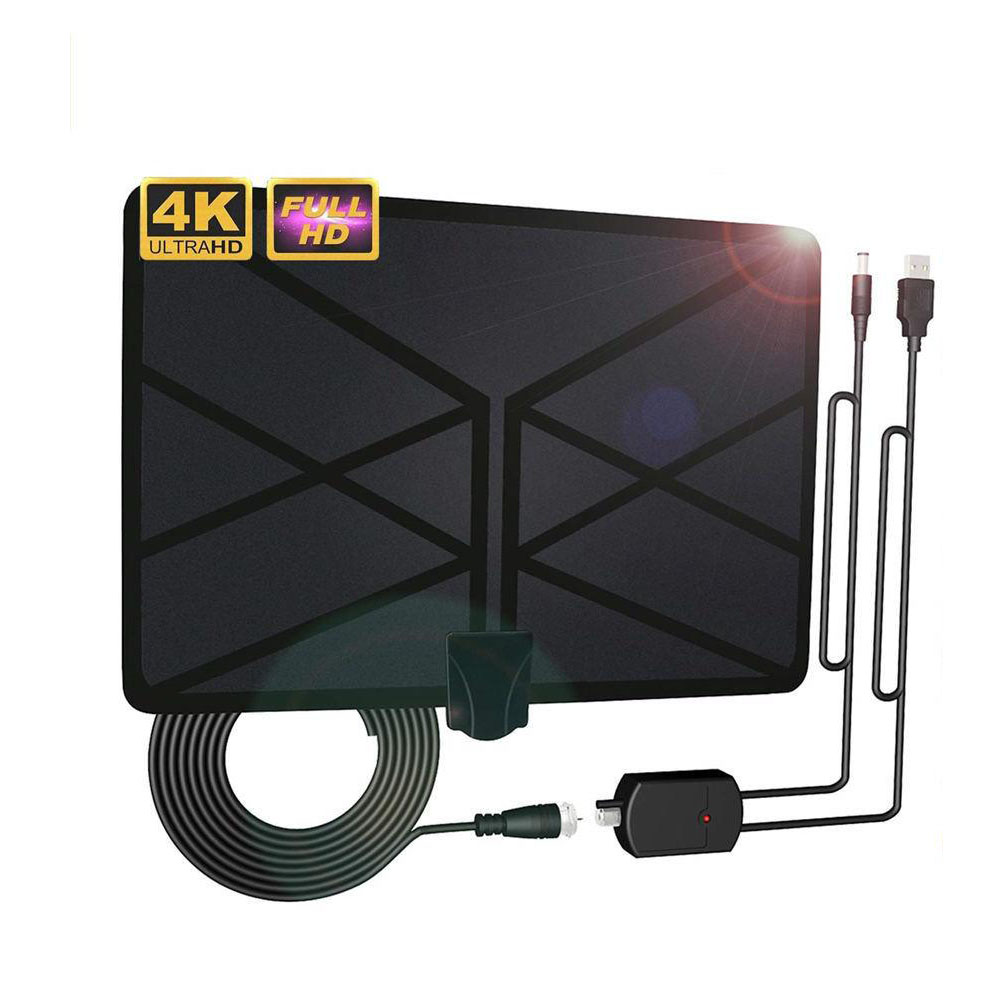
Maximize Your Productivity 960 Miles TV Aerial Indoor Amplified Digital HDTV Antenna with 4K UHD 1080P DVB-T Freeview TV for Life Local Channels Broadcast As shown
$39.50
Add to cart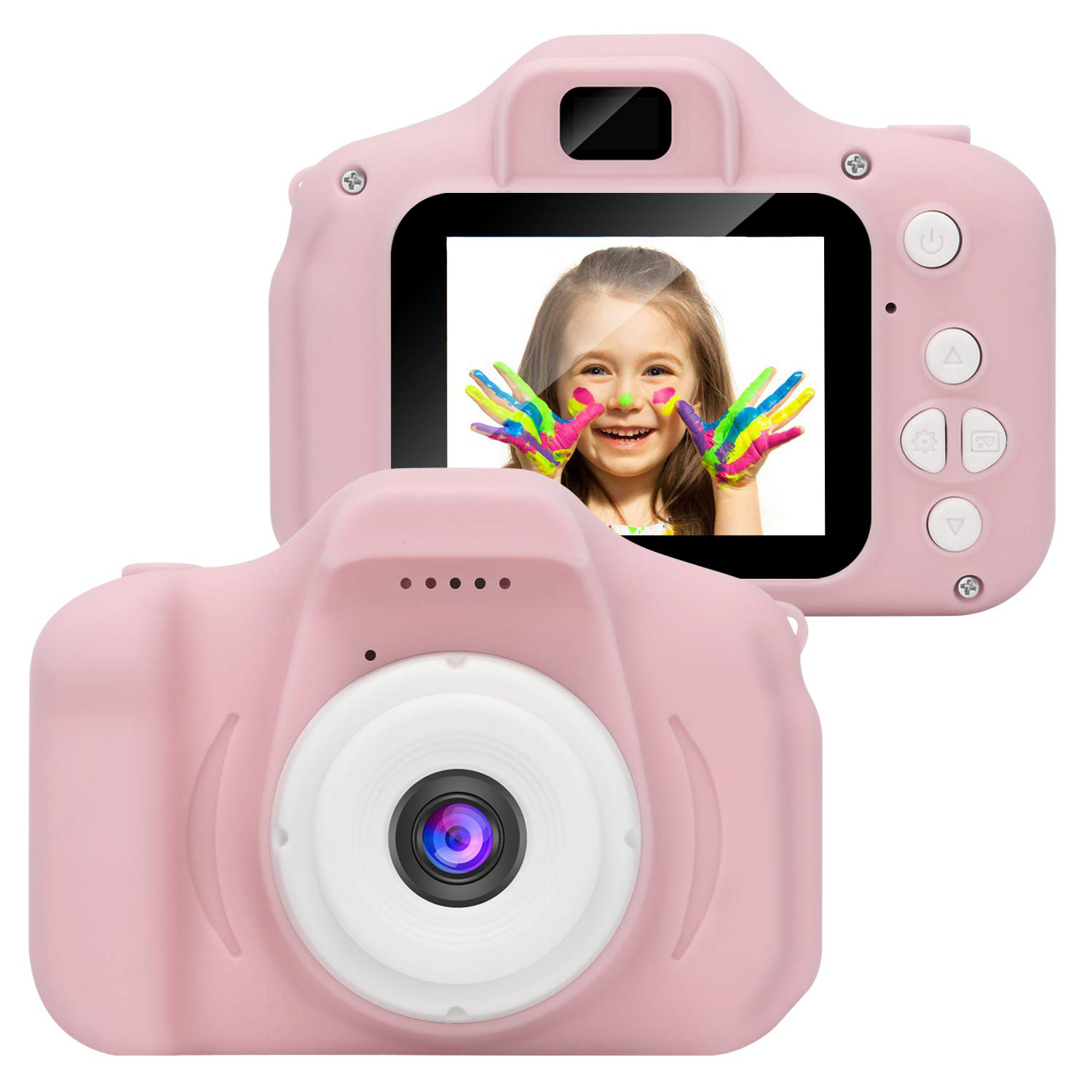
Prime Kids Digital Video Camera Mini Rechargeable Children Camera Shockproof 8MP HD Toddler Cameras Child Camcorder Pink
$29.50
Add to cart
NEW Black & White Yobo Fc Video Game Console to Play NES 8 Bit Nintendo Games
$63.30
Add to cartRelated products
-
Sealed Fire Max 11 Tablet with Vivid 11″ Display, 64GB Storage, 4GB RAM, and Octa-Core Processor
$31,018.40 -

Introducing the latest Apple iPad 9th Generation with a 10.2″ Retina Display, 64GB of storage, Wifi connectivity, Touch ID, and includes a Stylus
$658.00 -

2017 5th Generation Apple iPad 9.7″ Retina Display 128GB Space Gray Wi-Fi
$62,578.60 -

New Beelink S12 Pro Mini PC 12th Gen Intel N100, 16GB RAM, 500GB SSD,HDMI, WiFi6
$305.50

Reviews
There are no reviews yet.