
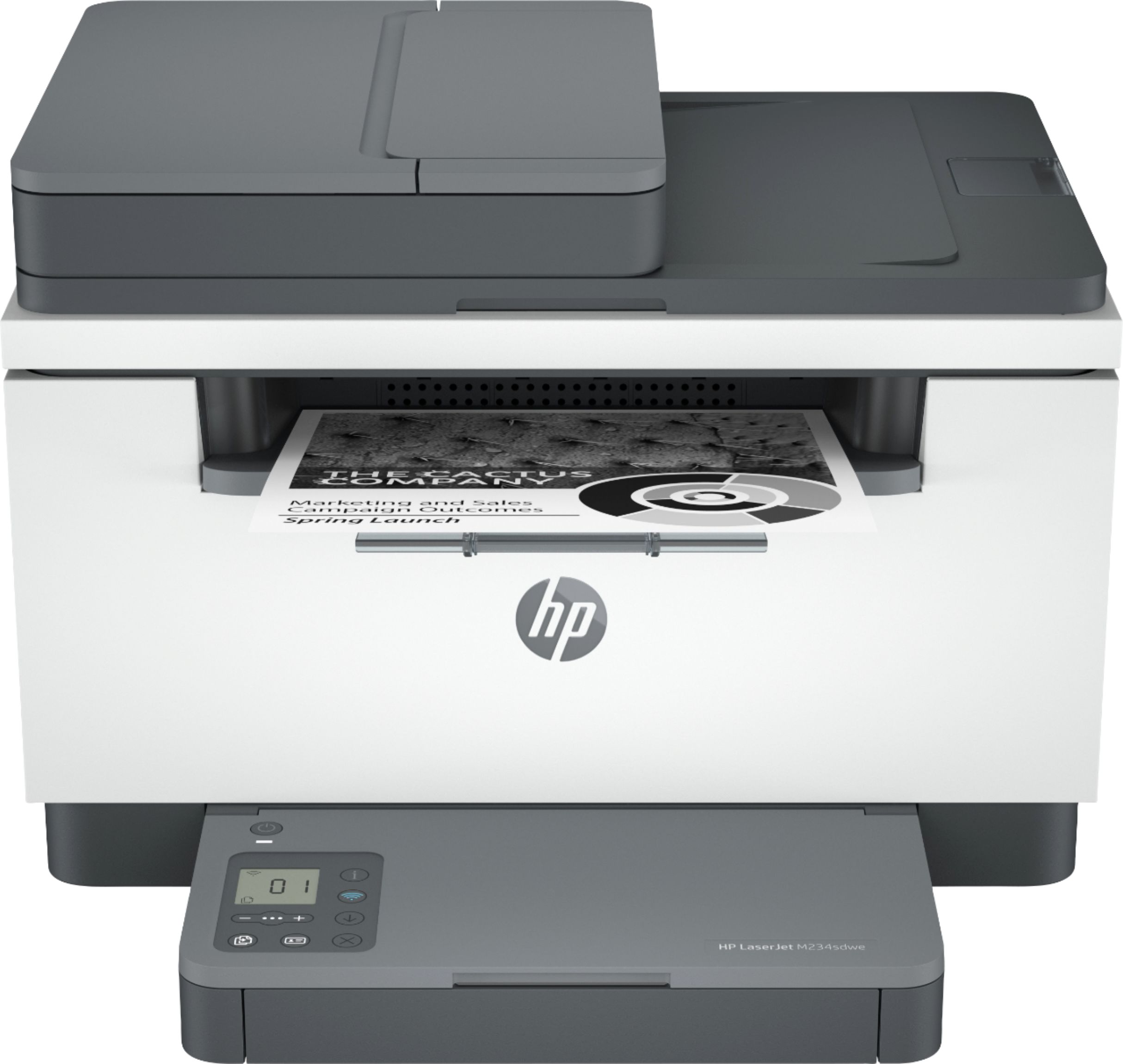
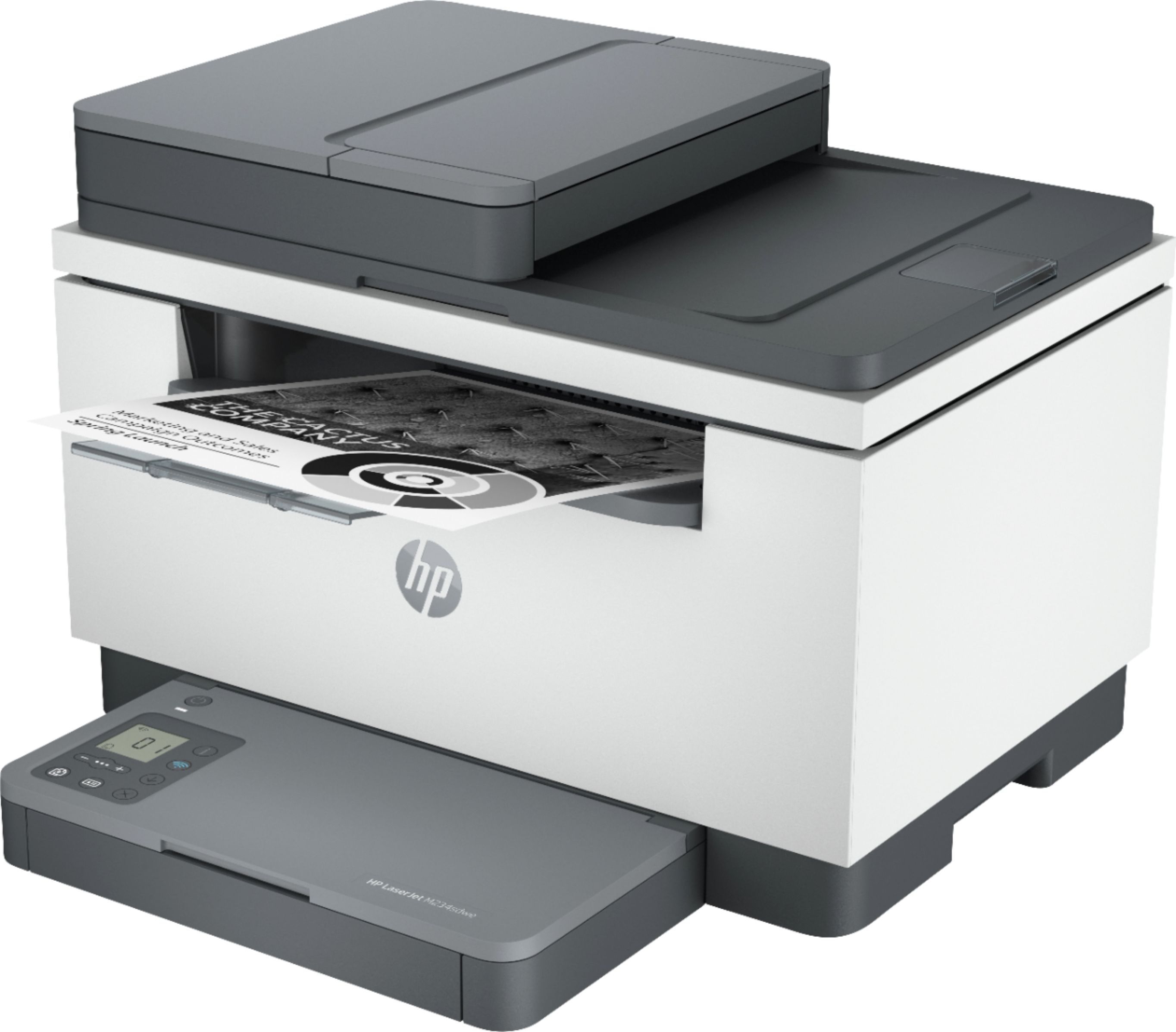
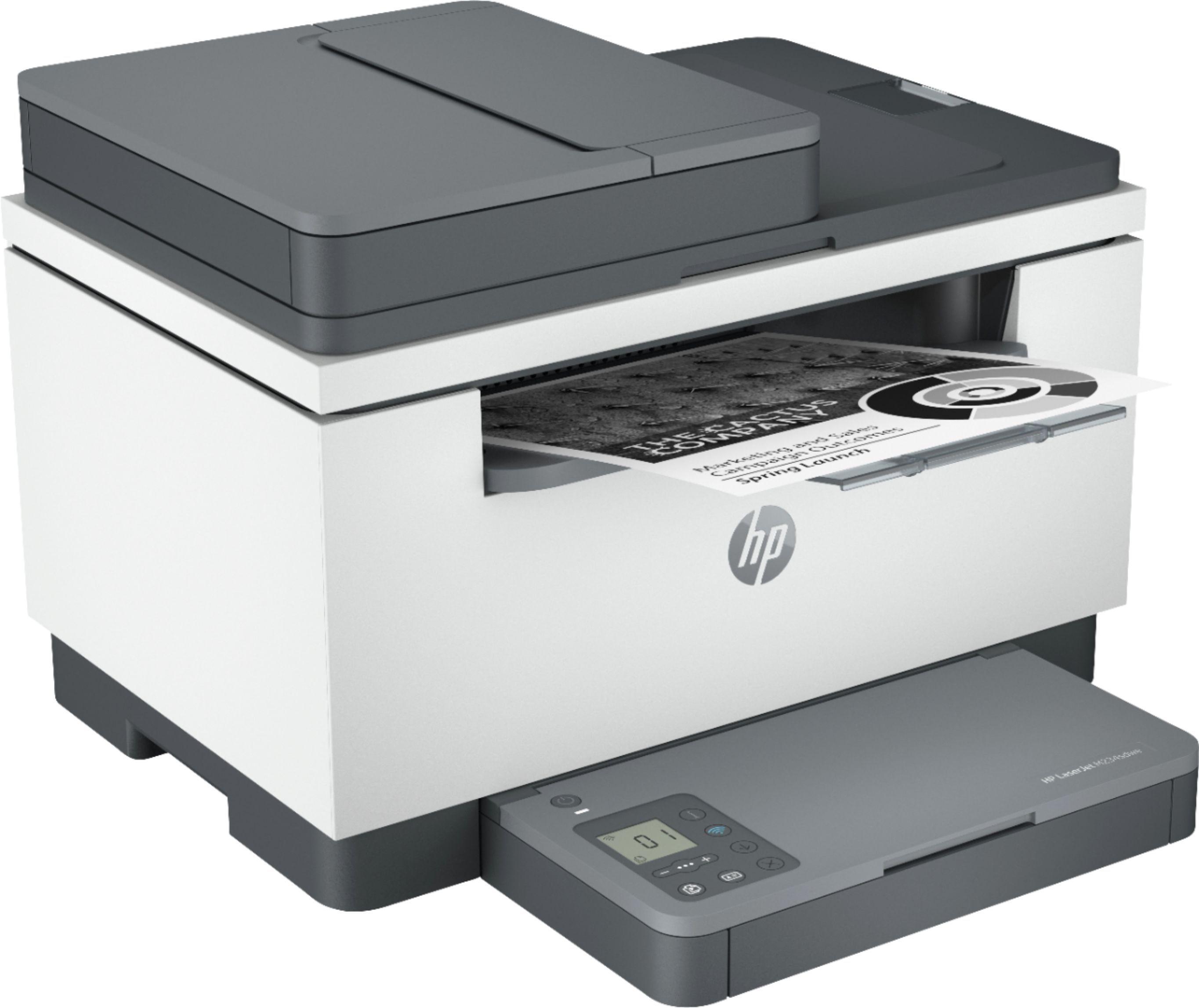
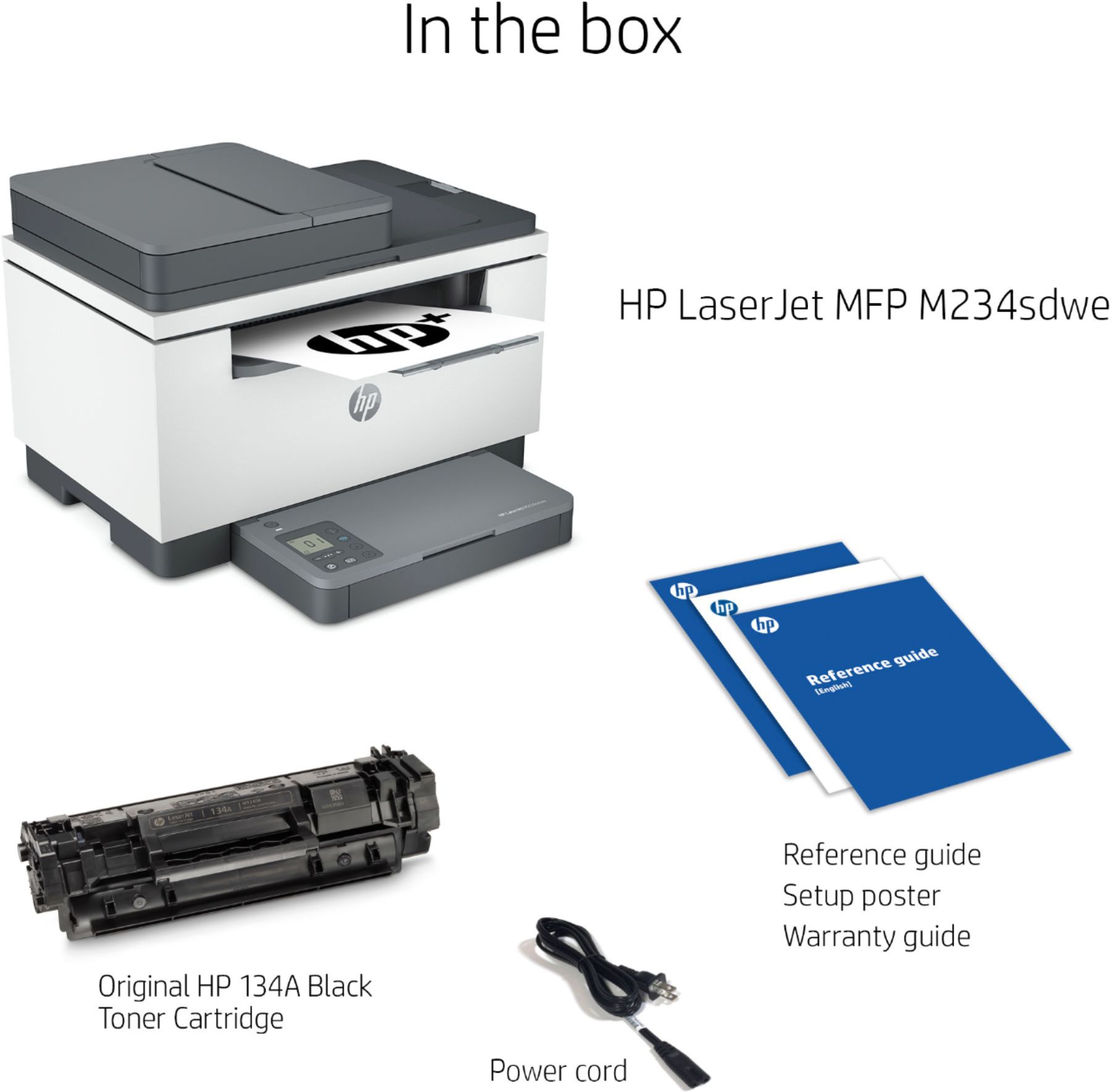
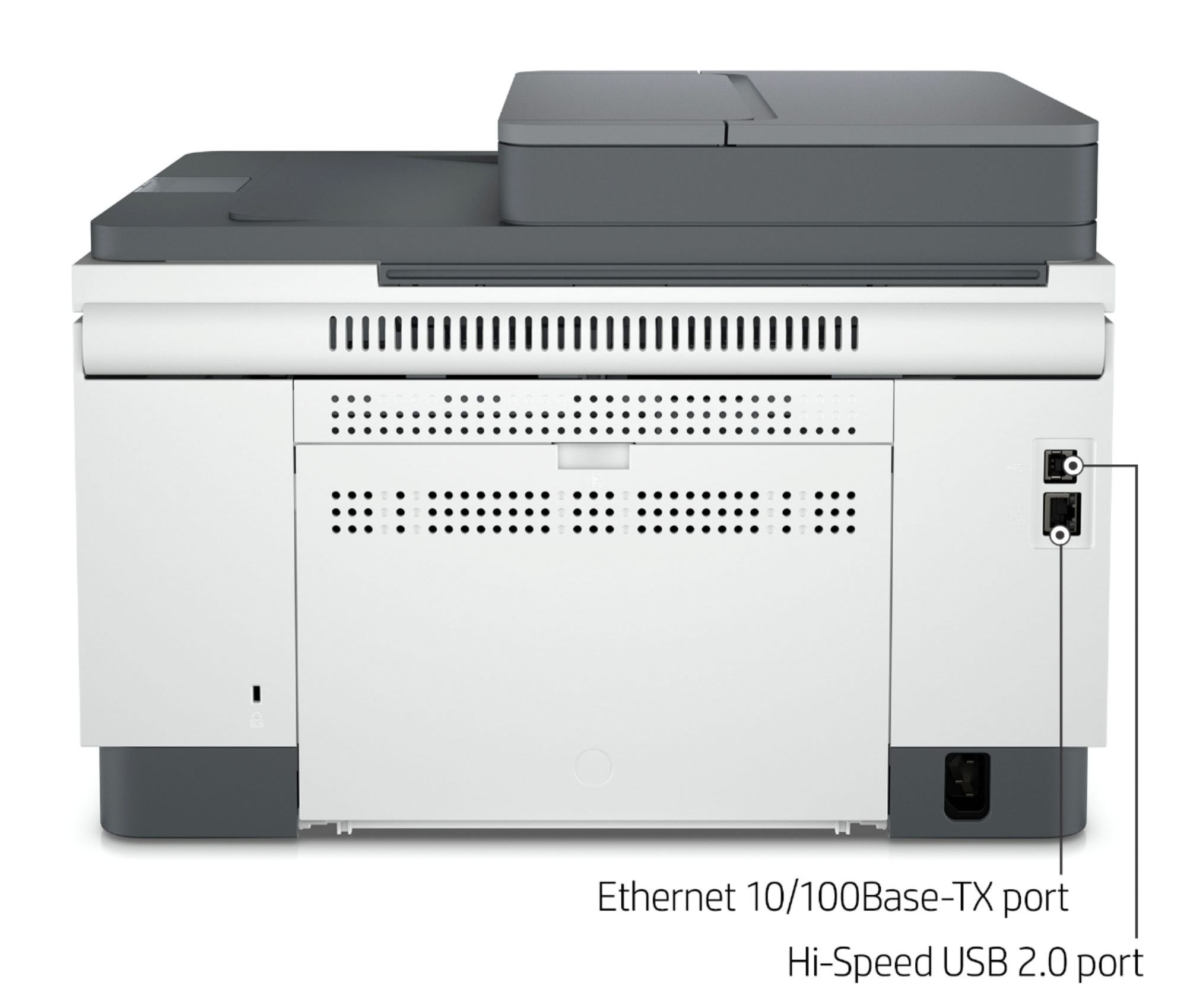

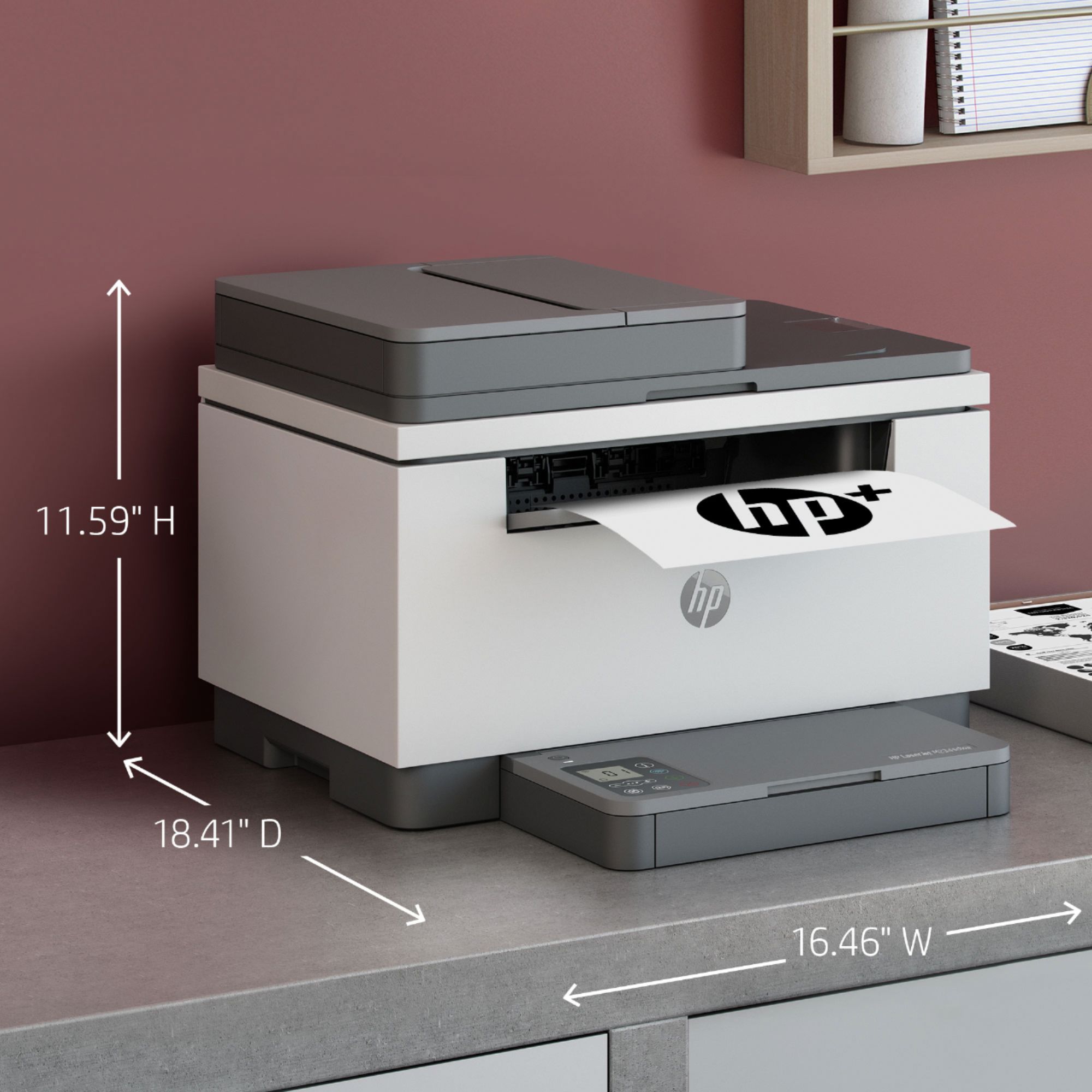

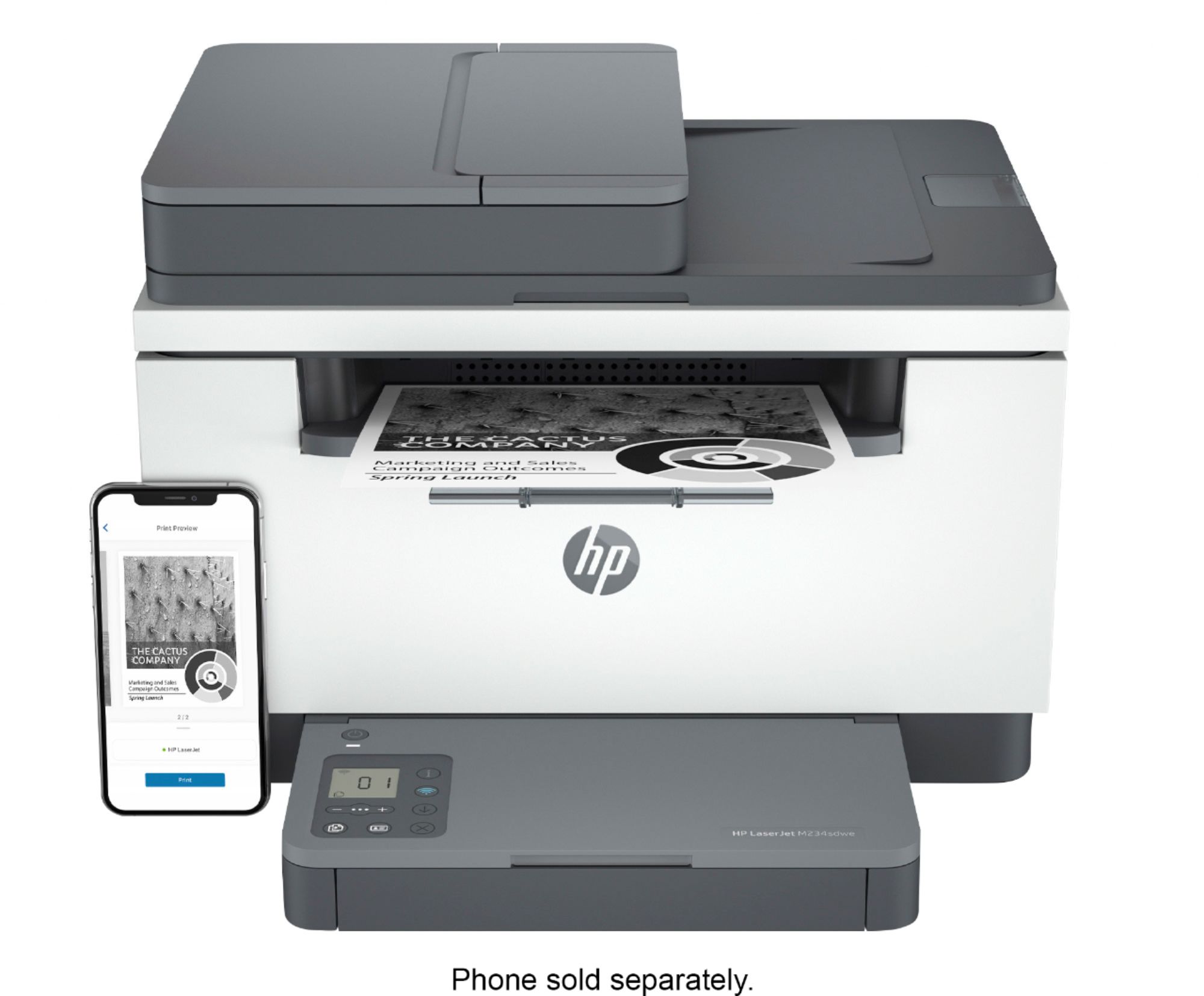
HP LaserJet M234sdwe Wireless Laser Printer
$540.50
- Fast print speeds
- Precision two-sided printing
- Scan/copy capabilities
- Auto document feeder
- Perfect for small businesses
- Works with Original HP Toner
- Requires HP account and internet connection
- Works with HP+ Smart Printing System
Buy more, save more
Buy 2–4 of this item and save 5%.
Buy 5 or more of this item and save 10%.
Discount is automatic in your cart on regular-priced items. It cannot be combined with coupon codes or sale prices.
Buy 2–4 of this item and save 5%.
Buy 5 or more of this item and save 10%.
Discount is automatic in your cart on regular-priced items. It cannot be combined with coupon codes or sale prices.
Country suggested using IP or browser language; you can change it. Shipping is confirmed at checkout.
Description
HP LaserJet M234sdwe Wireless Laser Printer,
How to Use the HP LaserJet M234sdwe Wireless Black-and-White Laser Printer
Setup
- Remove all packaging materials from the printer.
- Connect the power cord to the printer and plug it into a power outlet.
- Press the power button to turn on the printer.
- Follow the instructions on the printer’s display to set the language, date, and time.
- Connect the printer to your Wi-Fi network by following the on-screen prompts.
Installing Toner
- Open the printer’s front cover.
- Remove the toner cartridge from its packaging.
- Hold the toner cartridge by the handles and gently rock it from side to side to distribute the toner evenly.
- Align the toner cartridge with the tracks inside the printer and insert it until it clicks into place.
- Close the printer’s front cover.
Printing
- Make sure there is paper loaded in the printer’s input tray.
- Open the document you want to print on your computer or mobile device.
- Select the print option in the application’s menu.
- Choose the HP LaserJet M234sdwe printer from the list of available printers.
- Adjust any print settings, such as number of copies or paper size.
- Click or tap the “Print” button to start printing.
Copying
- Place the document you want to copy face-down on the scanner glass or face-up in the document feeder.
- On the printer’s control panel, select the copy function.
- Adjust any copy settings, such as number of copies or paper size.
- Press the “Start” button to begin the copying process.
Scanning
- Place the document you want to scan face-down on the scanner glass or face-up in the document feeder.
- On the printer’s control panel, select the scan function.
- Choose the destination for your scanned document, such as email or a computer folder.
- Adjust any scan settings, such as color mode or resolution.
- Press the “Start” button to start scanning.
Additional Features
- The printer supports two-sided printing, allowing you to save paper.
- Use the auto document feeder for quickly scanning or copying multiple pages at once.
- Ensure your printer is connected to the internet to enjoy the benefits of the HP+ Smart Printing System.
- Regularly check for software updates to keep your printer up to date and secure.
, , HP
304 reviews for HP LaserJet M234sdwe Wireless Laser Printer
Only logged in customers who have purchased this product may leave a review.
Special deals for you

Canon imageFORMULA R40 Office Document Scanner For PC and Mac, Color Duplex Scanning, Easy Setup For Office Or Home Use, Includes Scanning Software
Original price was: $4,270.00.$538.20Current price is: $538.20.
Add to cart
Epson Workforce ES-C220 Compact Desktop Document Scanner with 2-Sided Scanning and Auto Document Feeder (ADF) for PC and Mac
Original price was: $3,244.40.$517.00Current price is: $517.00.
Add to cart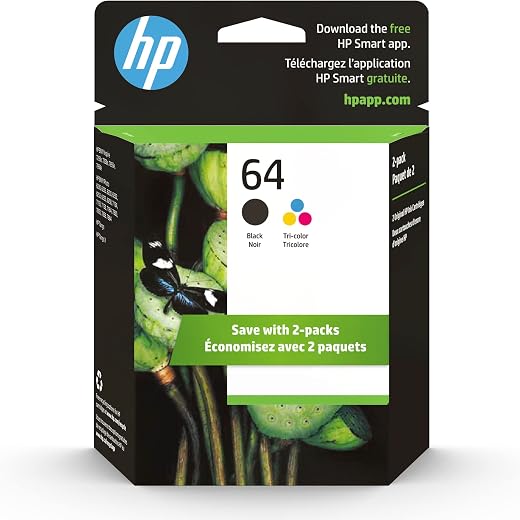
HP 64 Black/Tri-color Ink Cartridges (2-pack) | Works with HP ENVY Inspire 7950e; ENVY Photo 6200, 7100, 7800; Tango Series | Eligible for Instant Ink | X4D92AN
Original price was: $1,038.20.$121.90Current price is: $121.90.
Add to cart
TN660 Toner Cartridge Replacement Compatible for Brother TN 660 TN-660 TN630 High Yield to use with HL-L2380DW HL-L2320D HL-L2340DW DCP-L2540DW MFC-L2700DW MFC-L2720DW Printer...
Original price was: $1,512.00.$86.90Current price is: $86.90.
Add to cartPopular items in this category

Retro HDMI Game Console – 4K Output and Gamepad Controllers
$40.00
Add to cart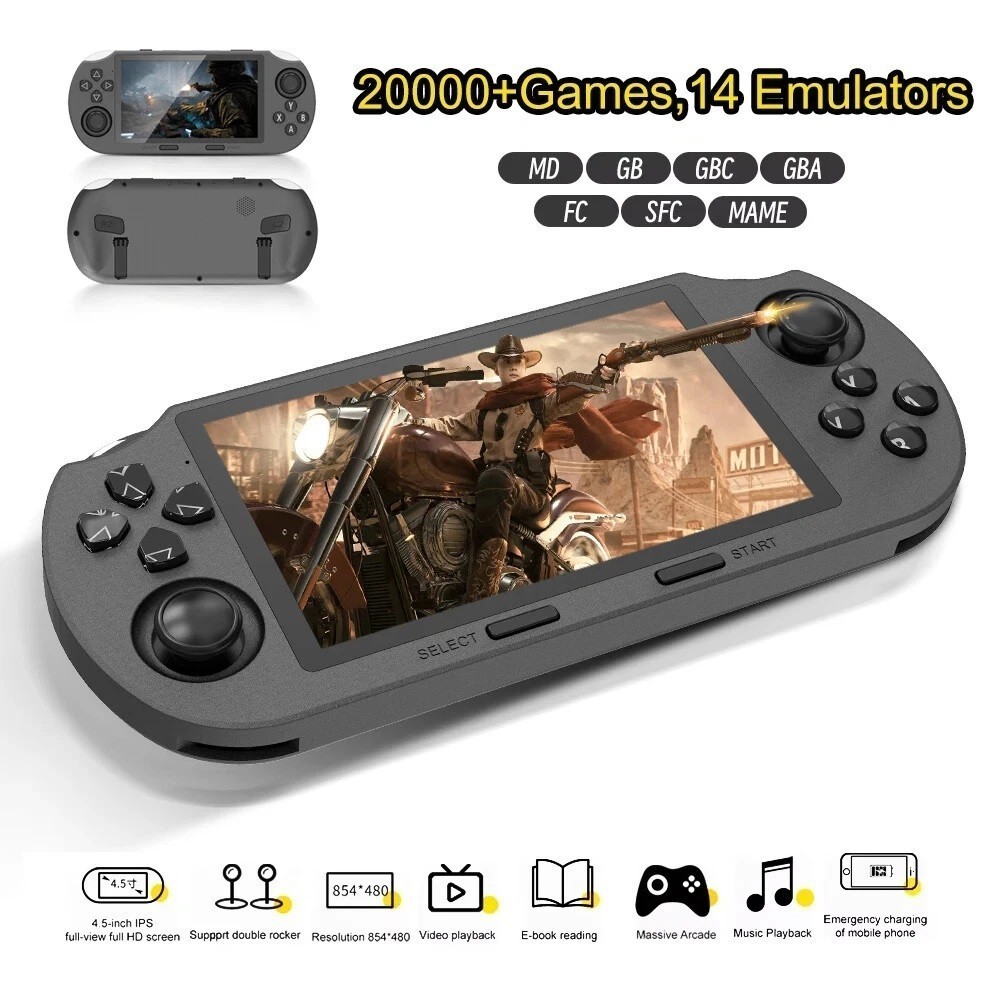
SF3000 Retro Handheld Game Console – 4.5-Inch IPS Display
$94.00
Add to cart
Blackview PlayPop 8 AI Motion Gaming Console for Families
$349.99
Add to cart4K HDMI Retro Game Console – Plug and Play, 20,000+ Games
$40.00
Add to cartSimilar items you might like

Blackview PlayPop 8 AI Motion Gaming Console – 8GB RAM, 128GB Storage
$379.99
Add to cart
R36S Retro Handheld Game Console, 64GB, 3.5-Inch IPS Screen
$86.90
Add to cart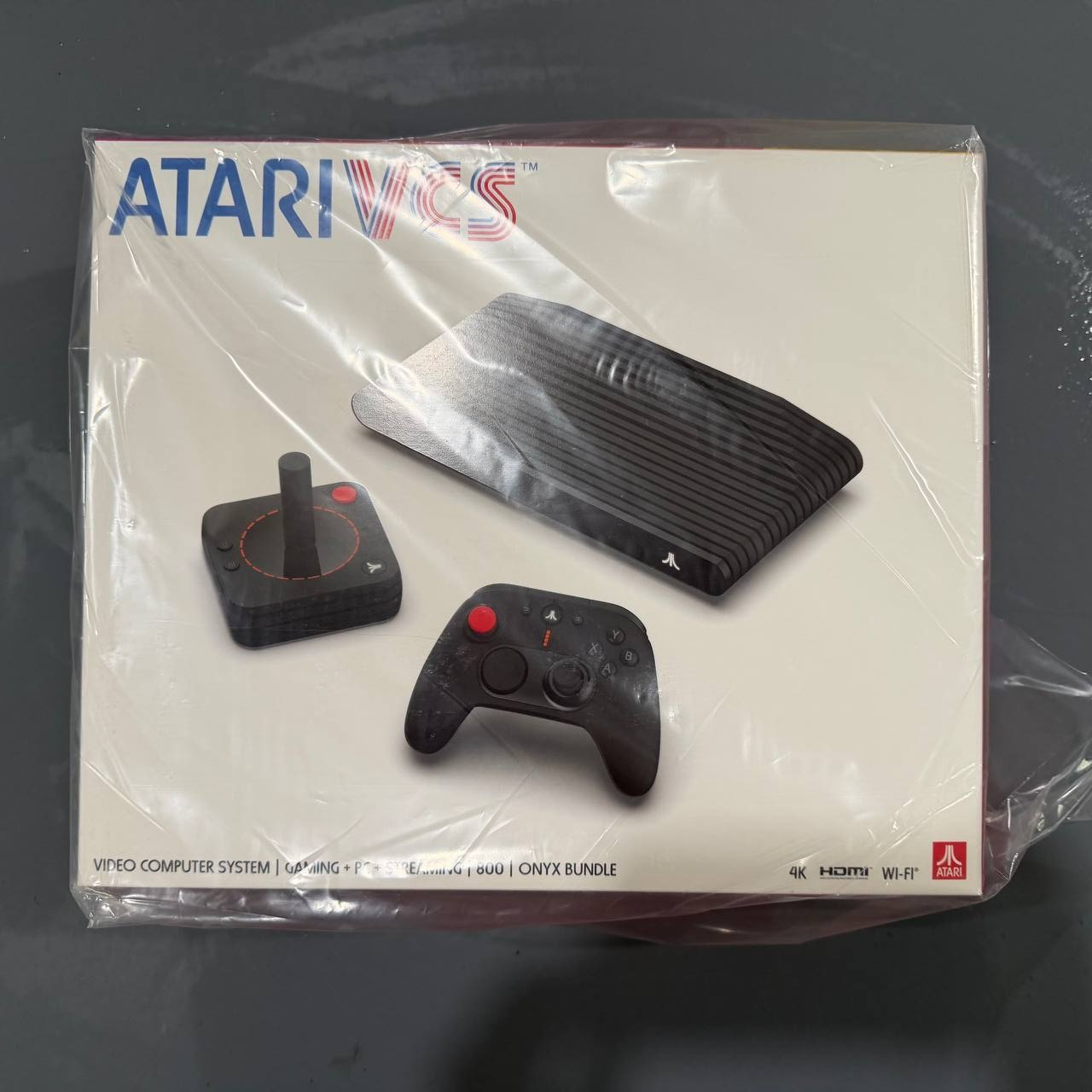
New Sealed Atari VCS 800 Onyx All-In Bundle
$379.99
Add to cart
Budget Desktop PC – Intel Core i7 4th Gen, 16GB DDR3, SSD Options
$499.99
Add to cartProducts related to this item

TYAN Tomcat 845GVL Motherboard with Accessories
$411.30
Add to cart
1.8M HDMI to VGA Cable HD 1080P HDMI Male to VGA Male Video Converter Adapter for PC Laptop
$17.00
Add to cart
MUCAI X99 P4 Motherboard LGA 2011 3 Supports Intel Xeon processor four channel DDR4 RAM NVME M.2/SATA 3.0
$189.00
Add to cart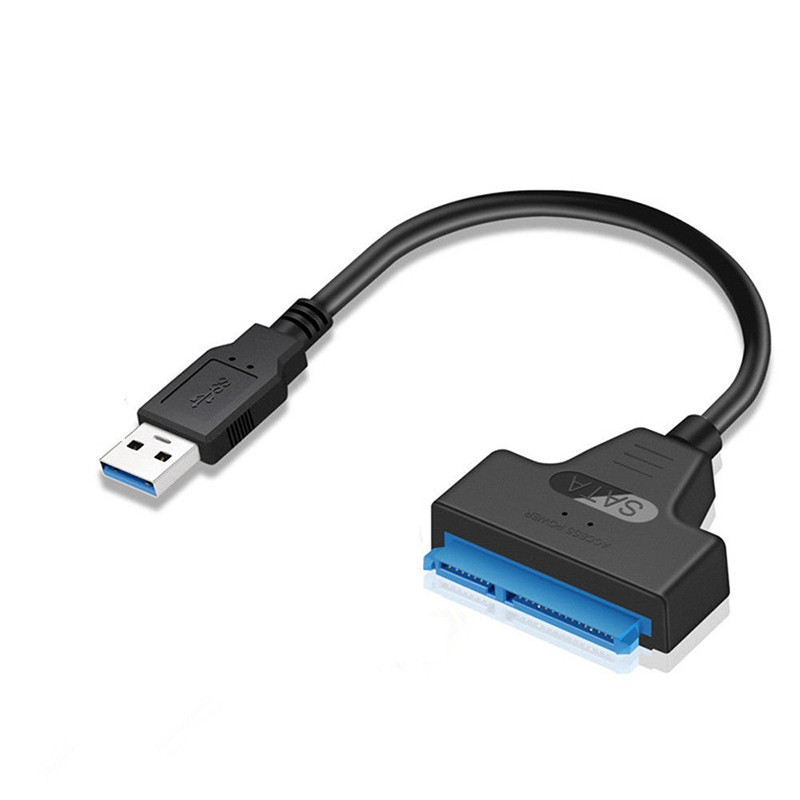
USB 3.0 to 2.5" SATA III Hard Drive Adapter Cable/UASP -SATA to USB3.0 Converter As shown
$27.10
Add to cartProducts you may also like
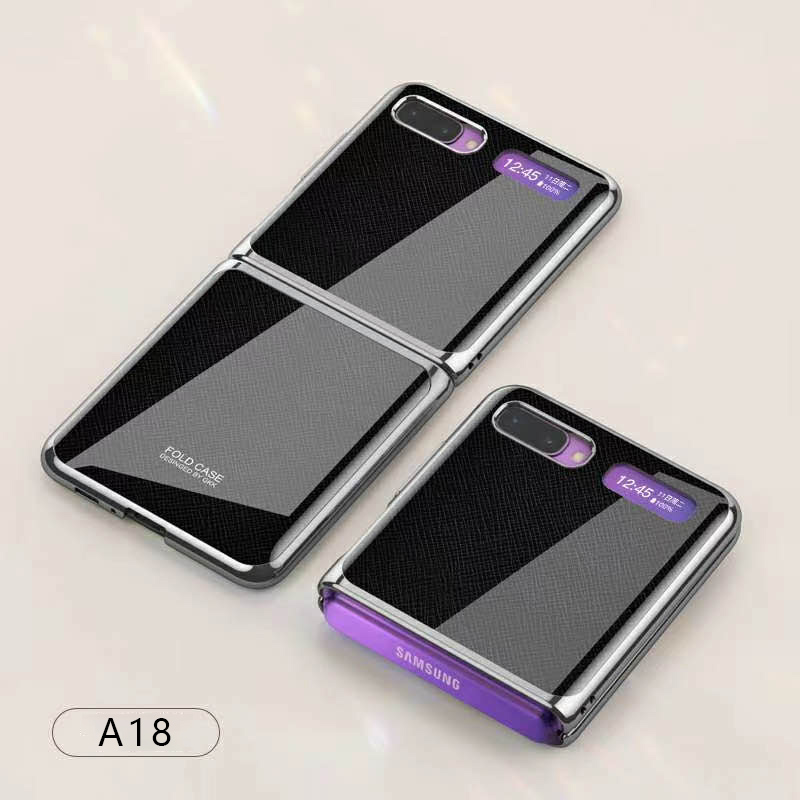
For Samsung Galaxy Z flip Foldable Cellphone Shell Electroplated Painted Folding Phone Case A18 cross pattern
$44.00
Add to cart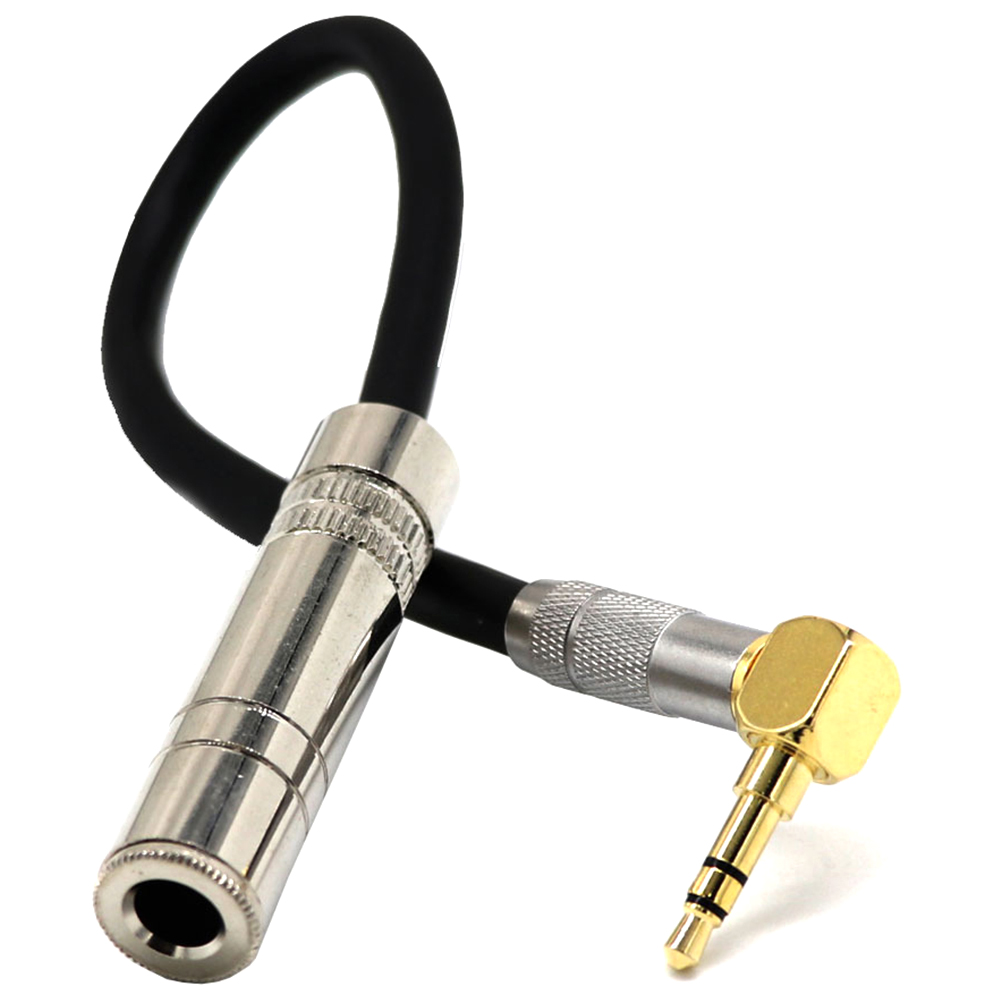
3.5 Male Plug Jack Stereo to 6.35 Female Stereo Extension Cable Angled Audio Line cable As shown
$23.40
Add to cart
MSI X470 Gaming Plus Motherboard
$293.80
Add to cart
Dell Optiplex 7010 Computer Motherboard Mainboard KRC95
$49,096.20
Add to cartRecommended for You

Uncover Your True Potential with Retro Game Console 4K HDMI Output Plug and Play 20000+ Game Gamepad Controllers
$56.40
Add to cart
Apple 2021 iMac All in one Desktop Computer with M1 chip: 8-core CPU, 8-core GPU, 24-inch Retina Display, 8GB RAM, 256GB SSD Storage, Matching Accessories. Works with...
$2,150.10
Add to cart
Join the Elite Club with AMD Windows 10 Pro Computer Desktop PC Tower 16GB 500GB R7 Graphic CUSTOM BUILT
$939.70
Add to cart
Limited-Time Offer JVC GY-HD200 HD DV Camcorder w/Fujinon Lens Video Camera
$699.10
Add to cart



KevinJ –
The instructions for setting up this printer leave out the most important part in my opinion. You have to shut it off wait 60 seconds and turn it back on for it to connect to the Wi-Fi.
We have…
Showsec –
Love the printer. It was not as easy to hookup as some, but a call to HP Chat took care of it. They weren’t sure why it was being difficult either. Works GREAT wireless. have enjoyed it so far
AtlantaGreg –
We’re printing from home a lot more now due to so many people working from home because of the pandemic. Even as Covid fades over time (or not?), most predictions are that more people than ever…
PrimeChoiceSelectionsLLC –
Just purchased this printer for our small business and it’s the perfect fit! Able to print from our computer or our phones. Easy to make multiple copies at the touch of a button on the printer….
ErikaF –
I love my new printer. It prints very fast and efficiently!
TECHBEENGOOD –
HP – LaserJet M234sdwe Wireless Black-and-White Laser Printer with 6 months of Toner through HP+ – White & Slate
I’ve used HP LaserJet printers for over 30 years. They are a proven brand and the…
ManagementSolutions108 –
If you want to start your business this is the right printer, silent, fast and you can print from your cell phone
WyldeBlue –
PROs:
– Capable/speedy (Advanced Settings>System>Administration, but you still have to know that you need to crack open the printer to retrieve the credentials initially, and then be…