
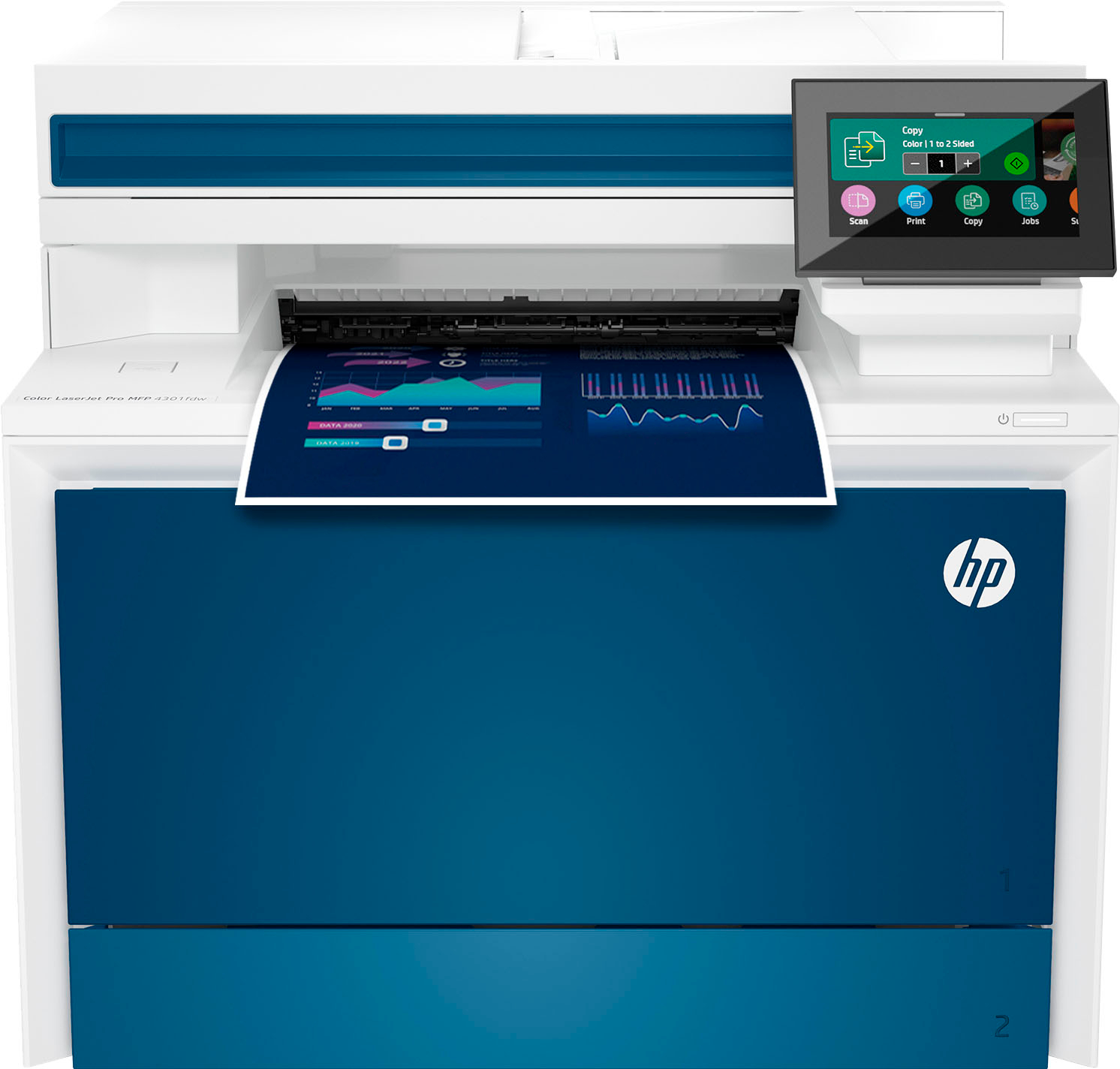
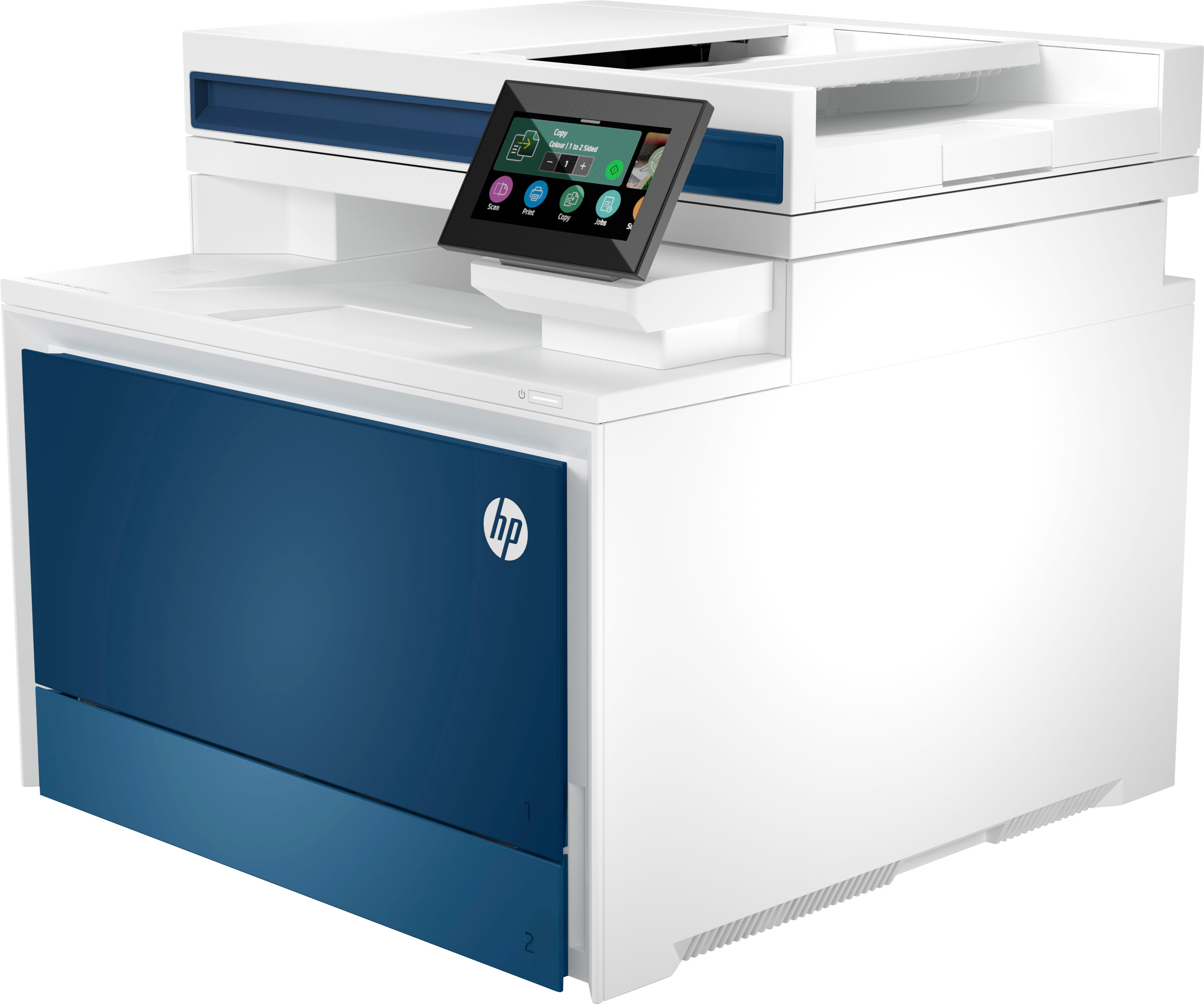
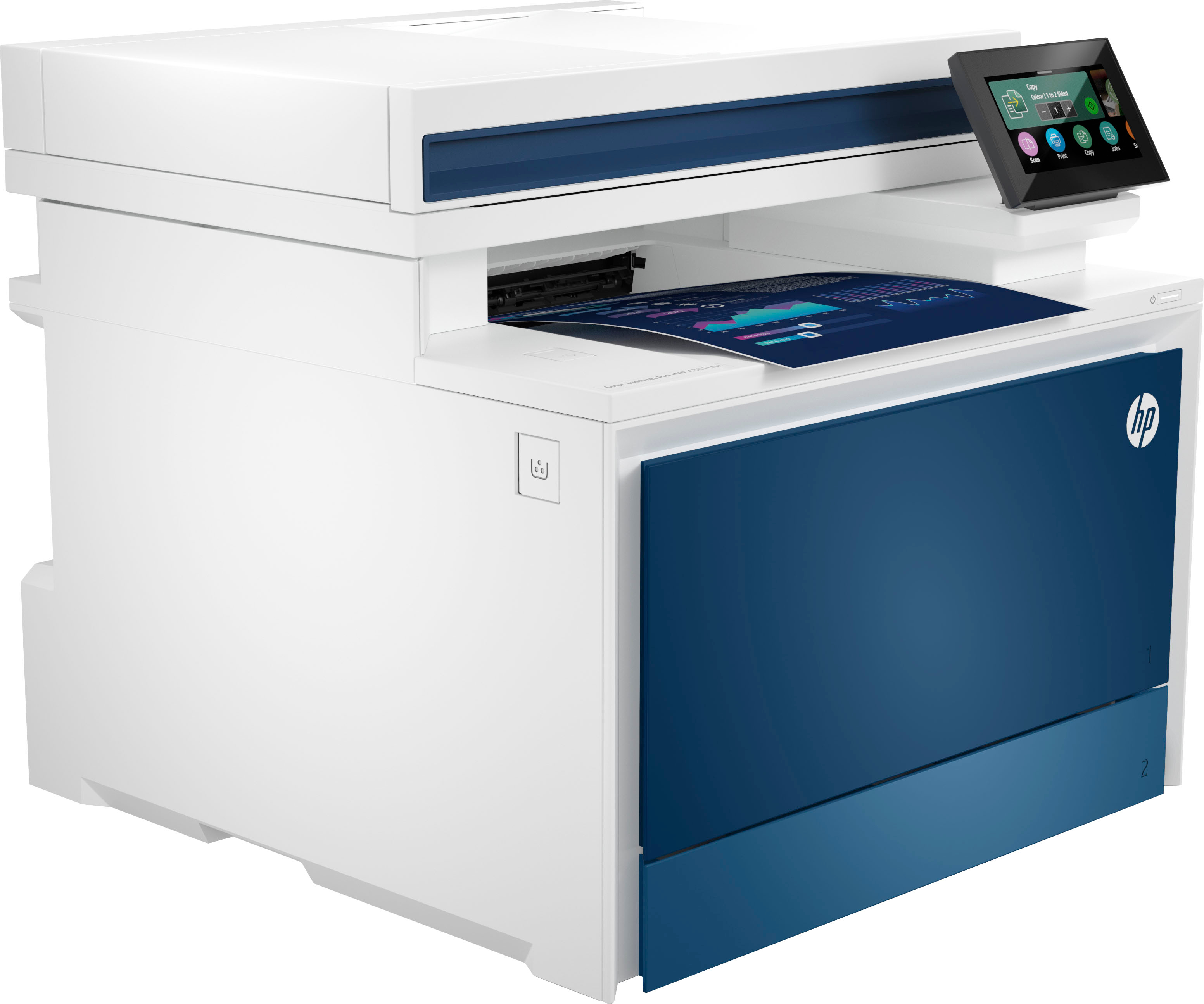
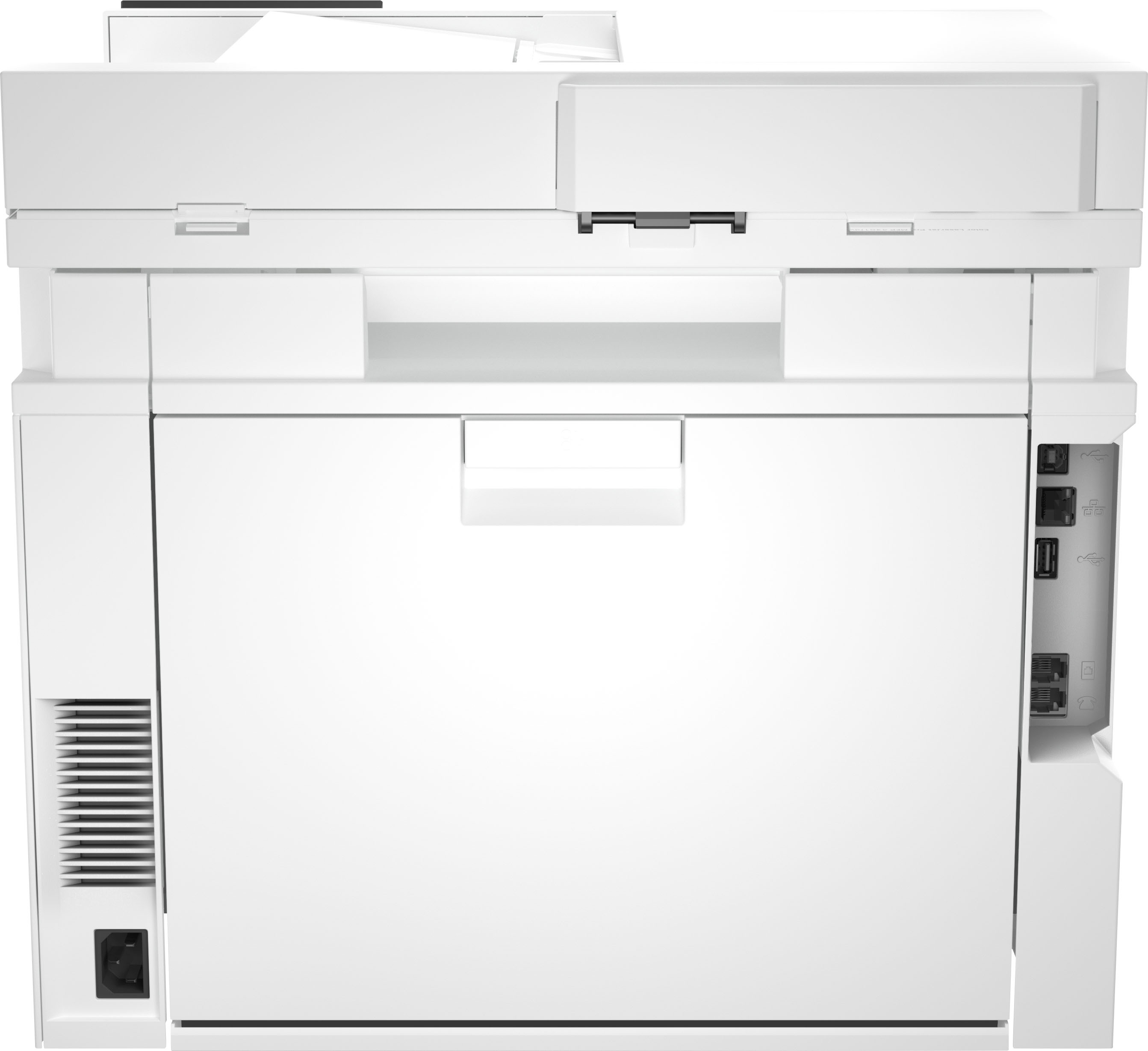
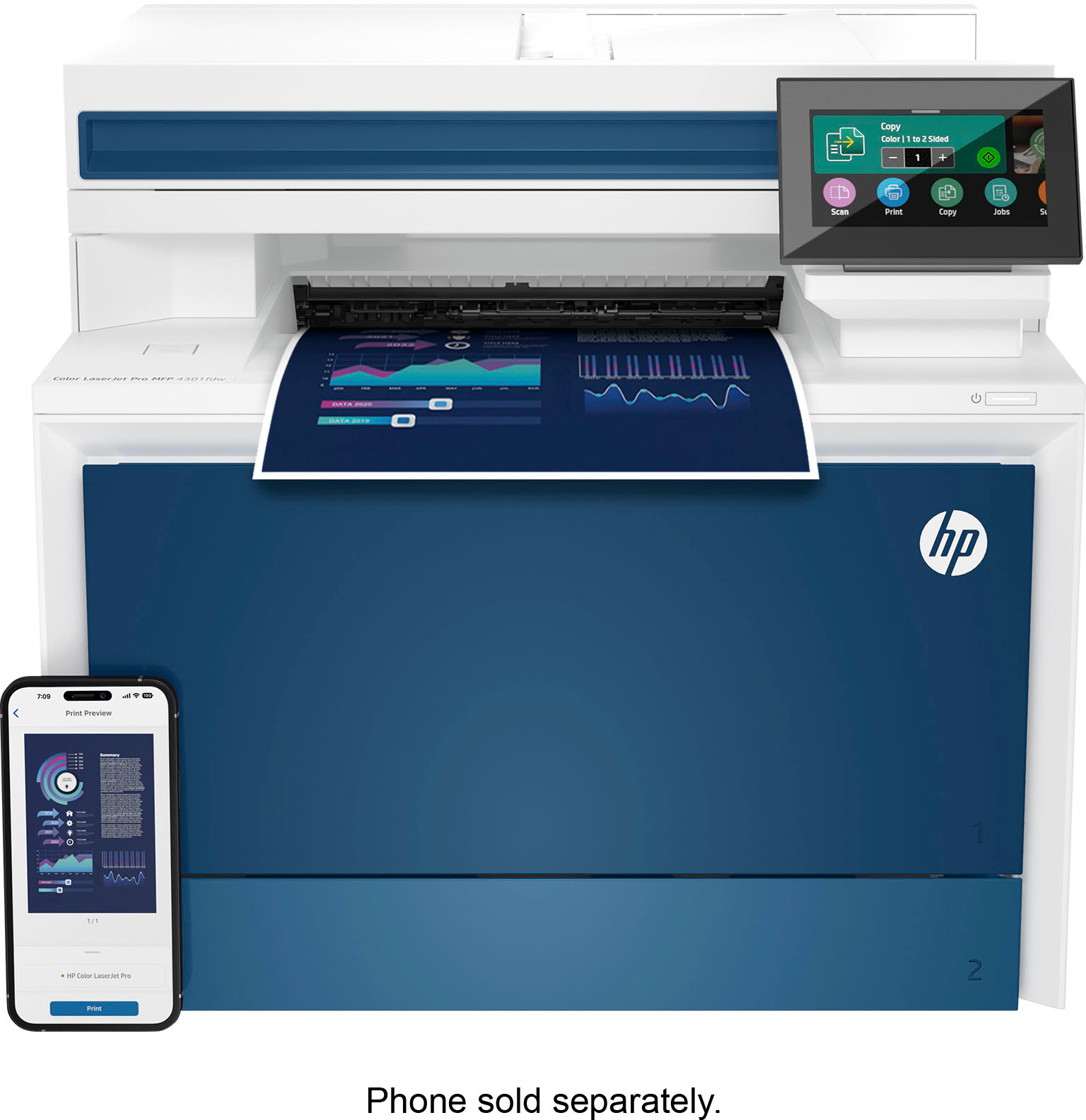
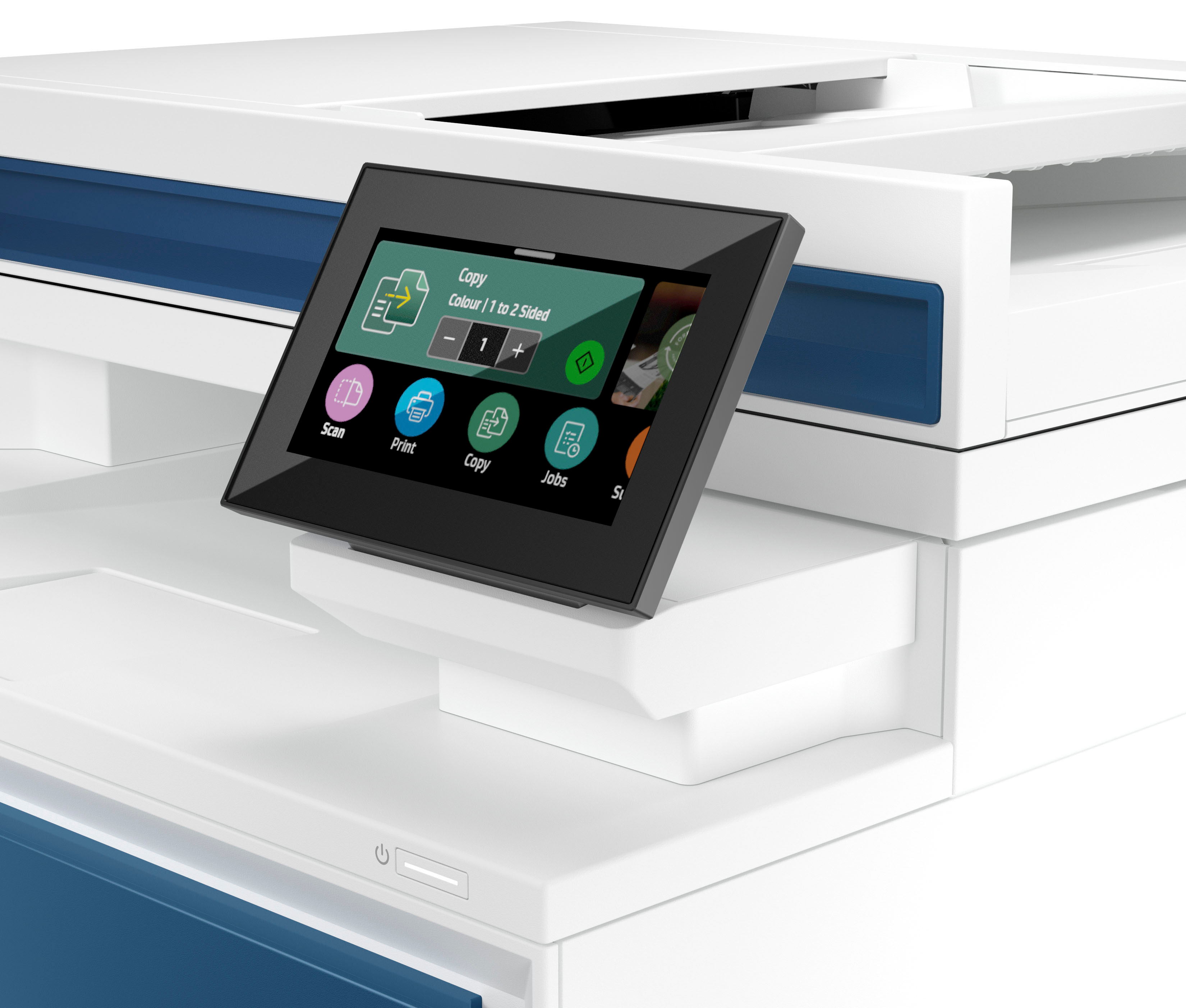
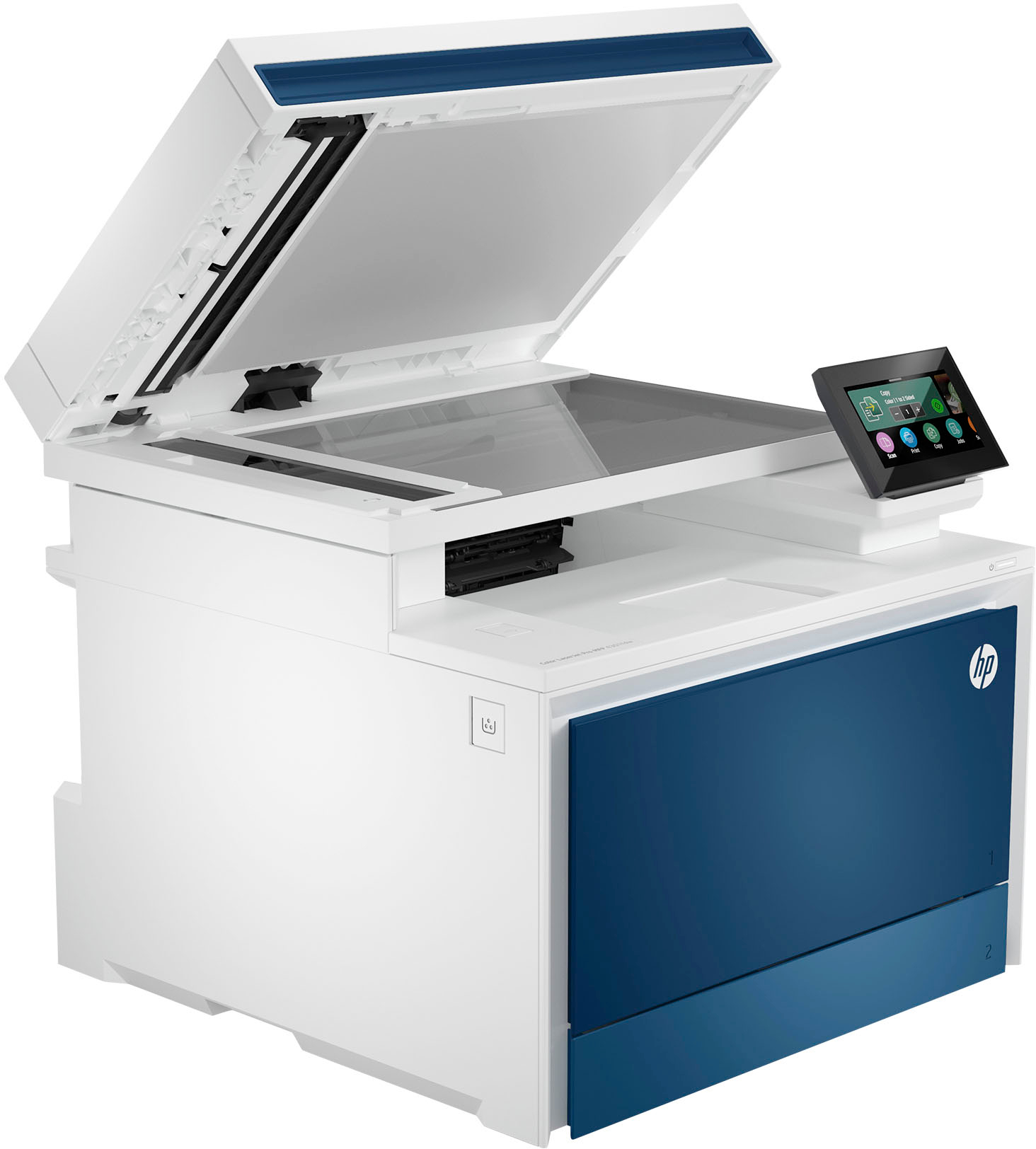
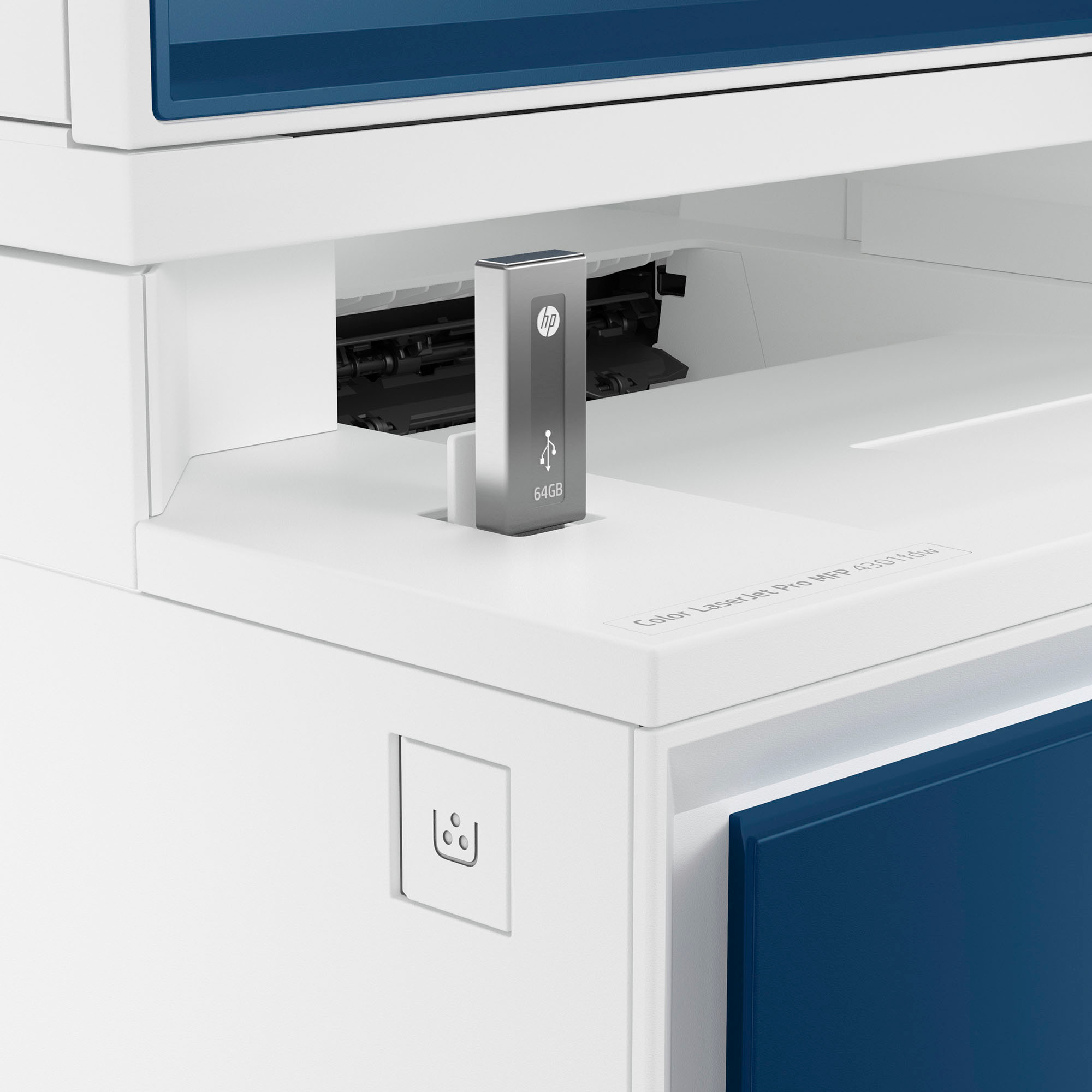
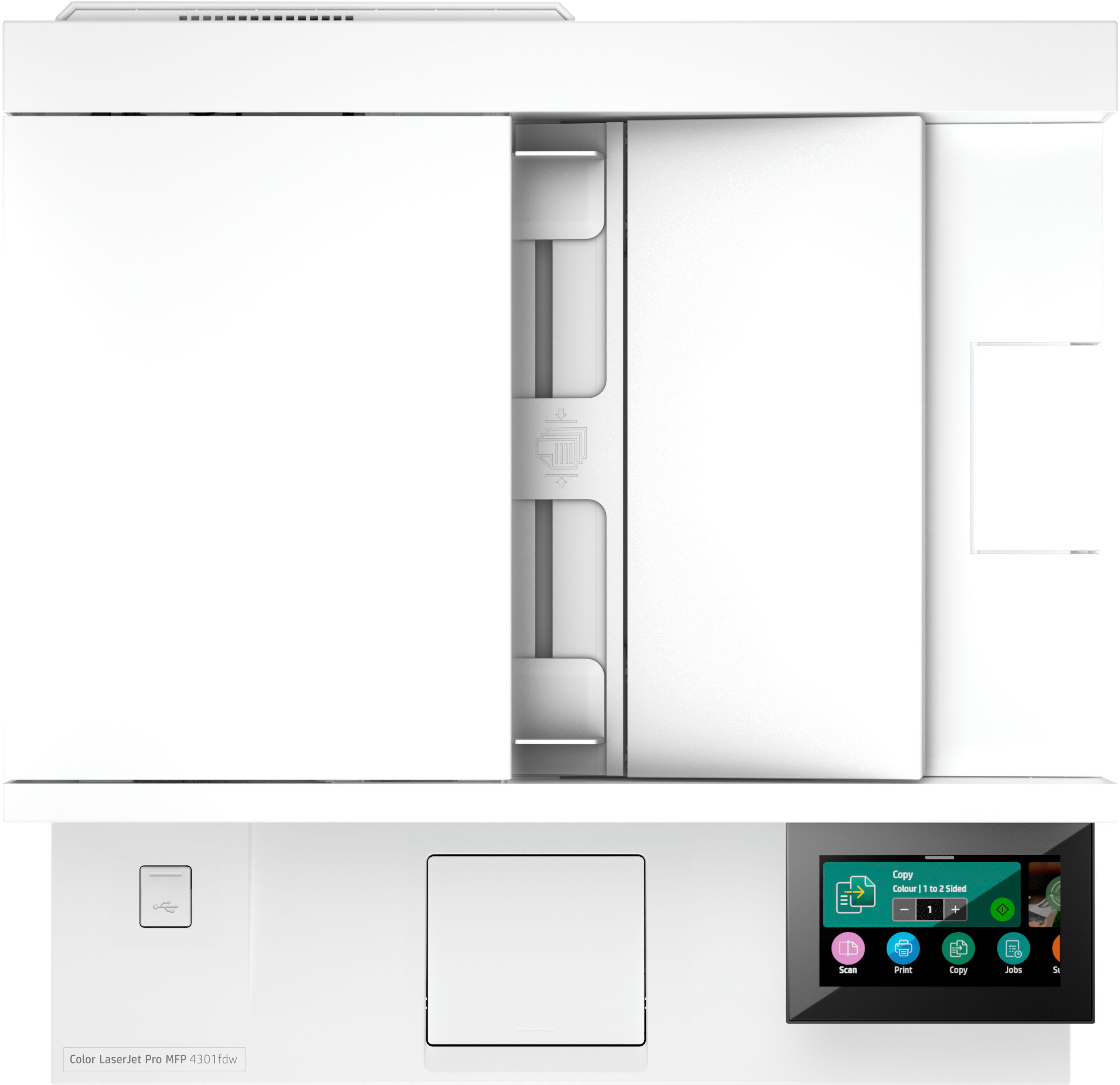
HP LaserJet Pro 4301fdw Printer – White/Blue
$1,245.50
- High-speed, multi-feature printer
- Ideal for up to 10 users
- Advanced features include fax capability
- Dual-sided scanning for increased productivity
- Super fast and easy to use
- Supports a dynamic workteam
- Allows users to scan both sides with a single pass
Buy more, save more
Buy 2–4 of this item and save 5%.
Buy 5 or more of this item and save 10%.
Discount is automatic in your cart on regular-priced items. It cannot be combined with coupon codes or sale prices.
Buy 2–4 of this item and save 5%.
Buy 5 or more of this item and save 10%.
Discount is automatic in your cart on regular-priced items. It cannot be combined with coupon codes or sale prices.
Country suggested using IP or browser language; you can change it. Shipping is confirmed at checkout.
Description
HP LaserJet Pro 4301fdw Printer – White/Blue,
How to Use the HP LaserJet Pro 4301fdw
Setting up the Printer
- Unbox the printer and remove all packaging materials.
- Connect the power cord to the printer and plug it into a power outlet.
- Insert the installation CD or download the printer software from the HP website.
- Follow the on-screen instructions to install the printer software.
- Connect the printer to your Wi-Fi network using the printer’s display panel.
Printing Documents
- Load paper into the input tray.
- Open the document you want to print on your computer.
- Select “Print” from the file menu.
- Choose the HP LaserJet Pro 4301fdw as your printer.
- Adjust any printing settings as needed (e.g., number of copies, paper size).
- Click “Print” to start the printing process.
Scanning Documents
- Place the document face-down on the scanner glass or face-up in the automatic document feeder.
- Press the “Scan” button on the printer’s control panel.
- Choose your desired scan options (e.g., color, resolution).
- Select whether you want to save the scanned document to a USB drive, email, or computer.
- Click “Start Scan” to begin scanning the document.
Sending a Fax
- Load the document you want to fax into the automatic document feeder.
- Press the “Fax” button on the printer’s control panel.
- Enter the recipient’s fax number using the numeric keypad.
- Adjust any fax settings (e.g., resolution, contrast).
- Press “Start” to send the fax.
, , HP
121 reviews for HP LaserJet Pro 4301fdw Printer – White/Blue
Only logged in customers who have purchased this product may leave a review.
Special deals for you

Canon imageFORMULA R40 Office Document Scanner For PC and Mac, Color Duplex Scanning, Easy Setup For Office Or Home Use, Includes Scanning Software
Original price was: $4,270.00.$538.20Current price is: $538.20.
Add to cart
Epson Workforce ES-C220 Compact Desktop Document Scanner with 2-Sided Scanning and Auto Document Feeder (ADF) for PC and Mac
Original price was: $3,244.40.$517.00Current price is: $517.00.
Add to cart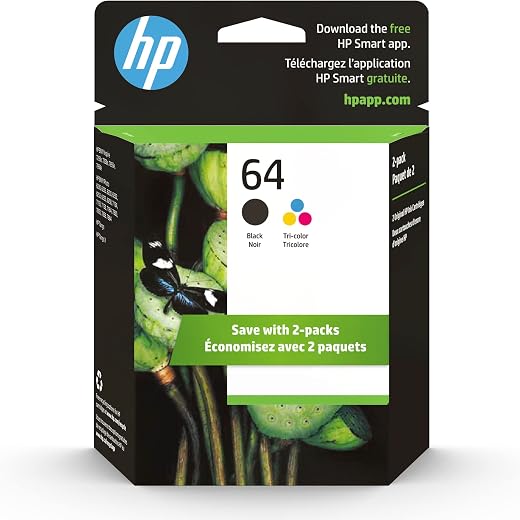
HP 64 Black/Tri-color Ink Cartridges (2-pack) | Works with HP ENVY Inspire 7950e; ENVY Photo 6200, 7100, 7800; Tango Series | Eligible for Instant Ink | X4D92AN
Original price was: $1,038.20.$121.90Current price is: $121.90.
Add to cart
TN660 Toner Cartridge Replacement Compatible for Brother TN 660 TN-660 TN630 High Yield to use with HL-L2380DW HL-L2320D HL-L2340DW DCP-L2540DW MFC-L2700DW MFC-L2720DW Printer...
Original price was: $1,512.00.$86.90Current price is: $86.90.
Add to cartPopular items in this category


Similar items you might like

Lenovo IP Conference Station PC – Core i5-1145G7E, 8GB RAM, 480GB SSD
$599.99
Add to cart
HP OmniStudio X All-in-One Computer 27" QHD Intel Core Ultra 7, 32 GB;1 TB SSD
$4,199.99
Add to cart
Campark AC12 5K 25fps Camcorder – 56MP Output and Rotating Screen
$275.90
Add to cart
Used Acer Chromebox CXI3 Mini Desktop – Grade B, Celeron 3867U
$93.90
Add to cartProducts related to this item

For Samsung Galaxy Z flip Foldable Cellphone Shell Electroplated Painted Folding Phone Case A15 wine red
$44.30
Add to cart
ASRock A320M-HDV AM4 Micro ATX AMD
$14,098.10
Add to cart
Dell Latitude 5520 Business Laptop, 15.6" FHD Display, Intel Core i5-1135G7 vPRO, 16GB RAM, 512GB SSD, IR Camera, HDMI, Backlit Keyboard, Wi-Fi 6, RJ-45, Thunderbolt 4, Windows...
$2,279.30
Add to cart
USB 3.0 to SATA 2.5" Hard Drive HDD SSD Adapter Converter Cable 22Pin
$28.30
Add to cartProducts you may also like
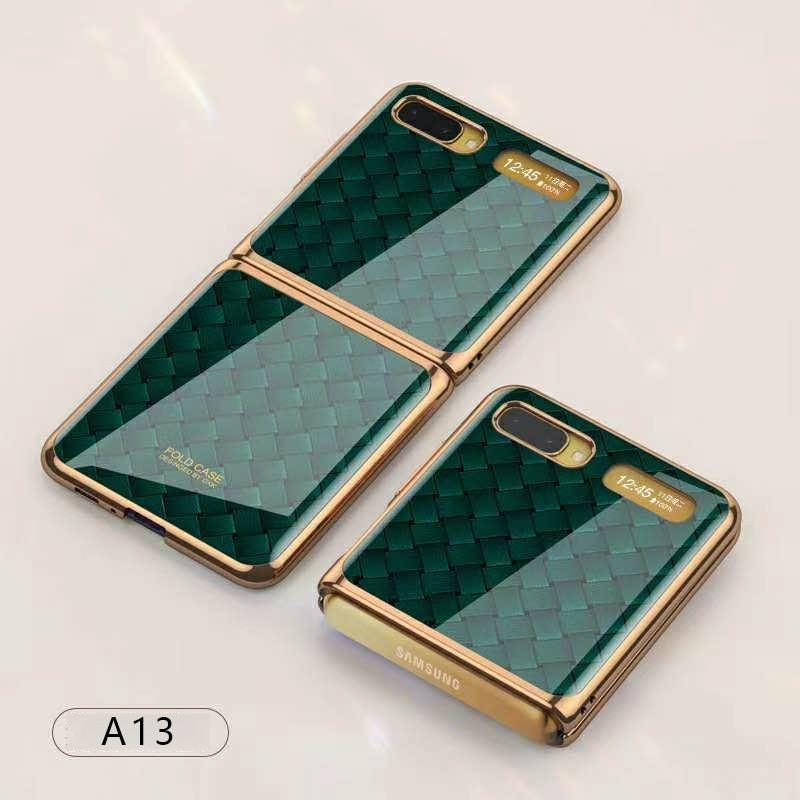
For Samsung Galaxy Z flip Foldable Cellphone Shell Electroplated Painted Folding Phone Case A13 woven green pattern
$44.00
Add to cart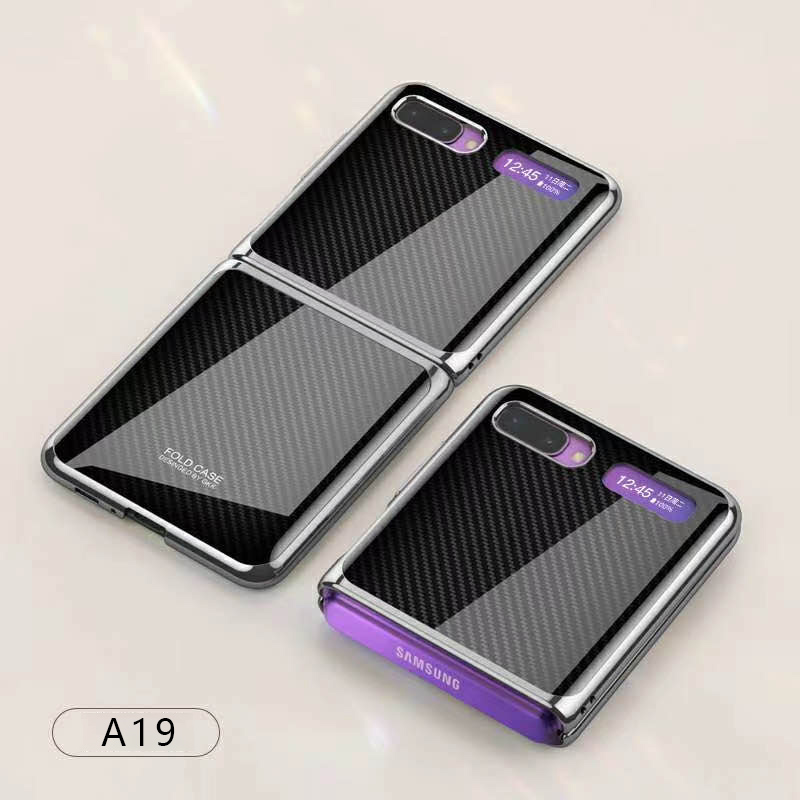
For Samsung Galaxy Z flip Foldable Cellphone Shell Electroplated Painted Folding Phone Case A19 carbon fiber pattern
$44.00
Add to cart
16GB PC3-10600 RAM for Apple MacBook
$152.90
Add to cart
PC DDR4 Memory Tray Case - Fits 100
$55.20
Add to cartRecommended for You

Discover the Secret 10-Core Gaming Computer Desktop PC Tower SSD Quad 16GB R7 Graphic CUSTOM BUILT
$987.00
Add to cart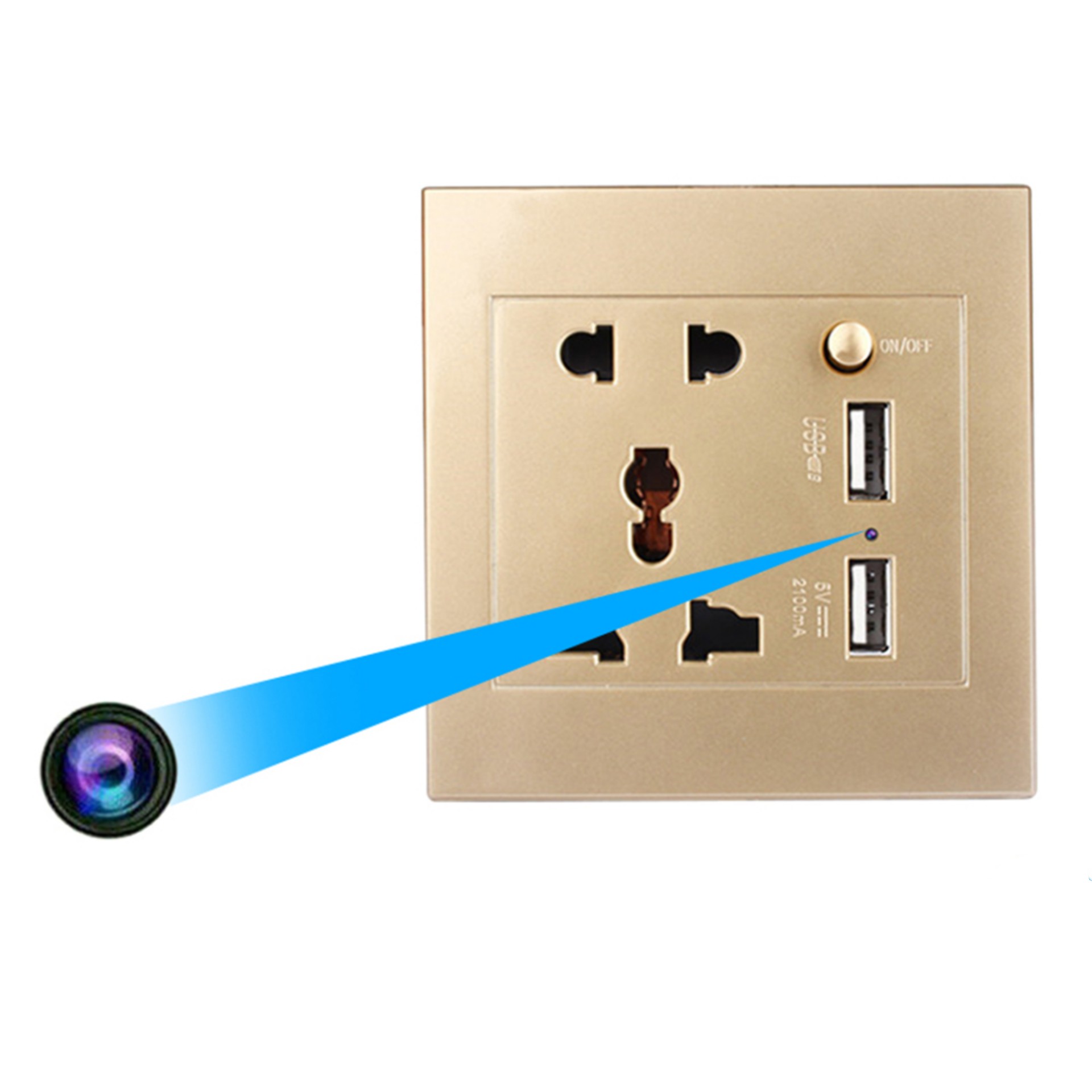
1080P HD Wifi Video Camera Socket Motion Detection Camcorder Wall Plug Dock Cam Audio Recorder Gold
$130.10
Add to cart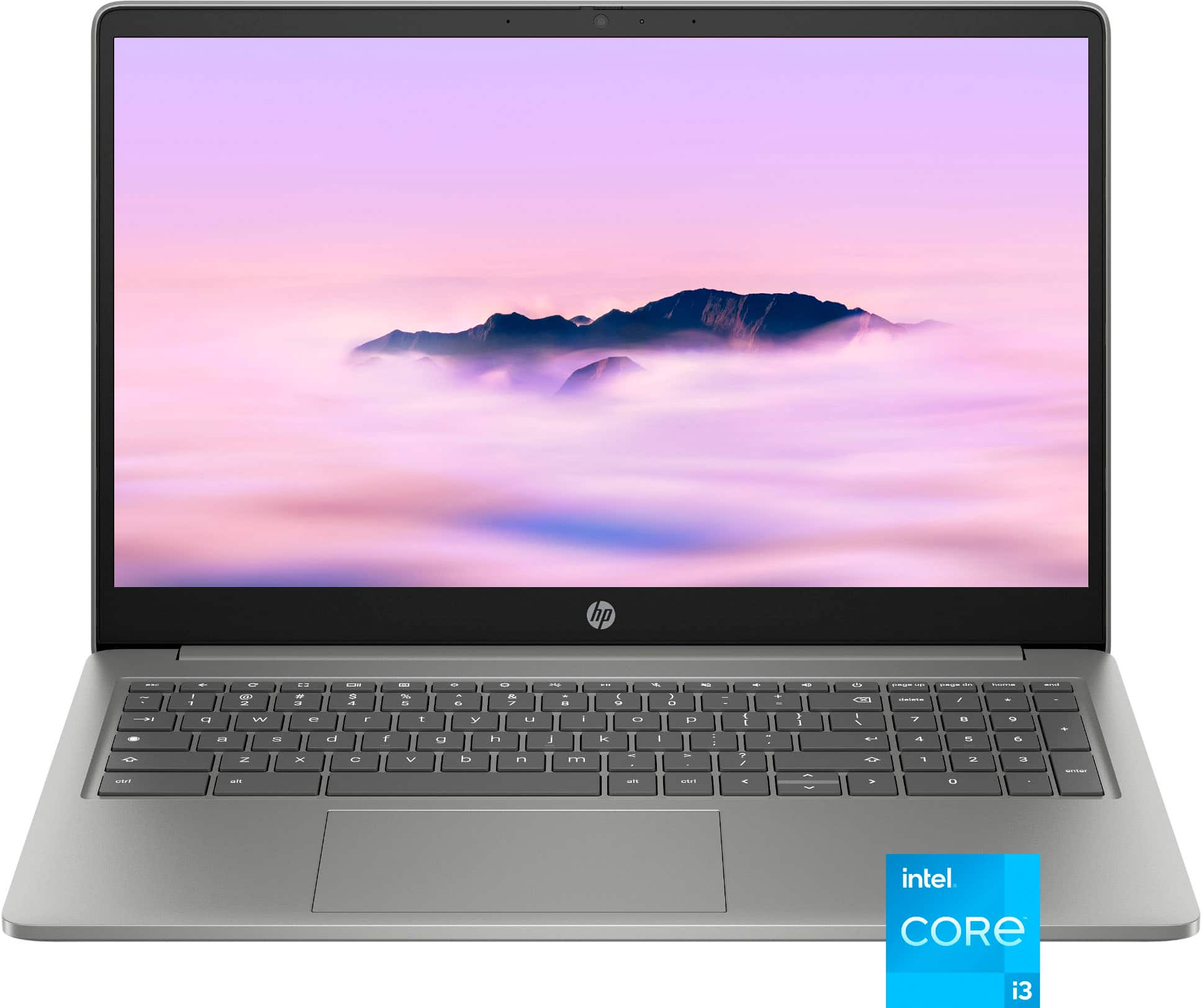
Treasure HP - 15.6" Full HD Chromebook Plus Laptop - Intel Core i3 - 8GB RAM - 128GB Storage - Mineral Silver
$1,172.70
Add to cart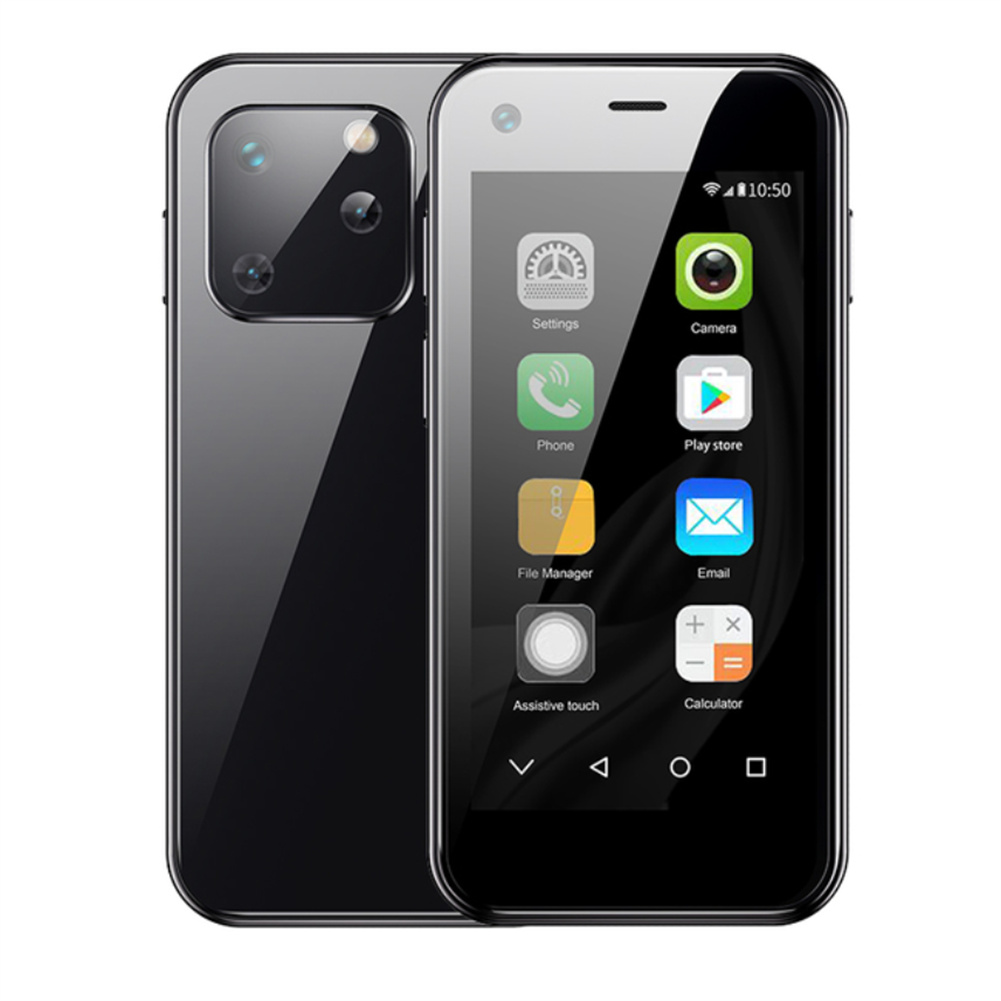
Shop the Ultimate Collection Black Soyes Xs13 Mini Android Smartphone with MTK6580 4-core Processor, 1GB RAM, 8GB ROM, 3D Glass, Dual SIM Card, 5MP Camera - Compact Mobile Phone
$125.60
Add to cart



 English
  French
  Spanish
  German
  Portuguese
  Arabic
Josh –
The last time I had an HP printer I truly hated it. So, I was a bit unsure about taking the plunge on another one having had such a bad experience before. So far, I can say that I think HP has…
Denise –
We really like this printer. We have had no problems with it so far. It connected easily to the internet, printing is clear.
We originally had a different one and had issues with it. Since we…
HHK7 –
It was working great for the first two weeks, then Memory Error codes started coming up and we couldn’t print large files…
Still haven’t figured out how to clear the memory, but can print…
Josenieve –
My thanks to BestBuy for arranging for my receiving this equipment for my trial of the machine. In exchange I wish to provide my hands on experience and opinions of the printer. Having experience…
DaveS –
Have had this printer for about a month and, so far, it functions as advertised. My first color laserjet and I’m pleased.
KevinS –
Stopped printing after less than 50 prints. Got some weird error on the LCD and unit became unresponsive even after multiple restarts. Waited a few hours and it started printing fine again. When…
Curmudgeon1 –
The new Hewlett Packard Laser Jet Pro 4301fdw MFP (Model 4RA82F) represents the features and functionality that are essential to me. Multi-Function Printers combine the functions of Printer,…
jmax –
Great quality prints and fast printing. Lackluster scanning with autofeed. Have to manually seperate pages to feed. Upgraded to laser due to poor proformace of new inkjet models.