


MSI GP68HX Gaming Laptop – 16″ Display, 144Hz Refresh Rate, Intel i9-12900H Processor, RTX 4080 Graphics, 16GB RAM, 1TB SSD
$4,935.00
- 16″ gaming laptop with a 144Hz display
- Powered by an Intel i9-12900H processor
- Equipped with an NVIDIA GeForce RTX 4080 graphics card and 16GB RAM
- Includes a 1TB SSD for storage
- Features Windows 11 Home operating system
- Supports Wi-Fi 6E and Bluetooth 5.2 connectivity
- Comes with a backlit keyboard and built-in webcam
- Has various ports including USB, HDMI, and Thunderbolt
Buy more, save more
Buy 2–4 of this item and save 5%.
Buy 5 or more of this item and save 10%.
Discount is automatic in your cart on regular-priced items. It cannot be combined with coupon codes or sale prices.
Buy 2–4 of this item and save 5%.
Buy 5 or more of this item and save 10%.
Discount is automatic in your cart on regular-priced items. It cannot be combined with coupon codes or sale prices.
Country suggested using IP or browser language; you can change it. Shipping is confirmed at checkout.
Description
MSI GP68HX Gaming Laptop – 16″ Display, 144Hz Refresh Rate, Intel i9-12900H Processor, RTX 4080 Graphics, 16GB RAM, 1TB SSD,
How to Use the MSI Vector GP68HX Gaming Laptop
Table of Contents
- Powering On
- Connecting to Wi-Fi
- Using the Keyboard
- Adjusting the Display
- Optimizing Gaming Performance
- Using the Webcam
- Managing Storage
1. Powering On
- Make sure the laptop is connected to a power source using the provided AC adapter.
- Press the power button located on the top-right corner of the keyboard.
- The laptop will boot up and load the Windows 11 operating system.
2. Connecting to Wi-Fi
- Click on the Wi-Fi icon located in the taskbar at the bottom-right corner of the screen.
- Select your desired Wi-Fi network from the list of available networks.
- Enter the network password if prompted.
- Wait for the laptop to connect to the Wi-Fi network.
3. Using the Keyboard
- The keyboard of the MSI GP68HX laptop is a SteelSeries per-Key RGB backlit keyboard with anti-ghosting technology.
- Use the keyboard for typing, gaming, and controlling various functions of the laptop.
- Make sure to familiarize yourself with the keyboard layout and function keys.
4. Adjusting the Display
- To adjust the brightness of the display, press the FN key + the up or down arrow keys.
- To change the screen refresh rate, go to the Windows settings and navigate to the “Display” section.
- Explore the display settings to customize the resolution, color settings, and other display preferences.
5. Optimizing Gaming Performance
- Install your favorite games through online platforms or using physical game discs.
- Update your graphics drivers for optimal performance. Visit the NVIDIA website to download the latest drivers for your RTX 4080 GPU.
- Adjust in-game graphics settings based on your preferences and the capabilities of the laptop.
- Connect gaming accessories, such as a gaming mouse or headset, to enhance your gaming experience.
6. Using the Webcam
- The MSI GP68HX gaming laptop is equipped with a 720p HD webcam located above the display.
- To use the webcam, open a video conferencing or recording application such as Zoom or Microsoft Teams.
- Select the webcam as the video input source within the application.
- Adjust the webcam settings, such as brightness, contrast, and zoom, according to your preferences.
7. Managing Storage
- The laptop has a 1 TB NVMe Gen4x4 SSD for storage.
- Use the File Explorer in Windows to organize your files and folders.
- Consider transferring large files or infrequently accessed data to an external storage device to free up space on the laptop.
- Regularly backup important files to prevent data loss.
- Click on the Wi-Fi icon located in the taskbar at the bottom-right corner of the screen.
- Select your desired Wi-Fi network from the list of available networks.
- Enter the network password if prompted.
- Wait for the laptop to connect to the Wi-Fi network.
3. Using the Keyboard
- The keyboard of the MSI GP68HX laptop is a SteelSeries per-Key RGB backlit keyboard with anti-ghosting technology.
- Use the keyboard for typing, gaming, and controlling various functions of the laptop.
- Make sure to familiarize yourself with the keyboard layout and function keys.
4. Adjusting the Display
- To adjust the brightness of the display, press the FN key + the up or down arrow keys.
- To change the screen refresh rate, go to the Windows settings and navigate to the “Display” section.
- Explore the display settings to customize the resolution, color settings, and other display preferences.
5. Optimizing Gaming Performance
- Install your favorite games through online platforms or using physical game discs.
- Update your graphics drivers for optimal performance. Visit the NVIDIA website to download the latest drivers for your RTX 4080 GPU.
- Adjust in-game graphics settings based on your preferences and the capabilities of the laptop.
- Connect gaming accessories, such as a gaming mouse or headset, to enhance your gaming experience.
6. Using the Webcam
- The MSI GP68HX gaming laptop is equipped with a 720p HD webcam located above the display.
- To use the webcam, open a video conferencing or recording application such as Zoom or Microsoft Teams.
- Select the webcam as the video input source within the application.
- Adjust the webcam settings, such as brightness, contrast, and zoom, according to your preferences.
7. Managing Storage
- The laptop has a 1 TB NVMe Gen4x4 SSD for storage.
- Use the File Explorer in Windows to organize your files and folders.
- Consider transferring large files or infrequently accessed data to an external storage device to free up space on the laptop.
- Regularly backup important files to prevent data loss.
- To adjust the brightness of the display, press the FN key + the up or down arrow keys.
- To change the screen refresh rate, go to the Windows settings and navigate to the “Display” section.
- Explore the display settings to customize the resolution, color settings, and other display preferences.
5. Optimizing Gaming Performance
- Install your favorite games through online platforms or using physical game discs.
- Update your graphics drivers for optimal performance. Visit the NVIDIA website to download the latest drivers for your RTX 4080 GPU.
- Adjust in-game graphics settings based on your preferences and the capabilities of the laptop.
- Connect gaming accessories, such as a gaming mouse or headset, to enhance your gaming experience.
6. Using the Webcam
- The MSI GP68HX gaming laptop is equipped with a 720p HD webcam located above the display.
- To use the webcam, open a video conferencing or recording application such as Zoom or Microsoft Teams.
- Select the webcam as the video input source within the application.
- Adjust the webcam settings, such as brightness, contrast, and zoom, according to your preferences.
7. Managing Storage
- The laptop has a 1 TB NVMe Gen4x4 SSD for storage.
- Use the File Explorer in Windows to organize your files and folders.
- Consider transferring large files or infrequently accessed data to an external storage device to free up space on the laptop.
- Regularly backup important files to prevent data loss.
- The MSI GP68HX gaming laptop is equipped with a 720p HD webcam located above the display.
- To use the webcam, open a video conferencing or recording application such as Zoom or Microsoft Teams.
- Select the webcam as the video input source within the application.
- Adjust the webcam settings, such as brightness, contrast, and zoom, according to your preferences.
7. Managing Storage
- The laptop has a 1 TB NVMe Gen4x4 SSD for storage.
- Use the File Explorer in Windows to organize your files and folders.
- Consider transferring large files or infrequently accessed data to an external storage device to free up space on the laptop.
- Regularly backup important files to prevent data loss.
, , MSI
| Weight | 9 lbs |
|---|---|
| UPC | 824142320198 |
| Processor | Intel Core i9 12th Gen |
| Screen Size | 16 in |
| Graphics Processing Type | Dedicated Graphics |
| Color | |
| RAM Size | 16 GB |
| MPN | GP68HX-12VH-006 |
| Most Suitable For | Gaming |
| SSD Capacity | 1 TB |
| GPU | NVIDIA GeForce RTX 4080 |
| Processor Speed | 2.50 GHz |
| Brand | MSI |
| Series | Vector |
| Type | Notebook/Laptop |
| Maximum Resolution | 1920 x 1200 |
| Model | MSI Vector GP68HX |
| Connectivity | DisplayPort, SD Card Slot, HDMI, USB-C, USB 3.2, Gigabit Ethernet |
| Hard Drive Capacity | 1 TB |
| Operating System | Windows 11 Home |
| Features | Bluetooth, Built-in Webcam, Widescreen Display, Wi-Fi, Virtual Reality Ready, 10/100 LAN Card, Multi-Touch Trackpad, Backlit Keyboard, Built-in Microphone |
| Storage Type | SSD (Solid State Drive) |
Only logged in customers who have purchased this product may leave a review.
Special deals for you
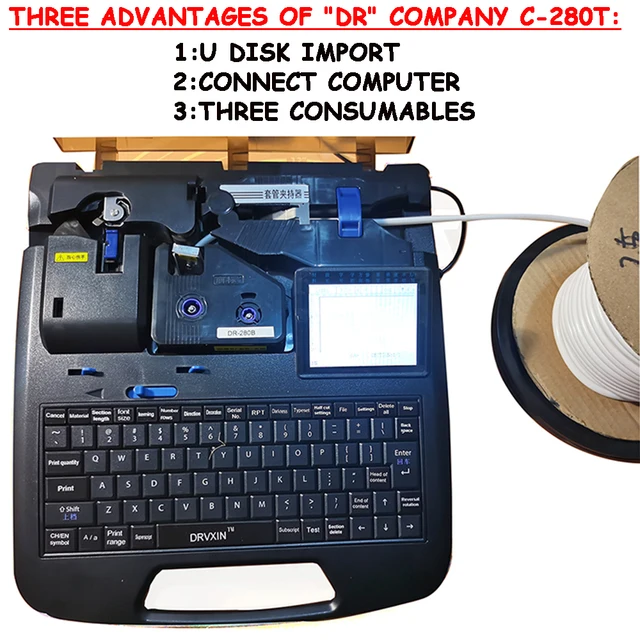
New C-280T Wire Pipe Numbering Machine U Disk Import Connect Computer For Heat-shrinkable Tube Tape Label typewriter printing
Original price was: $604.02.$600.31Current price is: $600.31.
Add to cart
Wire Marker ID Printer Pvc Pipe Marking Machine USB Drive Import USB Connection PC Computer Electronic Engraving Machine C-280T
Original price was: $600.12.$596.23Current price is: $596.23.
Add to cart
WAINLUX K6 3000mW Mini CNC Laser Engraver
Original price was: $128.37.$127.16Current price is: $127.16.
Add to cart
Lville Android 13 Tablet - 10 inch Octa-Core Tablet with 8GB RAM, 128GB ROM, 1TB TF Expandable Storage, Bluetooth 5.0, WiFi 6, Fast Charging, Dual Camera - Black
Original price was: $4,270.00.$235.00Current price is: $235.00.
Add to cartPopular items in this category

Exclusive Access Modern Two-Wheel 3000W Electric Motorcycle with Racing Design for Adults
$2,133.00
Add to cart
Unlock Your Potential Hiseeu 4MP/5MP PTZ IP Camera Outdoor Security AI Human Detection H.265X Wireless WiFi Video Surveillance Cameras iCsee P2P
$16.10
Add to cart
Empowering Solutions Hiseeu 4MP+4MP Dual Lens Wifi PTZ IP Camera 2.8+12mm 8X Zoom CCTV Video Surveillance Camera Color Night Vision Ai Human Cam
$16.10
Add to cart
Best HD Auto Zoom Photochromic Reading Glasses for Business with Near Far Anti-blue Light for Presbyopia
$16.10
Add to cartSimilar items you might like

Best Deal Adjustable Intensity Electric Muscle Stimulation Neck Therapy Device with 6 Modes - Portable Pain Relief Tool with Ergonomic Design
$16.10
Add to cart
Uncover Your True Potentialy Men's Anti-Blue Light TR90 Reading Glasses with High Definition, Ultralight Sport Design and Non-Slip Feature - Ideal for Presbyopia and Hyperopia up to +3.5 Diopters
$16.10
Add to cart
Your Perfect Match Outdoor Driving and Fishing Sunglasses with Photochromic Polarized Lenses, UV400 Protection, Anti-Glare, and Case
$16.10
Add to cart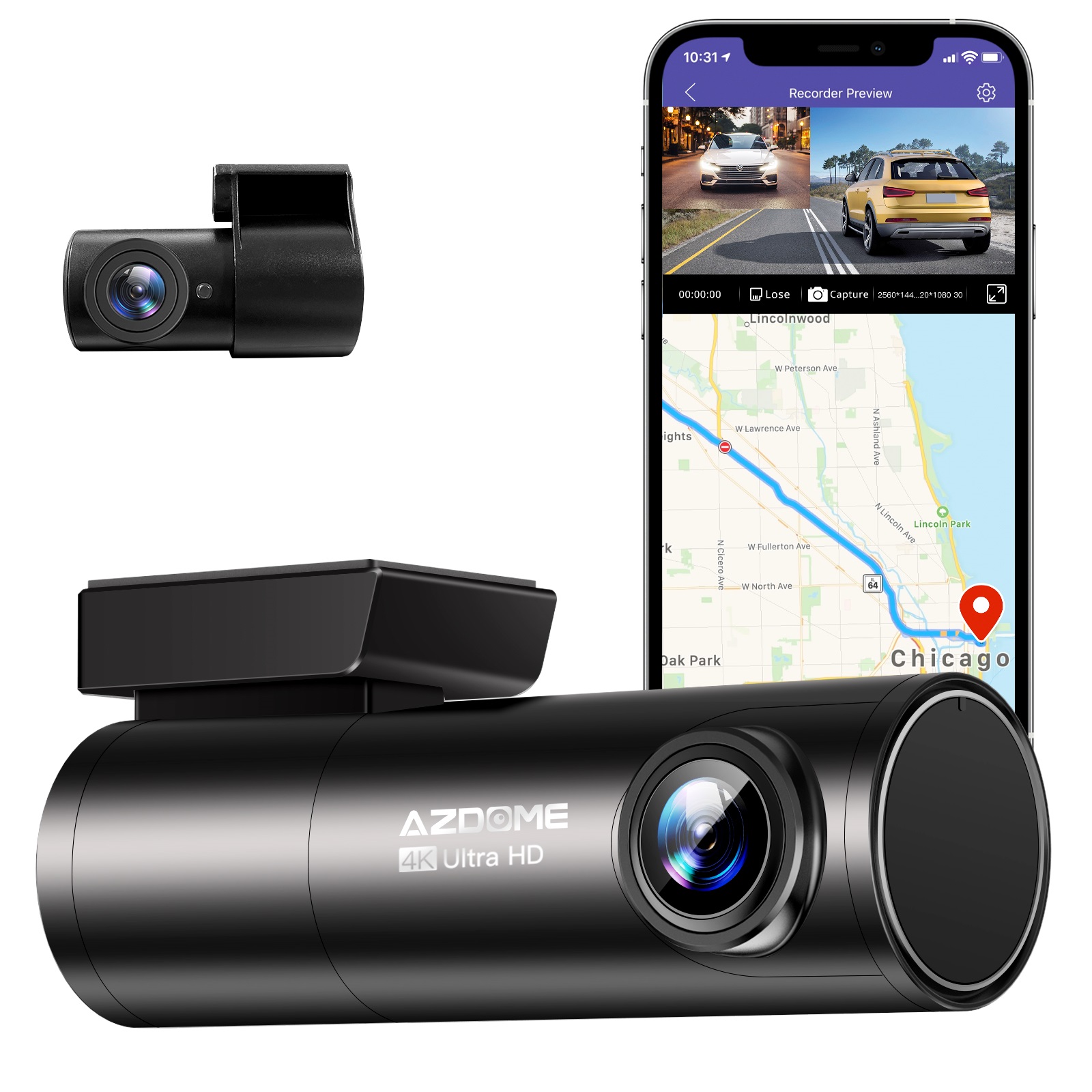
Instant Gratification Azdome HD 1080P Dash Cam Wifi Gps Recorder G-sensor Dashcam Black
$247.10
Add to cartProducts related to this item
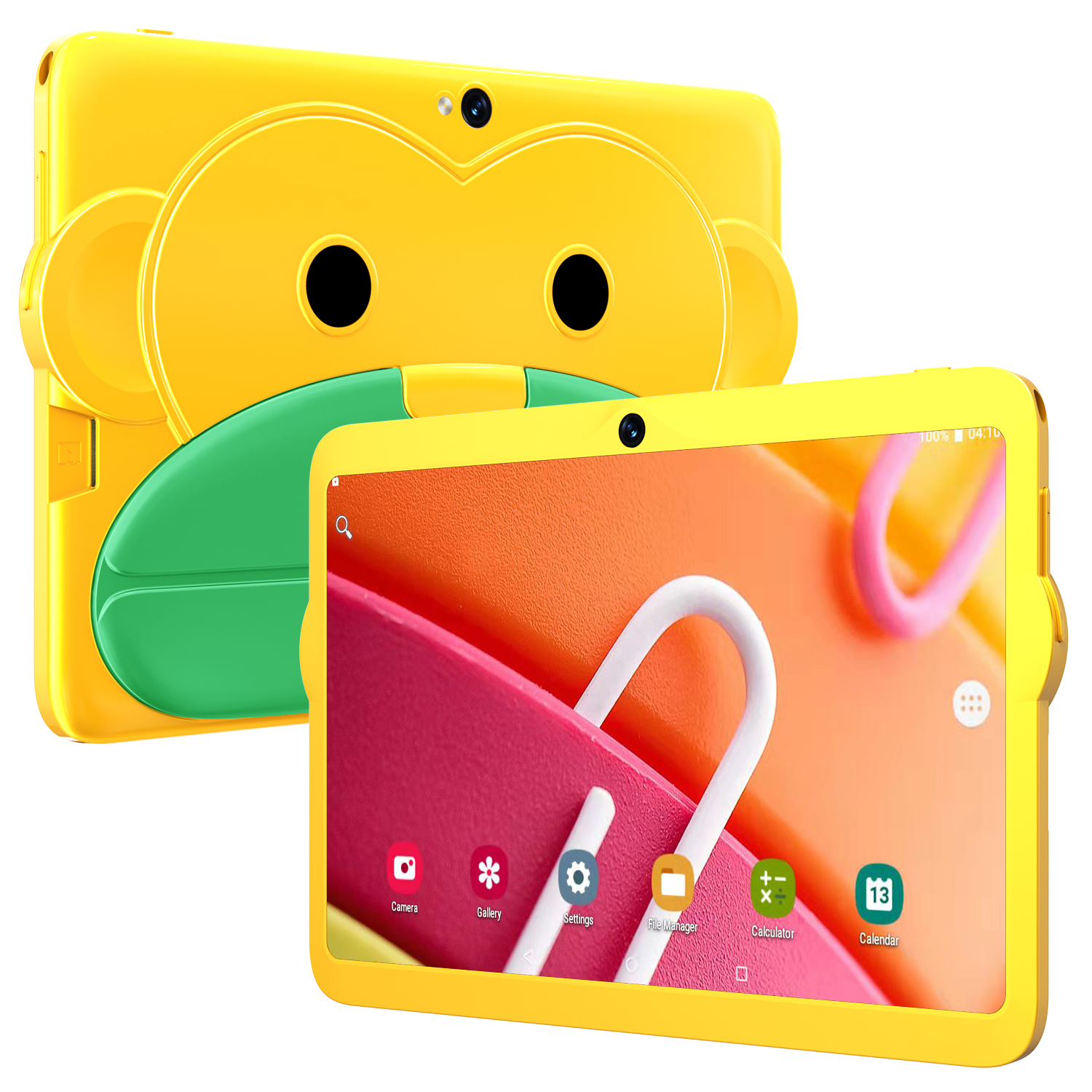
Yellow US Plug Kids Tablet - 7.1 Inch, MT6592 Octa Core, 2GB RAM, 16GB ROM, Android 5.1, 1280 x 800 Screen, 3000mah Battery
$125.70
Add to cart
Apple iPad 5th Generation 9.7" 32GB/128GB Gray/Silver Wi-Fi/Cellular Unlocked with Good Condition
$246.70
Add to cart
Apple iPad Mini 2 A1489 16GB Wi-Fi iOS 12.5.7 Space Gray ME779LL/A 7.9-inch
$133.90
Add to cart
Women's Estrogen Supplement, 30 Vegan Tablets
$85.80
Add to cartProducts you may also like
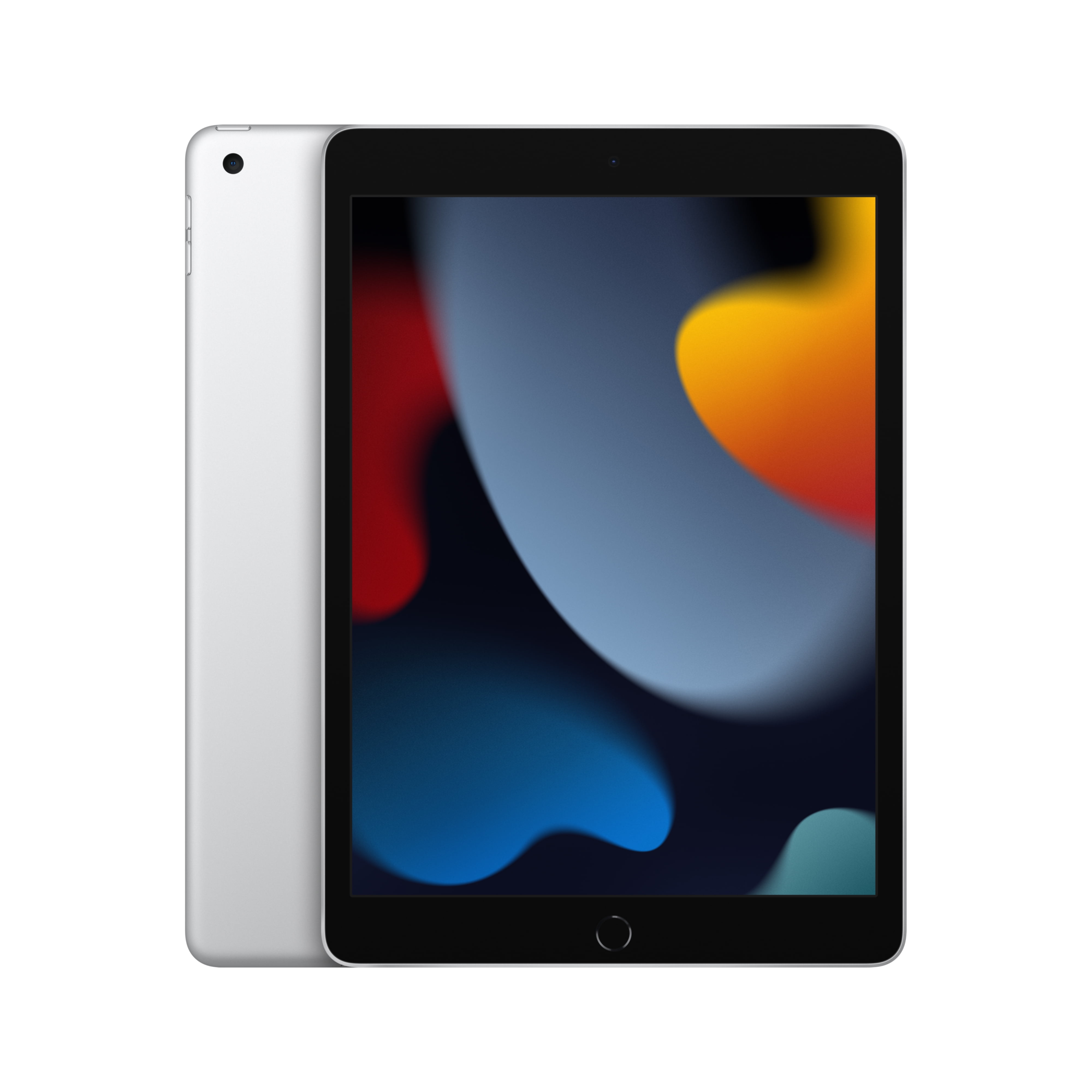
Choosing the Perfect iPad: The 2021 Apple 10.2-inch Model - Silver (9th Generation) Buying Guide
$249.00
Add to cart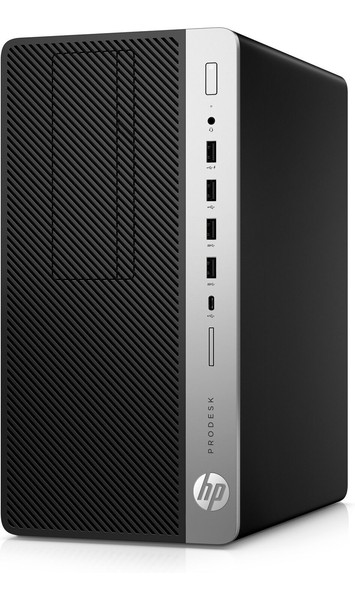
HP ProDesk 600 G5 Microtower PC Desktop Intel Core i7 32GB DDR4 RAM 1TB SSD
$997.50
Add to cart
Ematic 10.1" Quad-Core Tablet Bundle with 16GB Storage and Bluetooth - Purple EGQ236BDPR
$141.00
Add to cart
2022 10th / 12th Gen Amazon Fire HD 8 Tablet with 8” HD Display, Black, 32GB R2SP8T
$111.60
Add to cartRecommended for You
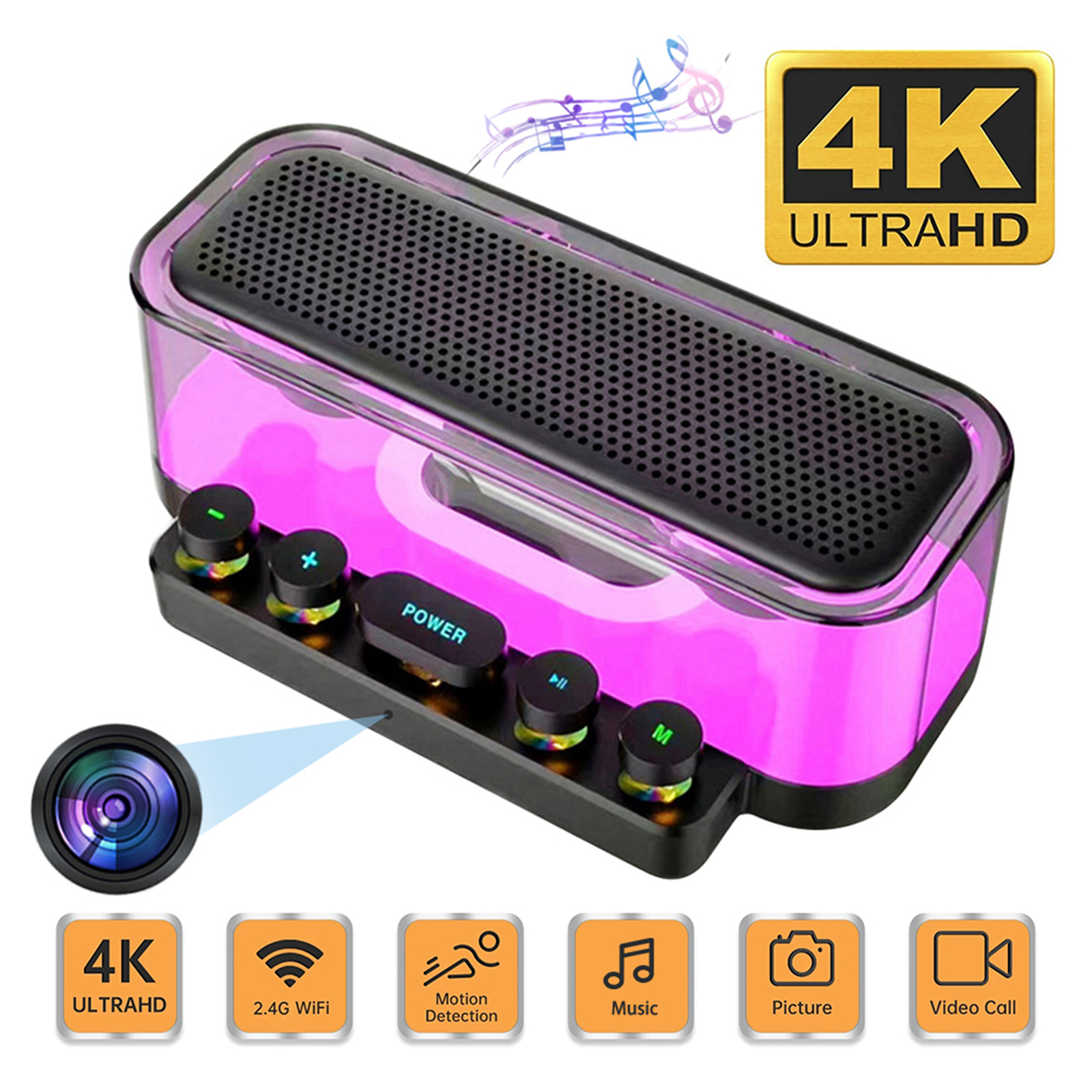
Prime Camera Speaker 160° Wide Angle 5MP Pixel Lens Easy Operating Premium Speaker Cams 1080P Mini Home Camcorders
$138.60
Add to cart
Uncover Your True Potentialy 125CM Automatic Buckle Nylon Belt Male Army Belt Mens Military Waist Canvas Belts
$17.50
Add to cart
Red Electric Alloy Remote Control Car with Opening Doors and LED Lights, 1:18 Scale, 2WD, 4CH, Wirelessly Charged, for Kids
$75.20
Add to cart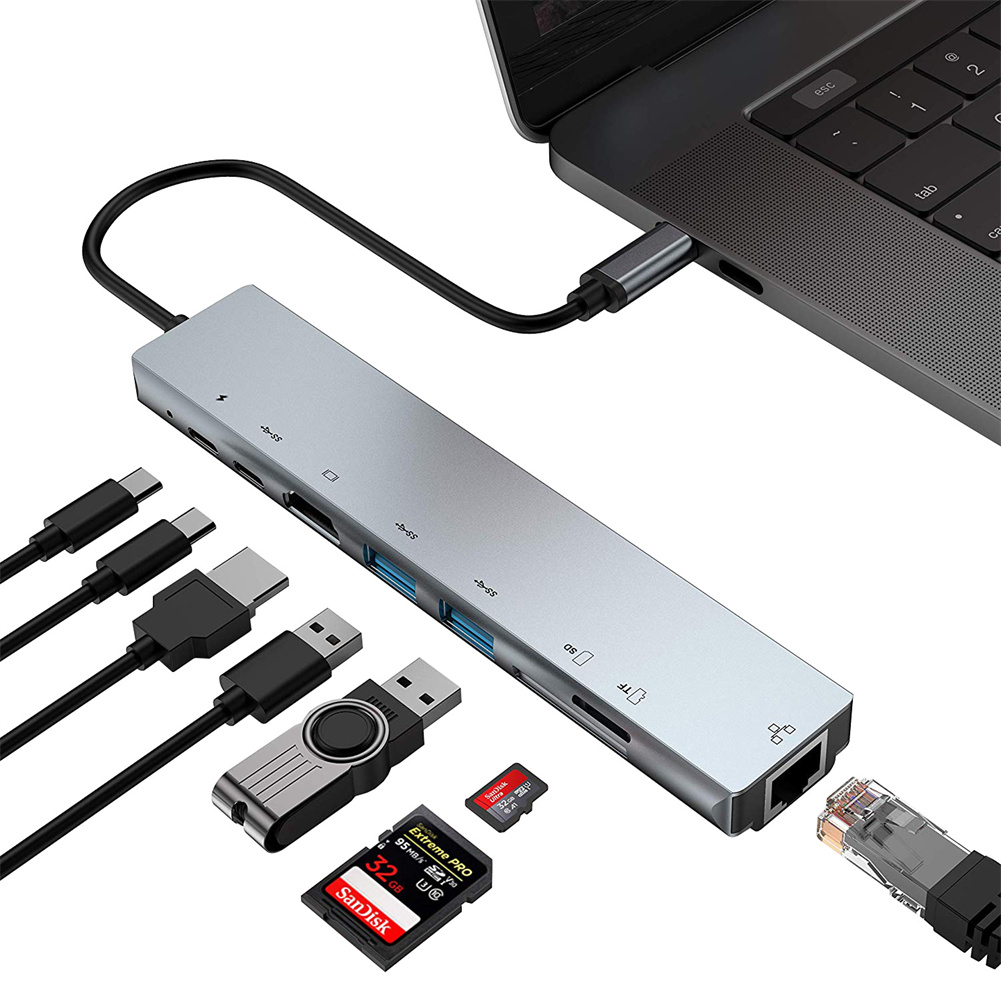
8-in-1 Usb C Hub Type C 3.1 To 4k Hdmi Adapter with Rj45 Sd/tf Card Reader Pd Fast Charge Grey
$48.50
Add to cartRelated products
-

Apple 10.2″ iPad 9th Gen 64GB Space Gray Wi-Fi Tablet (MK2K3LL/A)
$434.80 -
Sealed Fire Max 11 Tablet with Vivid 11″ Display, 64GB Storage, 4GB RAM, and Octa-Core Processor
$31,018.40 -
HP ProDesk 600 G5 Microtower PC Desktop Intel Core i7 32GB DDR4 RAM 1TB SSD
$997.50 -

Blackview Mini Desktop Computer Mini PC 16GB RAM 512GB SSD Dual 4K HDMI Display
$173.90

Reviews
There are no reviews yet.