


MSI – Cyborg 15.6″ 144Hz Gaming Laptop with Intel Core i7 and NVIDIA GeForce RTX 4
$1,821.30
- MSI – Cyborg 15.6″ 144hz Gaming Laptop
- Intel Core i7 processor
- NVIDIA GeForce RTX 4060 GPU
- 8GB RAM and 512GB SSD
- Windows 11 Home operating system
- 15.6″ Full HD display with 144hz refresh rate
- Wi-Fi 6 and Bluetooth wireless connectivity
- Black color with a futuristic mechanized exterior design
Buy more, save more
Buy 2–4 of this item and save 5%.
Buy 5 or more of this item and save 10%.
Discount is automatic in your cart on regular-priced items. It cannot be combined with coupon codes or sale prices.
Buy 2–4 of this item and save 5%.
Buy 5 or more of this item and save 10%.
Discount is automatic in your cart on regular-priced items. It cannot be combined with coupon codes or sale prices.
Country suggested using IP or browser language; you can change it. Shipping is confirmed at checkout.
Description
MSI – Cyborg 15.6″ 144Hz Gaming Laptop with Intel Core i7 and NVIDIA GeForce RTX 4,
How to Use the MSI – Cyborg 15.6″ 144hz Gaming Laptop
Getting Started
- Unbox the MSI – Cyborg 15.6″ 144hz Gaming Laptop.
- Ensure that all the included items are present:
- – MSI – Cyborg 15.6″ 144hz Gaming Laptop
- – Power adapter
- – User manual
- Plug in the power adapter to charge the laptop.
Turning On the Laptop
- Locate the power button, usually located near the keyboard or on the side of the laptop.
- Press and hold the power button until the laptop turns on.
- Follow the on-screen prompts to set up your Windows 11 operating system.
Navigating the Laptop
- Use the touchpad or an external mouse to move the cursor on the screen.
- Press the left-click button to select items or options.
- Press the right-click button to access contextual menus.
- Use the keyboard to type and enter commands.
Connecting to Wi-Fi
- Click on the Wi-Fi icon in the bottom right corner of the screen.
- Select your Wi-Fi network from the available list.
- Enter the password if prompted and click “Connect”.
Adjusting Display Settings
- Click on the “Start” button in the bottom left corner of the screen.
- Select “Settings” from the menu.
- Go to “System” and then “Display”.
- Adjust the resolution, brightness, and other display settings according to your preference.
Installing and Running Programs
- Open the Microsoft Store or visit a website to download the desired program.
- Locate the downloaded file and double-click on it to start the installation.
- Follow the on-screen instructions to complete the installation process.
- Once installed, locate the program in the Start menu and click on it to run it.
Gaming on the Laptop
- Launch your preferred gaming platform or insert a game disc into the laptop, if applicable.
- Follow the on-screen prompts to download or install any necessary updates for the game.
- Once the game is ready, click on it to start playing.
- Adjust the game settings, such as graphics quality and controls, according to your preference.
Shutting Down the Laptop
- Click on the “Start” button in the bottom left corner of the screen.
- Select the power icon.
- Click on “Shut down” or “Restart” to turn off the laptop.
Note: Refer to the user manual for more detailed instructions and additional features of the MSI – Cyborg 15.6″ 144hz Gaming Laptop.
, , MSI
| Weight | 5 lbs |
|---|---|
| Brand | MSI |
| MPN | CYBORG1512043 |
| UPC | 824142311820 |
| Manufacturer Warranty | Yes |
| Warranty - Parts | 1 year |
| Warranty - Labor | 1 year |
| Type | Laptop Computers |
| Screen Size | 15.6 inches |
| Processor | Intel 12th Generation Core i7 |
| Operating System | Windows 11 Home |
| Storage Type | SSD |
| SSD Capacity | 512 gigabytes |
| Maximum Resolution | 1920 x 1080 (Full HD) |
| Color | |
| GPU | NVIDIA GeForce RTX 4060 |
Only logged in customers who have purchased this product may leave a review.
Special deals for you
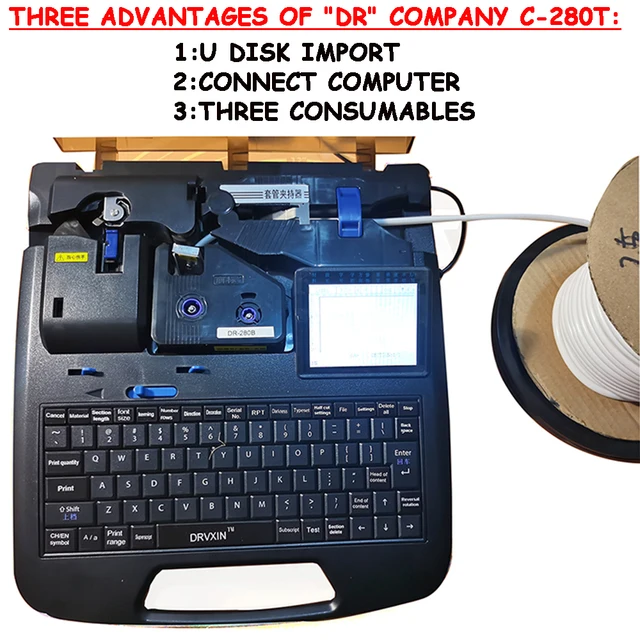
New C-280T Wire Pipe Numbering Machine U Disk Import Connect Computer For Heat-shrinkable Tube Tape Label typewriter printing
Original price was: $604.02.$600.31Current price is: $600.31.
Add to cart
Wire Marker ID Printer Pvc Pipe Marking Machine USB Drive Import USB Connection PC Computer Electronic Engraving Machine C-280T
Original price was: $600.12.$596.23Current price is: $596.23.
Add to cart
WAINLUX K6 3000mW Mini CNC Laser Engraver
Original price was: $128.37.$127.16Current price is: $127.16.
Add to cart
Lville Android 13 Tablet - 10 inch Octa-Core Tablet with 8GB RAM, 128GB ROM, 1TB TF Expandable Storage, Bluetooth 5.0, WiFi 6, Fast Charging, Dual Camera - Black
Original price was: $4,270.00.$235.00Current price is: $235.00.
Add to cartPopular items in this category

Exclusive Access Modern Two-Wheel 3000W Electric Motorcycle with Racing Design for Adults
$2,133.00
Add to cart
Unlock Your Potential Hiseeu 4MP/5MP PTZ IP Camera Outdoor Security AI Human Detection H.265X Wireless WiFi Video Surveillance Cameras iCsee P2P
$16.10
Add to cart
Empowering Solutions Hiseeu 4MP+4MP Dual Lens Wifi PTZ IP Camera 2.8+12mm 8X Zoom CCTV Video Surveillance Camera Color Night Vision Ai Human Cam
$16.10
Add to cart
Best HD Auto Zoom Photochromic Reading Glasses for Business with Near Far Anti-blue Light for Presbyopia
$16.10
Add to cartSimilar items you might like

Best Deal Adjustable Intensity Electric Muscle Stimulation Neck Therapy Device with 6 Modes - Portable Pain Relief Tool with Ergonomic Design
$16.10
Add to cart
Uncover Your True Potentialy Men's Anti-Blue Light TR90 Reading Glasses with High Definition, Ultralight Sport Design and Non-Slip Feature - Ideal for Presbyopia and Hyperopia up to +3.5 Diopters
$16.10
Add to cart
Your Perfect Match Outdoor Driving and Fishing Sunglasses with Photochromic Polarized Lenses, UV400 Protection, Anti-Glare, and Case
$16.10
Add to cart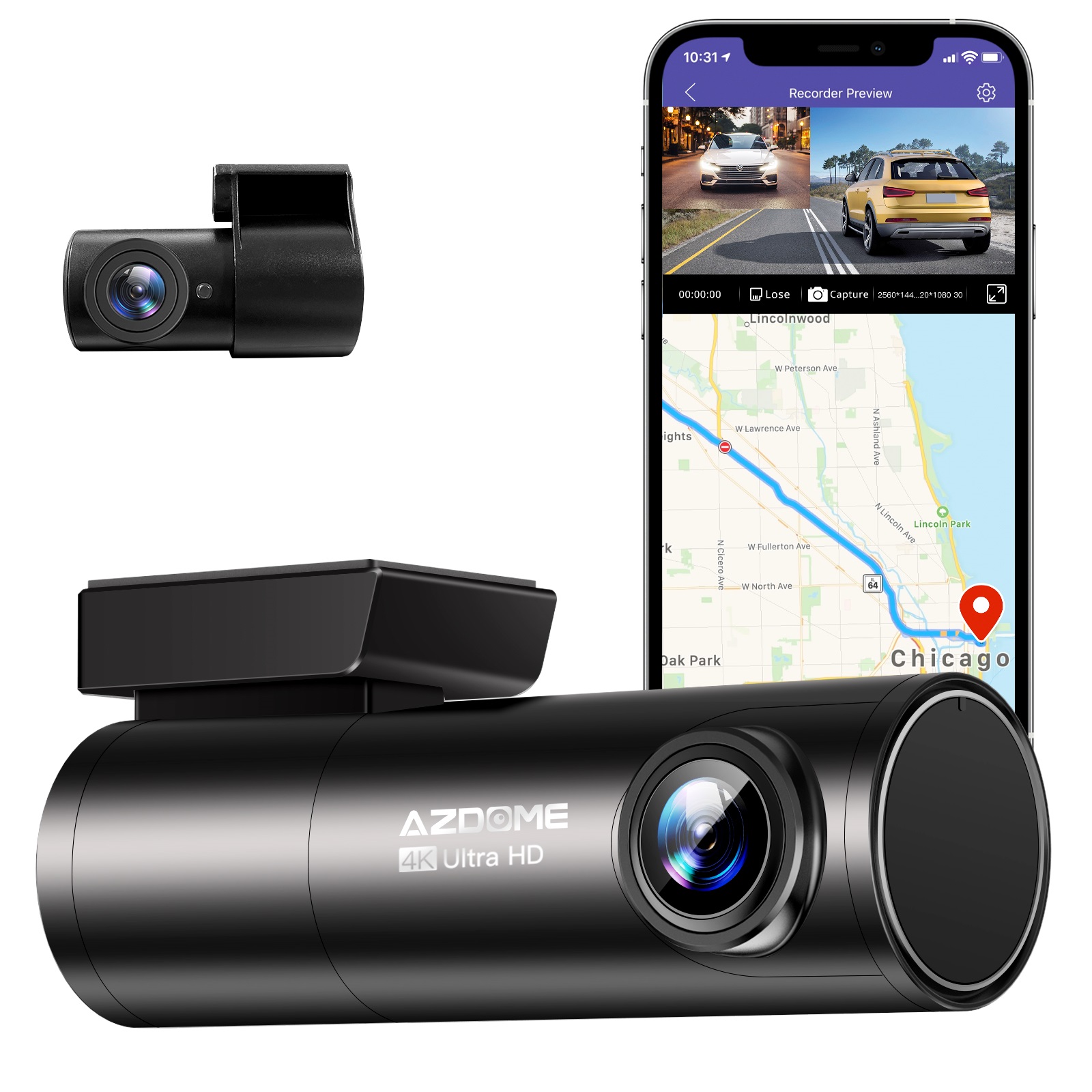
Instant Gratification Azdome HD 1080P Dash Cam Wifi Gps Recorder G-sensor Dashcam Black
$247.10
Add to cartProducts related to this item
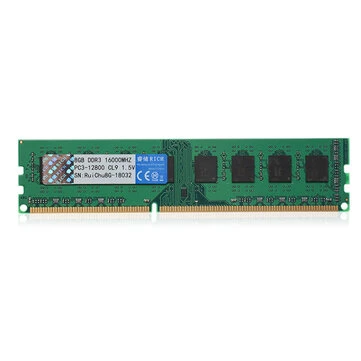
RuiChu 8GB DDR3 1600MHz RAM Memory Stick for Desktop PC Computer
$16.10
Add to cart
Reset Space Gray Apple 9.7" iPad 6 (6th Generation) with 32GB Storage A1893, iOS 17.0.2
$41,113.50
Add to cart
ALLEGIANCE Gaming PC: 18 Core Intel (i9/Xeon), RTX 3060 TI, +128GB RAM, 2TB SSD
$2,350.00
Add to cart
Ematic 10.1" Quad-Core Tablet Bundle with 16GB Storage and Bluetooth - Purple EGQ236BDPR
$141.00
Add to cartProducts you may also like

4-in-1 External DVD Burner with USB3.0 Type C, Multi-function Recorder, CD Player, and TF/SD Interface for PC Notebook
$16.10
Add to cart
JUHOR DDR4 RAM Memory - 8GB or 16GB - High-Performance Memory for Computers and Laptops - 2666MHz Speed - Low-Voltage 1.2V RAMs
$16.10
Add to cart
Sealed Fire Max 11 Tablet with Vivid 11" Display, 64GB Storage, 4GB RAM, and Octa-Core Processor
$31,018.40
Add to cart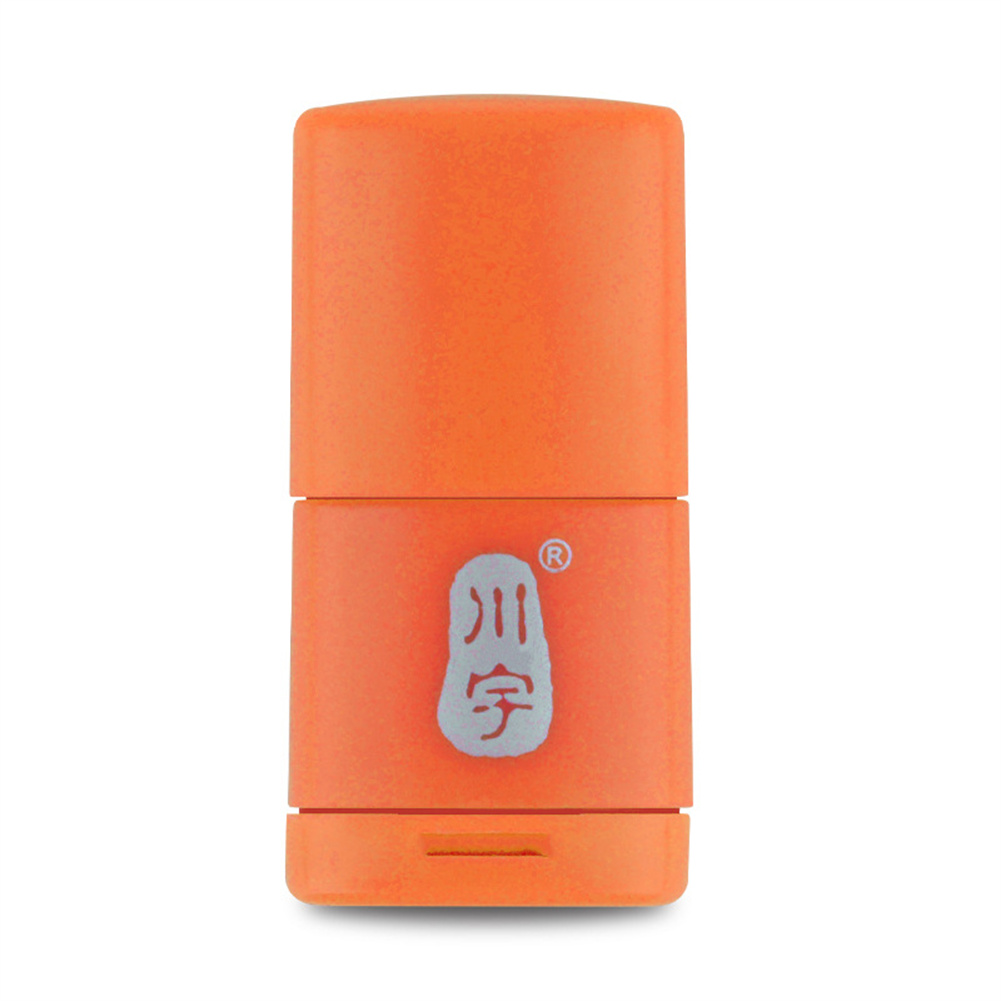
C286 Micro Sd Card Reader 2.0usb High-Speed Adapter With Tf Card Slot 128gb Memory Card Reader For Computer orange
$8.50
Add to cartRecommended for You
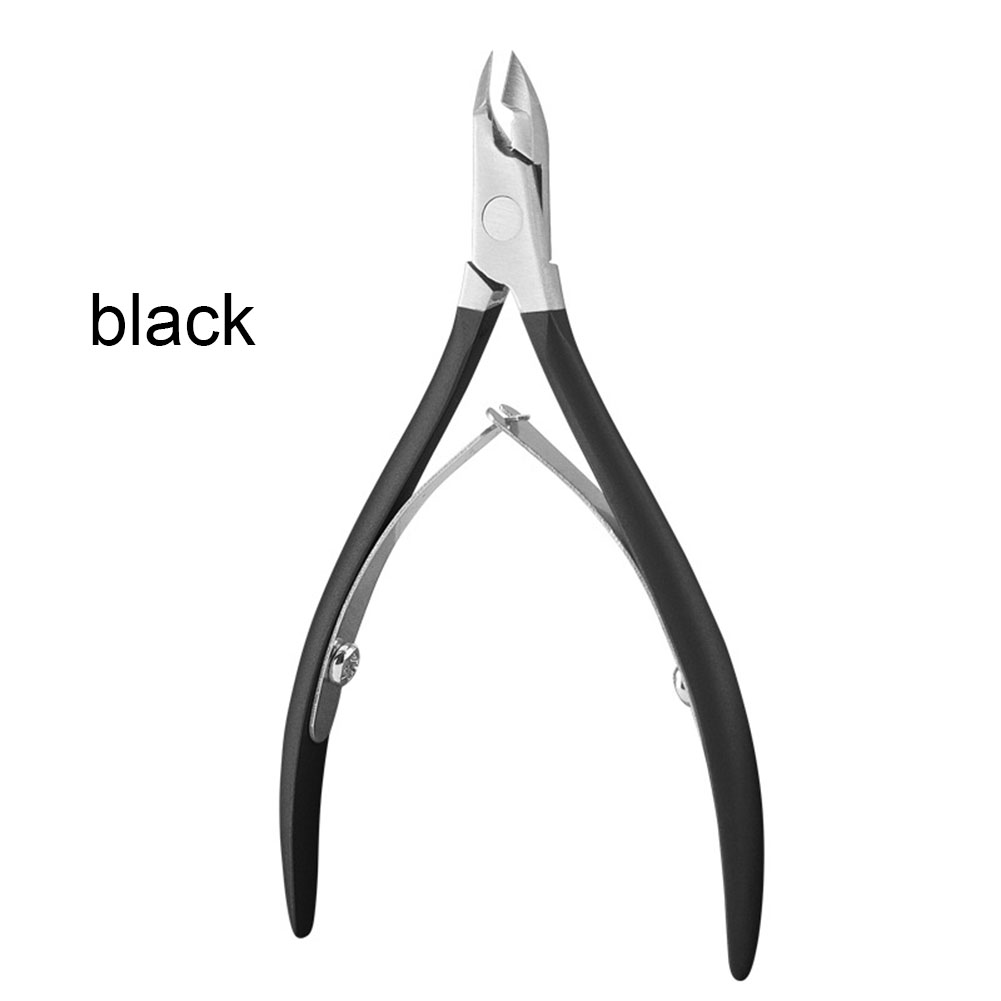
Revamp Portable Stainless Steel Nail Art Cuticle Nipper Cutter Clipper Manicure Pedicure Tools Nail Scissors black
$14.60
Add to cart
Bundle of PC Components
$2,350.00
Add to cart
MSI GP68HX Gaming Laptop - 16" Display, 144Hz Refresh Rate, Intel i9-12900H Processor, RTX 4080 Graphics, 16GB RAM, 1TB SSD
$4,935.00
Add to cart
Bwine F7GB2 Camera Drones for Adults with 4K Resolution, FAA Approval, 9800FT Transmission Range, 3-Axis Gimbal, 2 Batteries allowing 50 Minutes of Flight Time, GPS Auto Return, and Follow Me feature
Original price was: $5,191.20.$799.00Current price is: $799.00.
Add to cartRelated products
-
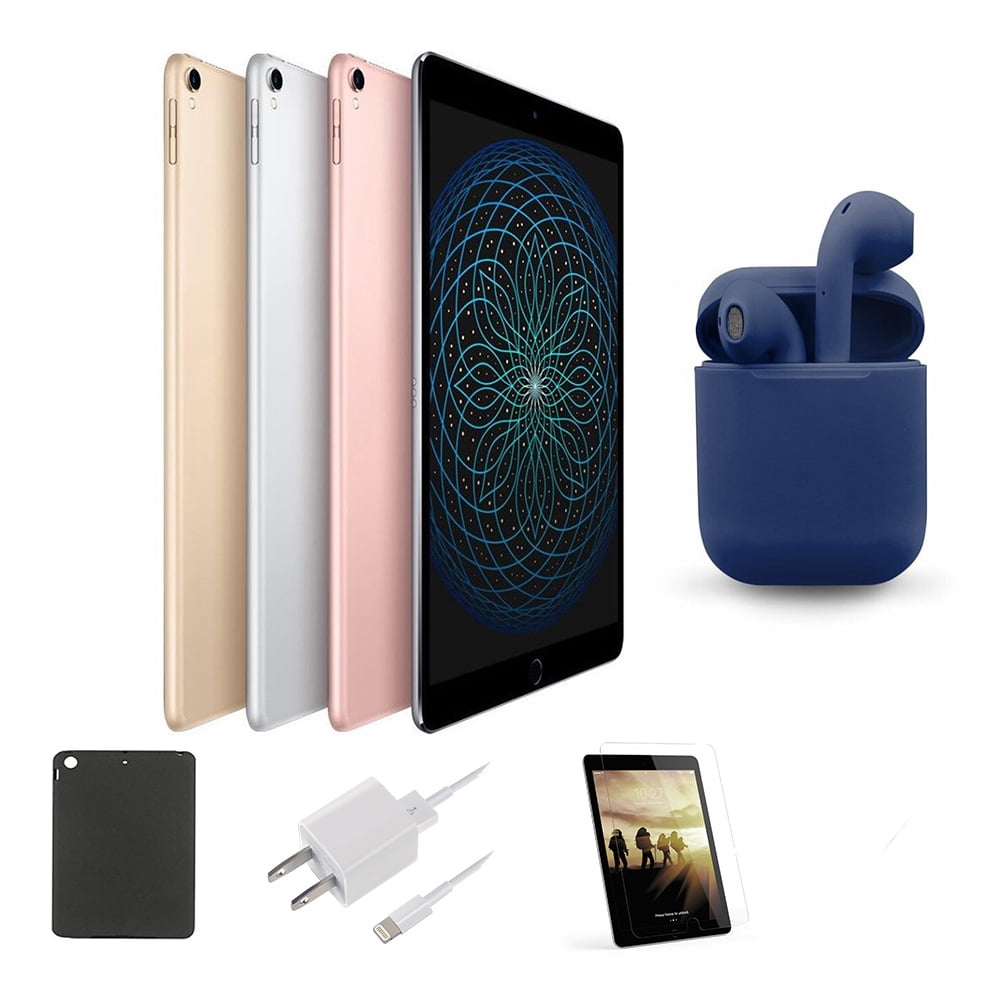
Restored | Apple iPad Pro | 10.5-inch Retina | 256GB | Wi-Fi Only | Latest OS | Bundle: Case, Pre-Installed Tempered Glass, Rapid Charger, Bluetooth/Wireless Airbuds By…
$349.00 -

2017 5th Generation Apple iPad 9.7″ Retina Display 128GB Space Gray Wi-Fi
$62,578.60 -
Ematic 10.1″ Quad-Core Tablet Bundle with 16GB Storage and Bluetooth – Purple EGQ236BDPR
$141.00 -

4040 handicraft laser engraving machine computer acrylic non-metal laser cutting machine
$903.76

Reviews
There are no reviews yet.