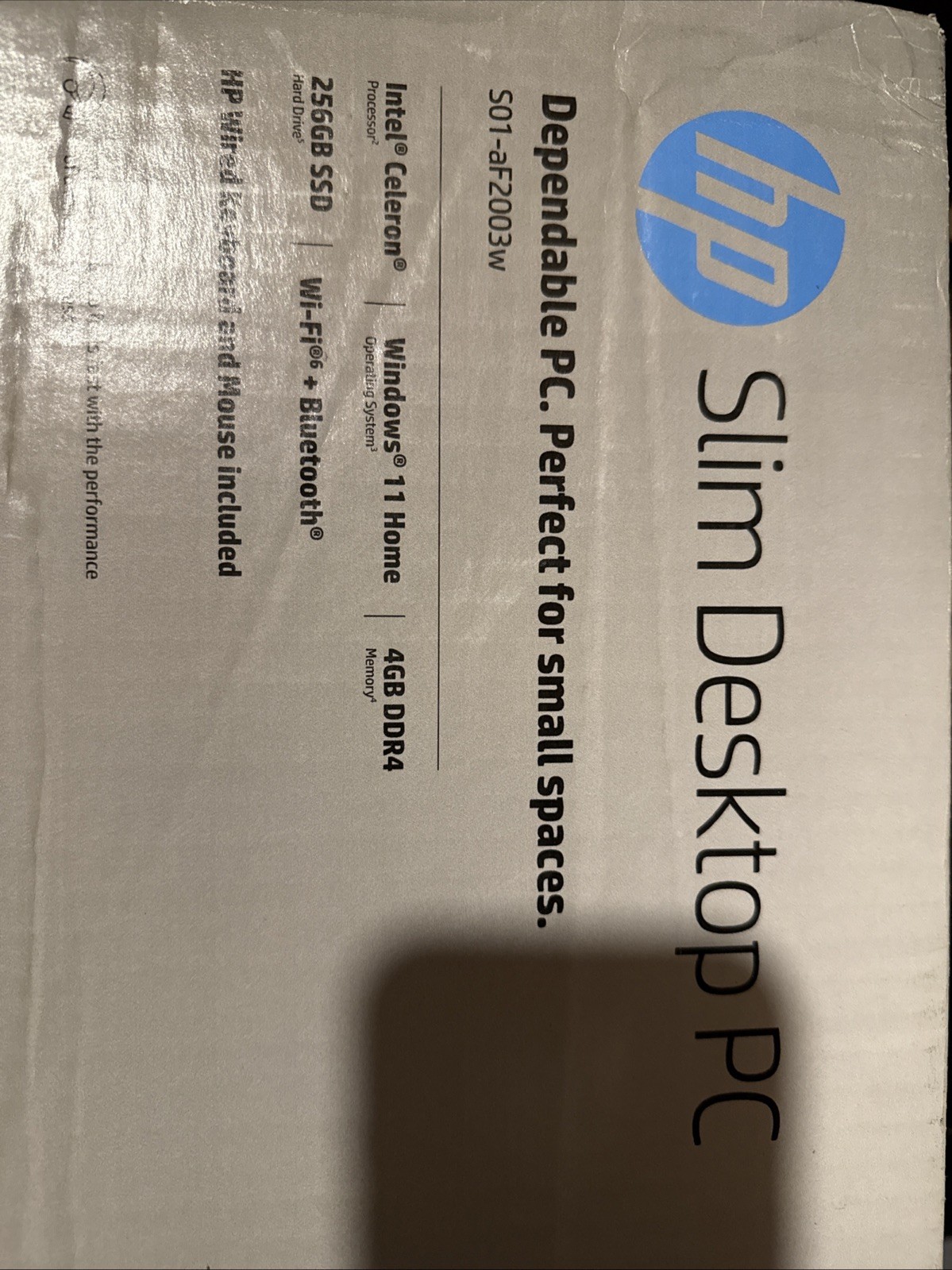
Introducing the Latest Black HP Slim Desktop with Intel Celeron J4025, 256GB SSD, 4GB RAM, and Windows 11
$70,427.70
HP Slim Desktop with Intel Celeron J4025 processor and 4GB RAM
256GB SSD storage for photos, videos, and documents
Slim design that fits anywhere
Intel UHD Graphics 600 for graphics performance
Windows 11 Home operating system
Black color
HDMI, USB-A, and USB 2.0 connectivity options
Suitable for office, workstation, casual computing, and gaming
Buy more, save more Buy 2–4 of this item and save 5%. Buy 5 or more of this item and save 10%. Discount is automatic in your cart on regular-priced items. It cannot be combined with coupon codes or sale prices.
Country suggested using IP or browser language; you can change it. Shipping is confirmed at checkout.
Introducing the Latest Black HP Slim Desktop with Intel Celeron J4025, 256GB SSD, 4GB RAM, and Windows 11,
How to Use the NEW HP Slim Desktop
Setting up the Desktop
Unbox the HP Slim Desktop.
Connect the power cable to the desktop and plug it into a power outlet.
Connect a monitor to the HDMI port using an HDMI cable.
Connect any additional peripherals, such as a keyboard and mouse, to USB ports.
Press the power button to turn on the desktop.
Windows 11 Setup
Follow the on-screen prompts to set up Windows 11.
Choose your language, region, and keyboard layout.
Create or sign in with a Microsoft account.
Agree to the terms and conditions.
Customize your settings according to your preferences.
Using the Desktop
Basic Operations
To open an application, click on its icon on the desktop or use the start menu.
To browse the internet, launch a web browser like Microsoft Edge or Google Chrome.
To access files and folders, use the File Explorer.
To adjust volume, use the volume control on the keyboard or in the taskbar.
Storage and Memory
Store your files in the 256 GB SSD storage. Open the File Explorer and navigate to the desired location.
You have 4 GB of RAM to work with. Keep in mind that running multiple applications simultaneously may affect performance.
Hardware Connectivity
Connect a monitor using the HDMI port.
Connect peripherals such as keyboards, mice, or USB drives to the available USB ports.
Shutting Down the Desktop
Close any open applications and save your work.
Click on the Start button.
Click on the Power button.
Select “Shut down” to turn off the desktop completely.
Contacting Customer Support
We are here to assist you with any issues or questions you may have. Please feel free to reach out to our customer support team via email or phone, and we will respond as soon as possible.
Email: support@hpslimdesktop.com
Phone: 1-800-123-4567
, , HP
Weight
5 lbs
Processor
Intel Celeron J4025
Color
RAM Size
4 GB
Most Suitable For
Office, Workstation, Casual Computing, Gaming
GPU
Intel UHD Graphics 600
Processor Speed
Up TO 2.90Ghz
Brand
Form Factor
Slim
Type
Desktop
Model
S01-AF2003WM
Connectivity
HDMI, USB-A, USB 2.0
Hard Drive Capacity
256 GB
Operating System
Windows 11 Home
Storage Type
SSD (Solid State Drive)
UPC
0196548734207
Reviews
There are no reviews yet.
Only logged in customers who have purchased this product may leave a review.
















Reviews
There are no reviews yet.