MTK6580P mobile platform with 28mm process technology
Compatible with Android 8.1
Dual SIM card supports TF card
Supports the world’s 50 largest communication operator networks
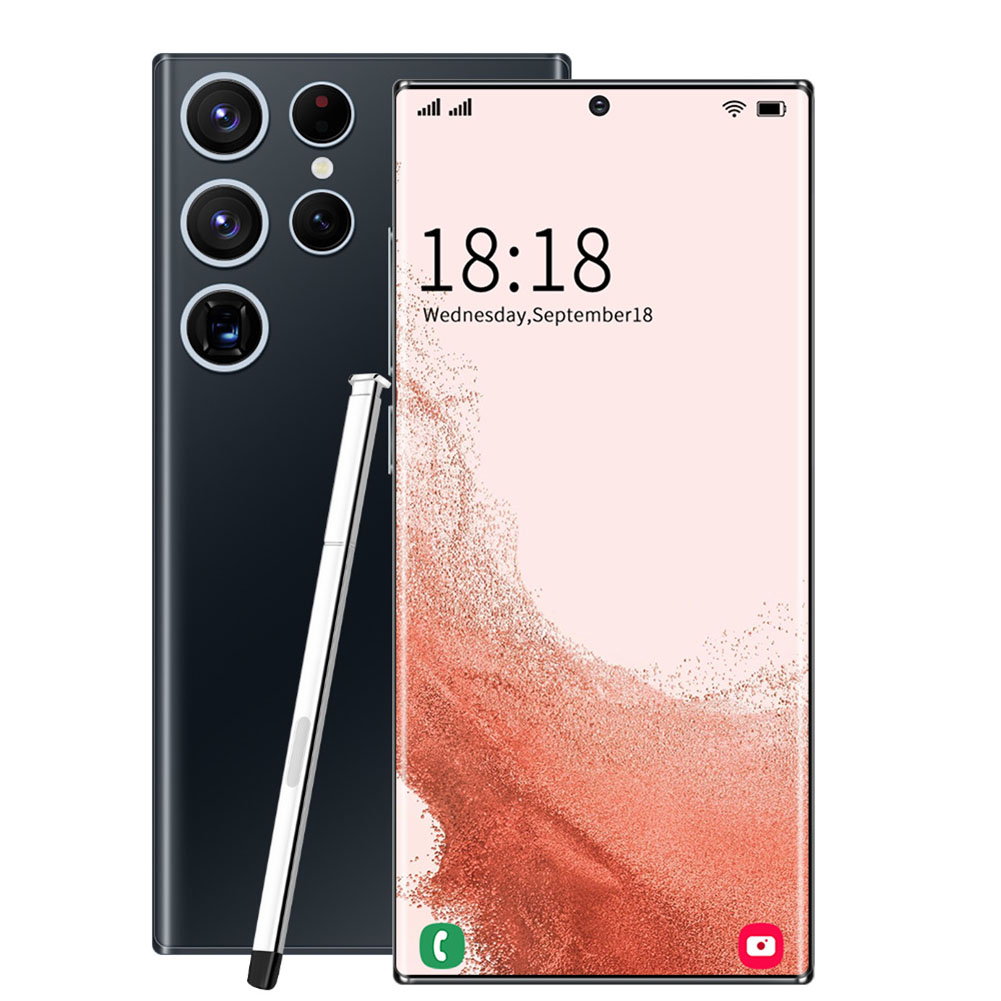
6.5″ Infinity-O Display
2MP front-facing camera for crisp, stylish selfies
8MP Rear HD Camera
Face Access feature for easy and fun face recognition unlocking
Buy more, save more Buy 2–4 of this item and save 5%. Buy 5 or more of this item and save 10%. Discount is automatic in your cart on regular-priced items. It cannot be combined with coupon codes or sale prices.
Country suggested using IP or browser language; you can change it. Shipping is confirmed at checkout.
Black EU Plug 6.5 Inch HD S22ultra Smartphone with MTK6580P Quad-core, 2GB RAM, 16GB ROM, Face Recognition, and Android 8.1 OS,
How to Use the 6.5 Inch HD S22Ultra Smartphone
Table of Contents
Power On/Off
Inserting SIM and TF Card
Unlocking with Face Recognition
Taking Photos with the Front and Rear Cameras
1. Power On/Off
To power on the smartphone, press and hold the power button located on the side or top of the device.
To power off the smartphone, press and hold the power button again until the power options menu appears. Select “Power Off” to turn off the device.
2. Inserting SIM and TF Card
Locate the SIM card slot on the smartphone. It may be different depending on the model, but it is usually found on the side or back of the device.
Open the SIM card slot using a SIM card ejector tool or a paperclip.
Insert the SIM card(s) into the available slot(s) according to the provided instructions.
If desired, insert a TF card into the dedicated slot to expand the storage capacity.
Close the SIM card slot carefully.
3. Unlocking with Face Recognition
On the home screen, go to the “Settings” menu.
Select “Security and Face Recognition”.
Follow the prompts to set up the face recognition feature. Make sure you are in a well-lit environment and position your face within the designated frame.
Once face recognition is set up, you can use it to unlock your smartphone by simply looking at the front-facing camera.
4. Taking Photos with the Front and Rear Cameras
To take a photo using the front camera, open the camera app and switch to the front camera mode by tapping the camera icon with two circular arrows.
Aim the front camera at the subject and tap the shutter button to capture the photo.
To take a photo using the rear camera, open the camera app and switch to the rear camera mode by tapping the camera icon with a single circular arrow.
Aim the rear camera at the subject and tap the shutter button to capture the photo.
Use the various camera settings and features available in the camera app to enhance your photos, such as adjusting brightness, applying filters, or enabling HDR mode.
, ,
Weight
5 lbs
Reviews
There are no reviews yet.
Only logged in customers who have purchased this product may leave a review.












Reviews
There are no reviews yet.