


HDCM-4K HD 4K CCTV Monitor by Triplett, 7″ TFT LCD Screen Size
$535,783.80
- TRIPLETT HDCM-4K HD 4K CCTV Monitor
- TFT LCD
- 7″ Screen Size
- Brand: TRIPLETT
- Display Type: TFT
- Model: HDCM-4K
- MPN: HDCM-4K
- Most Suitable For: CCTV
Buy more, save more
Buy 2–4 of this item and save 5%.
Buy 5 or more of this item and save 10%.
Discount is automatic in your cart on regular-priced items. It cannot be combined with coupon codes or sale prices.
Buy 2–4 of this item and save 5%.
Buy 5 or more of this item and save 10%.
Discount is automatic in your cart on regular-priced items. It cannot be combined with coupon codes or sale prices.
Country suggested using IP or browser language; you can change it. Shipping is confirmed at checkout.
Description
HDCM-4K HD 4K CCTV Monitor by Triplett, 7″ TFT LCD Screen Size,
How to Use TRIPLETT HDCM-4K HD 4K CCTV Monitor
Unboxing and Setup
- Remove the monitor from the packaging.
- Place the monitor on a stable surface.
- Connect the power adapter to the monitor and plug it into a power outlet.
- Connect the video source (CCTV camera) to the monitor using the appropriate cable.
- Turn on the monitor by pressing the power button.
Adjusting Display Settings
- Press the menu button on the monitor to access the OSD (On-Screen Display) menu.
- Use the navigation buttons to navigate through the menu options.
- Select the display settings option.
- Adjust the brightness, contrast, and other settings to your preference.
- Save the changes and exit the OSD menu.
Using the Monitor
- To switch between input sources, press the input button on the monitor.
- Use the navigation buttons to navigate through the menu and make selections.
- Use the volume buttons to adjust the audio level if applicable.
- To turn off the monitor, press and hold the power button.
Troubleshooting
- If there is no video signal, check the connections between the monitor and the video source.
- Ensure that the video source (CCTV camera) is powered on and functioning properly.
- If the display appears distorted or flickering, adjust the display settings or consult the user manual for further troubleshooting steps.
- If you encounter any other issues or have questions, refer to the user manual or contact TRIPLETT customer support.
, , TRIPLETT
| Weight | 5 lbs |
|---|---|
| Brand | TRIPLETT |
| Screen Size | Not Available |
| Display Type | TFT |
| Model | HDCM-4K |
| MPN | HDCM-4K |
| Most Suitable For | CCTV |
| UPC | 614395001933 |
Only logged in customers who have purchased this product may leave a review.
Special deals for you
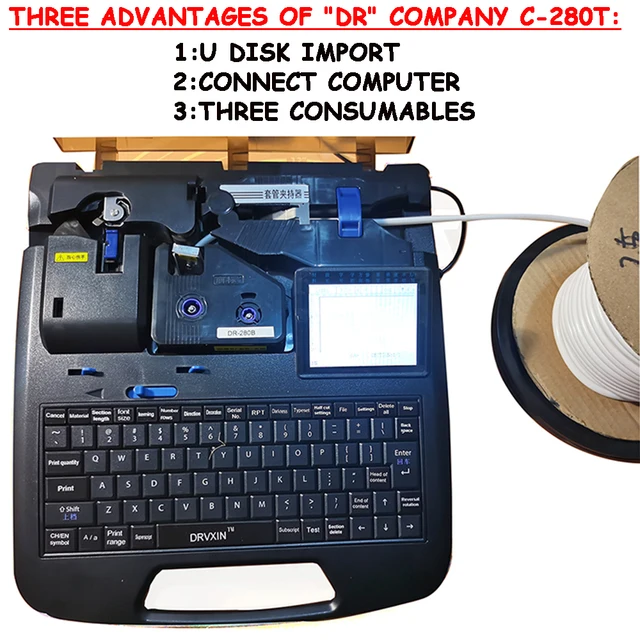
New C-280T Wire Pipe Numbering Machine U Disk Import Connect Computer For Heat-shrinkable Tube Tape Label typewriter printing
Original price was: $604.02.$600.31Current price is: $600.31.
Add to cart
Wire Marker ID Printer Pvc Pipe Marking Machine USB Drive Import USB Connection PC Computer Electronic Engraving Machine C-280T
Original price was: $600.12.$596.23Current price is: $596.23.
Add to cart
WAINLUX K6 3000mW Mini CNC Laser Engraver
Original price was: $128.37.$127.16Current price is: $127.16.
Add to cart
Lville Android 13 Tablet - 10 inch Octa-Core Tablet with 8GB RAM, 128GB ROM, 1TB TF Expandable Storage, Bluetooth 5.0, WiFi 6, Fast Charging, Dual Camera - Black
Original price was: $4,270.00.$235.00Current price is: $235.00.
Add to cartPopular items in this category

Exclusive Access Modern Two-Wheel 3000W Electric Motorcycle with Racing Design for Adults
$2,133.00
Add to cart
Unlock Your Potential Hiseeu 4MP/5MP PTZ IP Camera Outdoor Security AI Human Detection H.265X Wireless WiFi Video Surveillance Cameras iCsee P2P
$16.10
Add to cart
Empowering Solutions Hiseeu 4MP+4MP Dual Lens Wifi PTZ IP Camera 2.8+12mm 8X Zoom CCTV Video Surveillance Camera Color Night Vision Ai Human Cam
$16.10
Add to cart
Best HD Auto Zoom Photochromic Reading Glasses for Business with Near Far Anti-blue Light for Presbyopia
$16.10
Add to cartSimilar items you might like

Best Deal Adjustable Intensity Electric Muscle Stimulation Neck Therapy Device with 6 Modes - Portable Pain Relief Tool with Ergonomic Design
$16.10
Add to cart
Uncover Your True Potentialy Men's Anti-Blue Light TR90 Reading Glasses with High Definition, Ultralight Sport Design and Non-Slip Feature - Ideal for Presbyopia and Hyperopia up to +3.5 Diopters
$16.10
Add to cart
Your Perfect Match Outdoor Driving and Fishing Sunglasses with Photochromic Polarized Lenses, UV400 Protection, Anti-Glare, and Case
$16.10
Add to cart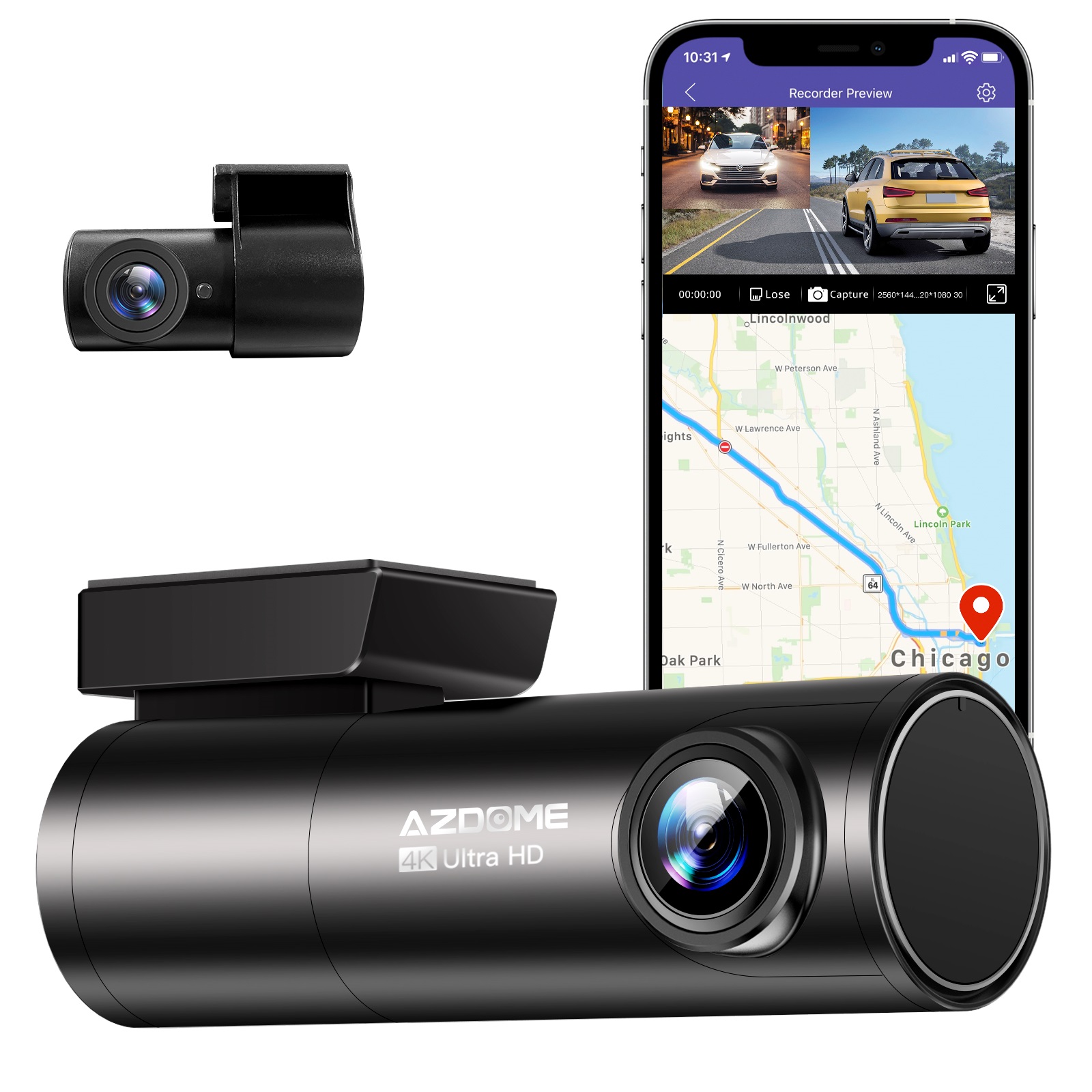
Instant Gratification Azdome HD 1080P Dash Cam Wifi Gps Recorder G-sensor Dashcam Black
$247.10
Add to cartProducts related to this item

Apple iPad 7th Generation (2019) - 32GB WiFi Version - Multiple Color Options
$223.40
Add to cart
Apple iPad 5th Generation 9.7" 32GB/128GB Gray/Silver Wi-Fi/Cellular Unlocked with Good Condition
$246.70
Add to cart
Amazon Fire HD 10 32GB Tablet with Wi-Fi and Alexa, 10 Inch, 2021 11th Generation - Olive (Brand New)
$25,822.50
Add to cart
Baseus ioTa 450W 288Wh 90000mAh Power Bank - High-capacity External Battery Charger with Multiple Ports for Fast Charging Mobile Phones, Laptops, Cameras, and Drones
$16.10
Add to cartProducts you may also like

Apple iPad Mini 2 A1489 16GB Wi-Fi iOS 12.5.7 Space Gray ME779LL/A 7.9-inch
$133.90
Add to cart
JUHOR DDR4 RAM Memory - 8GB or 16GB - High-Performance Memory for Computers and Laptops - 2666MHz Speed - Low-Voltage 1.2V RAMs
$16.10
Add to cart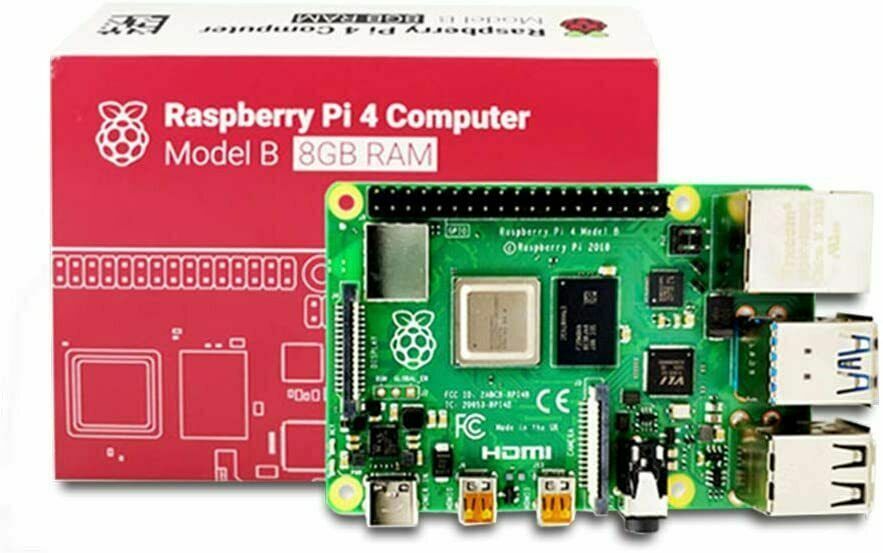
Raspberry Pi 4 8GB DDR4 RAM Single Board Computer - RPI4-MODBP-8GB
$46,998.00
Add to cart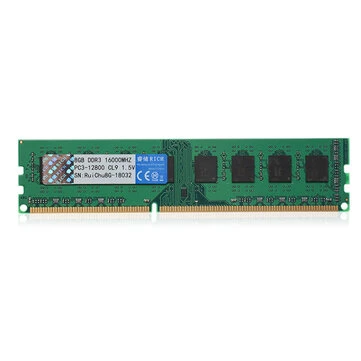
RuiChu 8GB DDR3 1600MHz RAM Memory Stick for Desktop PC Computer
$16.10
Add to cartRecommended for You

Best 1PC Men Breathable Milk Fiber Boxer Briefs Random_XXXL
$13.10
Add to cart
10.1" Android 11.0 Tablet with WIFI, 32GB HD, Quad-Core Processor, Dual Camera, and Netflix Support
$148.00
Add to cart
ViewSonic 27-inch VX2718-PC-MHD Curved Gaming Monitor with 1080p Resolution, 1ms Response Time, and AMD FreeSync Technology
$423.00
Add to cart
Maximize Your Experience EU 1 piece Egg Tart Mold Reusable Flower Edge Aluminum Cake Mold
$4.40
Add to cartRelated products
-

Apple 10.2″ iPad 9th Gen 64GB Space Gray Wi-Fi Tablet (MK2K3LL/A)
$434.80 -

Blackview Mini Desktop Computer Mini PC 16GB RAM 512GB SSD Dual 4K HDMI Display
$173.90 -
Raspberry Pi 4 8GB DDR4 RAM Single Board Computer – RPI4-MODBP-8GB
$46,998.00 -
SALE 
Wire Marker ID Printer Pvc Pipe Marking Machine USB Drive Import USB Connection PC Computer Electronic Engraving Machine C-280T
Original price was: $600.12.$596.23Current price is: $596.23.

Reviews
There are no reviews yet.