
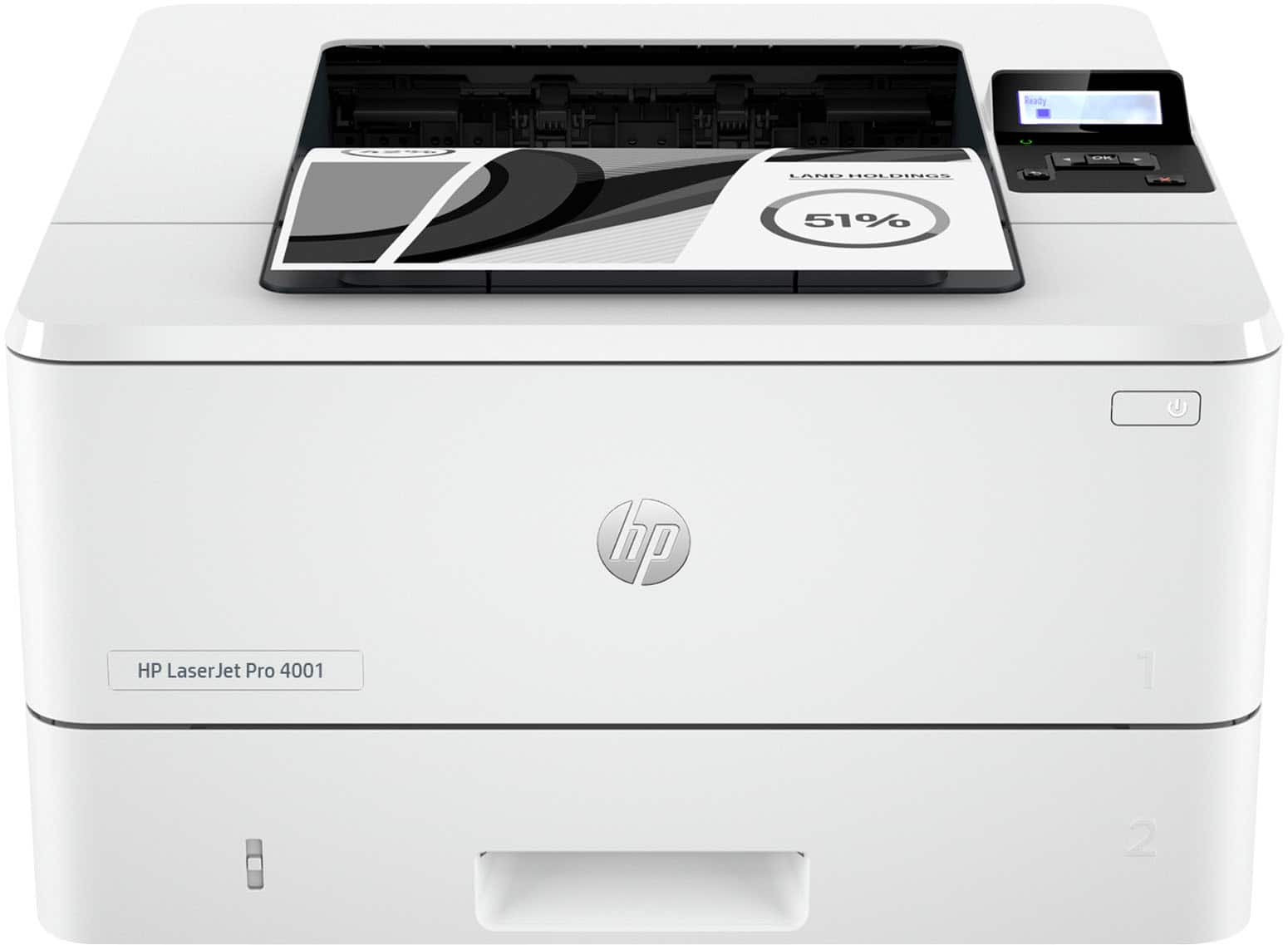
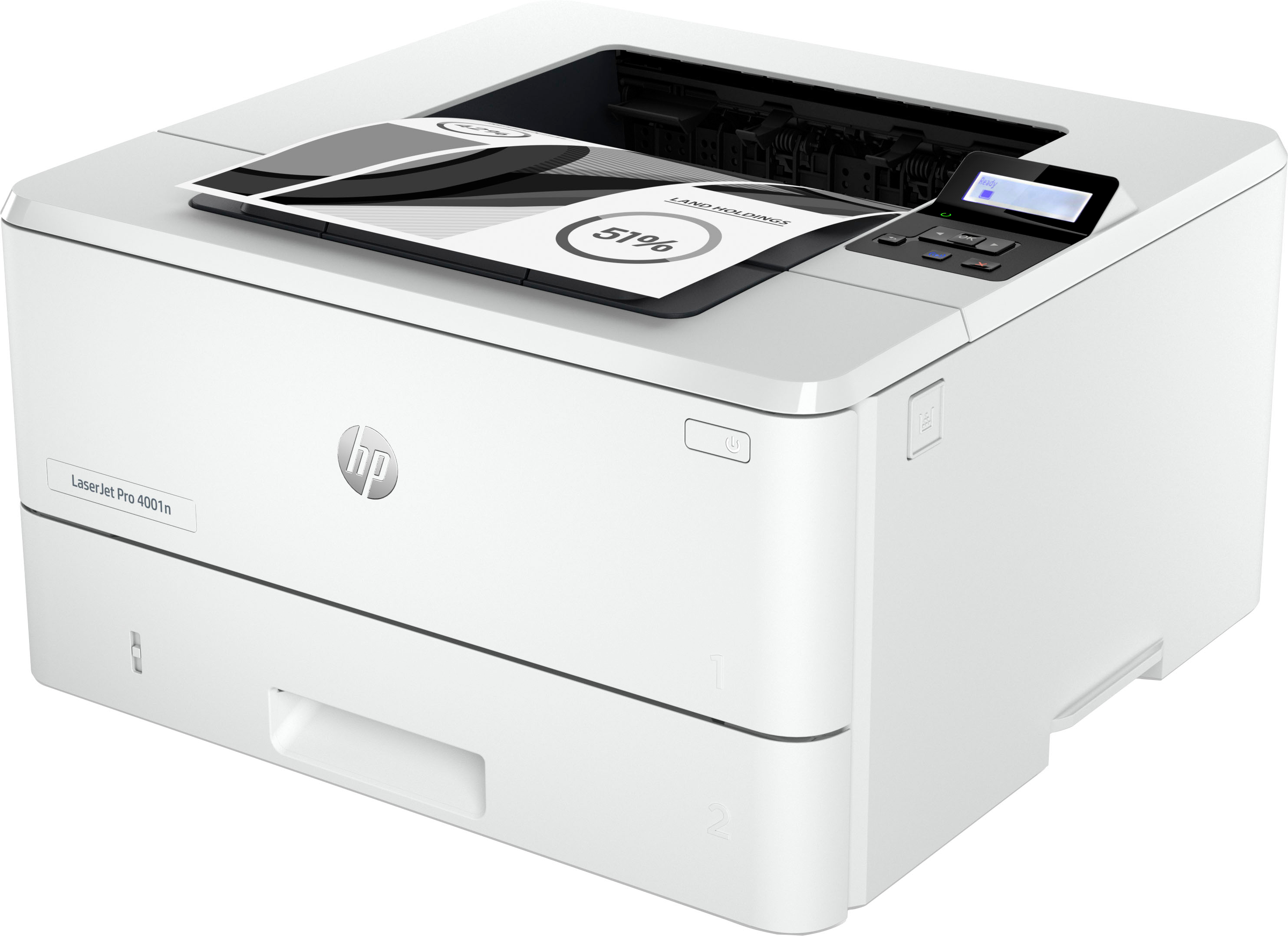
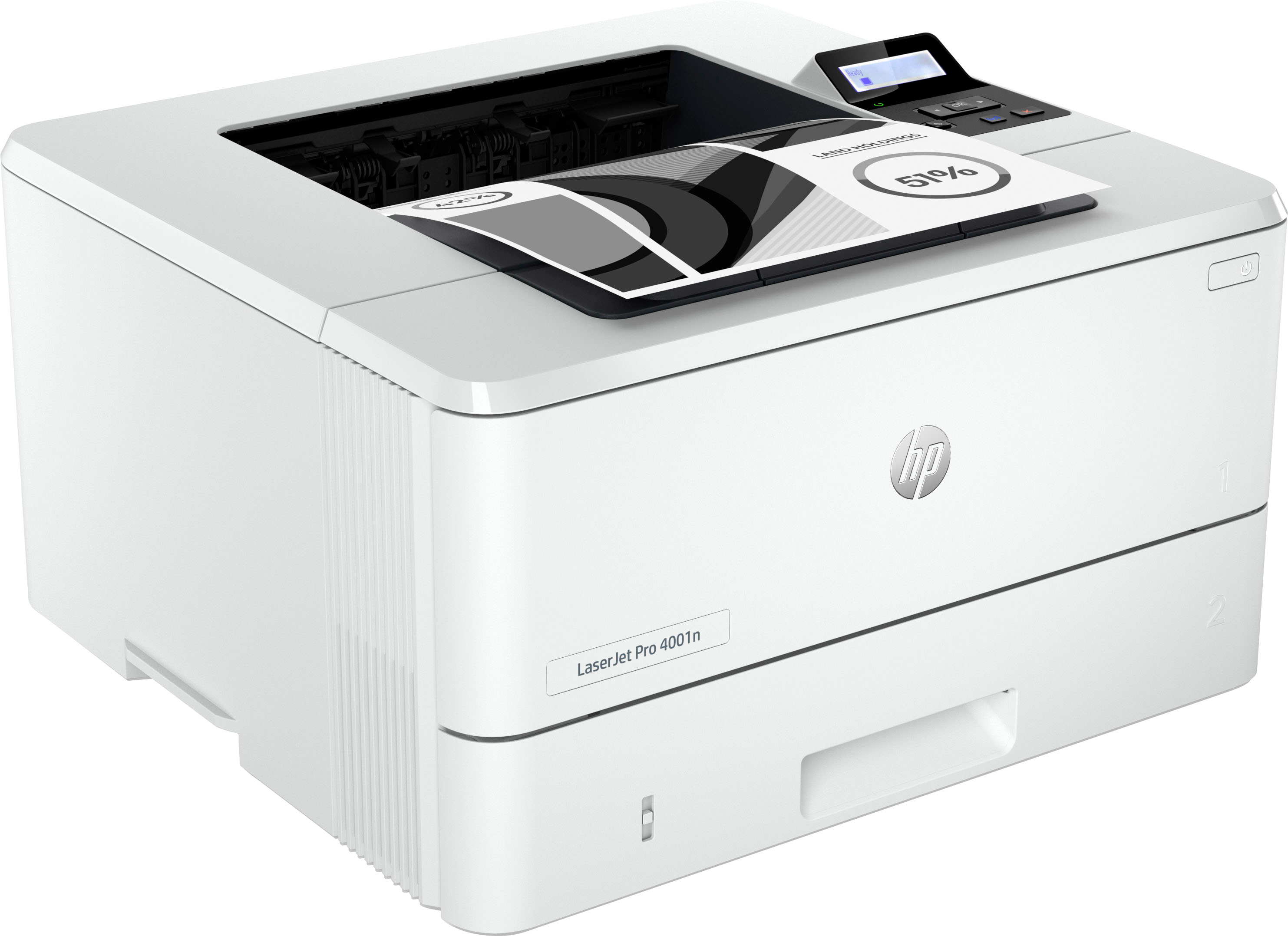
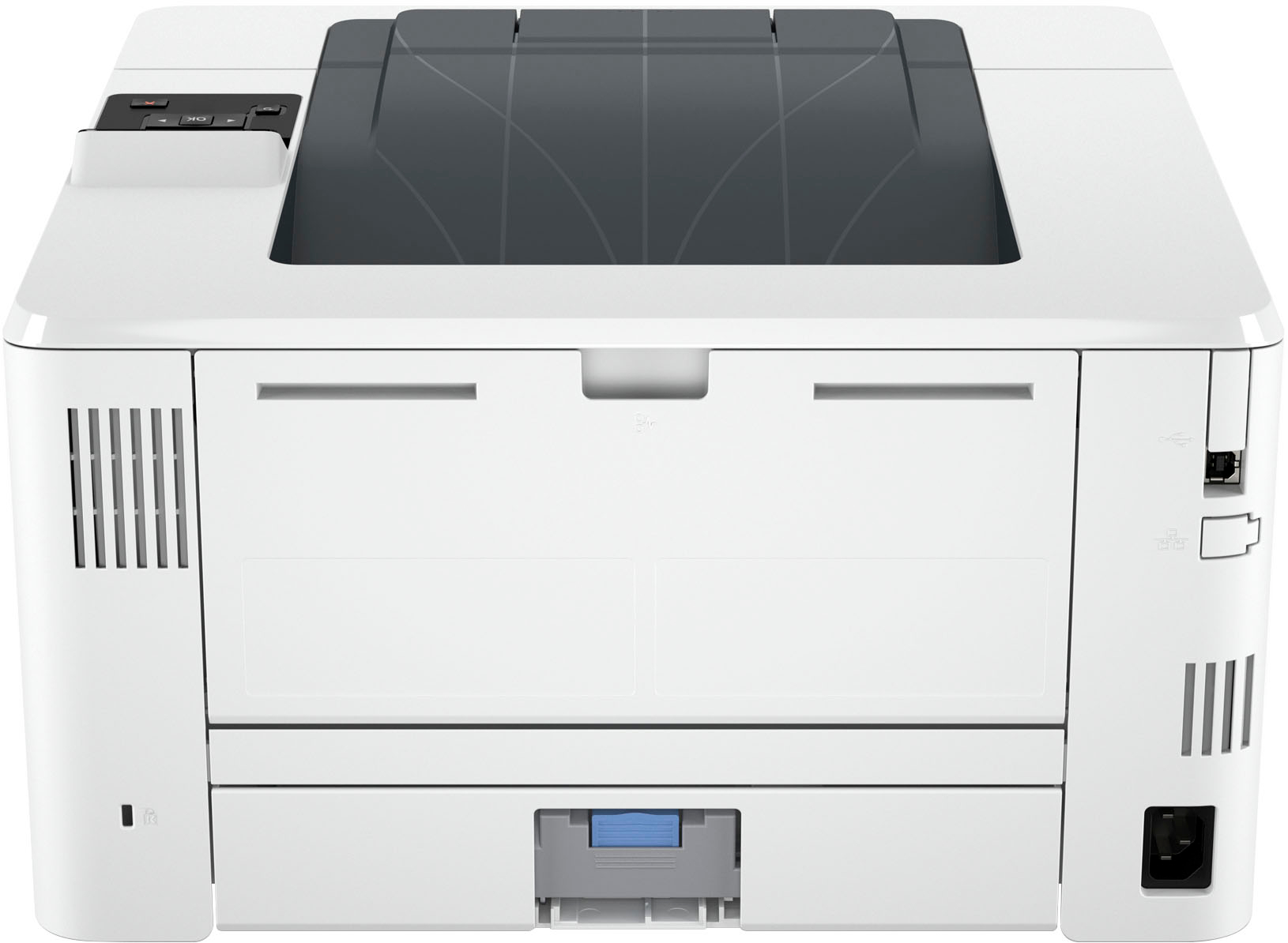
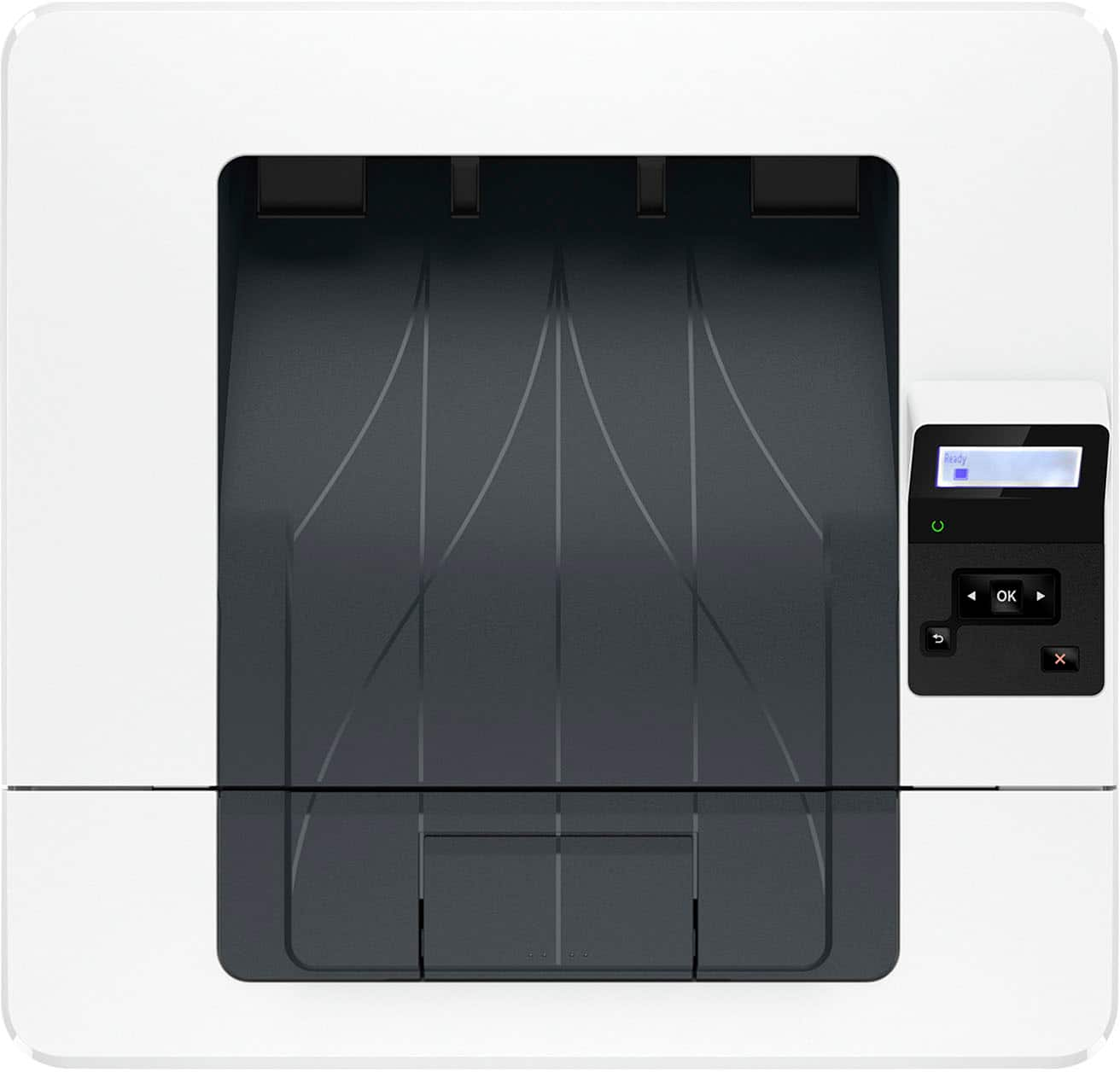
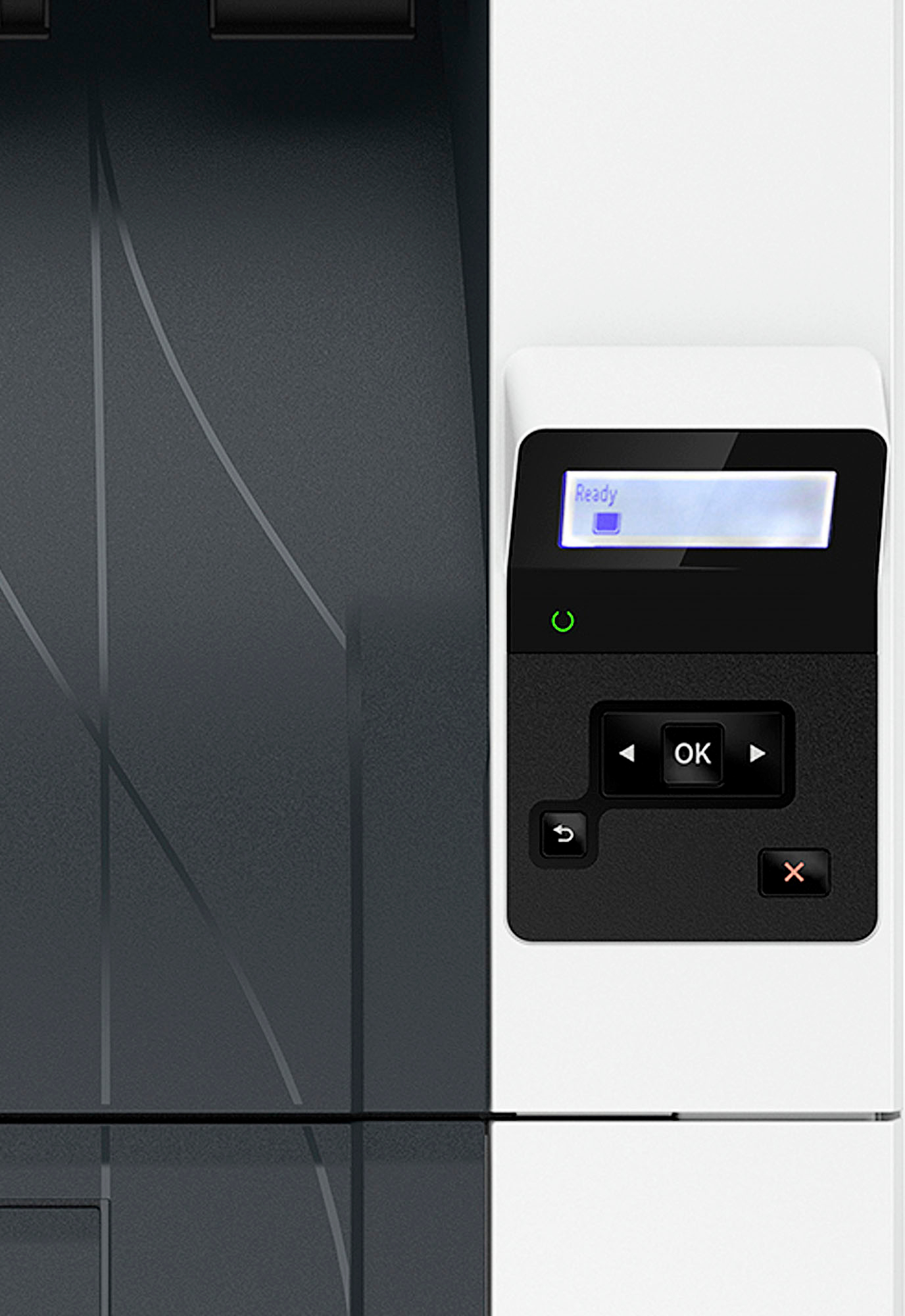
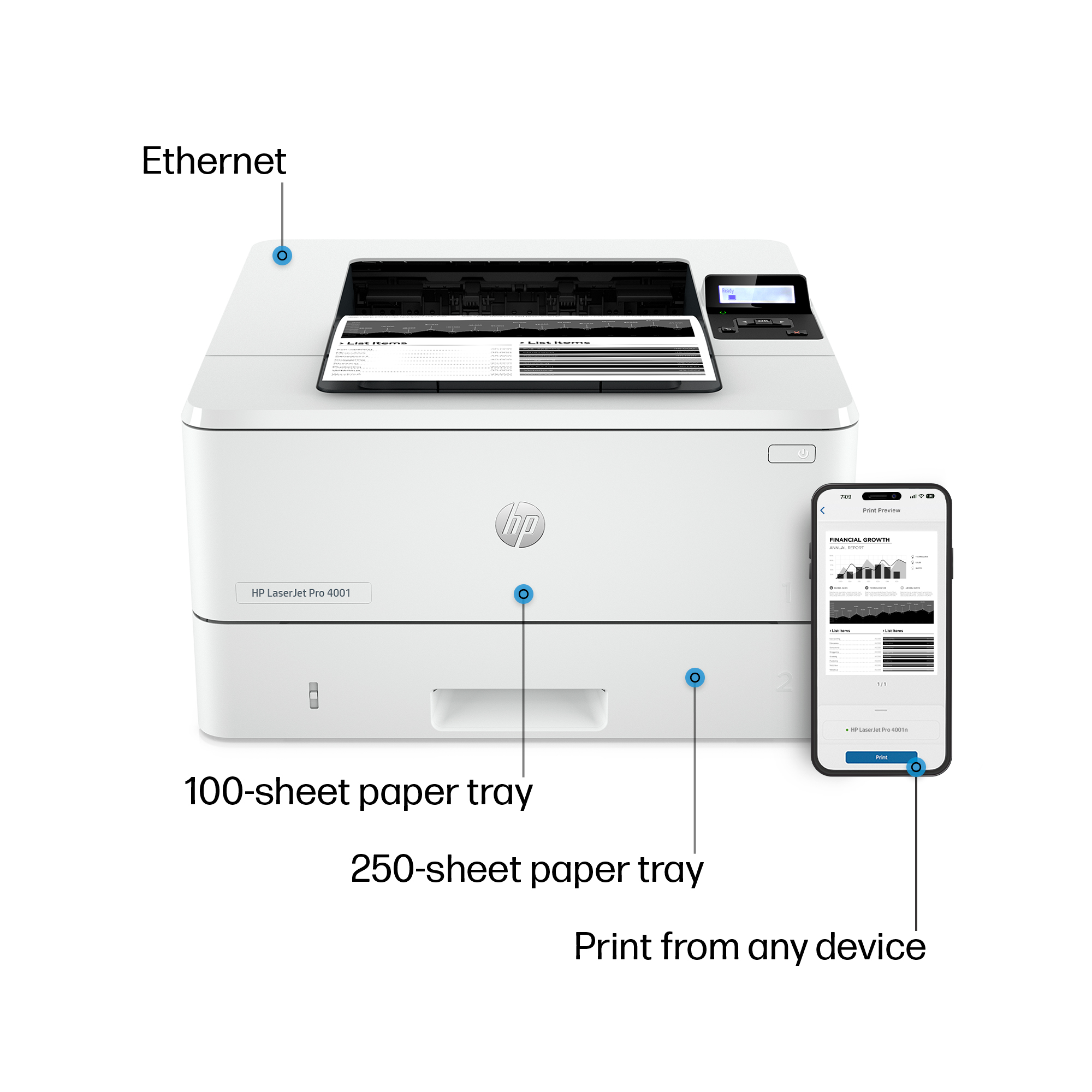
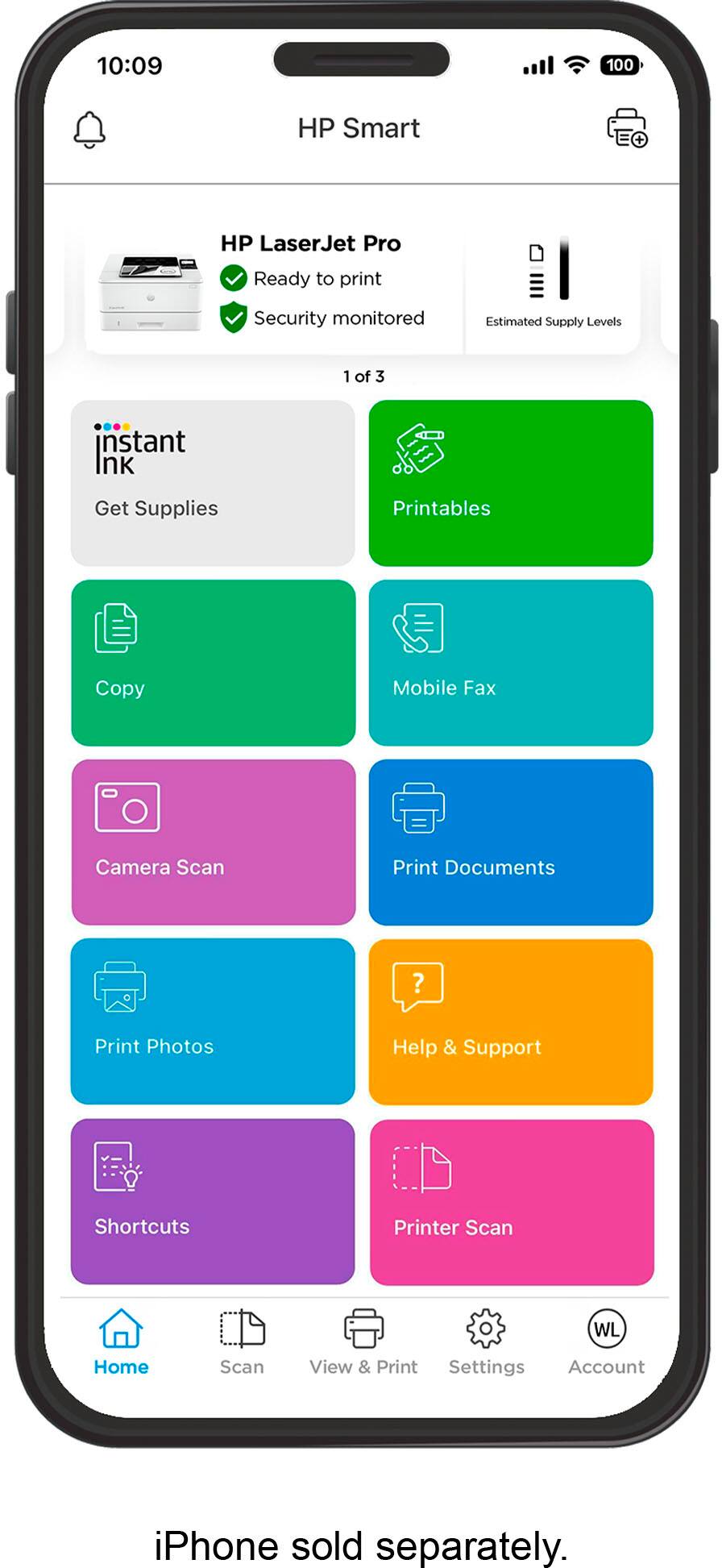
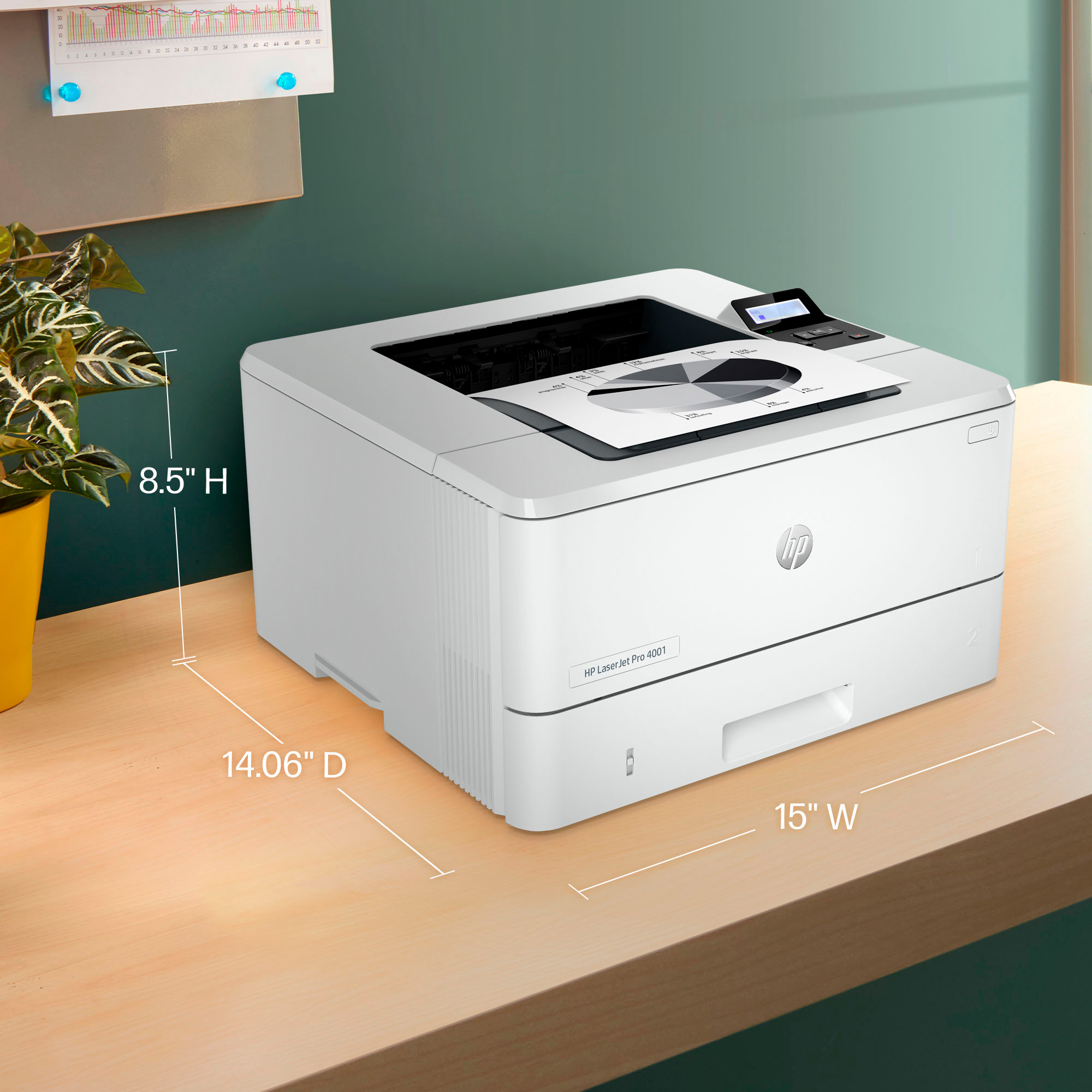
HP LaserJet Pro 4001n Laser Printer
$728.50
- Blazing fast printing speeds
- Easy management tools
- Built for maximum productivity
- Reliable hardware
- Effortless everyday use
- Suitable for working from anywhere
- Allows you to focus on your business
Buy more, save more
Buy 2–4 of this item and save 5%.
Buy 5 or more of this item and save 10%.
Discount is automatic in your cart on regular-priced items. It cannot be combined with coupon codes or sale prices.
Buy 2–4 of this item and save 5%.
Buy 5 or more of this item and save 10%.
Discount is automatic in your cart on regular-priced items. It cannot be combined with coupon codes or sale prices.
Country suggested using IP or browser language; you can change it. Shipping is confirmed at checkout.
Description
HP LaserJet Pro 4001n Laser Printer,
How to Use the HP LaserJet Pro 4001n Black-and-White Laser Printer
Setting up the Printer
- Unbox the printer and remove all packaging materials.
- Connect the printer to a power source using the provided power cable.
- Connect the printer to your computer using a USB cable or establish a wireless connection, if available.
- Power on the printer and follow the on-screen prompts to complete the initial setup.
Loading Paper
- Slide open the paper tray located at the bottom of the printer.
- Adjust the guides to fit the size of the paper you are using.
- Load the paper into the tray, making sure to align it correctly.
- Close the paper tray securely.
Installing Toner Cartridge
- Open the front cover of the printer.
- Remove the empty toner cartridge by pulling it towards you.
- Take the new toner cartridge out of the package and gently shake it to distribute the toner evenly.
- Insert the new toner cartridge into the printer, pushing until it clicks into place.
- Close the front cover of the printer.
Printing Documents
- Make sure the printer is powered on and connected to your computer.
- Open the document you want to print and select the print command (Ctrl+P on Windows or Command+P on Mac).
- Choose the HP LaserJet Pro 4001n Printer from the list of available printers.
- Select your desired print settings, such as paper size and print quality.
- Click the “Print” button to start the printing process.
Maintaining the Printer
- Regularly clean the exterior of the printer with a soft, lint-free cloth.
- Inspect the paper path for any obstructions or debris and remove them if necessary.
- If you experience any issues, consult the user manual or contact HP support for assistance.
, , HP
42 reviews for HP LaserJet Pro 4001n Laser Printer
Only logged in customers who have purchased this product may leave a review.
Special deals for you

Canon imageFORMULA R40 Office Document Scanner For PC and Mac, Color Duplex Scanning, Easy Setup For Office Or Home Use, Includes Scanning Software
Original price was: $4,270.00.$538.20Current price is: $538.20.
Add to cart
Epson Workforce ES-C220 Compact Desktop Document Scanner with 2-Sided Scanning and Auto Document Feeder (ADF) for PC and Mac
Original price was: $3,244.40.$517.00Current price is: $517.00.
Add to cart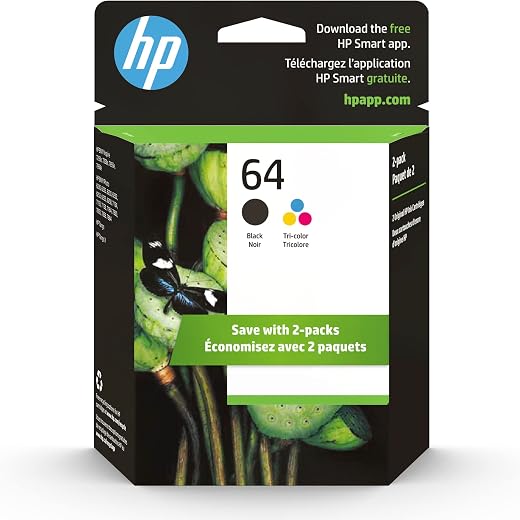
HP 64 Black/Tri-color Ink Cartridges (2-pack) | Works with HP ENVY Inspire 7950e; ENVY Photo 6200, 7100, 7800; Tango Series | Eligible for Instant Ink | X4D92AN
Original price was: $1,038.20.$121.90Current price is: $121.90.
Add to cart
TN660 Toner Cartridge Replacement Compatible for Brother TN 660 TN-660 TN630 High Yield to use with HL-L2380DW HL-L2320D HL-L2340DW DCP-L2540DW MFC-L2700DW MFC-L2720DW Printer...
Original price was: $1,512.00.$86.90Current price is: $86.90.
Add to cartPopular items in this category

Retro HDMI Game Console – 4K Output and Gamepad Controllers
$40.00
Add to cart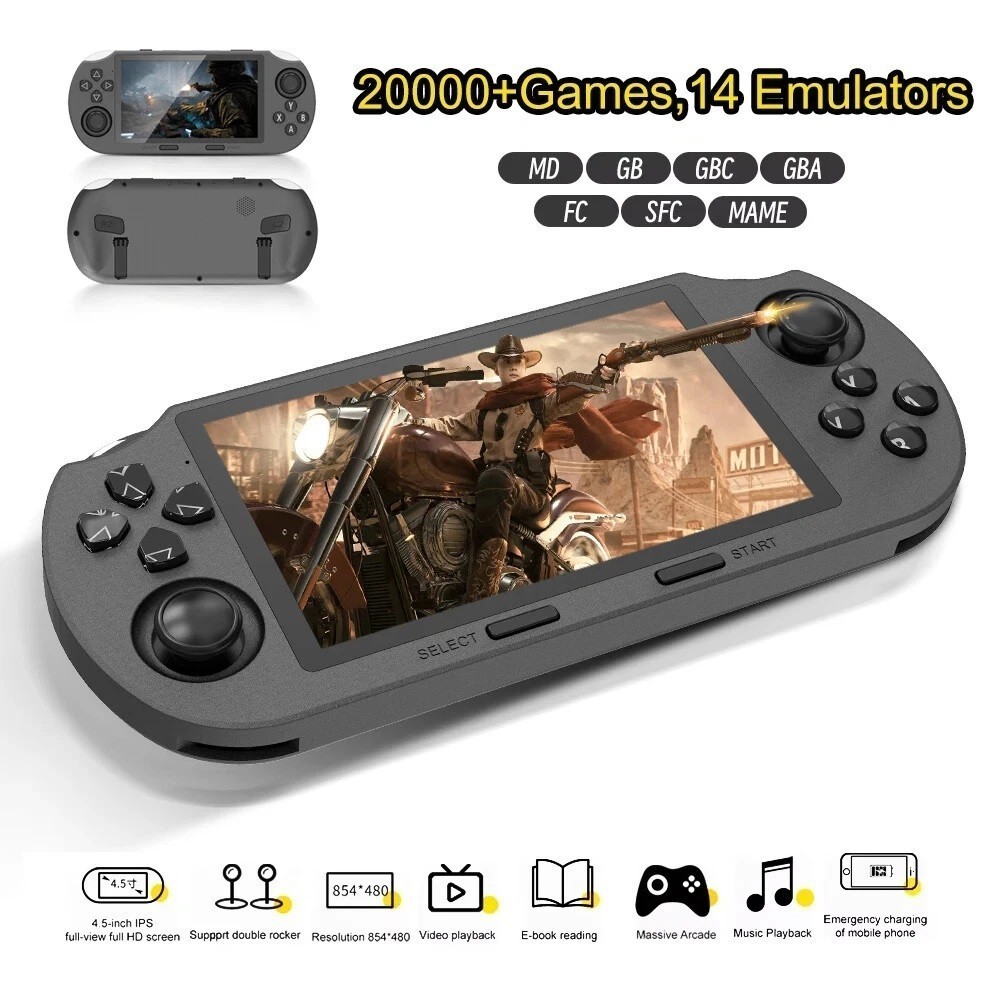
SF3000 Retro Handheld Game Console – 4.5-Inch IPS Display
$94.00
Add to cart
Blackview PlayPop 8 AI Motion Gaming Console for Families
$349.99
Add to cart4K HDMI Retro Game Console – Plug and Play, 20,000+ Games
$40.00
Add to cartSimilar items you might like

Blackview PlayPop 8 AI Motion Gaming Console – 8GB RAM, 128GB Storage
$379.99
Add to cart
R36S Retro Handheld Game Console, 64GB, 3.5-Inch IPS Screen
$86.90
Add to cart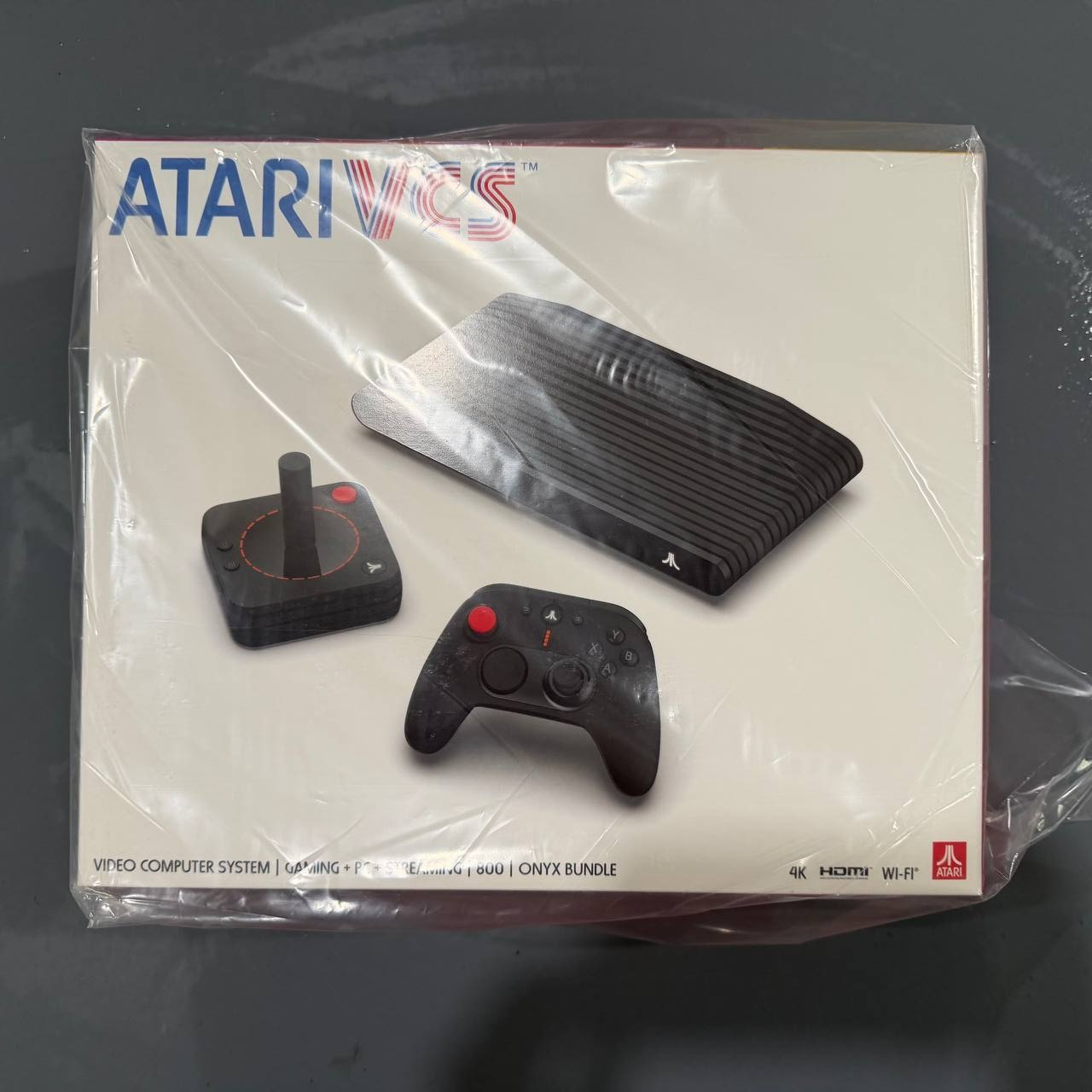
New Sealed Atari VCS 800 Onyx All-In Bundle
$379.99
Add to cart
Budget Desktop PC – Intel Core i7 4th Gen, 16GB DDR3, SSD Options
$499.99
Add to cartProducts related to this item

ASUS WS C246 Pro Motherboard
$752.00
Add to cart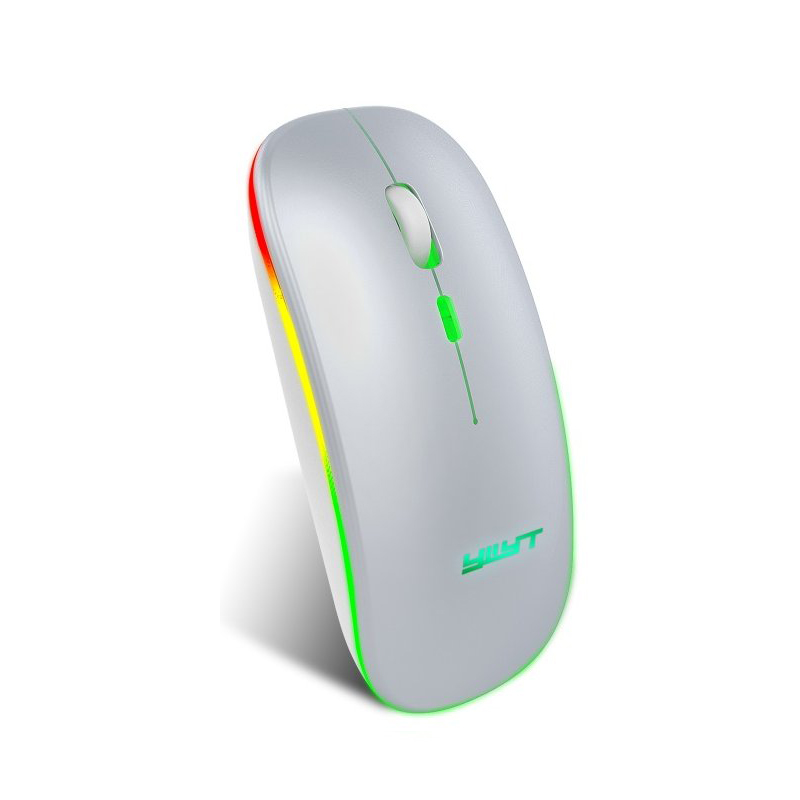
Ergonomic Gaming Mouse G852 Bluetooth + 2.4g dual mode Computer Mouse Gamer Mice With Backlight For PC Laptop white
$37.20
Add to cart
TYAN Tomcat 845GVL Motherboard with Accessories
$411.30
Add to cart
Dell Optiplex 7010 Computer Motherboard Mainboard KRC95
$49,096.20
Add to cartProducts you may also like


Recommended for You

Unbeatable Complete Component Pack for Microsoft Xbox Elite Series 2 - Black
$70.50
Add to cart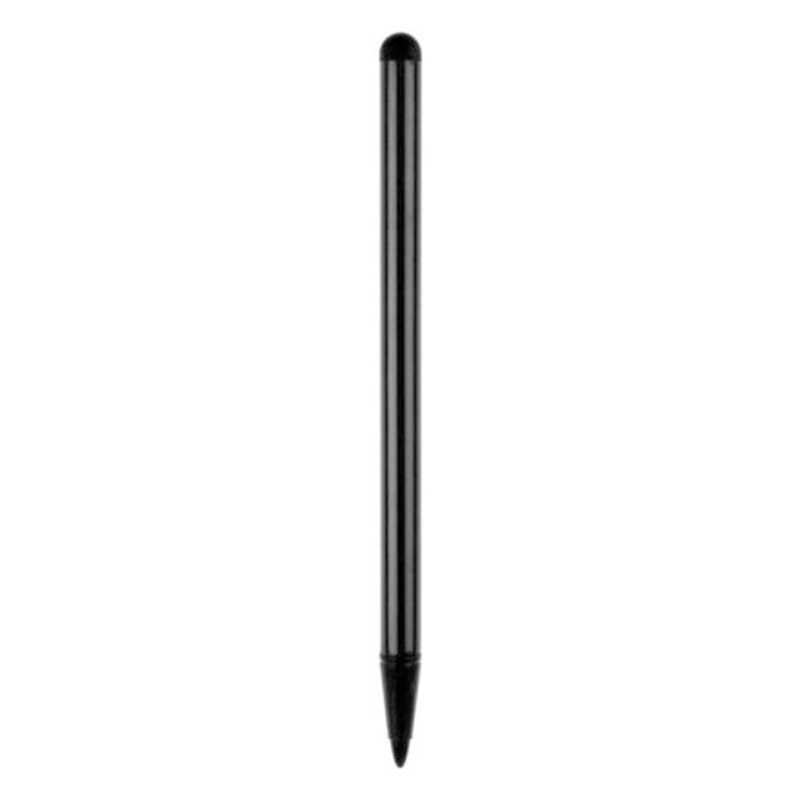
Best Offer 2Pcs Capacitive Pen Touch Screen Stylus Pencil for iPhone iPad Tablet Universal Black
$8.60
Add to cart
Best UNI-T UTI320E: High-Resolution Thermal Imager for Construction, Repair, and Circuit Board Testing with PC Software Analysis
$16.10
Add to cart
Empowering Solutions HP 80A Black Toner Cartridge | Works with HP LaserJet Pro 400 M401 Series, HP LaserJet Pro 400 MFP M425 Series | CF280A
$321.90
Add to cartRelated products
-

USB 3.0 to SATA 2.5″ Hard Drive HDD SSD Adapter Converter Cable 22Pin
$28.30 -
TYAN Tomcat 845GVL Motherboard with Accessories
$411.30 -
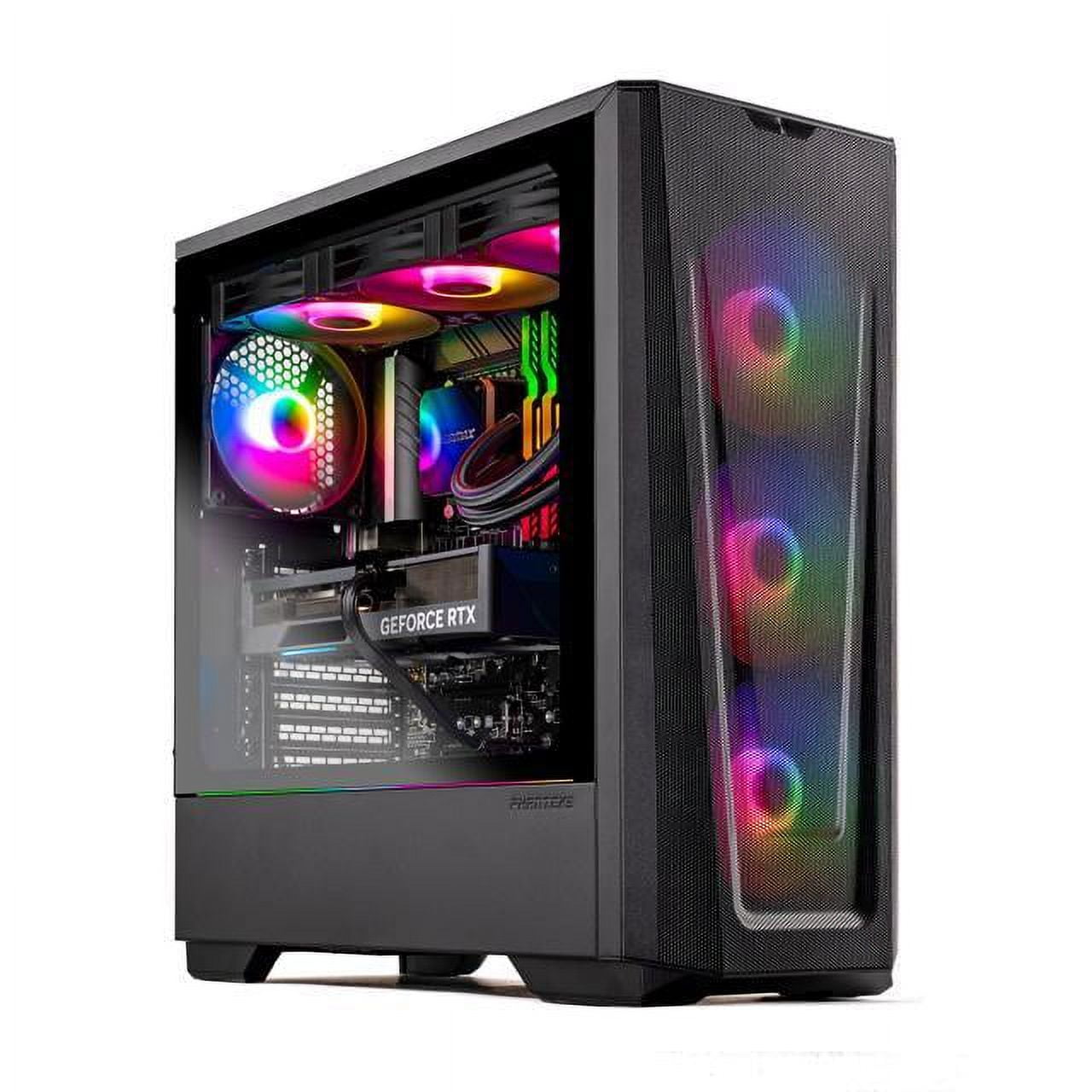
Skytech Eclipse Lite Gaming PC, Intel i7, RTX 4070, 1TB NVME, 32GB DDR5 RAM, Wi-Fi, Win 11 Home, New Condition
$3,747.50 -

Dell OptiPlex 790 (DT) (MT) Computer Motherboard HY9JP
$12.70

JamexRZ –
This is an amazing laser printer for a SOHO. It comes with every thing you need to get started, except for a couple of caveats: They don’t include a USB or ethernet cable. It does not have Wi-Fi…
she18 –
Like the printer so far. Using it in an office and it’s just what we need. Like because it doesn’t have to be wireless.
MichaelDY –
I purchased the HP LaserJet Pro to be a fast, reliable, workhorse production printer and so far I am very pleased and feel I made the right choice. It was easy to install and very easy to operate….
Ponskippa –
I’m going to start by saying that I was initially put off by the setup process when I read the instructions but I am going to tell you that it was pretty much a plug and play experience. I…
James K –
First Impressions – It’s a small SOHO / Small workgroup HP laser printer – in a personal size package.
I opened the box, removed some tape, installed the toner per the directions, plugged it in…
CRob –
This printer is a great little workhorse and a joy to work with. Simple and accurate – good one for the basic black and white printing needs for a business operation
Highly Excellent –
***INITIAL SETUP:*** You have two options: wired, or wired.
You can either use this printer with a (not-included) USB A to B connector, or you can use it within a wired network (provided your…
DanD –
Great Customer Service in Mays Landing, NJ. Helped me order this printer and recycle 3 other printers. Very good experience.