

Elite Lenovo Ideapad 3i Flagship 14-inch FHD Laptop: Essential for Business and Students
$914.20
- 11th Gen Intel Core i3-1115G4 processor with 2 cores and 4 threads
- 8GB DDR4 RAM for smooth multitasking
- 256GB NVMe SSD for fast and reliable performance
- Multiple ports including USB, HDMI, card reader, and headphone jack
- Comes with Windows 11 Home in S mode (can be switched to regular Windows 11)
- 14-inch screen size and integrated Intel UHD Graphics
- Suitable for gaming, workstation, casual computing, and graphic design
- Bluetooth, built-in microphone, built-in webcam, and Wi-Fi connectivity
Buy more, save more
Buy 2–4 of this item and save 5%.
Buy 5 or more of this item and save 10%.
Discount is automatic in your cart on regular-priced items. It cannot be combined with coupon codes or sale prices.
Buy 2–4 of this item and save 5%.
Buy 5 or more of this item and save 10%.
Discount is automatic in your cart on regular-priced items. It cannot be combined with coupon codes or sale prices.
Country suggested using IP or browser language; you can change it. Shipping is confirmed at checkout.
Description
Lenovo Ideapad 3i Flagship 14-inch FHD Laptop: Essential for Business and Students,
How to Use the Lenovo Ideapad 3i Flagship 14” FHD Laptop
Setup
- Place the laptop on a flat and stable surface.
- Open the lid of the laptop.
- Press the power button located on the keyboard to turn on the laptop.
- Follow the on-screen instructions to set up Windows 11 Home.
- Connect to a Wi-Fi network by clicking on the Wi-Fi icon in the bottom right corner of the screen and selecting your desired network.
- Once connected, you are ready to start using the laptop.
Basic Navigation
- Use the touchpad or an external mouse to move the cursor on the screen.
- Click with the left button to select an item.
- Click with the right button to open a contextual menu.
- Use the keyboard to type and enter commands.
- Swipe on the touchpad to scroll up or down.
- Use two fingers on the touchpad to zoom in or out.
Launching Applications
- Click on the Start button located in the bottom-left corner of the screen.
- A menu will appear with a list of installed applications.
- Select an application by clicking on its icon.
Connecting to External Devices
- Locate the desired port on the laptop (USB, HDMI, etc.).
- Connect the cable or device to the port.
- Windows will automatically detect the device and install the necessary drivers.
Changing Settings
- Click on the Start button.
- Select the “Settings” icon above the power icon.
- A window with various settings will appear.
- Select the category you want to change (e.g. Display, Sound, Network).
- Make the desired changes and click on “Apply” or “Save”.
Shutting Down
- Click on the Start button.
- Select the power icon.
- Choose the “Shut down” option.
Important Notes
- Keep the laptop on a stable and ventilated surface to prevent overheating.
- Avoid exposing the laptop to extreme temperatures or moisture.
- Regularly update the operating system and installed applications for optimal performance and security.
- Back up important files to an external storage device to prevent data loss.
, , Lenovo
| Processor | Intel Core i3 11th Gen. |
|---|---|
| Screen Size | 14 in |
| Graphics Processing Type | Integrated/On-Board Graphics |
| RAM Size | 8 GB |
| SSD Capacity | 256 GB |
| Most Suitable For | Gaming, Workstation, Casual Computing, Graphic Design |
| GPU | Intel UHD Graphics |
| Processor Speed | 4.10 GHz |
| Brand | Lenovo |
| Series | IdeaPad |
| Type | Notebook/Laptop |
| Model | lenovo ideapad 3i |
| Operating System | Windows 11 Home |
| Features | Bluetooth, Built-in Microphone, Built-in Webcam, Wi-Fi |
| Hard Drive Capacity | 512 GB |
| Storage Type | SSD (Solid State Drive) |
Only logged in customers who have purchased this product may leave a review.
Special deals for you

Canon imageFORMULA R40 Office Document Scanner For PC and Mac, Color Duplex Scanning, Easy Setup For Office Or Home Use, Includes Scanning Software
Original price was: $4,270.00.$538.20Current price is: $538.20.
Add to cart
Epson Workforce ES-C220 Compact Desktop Document Scanner with 2-Sided Scanning and Auto Document Feeder (ADF) for PC and Mac
Original price was: $3,244.40.$517.00Current price is: $517.00.
Add to cart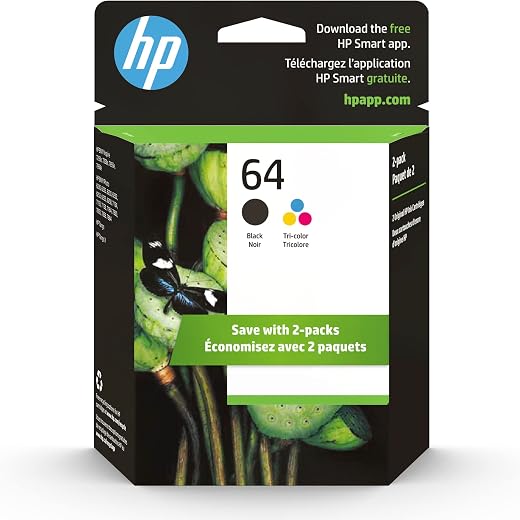
HP 64 Black/Tri-color Ink Cartridges (2-pack) | Works with HP ENVY Inspire 7950e; ENVY Photo 6200, 7100, 7800; Tango Series | Eligible for Instant Ink | X4D92AN
Original price was: $1,038.20.$121.90Current price is: $121.90.
Add to cart
TN660 Toner Cartridge Replacement Compatible for Brother TN 660 TN-660 TN630 High Yield to use with HL-L2380DW HL-L2320D HL-L2340DW DCP-L2540DW MFC-L2700DW MFC-L2720DW Printer...
Original price was: $1,512.00.$86.90Current price is: $86.90.
Add to cartPopular items in this category

Retro HDMI Game Console – 4K Output and Gamepad Controllers
$40.00
Add to cart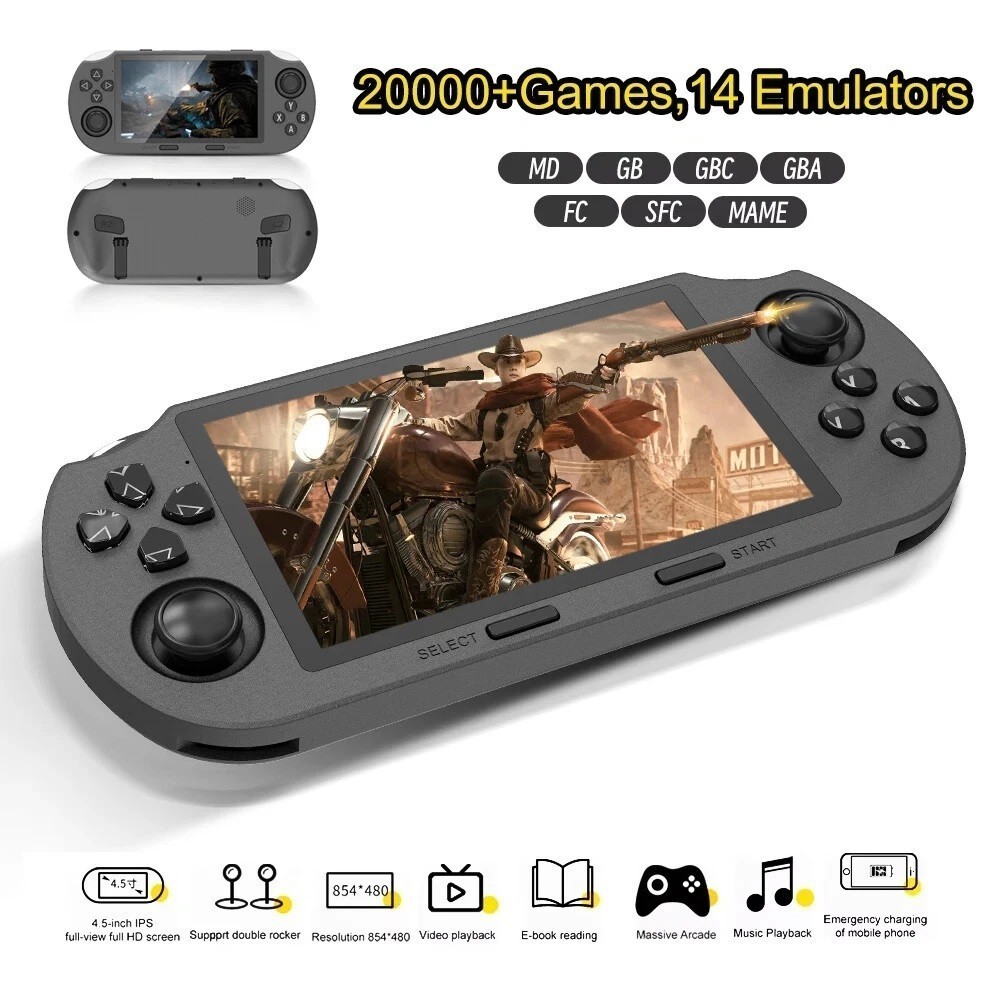
SF3000 Retro Handheld Game Console – 4.5-Inch IPS Display
$94.00
Add to cart
Blackview PlayPop 8 AI Motion Gaming Console for Families
$349.99
Add to cart4K HDMI Retro Game Console – Plug and Play, 20,000+ Games
$40.00
Add to cartSimilar items you might like

Blackview PlayPop 8 AI Motion Gaming Console – 8GB RAM, 128GB Storage
$379.99
Add to cart
R36S Retro Handheld Game Console, 64GB, 3.5-Inch IPS Screen
$86.90
Add to cart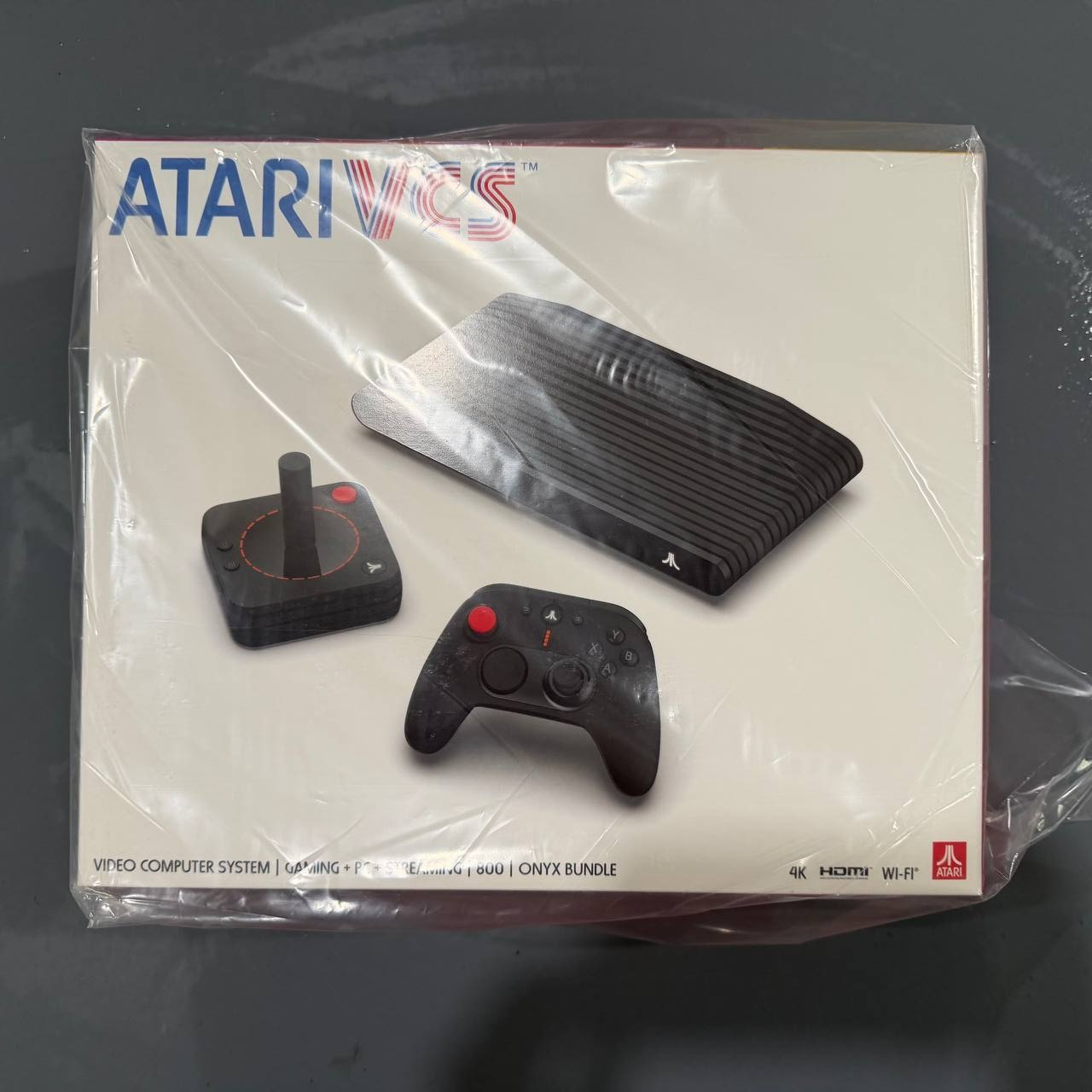
New Sealed Atari VCS 800 Onyx All-In Bundle
$379.99
Add to cart
Budget Desktop PC – Intel Core i7 4th Gen, 16GB DDR3, SSD Options
$499.99
Add to cartProducts related to this item
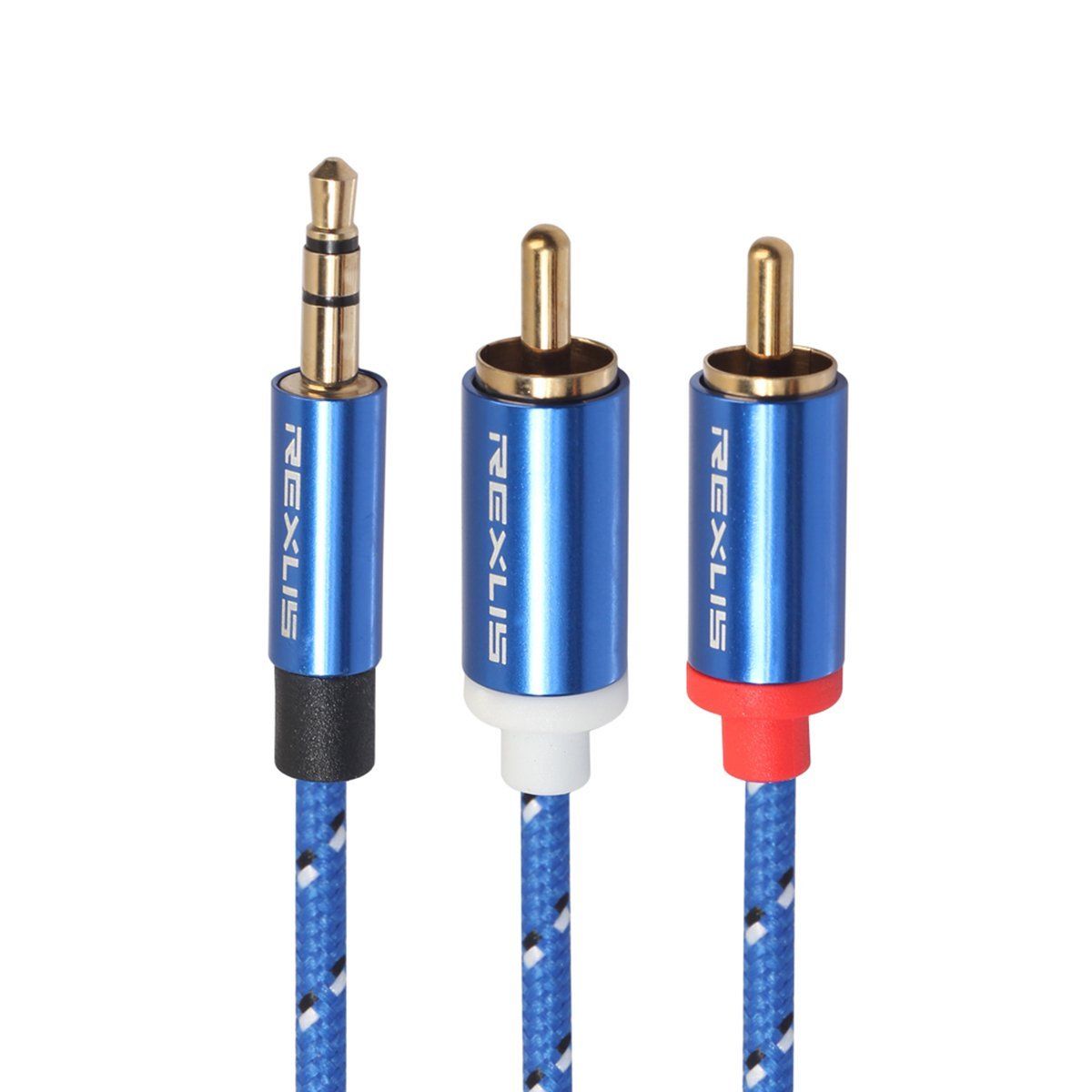
3.5mm to 2RCA Male Audio Auxiliary Aux Stereo Y Splitter Cable Cord
$21.30
Add to cart
Preschool Educational Toys Wooden Mathematical Intelligence Stick Block Counting Sticks for Girls and Boys
$23.70
Add to cart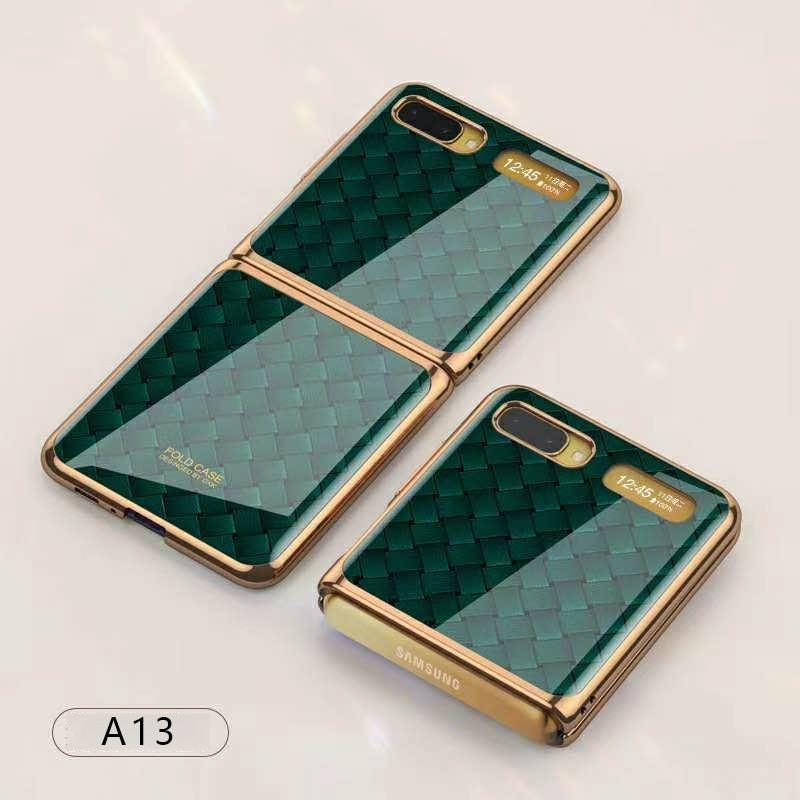
For Samsung Galaxy Z flip Foldable Cellphone Shell Electroplated Painted Folding Phone Case A13 woven green pattern
$44.00
Add to cart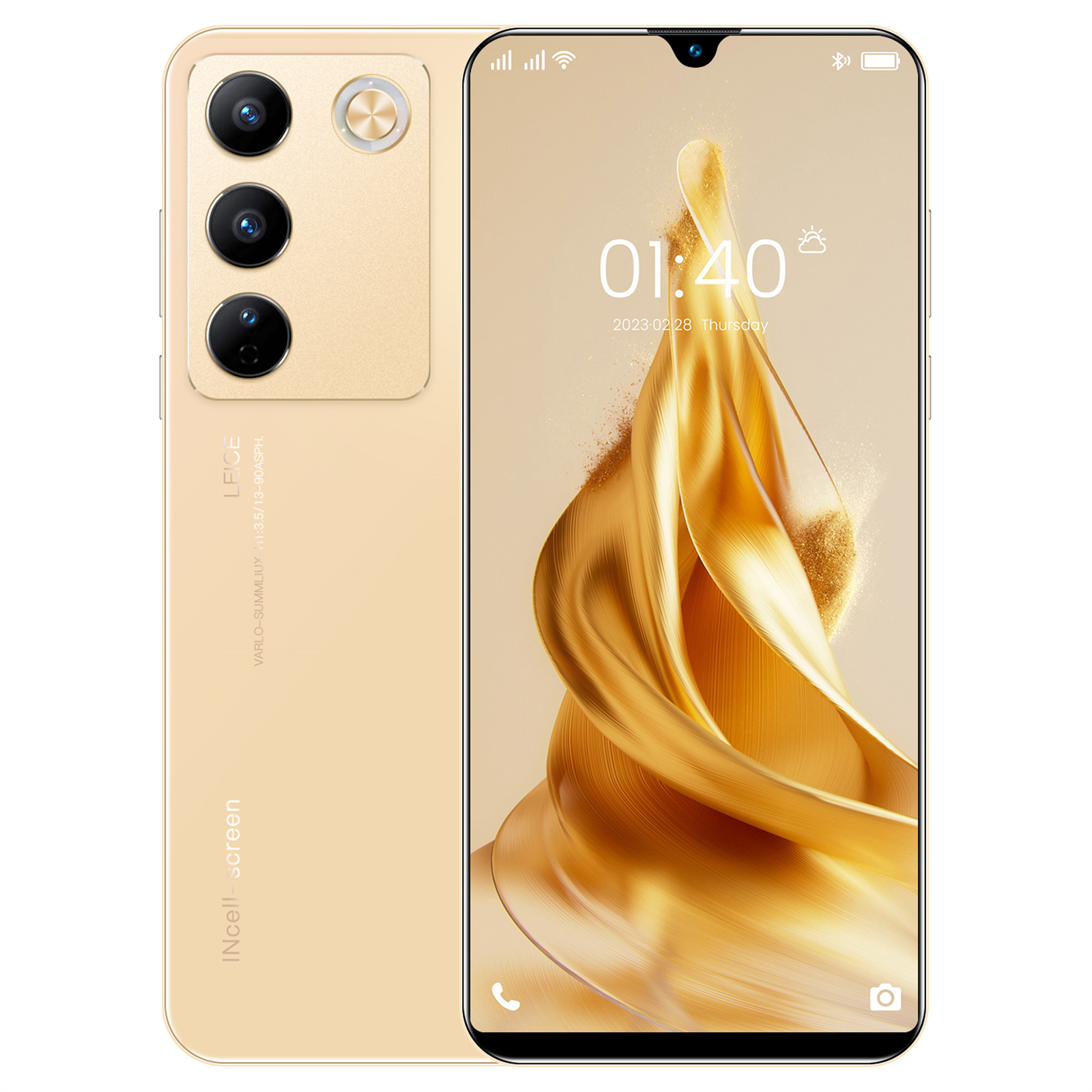
6.49" X23 Smartphone, Quad-Core, 2GB RAM, 16GB ROM, Unlocked - Gold
$163.70
Add to cartProducts you may also like

PC DDR4 Memory Tray Case - Fits 100
$55.20
Add to cart
8GB DDR4 RAM Upgrade
$227.80
Add to cart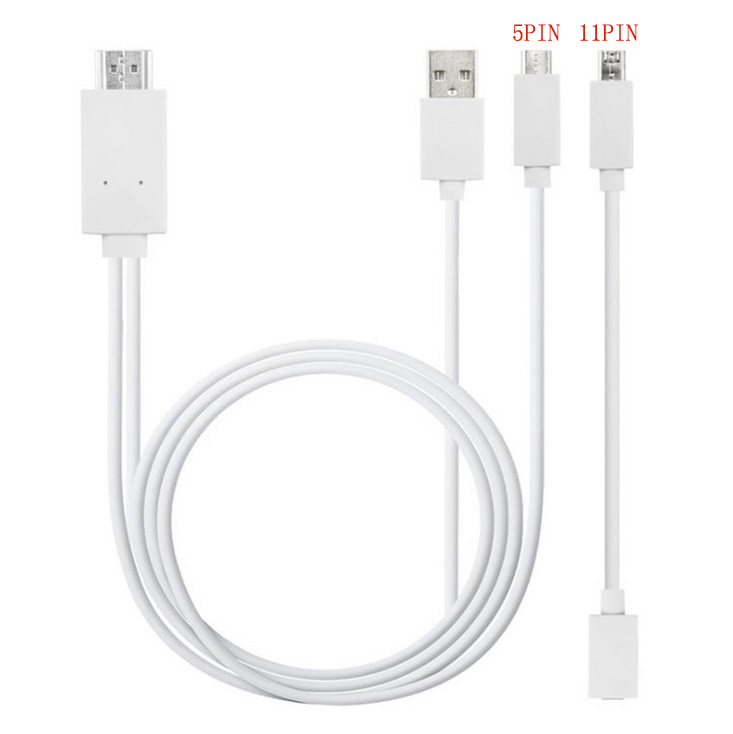
Micro USB to HDMI 1080P HD TV Cable Adapter for Android Samsung Phones 11PIN 5PIN+11PIN white
$26.10
Add to cart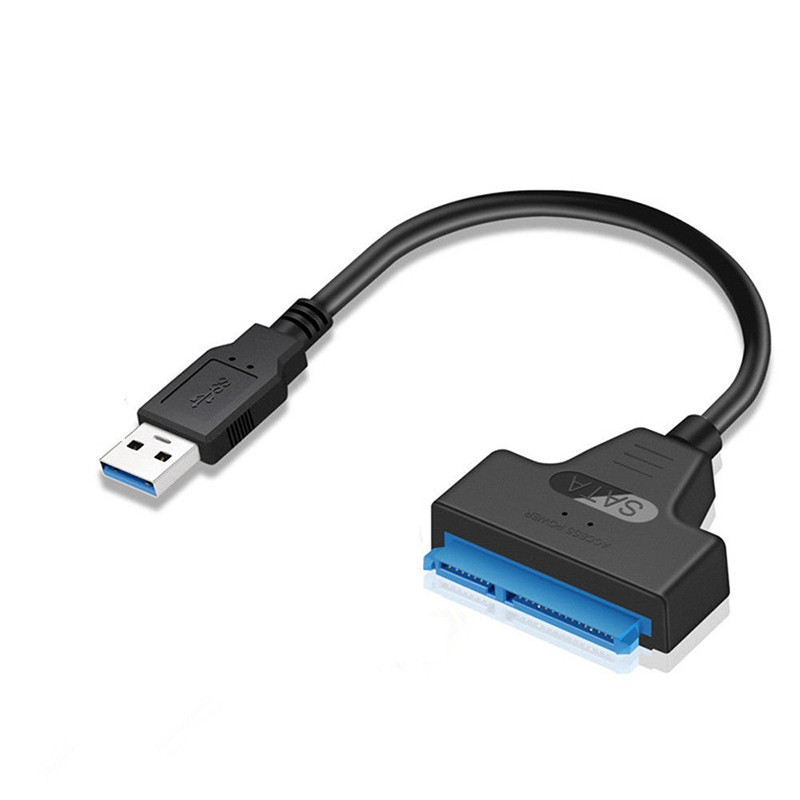
USB 3.0 to 2.5" SATA III Hard Drive Adapter Cable/UASP -SATA to USB3.0 Converter As shown
$27.10
Add to cartRecommended for You

ASUS TUF Gaming B550-PLUS WiFi II
$27,965.30
Add to cart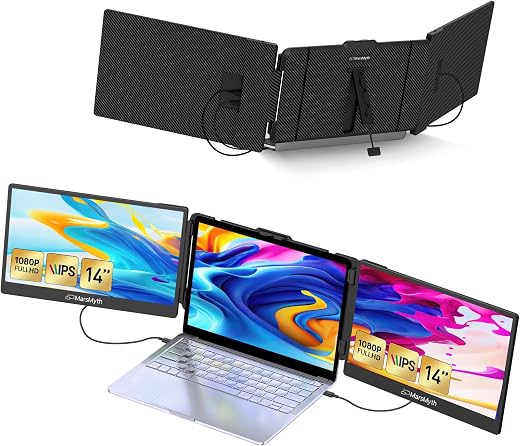
Unlock Your Potential S2 14'' Triple Monitor for Laptop Screen Extender, Dual Monitor 1080P HD, Plug & Play, Laptop Monitor Extender for 13-17'' Laptops, Compatible with All Laptops
$406.80
Add to cart
OMEN Desktop AMD Ryzen 7, 32 GB;2 TB SSD Windows 11 Pro
$6,580.00
Add to cart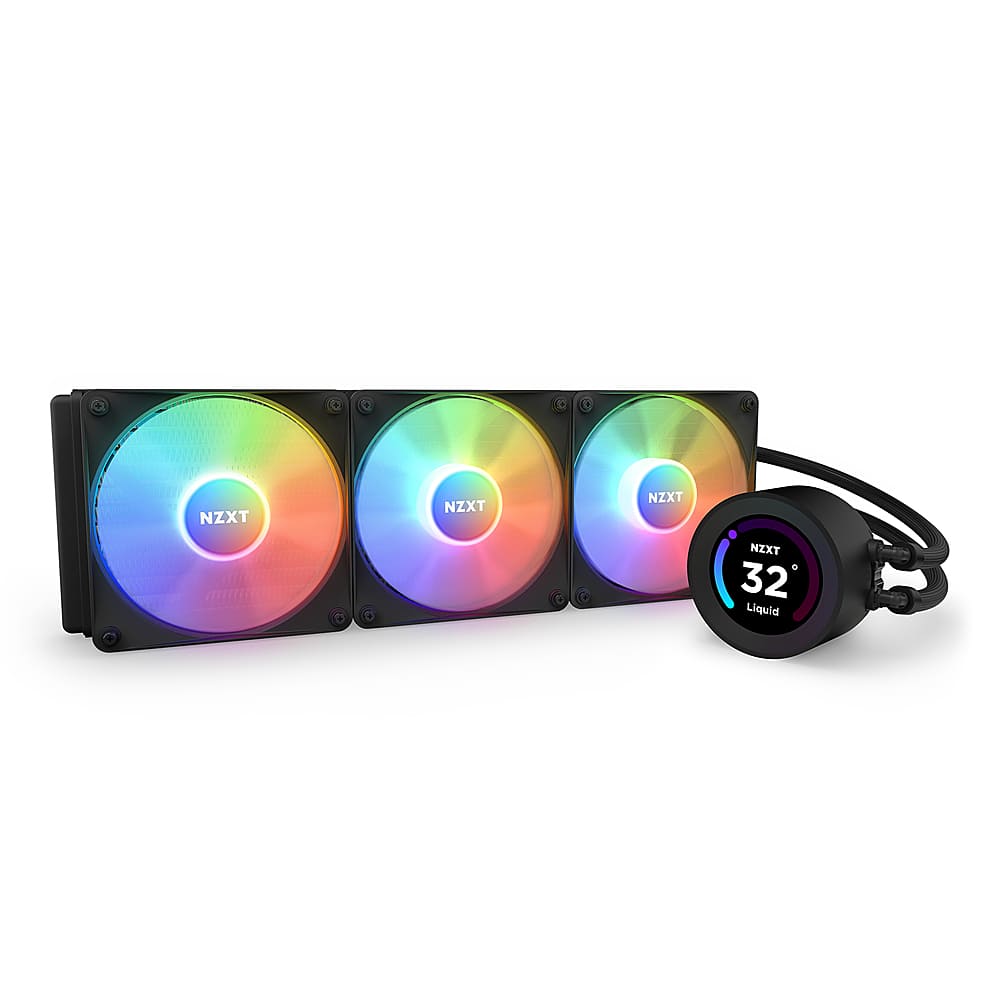
Prime NZXT - Kraken Elite 360 - Liquid Cooling System with 120mm Fans and 360mm AIO Radiator, Wide-angle LCD Display, and RGB Fans - Black
$705.00
Add to cart



Reviews
There are no reviews yet.