
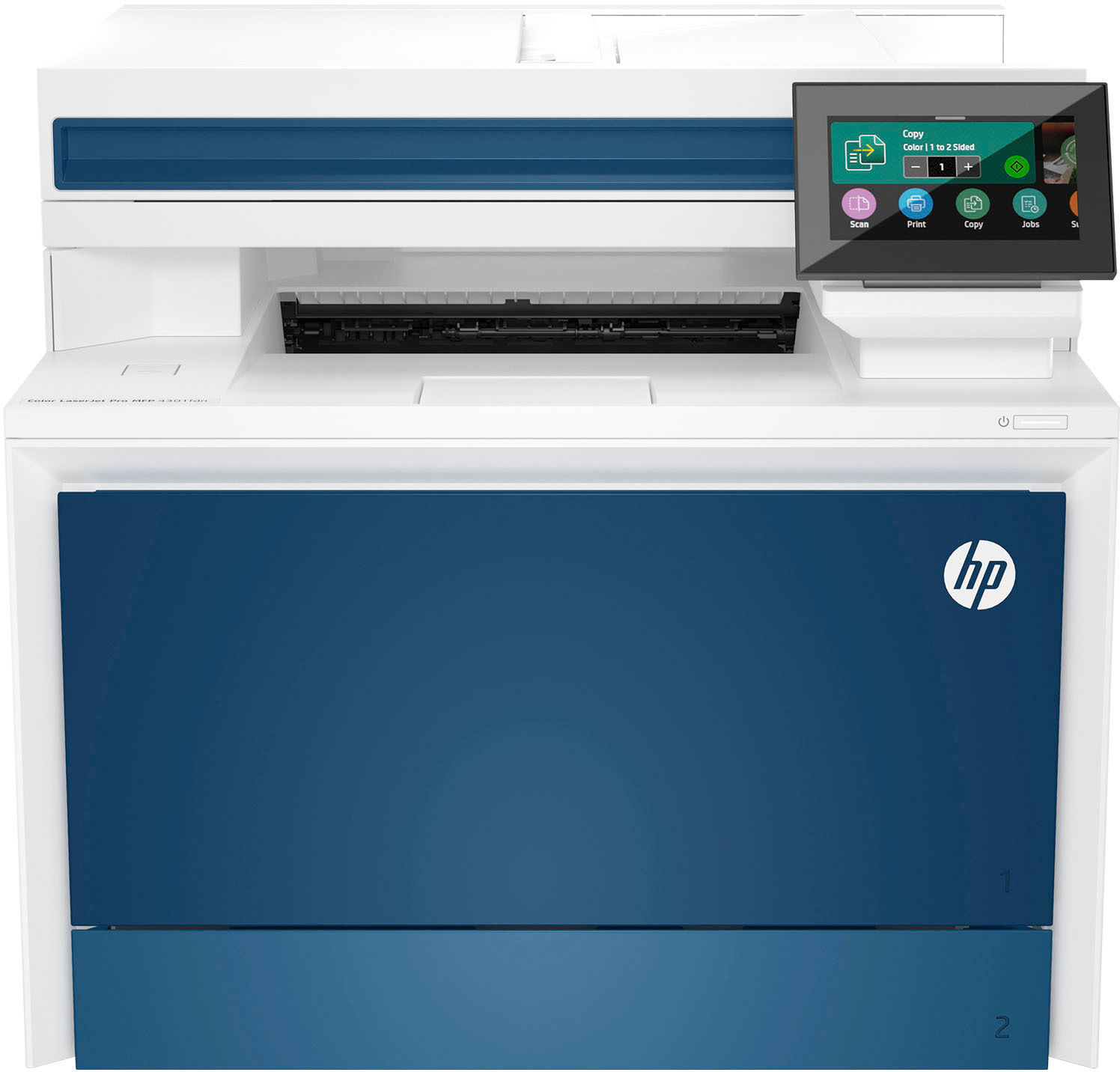
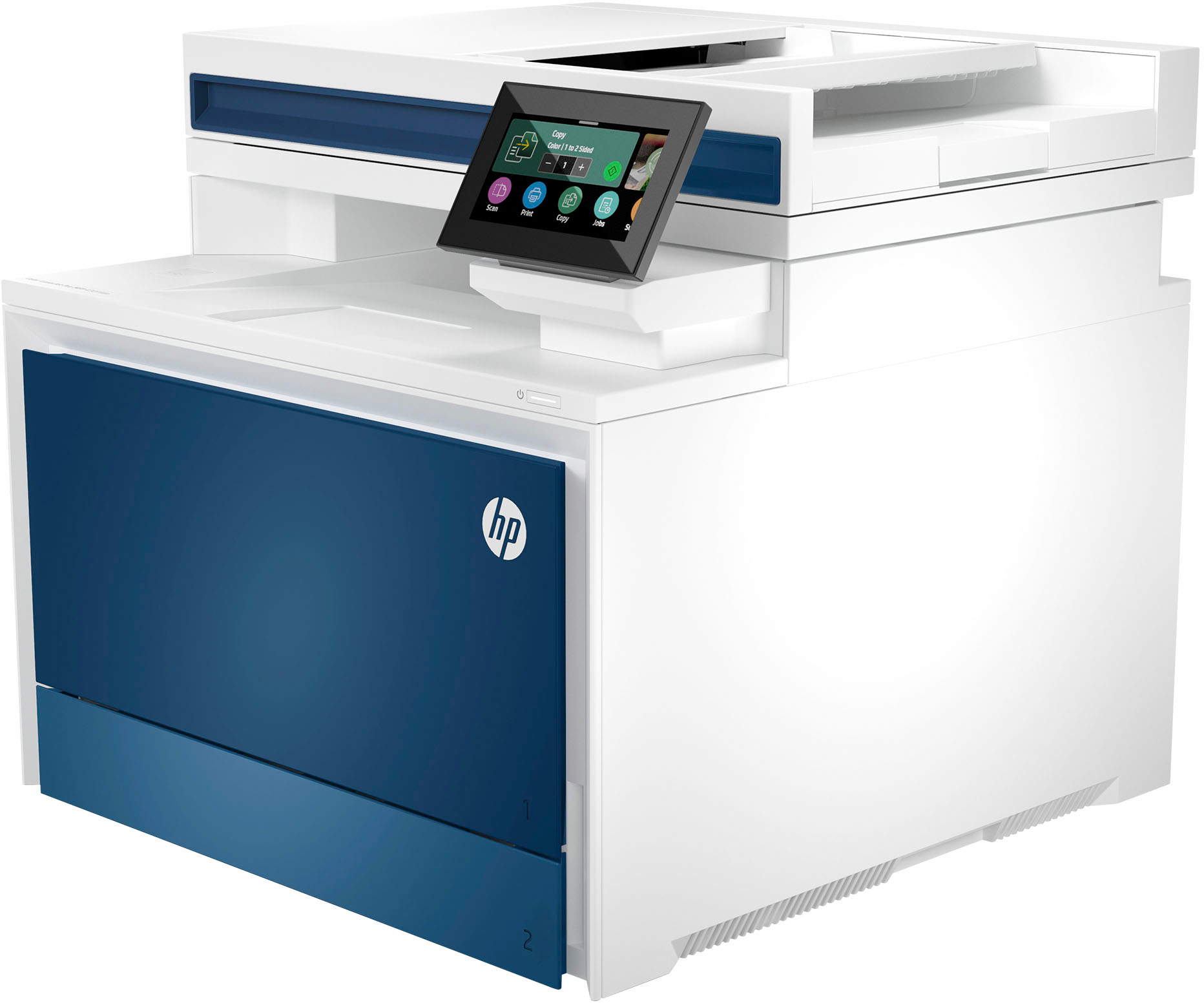
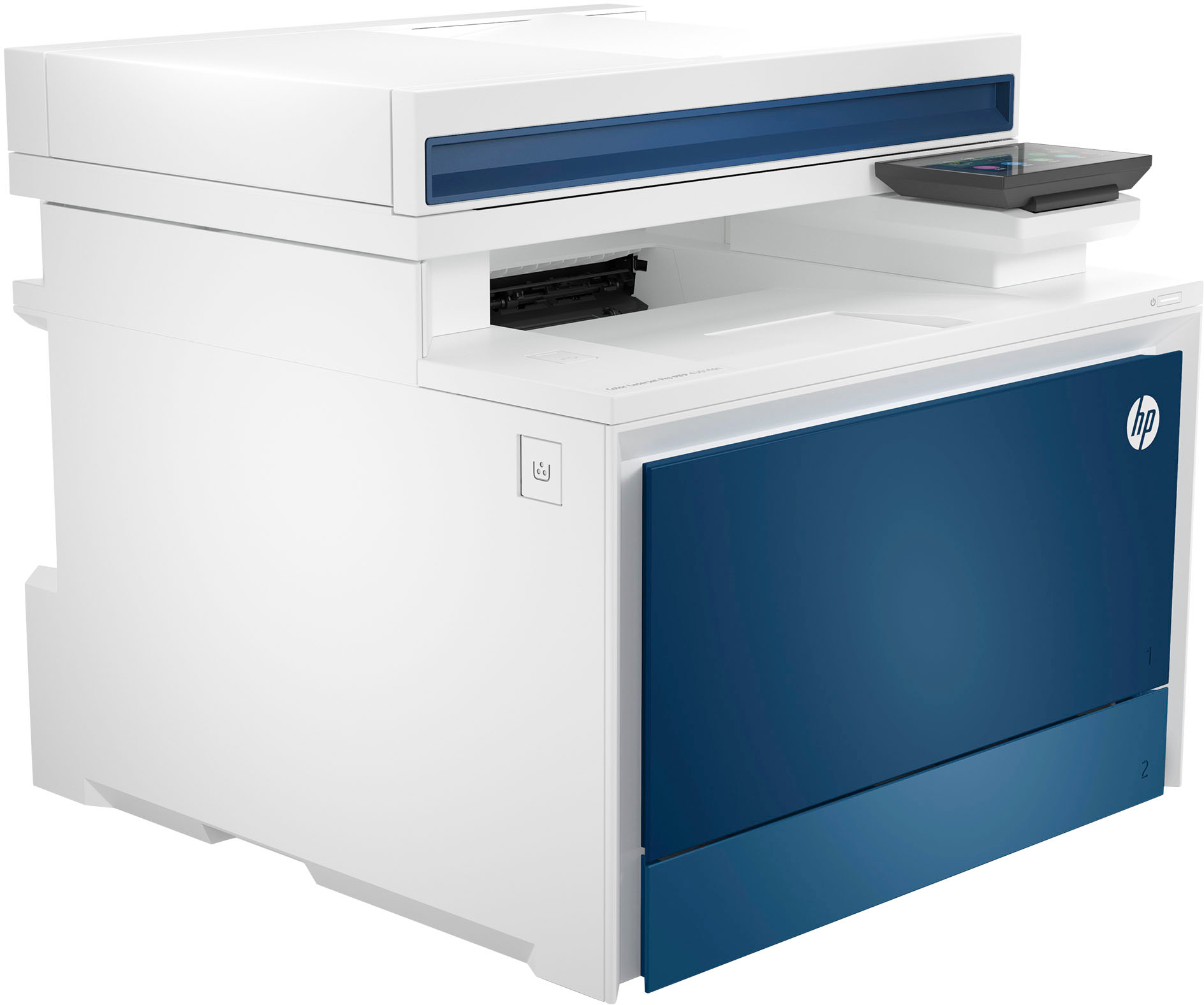
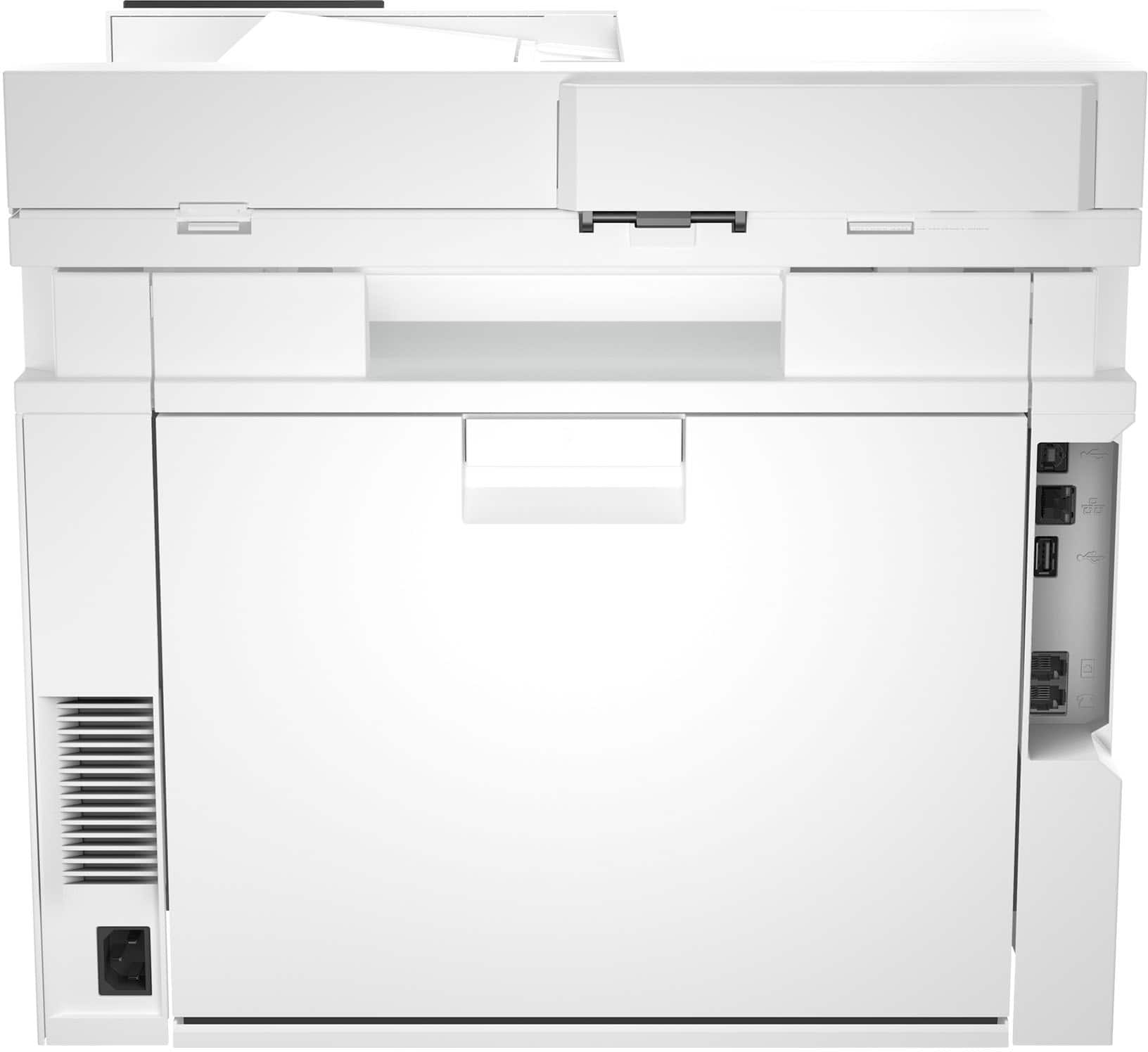
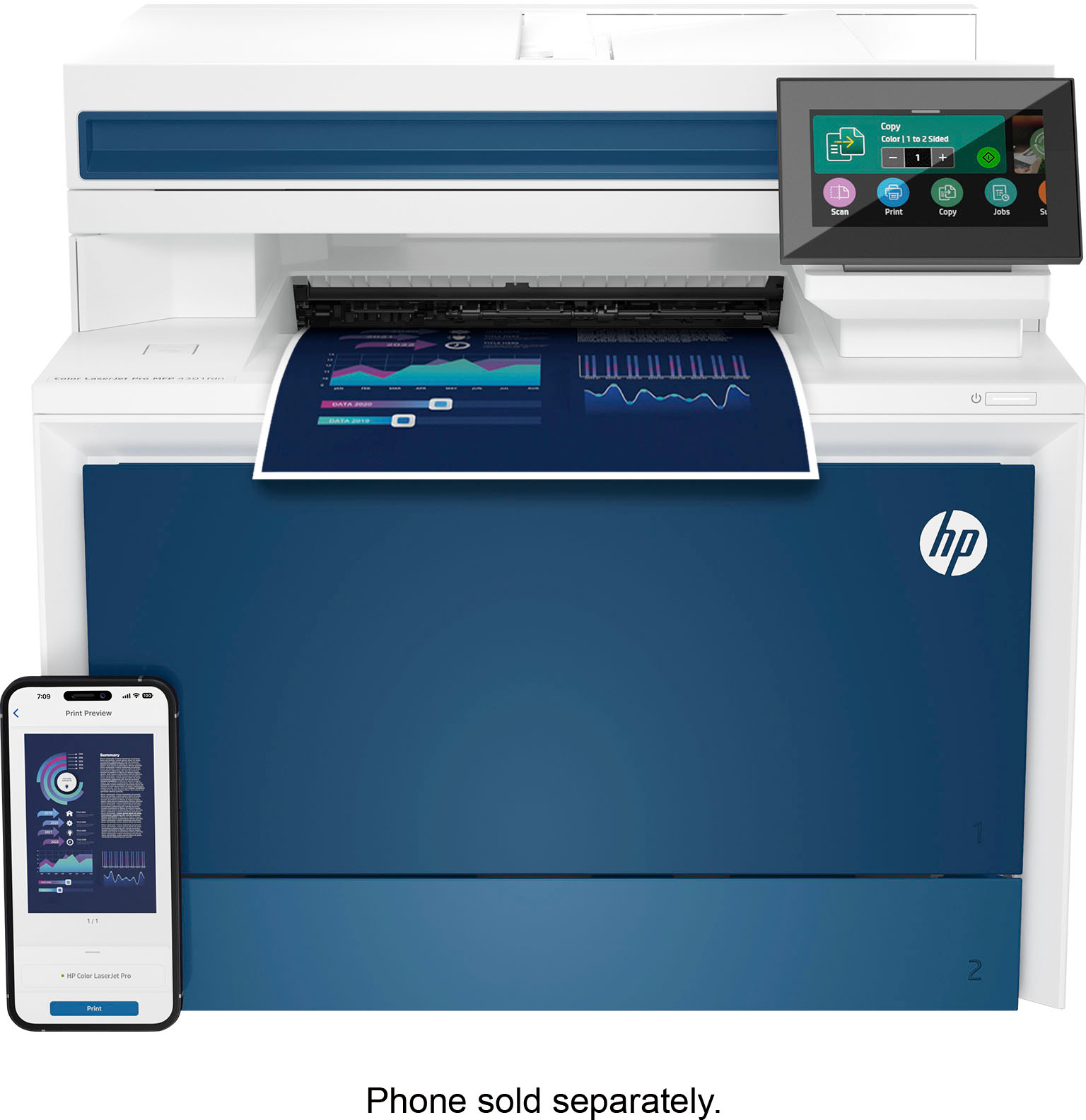
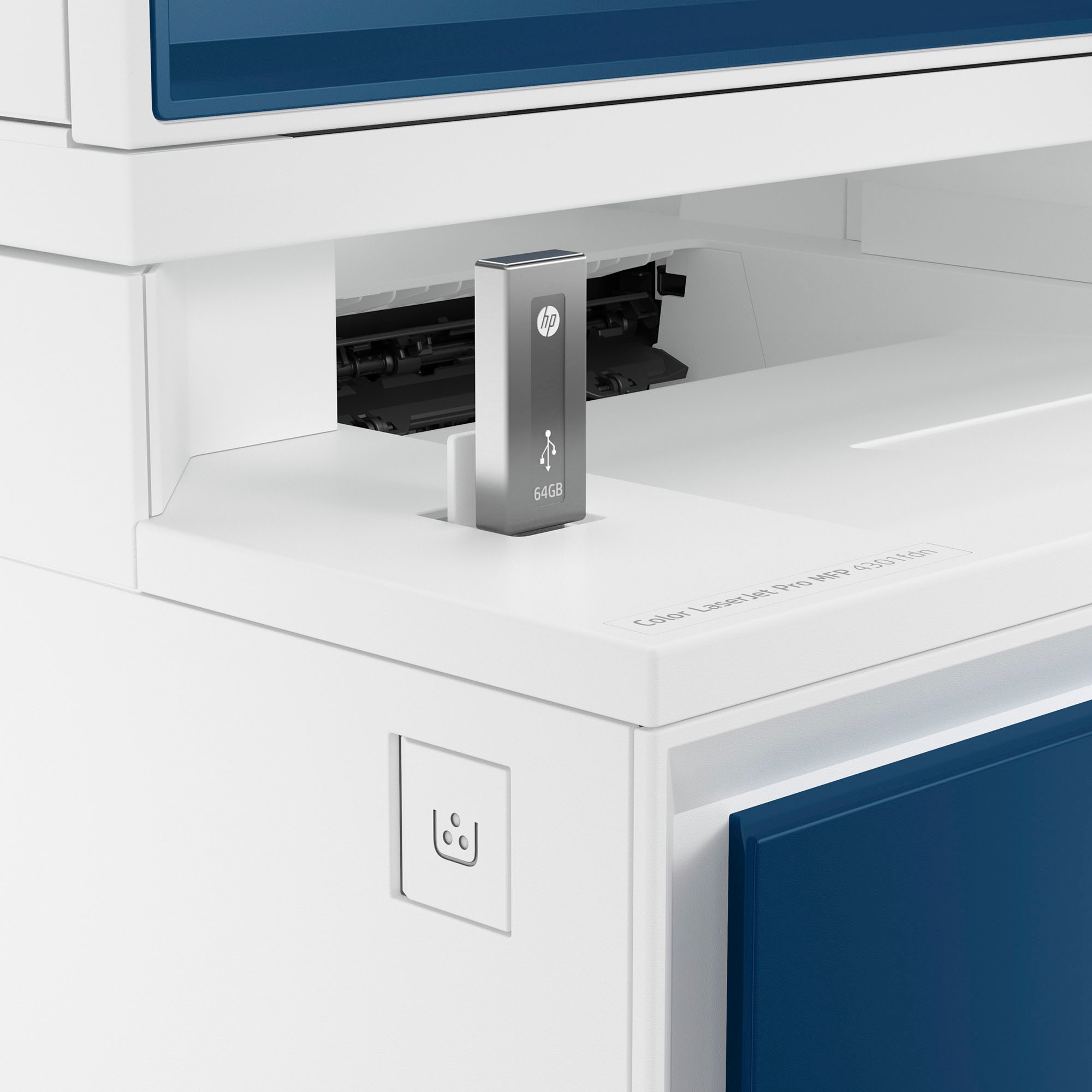
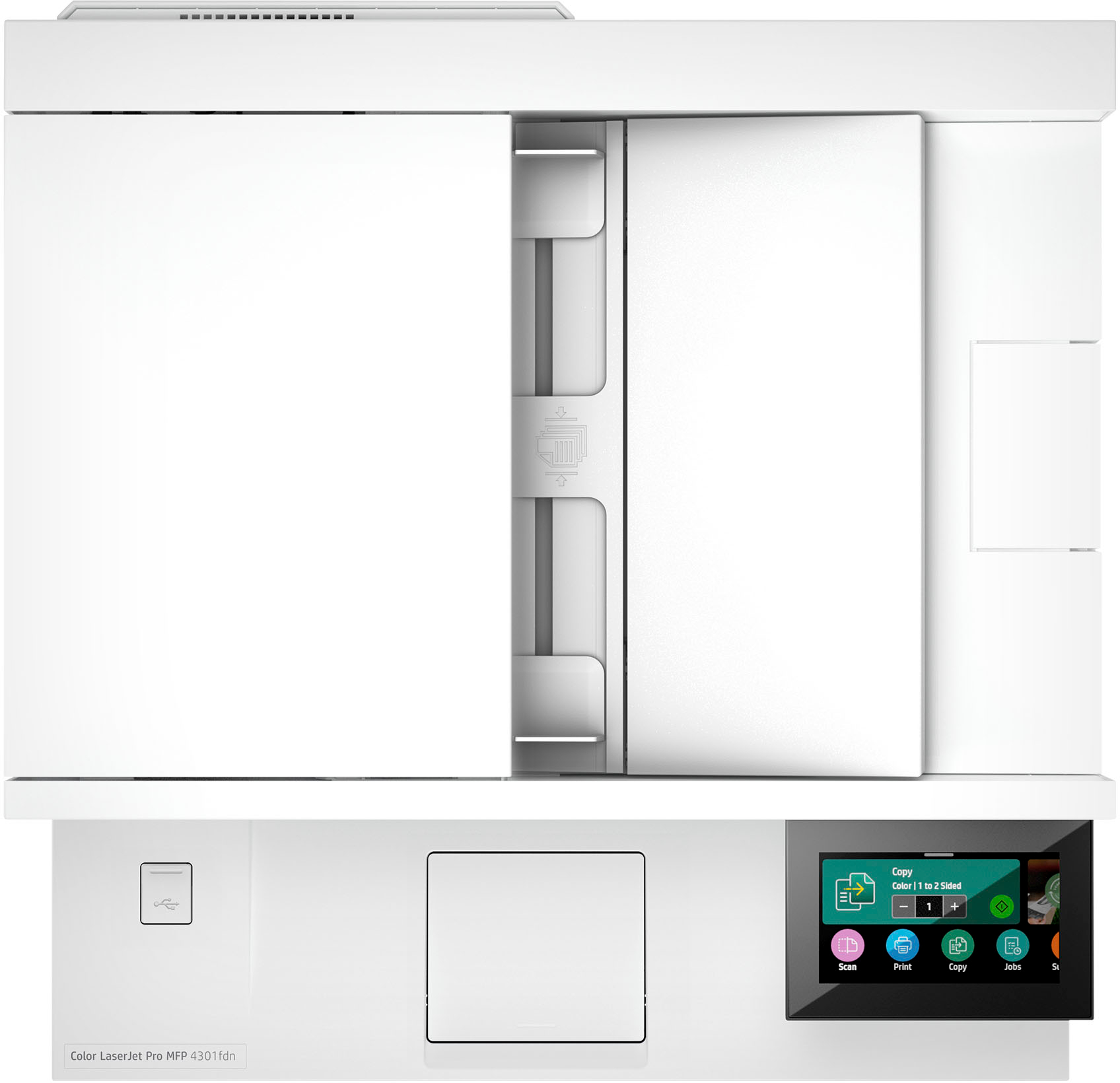
HP LaserJet Pro 4301fdn Printer
$1,245.50
- High-speed, multi-feature printer
- Ideal for up to 10 users
- Super fast and super easy
- Advanced features for small teams
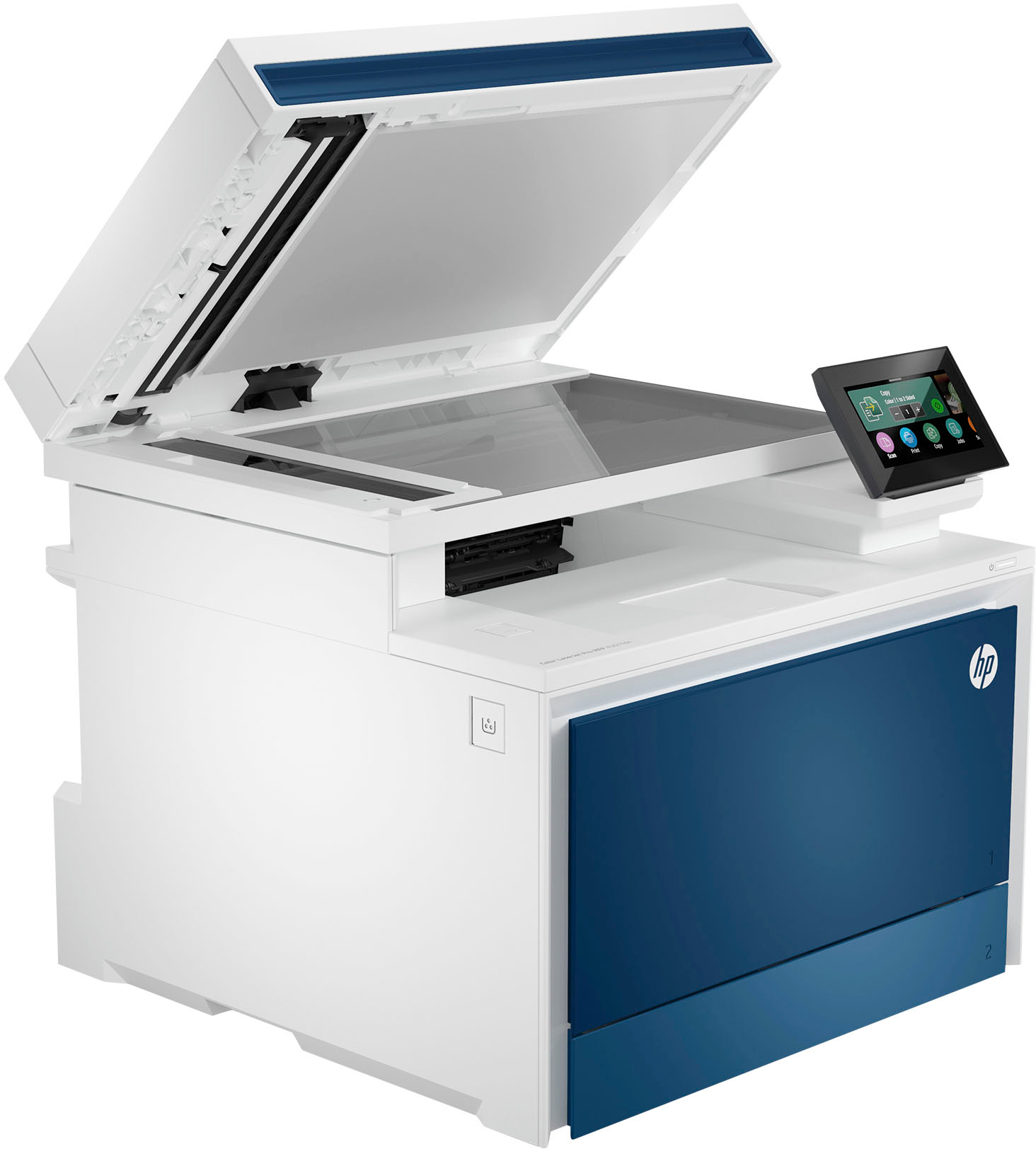
- Dual-sided scanning capability
- Saves time by scanning both sides with a single pass
Buy more, save more
Buy 2–4 of this item and save 5%.
Buy 5 or more of this item and save 10%.
Discount is automatic in your cart on regular-priced items. It cannot be combined with coupon codes or sale prices.
Buy 2–4 of this item and save 5%.
Buy 5 or more of this item and save 10%.
Discount is automatic in your cart on regular-priced items. It cannot be combined with coupon codes or sale prices.
Country suggested using IP or browser language; you can change it. Shipping is confirmed at checkout.
Description
HP LaserJet Pro 4301fdn Printer,
How to Use the HP LaserJet Pro 4301fdn Color All-in-One Laser Printer
Table of Contents
- Powering on the Printer
- Installing the Printer Drivers
- Printing a Document
- Scanning a Document
- Copying a Document
- Faxing a Document
Powering on the Printer
- Make sure the printer is plugged into a power source.
- Press the power button located on the front of the printer.
- Wait for the printer to power on and initialize.
Installing the Printer Drivers
- Insert the CD-ROM that came with the printer into your computer’s CD/DVD drive.
- Follow the on-screen instructions to install the printer drivers.
- If you don’t have the CD-ROM, you can download the drivers from the HP website.
Printing a Document
- Open the document you want to print on your computer.
- Select “Print” from the file menu or press Ctrl+P.
- Select the HP LaserJet Pro 4301fdn printer from the list of available printers.
- Choose your desired print settings and click “Print”.
Scanning a Document
- Place the document you want to scan face-down on the scanner glass.
- Open the HP Easy Scan software on your computer.
- Click on the “Scan” button.
- Choose your desired scan settings and click “Scan”.
Copying a Document
- Place the document you want to copy face-down on the scanner glass.
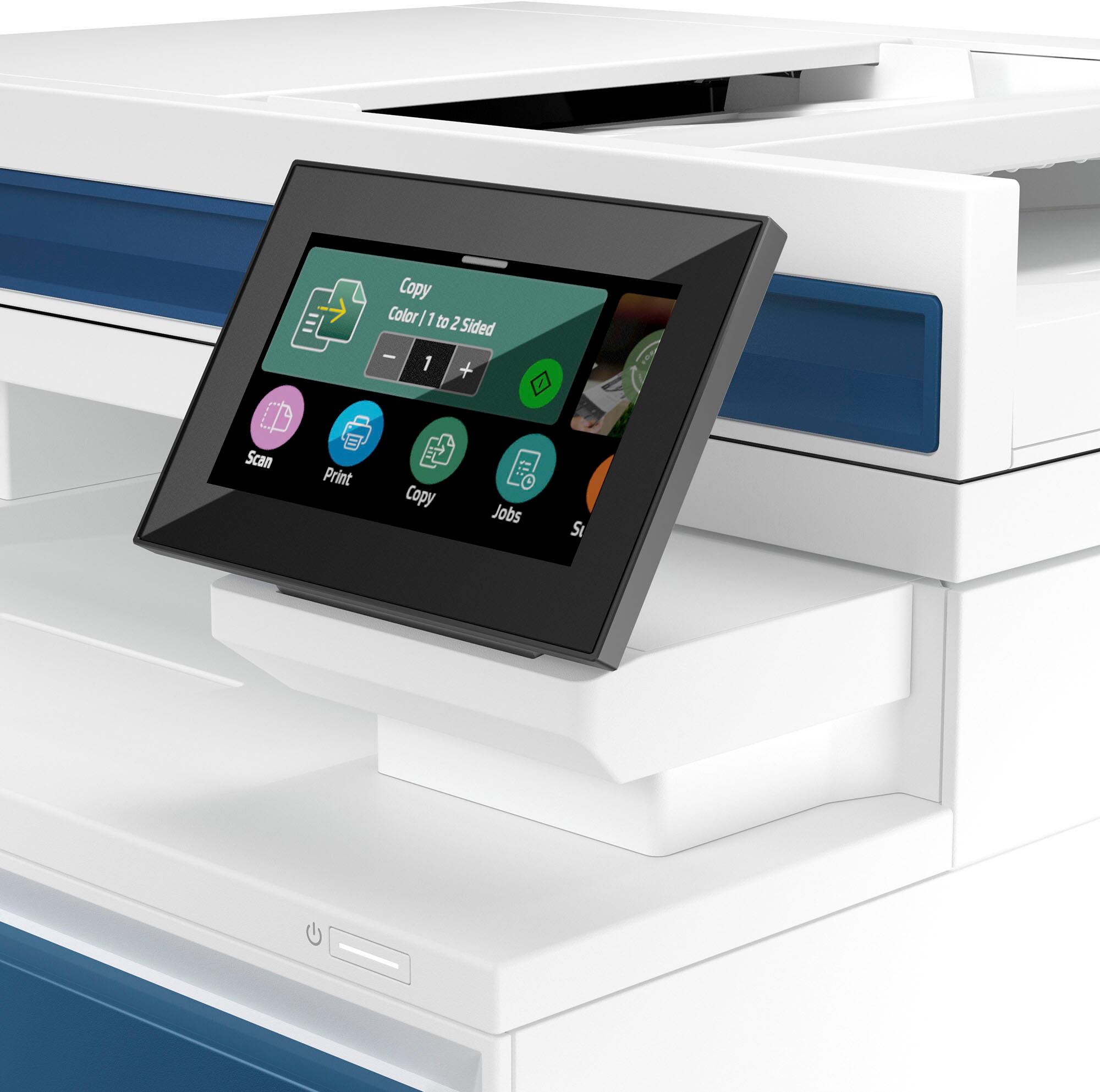
- Press the “Copy” button on the printer’s control panel.
- Adjust the copy settings such as number of copies, paper size, and color.
- Press the “Start” button to begin the copying process.
Faxing a Document
- Place the document you want to fax face-up in the document feeder tray.
- Enter the recipient’s fax number using the keypad on the printer’s control panel.
- Press the “Fax” button.
- Follow the on-screen instructions to send the fax.
, , HP
4 reviews for HP LaserJet Pro 4301fdn Printer
Only logged in customers who have purchased this product may leave a review.
Special deals for you

Canon imageFORMULA R40 Office Document Scanner For PC and Mac, Color Duplex Scanning, Easy Setup For Office Or Home Use, Includes Scanning Software
Original price was: $4,270.00.$538.20Current price is: $538.20.
Add to cart
Epson Workforce ES-C220 Compact Desktop Document Scanner with 2-Sided Scanning and Auto Document Feeder (ADF) for PC and Mac
Original price was: $3,244.40.$517.00Current price is: $517.00.
Add to cart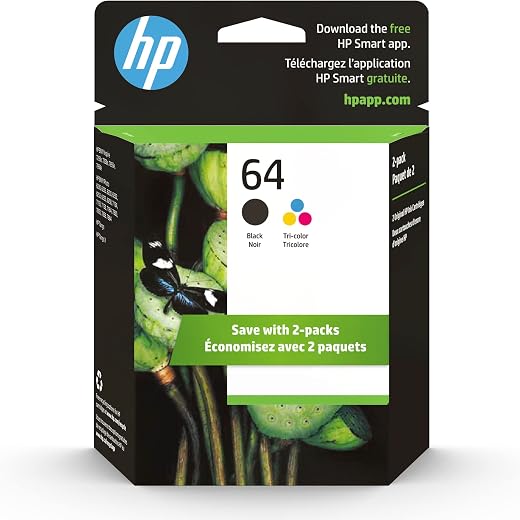
HP 64 Black/Tri-color Ink Cartridges (2-pack) | Works with HP ENVY Inspire 7950e; ENVY Photo 6200, 7100, 7800; Tango Series | Eligible for Instant Ink | X4D92AN
Original price was: $1,038.20.$121.90Current price is: $121.90.
Add to cart
TN660 Toner Cartridge Replacement Compatible for Brother TN 660 TN-660 TN630 High Yield to use with HL-L2380DW HL-L2320D HL-L2340DW DCP-L2540DW MFC-L2700DW MFC-L2720DW Printer...
Original price was: $1,512.00.$86.90Current price is: $86.90.
Add to cartPopular items in this category


Similar items you might like

Lenovo IP Conference Station PC – Core i5-1145G7E, 8GB RAM, 480GB SSD
$599.99
Add to cart
HP OmniStudio X All-in-One Computer 27" QHD Intel Core Ultra 7, 32 GB;1 TB SSD
$4,199.99
Add to cart
Campark AC12 5K 25fps Camcorder – 56MP Output and Rotating Screen
$275.90
Add to cart
Used Acer Chromebox CXI3 Mini Desktop – Grade B, Celeron 3867U
$93.90
Add to cartProducts related to this item
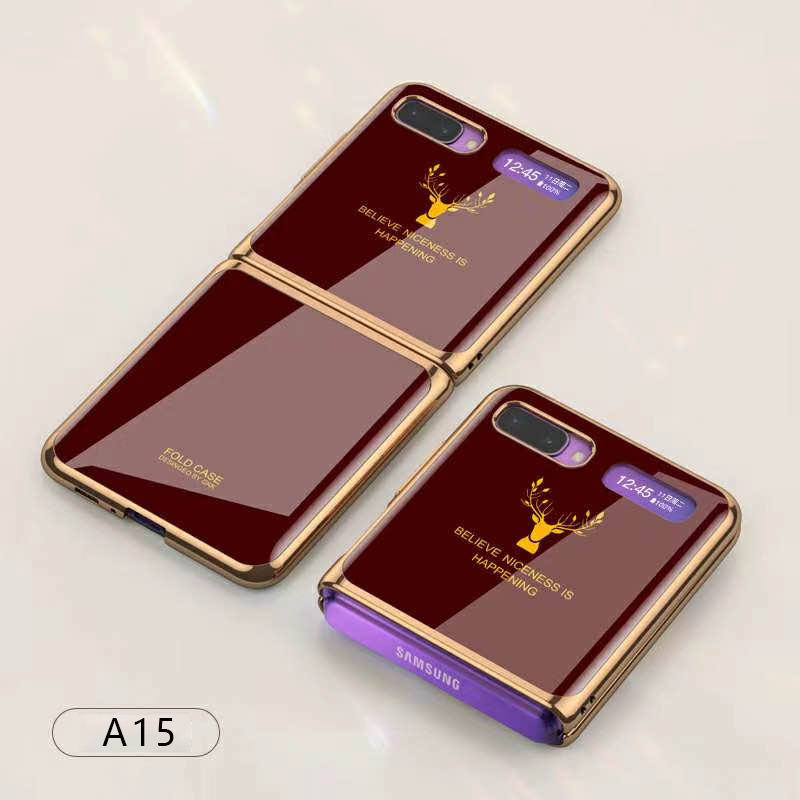
For Samsung Galaxy Z flip Foldable Cellphone Shell Electroplated Painted Folding Phone Case A15 wine red
$44.30
Add to cart
TYAN Tomcat 845GVL Motherboard with Accessories
$411.30
Add to cart
Dell OptiPlex 790 (DT) (MT) Computer Motherboard HY9JP
$12.70
Add to cart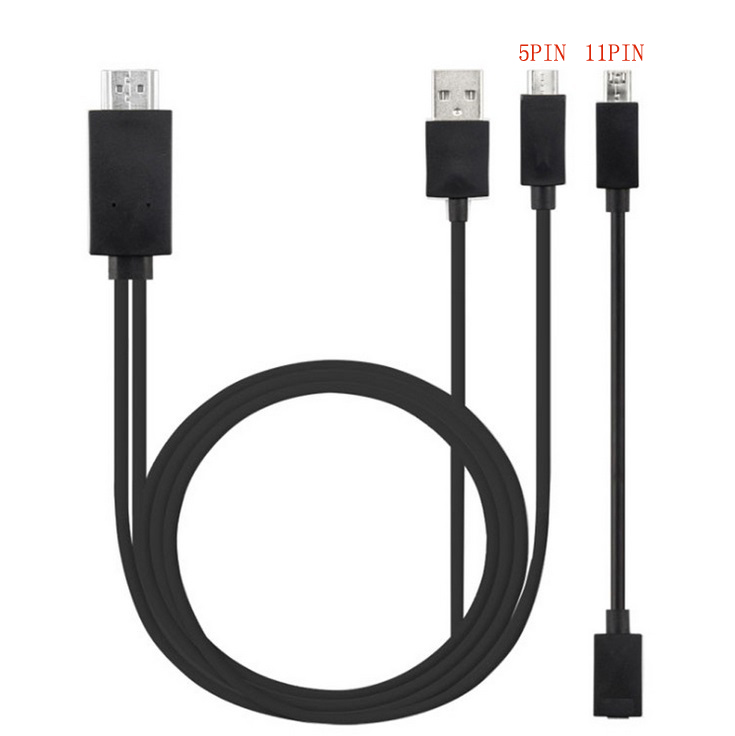
Micro USB to HDMI 1080P HD TV Cable Adapter for Android Samsung Phones 11PIN 5PIN+11PIN black
$26.10
Add to cartProducts you may also like

PC DDR4 Memory Tray Case - Fits 100
$55.20
Add to cart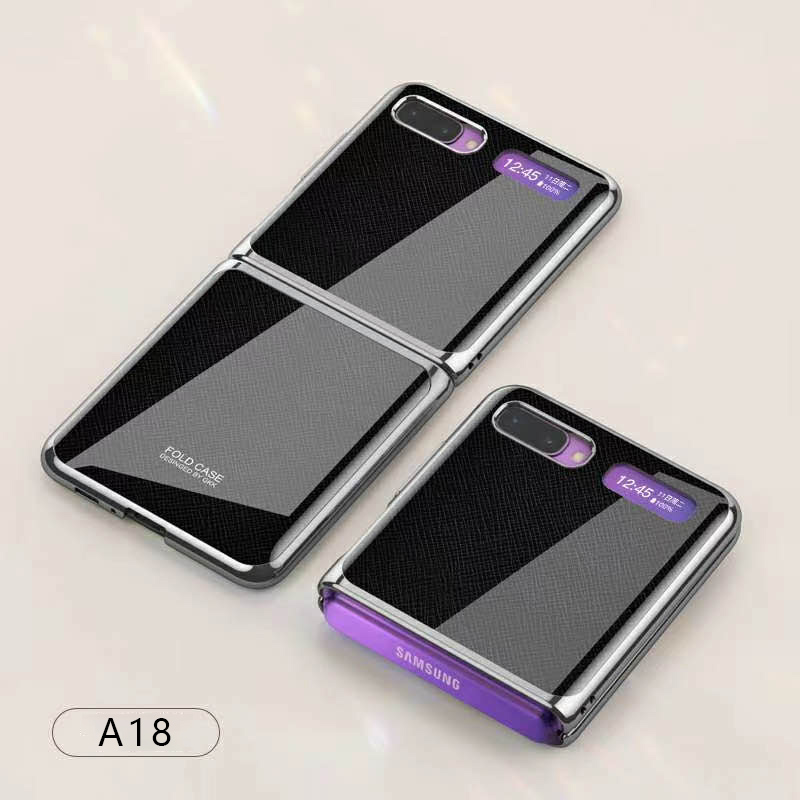
For Samsung Galaxy Z flip Foldable Cellphone Shell Electroplated Painted Folding Phone Case A18 cross pattern
$44.00
Add to cart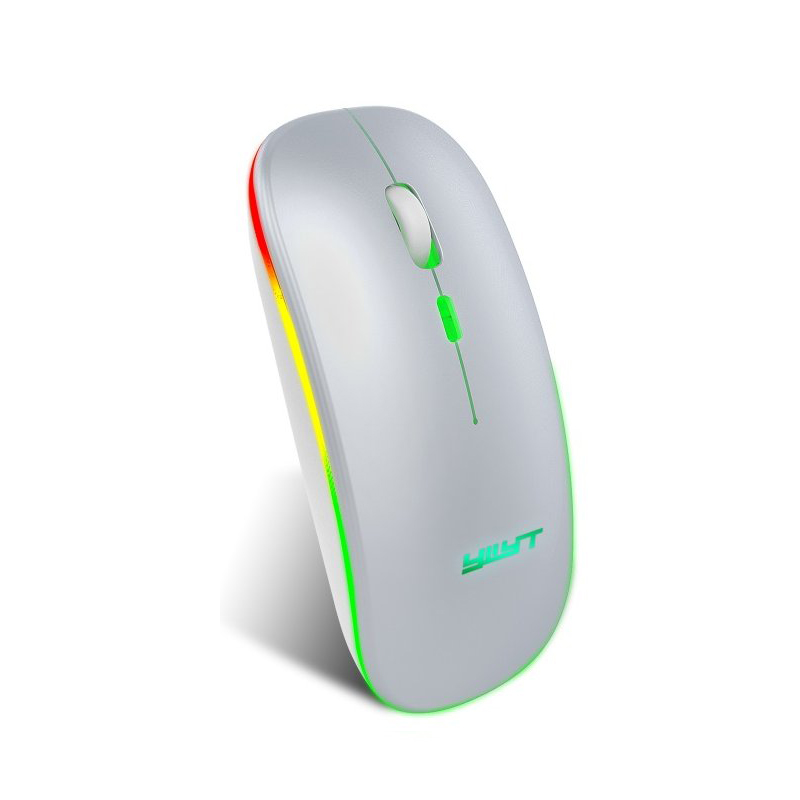
Ergonomic Gaming Mouse G852 Bluetooth + 2.4g dual mode Computer Mouse Gamer Mice With Backlight For PC Laptop white
$37.20
Add to cart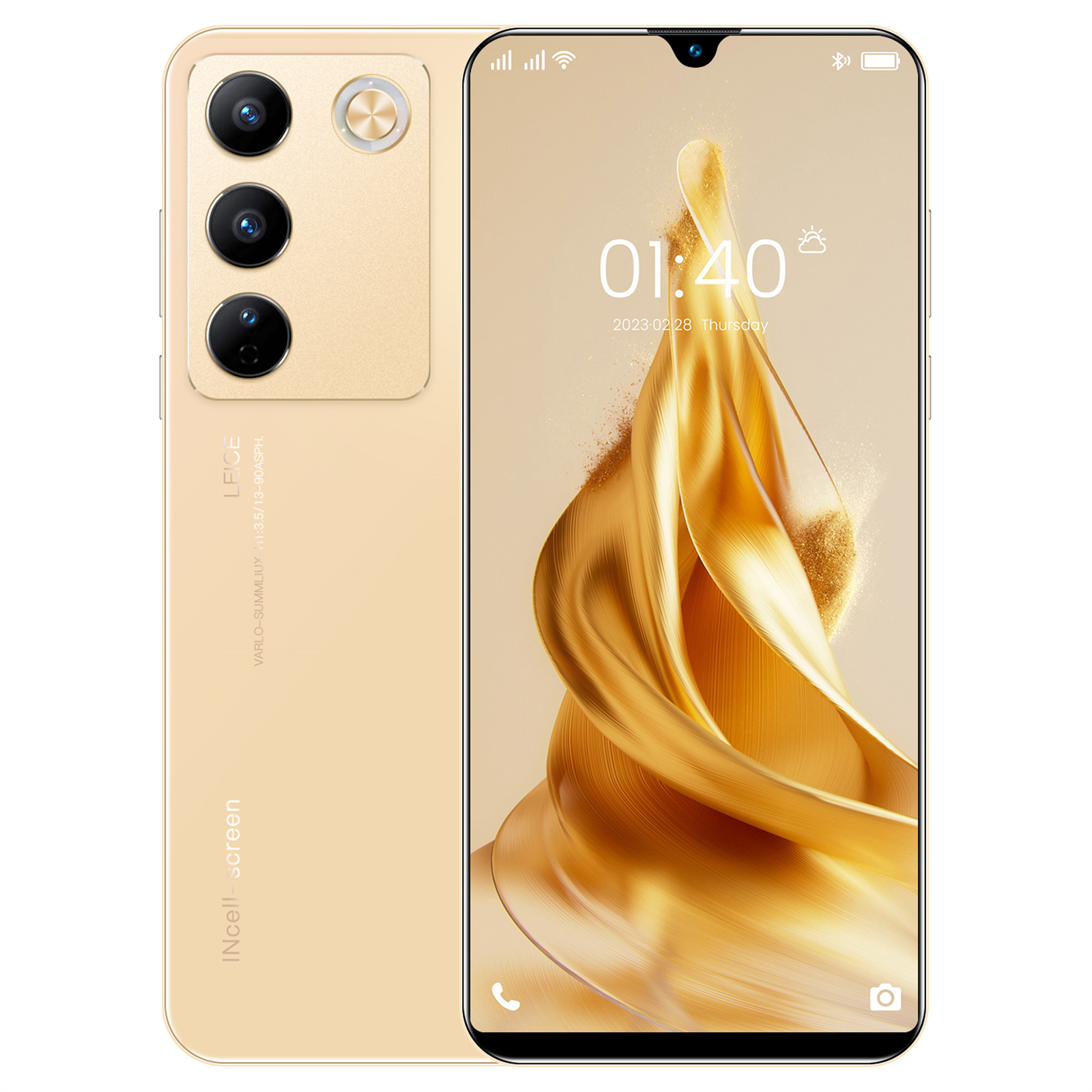
6.49" X23 Smartphone, Quad-Core, 2GB RAM, 16GB ROM, Unlocked - Gold
$163.70
Add to cartRecommended for You
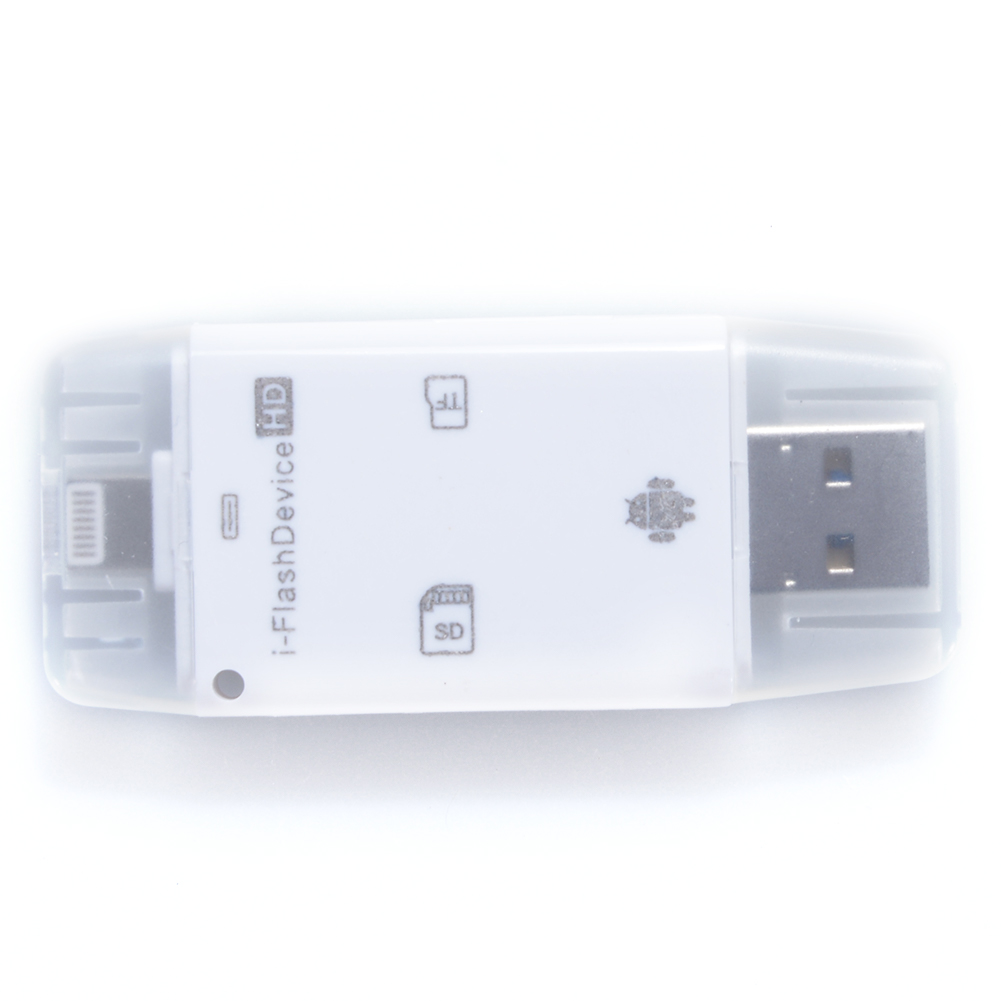
Instant Gratification Universal USB Flash Drive SD TF Card Reader for Iphone Android and Computer White
$40.40
Add to cart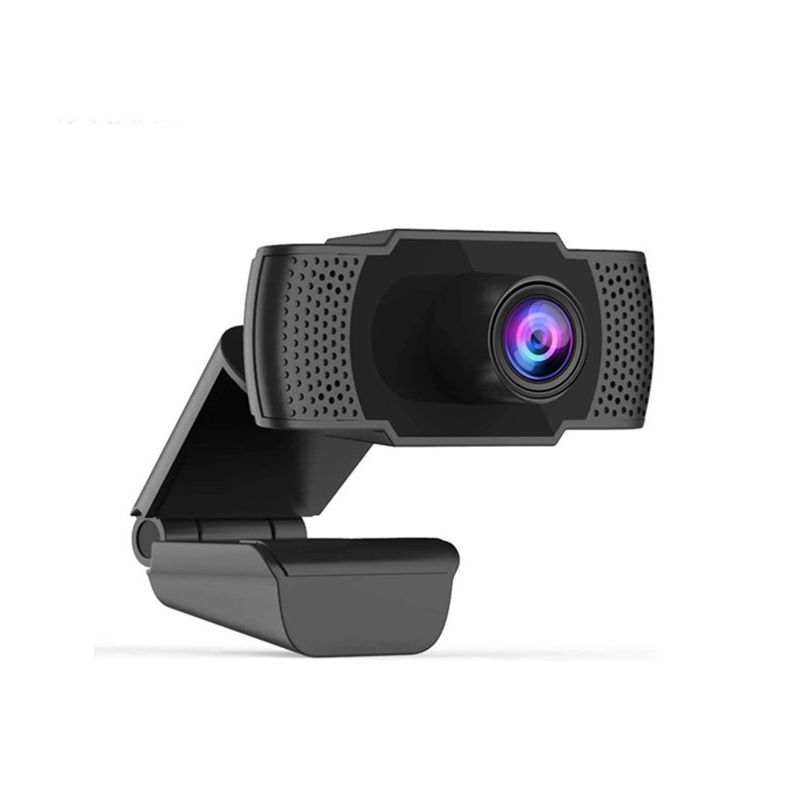
Uncover Your True Potentialy Web Camera Built-in Microphone Webcam USB Plug And Play for PC Computer for School Office Working Decoration black
$58.50
Add to cart
Empowering Solutions Newly released Gigabyte B550 Gaming X V2 motherboard for AMD's Socket AM4 in ATX form factor, Revision 1.3
$24,675.50
Add to cart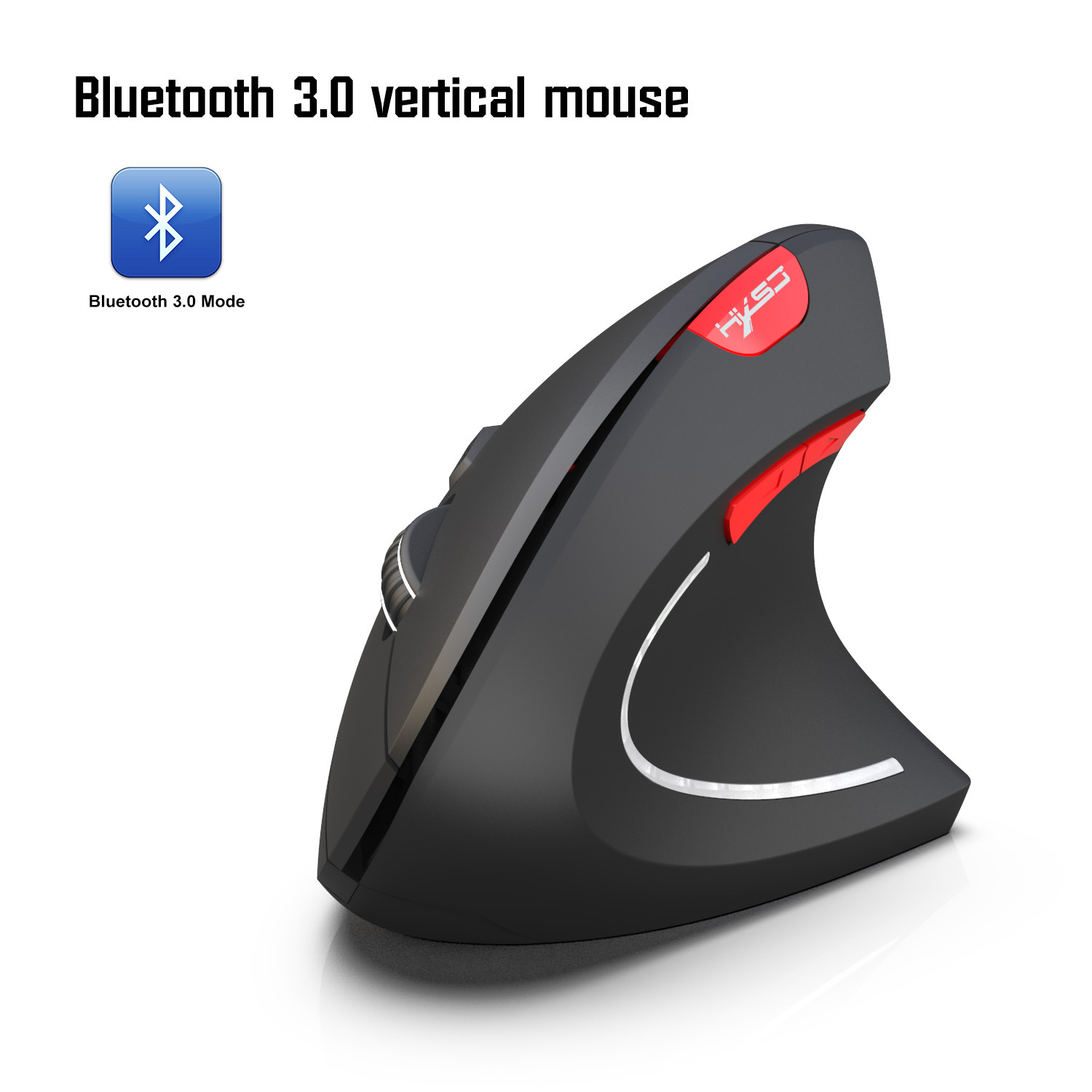
Exceptional Bluetooth Vertical Mouse Ergonomics 800/1600/2400DPI Prevention Mouse Hand Game Office Mouse PC Notebook Accessories black
$56.70
Add to cartRelated products
-

Dell Latitude 5520 Business Laptop, 15.6″ FHD Display, Intel Core i5-1135G7 vPRO, 16GB RAM, 512GB SSD, IR Camera, HDMI, Backlit Keyboard, Wi-Fi 6, RJ-45, Thunderbolt 4, Windows…
$2,279.30 -

EliteGroup Computer Systems GeForce6100PM-M2 (V2.0), Socket AM2+, AMD…
$235.00 -
TYAN Tomcat 845GVL Motherboard with Accessories
$411.30 -

Intel BLKCD1IV128MK CD1IV128MK Compute Card Core i5-7Y57 Processor NEW BROWN BOX
$117.50

 English
  French
  Spanish
  German
  Portuguese
  Arabic
Mike –
Nice machine. Easy setup and works great. Arrived pretty fast too.
JJSM –
HP is the most trusted technology manufacturer in the market and has never failed to provide quality products.
StephanieG –
nice machine, came with all ink needed, easy instructions and connected to WiFi immediately
BruceM –
This has been a very good printer. The document feeder is a game changer for our home office – makes it very easy and efficient to scan multiple pages. Works great printing from our PCs and…