

Revamp Samsung 43-inch CU8000 Crystal LED 4K UHD Tizen Smart TV
$423.00
- Samsung 43″ Class CU8000 Crystal LED 4K UHD Tizen Smart TV
- Dynamic Crystal Clear technology for a billion shades of color
- Crystal Processor with 4K Upscaling for improved picture quality
- Motion Xcelerator for smooth motion and improved clarity
- Mega Contrast for enhanced detail and depth
- HDR 10+ for impressive colors and fine details
- Object Tracking Sound Lite for 3D surround sound
- AirSlim Design for a thin and streamlined profile
Buy more, save more
Buy 2–4 of this item and save 5%.
Buy 5 or more of this item and save 10%.
Discount is automatic in your cart on regular-priced items. It cannot be combined with coupon codes or sale prices.
Buy 2–4 of this item and save 5%.
Buy 5 or more of this item and save 10%.
Discount is automatic in your cart on regular-priced items. It cannot be combined with coupon codes or sale prices.
Country suggested using IP or browser language; you can change it. Shipping is confirmed at checkout.
Description
Samsung 43-inch CU8000 Crystal LED 4K UHD Tizen Smart TV,
How to Use the Samsung 43″ Class CU8000 Crystal LED 4K UHD Tizen Smart TV
Getting Started
- Unbox the TV and remove all packaging materials.
- Place the TV on a sturdy stand or mount it on a wall using a compatible wall mount.
- Connect the power cord to the TV and plug it into an electrical outlet.
- Turn on the TV by pressing the power button on the included remote control.
Setting up the TV
- Follow the on-screen prompts to select your language, country/region, and set up your Wi-Fi connection.
- Create or sign in to your Samsung account to access additional features and services.
Navigating the TV Menu
- Use the directional buttons on the remote control to navigate through the menu options.
- Press the OK button to select an option or enter a submenu.
- Use the Back button to go back to the previous screen.
Watching TV
- Press the Source button on the remote control to select the TV as the input source.
- Use the Channel buttons to browse through available channels.
- Adjust the volume using the Volume buttons on the remote control.
Using Smart Features
- Press the Smart Hub button on the remote control to access the Smart Hub menu.
- From the Smart Hub, you can select and launch various streaming apps such as Netflix and Prime Video.
- Use the arrow keys and OK button to browse and select content within the streaming apps.
Controlling the TV with Voice Commands
- Press and hold the Microphone button on the remote control to activate the voice control feature.
- Speak clearly into the remote control’s microphone and say the desired voice command, such as “Open Netflix” or “Change channel to 5.”
Adjusting Picture and Audio Settings
- Press the Home button on the remote control to access the TV’s home menu.
- Navigate to the Settings icon and press OK.
- In the Settings menu, you can adjust picture settings like brightness and contrast, as well as audio settings like volume and equalizer.
Using Screen Mirroring
- Ensure that the device you want to mirror is connected to the same Wi-Fi network as the TV.
- On your device, open the screen mirroring settings and select the Samsung TV from the available options.
- The TV will display a prompt asking for your permission to connect. Select “Allow” to start the screen mirroring.
Additional Features
- The TV is compatible with voice assistants such as Amazon Alexa and Google Assistant. Set up the desired voice assistant by following the instructions provided by the assistant.
- You can control your smart home devices using the TV’s SmartThings feature. Connect compatible devices to the TV and use the SmartThings app to manage and control them.
- For additional functionality, download compatible apps from the app store accessible through the TV’s Smart Hub.
For more detailed instructions and troubleshooting, refer to the user manual provided with the TV.
, , Samsung
| Built-in Digital Tuner | ATSC, Clear QAM |
|---|---|
| Screen Size | 43 in |
| Display Technology | LED |
| Refresh Rate | 60 Hz |
| Color | |
| MPN | UN43CU8000FXZA |
| AudioVideo Inputs | Bluetooth, Ethernet, HDMI, USB 2.0 |
| Brand | |
| Smart TV Features | Downloadable Apps, Home Network Streaming, Internet Browsing, Internet Streaming Interface, Netflix, Screen Mirroring, Voice Interaction, Smart Home Compatible |
| Maximum Resolution | 2160p (4K) |
| Model | Samsung CU8000 |
| Features | Built-in Speakers, Flat Screen, HDR TV, Remote Control Included, RS-232, UpScaling to 4K, v-Chip, Wall Mountable, Wi-Fi Ready |
| UPC | 887276737256 |
Only logged in customers who have purchased this product may leave a review.
Popular items in this category

Untapped 2023 Model Samsung 50" Class CU8000 Crystal UHD 4K HDR Smart LED TV
$387.80
Add to cart
Join the Elite Club with LG 86-inch UQ75 Series LED 4K UHD Smart webOS TV
$3,047.90
Add to cart
Revitalize Your Routine 55" 4K UHD HDR Smart Roku TV with 4-Series, 2160p Resolution, and Ultra High Def
$6,749.60
Add to cart
Perfection Samsung - 50" TU690T Series LED 4K UHD Smart Tizen TV
$105,637.20
Add to cartSimilar items you might like

Guaranteed Satisfaction Insignia- 43" F30 Series Smart Fire TV with 4K UHD LED Display
$1,175.00
Add to cart
Game-Changer Westinghouse - 43-inch 4K UHD Smart Roku TV with HDR
$51,698.30
Add to cart
Empowering Solutions Toshiba - 50 inch C350 Series LED 4K UHD Smart Fire TV
$94,000.50
Add to cart
Prime Hisense - 40" A4 Series LED Full HD Smart Vidaa TV
$1,645.00
Add to cartProducts related to this item

Sensational Savings TCL 4-Series 4K Ultra HD HDR LED Smart TV - 43 Inch
$824.80
Add to cart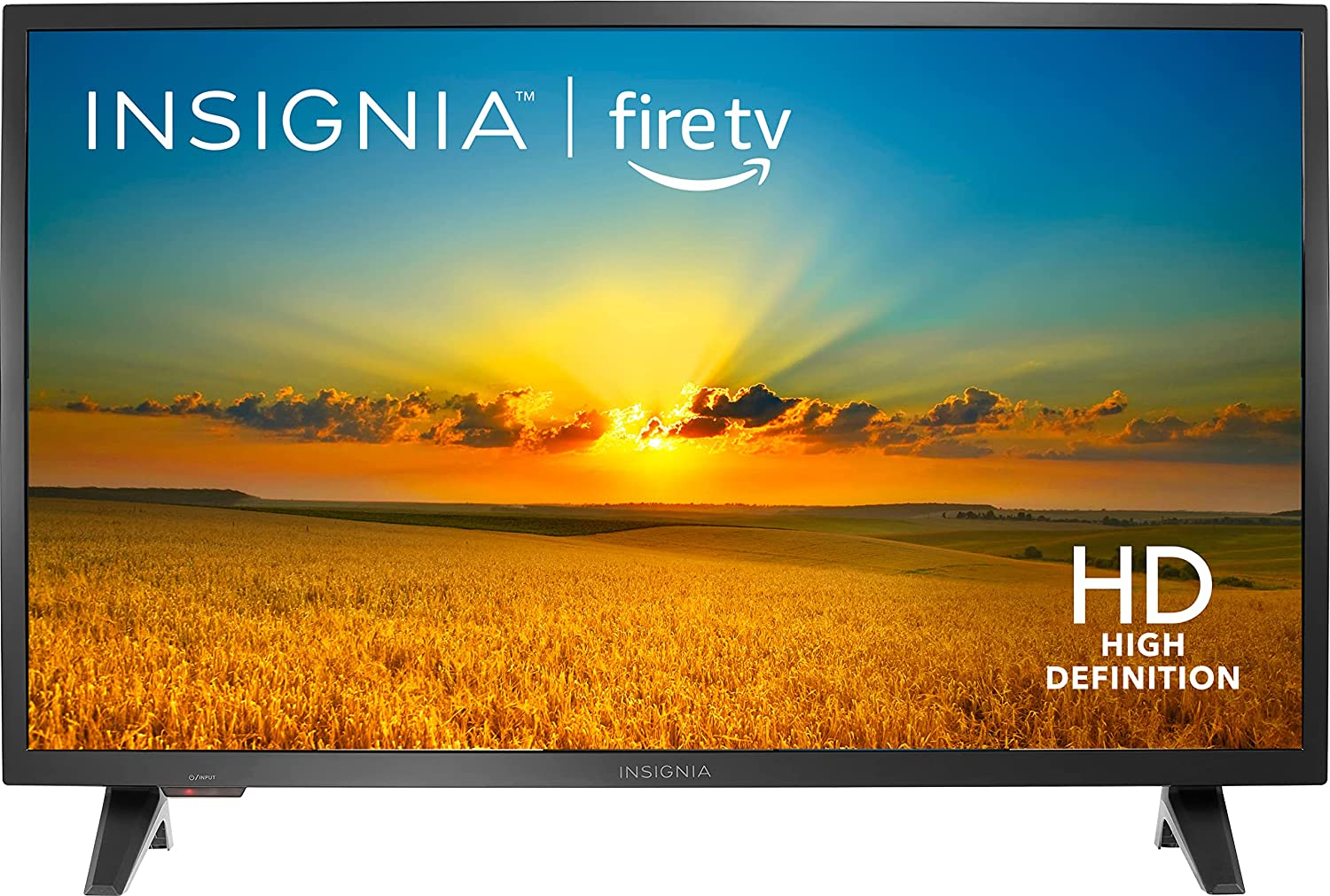
Maximize Your Productivity Insignia- F20 Series 32" Class LED HD Smart Fire TV
$223.20
Add to cart
Empowering Solutions Pioneer - 50" LED 4K UHD Smart Xumo TV
$399.50
Add to cart
Enhance Your Everyday TCL - 50-inch 4-Series LED 4K UHD Smart Google TV
$9,142.20
Add to cartProducts you may also like

Uncover Your True Potentialy Toshiba 43-inch Class V35 Series LED Full HD Smart VIDAA TV
$51.70
Add to cart
Supreme VIZIO - 40 Inch D-Series Full HD Smart TV
$60,869.70
Add to cart
Revitalize Your Lifestyle Onn 24" HD (720P) Roku Smart LED TV (100012590) with Remote and Free Mobile App
$16,683.10
Add to cartRelated products
-
Revitalize Your Lifestyle Onn 24″ HD (720P) Roku Smart LED TV (100012590) with Remote and Free Mobile App
$16,683.10 -
Join the Elite Club with LG 86-inch UQ75 Series LED 4K UHD Smart webOS TV
$3,047.90 -
Uncover Your True Potentialy Toshiba 43-inch Class V35 Series LED Full HD Smart VIDAA TV
$51.70 -
Supreme VIZIO – 40 Inch D-Series Full HD Smart TV
$60,869.70

Reviews
There are no reviews yet.