
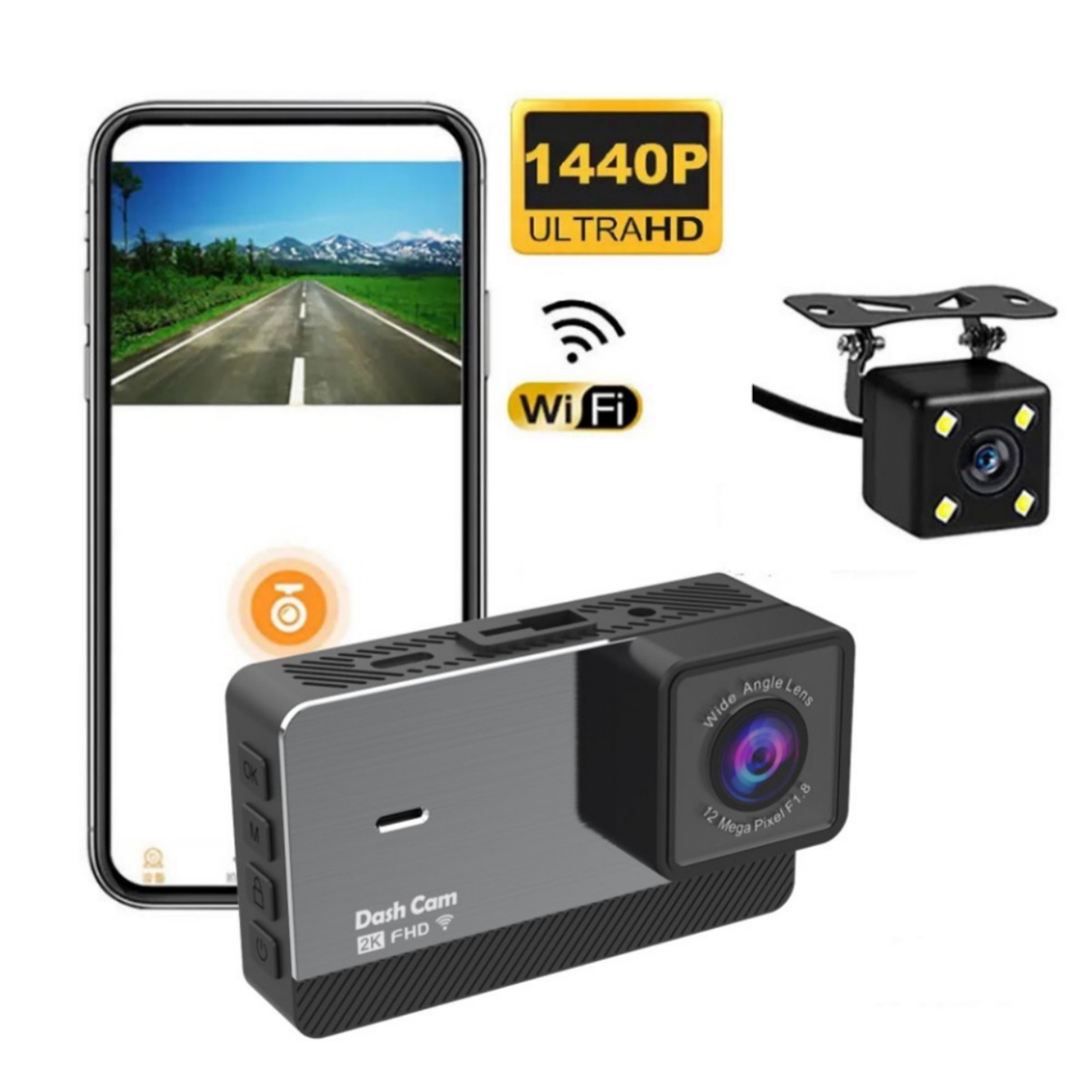
2k HD Dual Recording Driving Recorder
$133.30
- 2K HD dash cam records videos up to 1440P resolution
- IPS HD screen with natural and clear colors, similar to a mobile phone screen
- Equipped with high-end chips for better performance and faster processing speed
- Automatic reverse image feature for easier reversing and entering the vehicle
- Worry-free satisfaction service with immediate problem-solving and pleasant shopping experience guaranteed
Buy more, save more
Buy 2–4 of this item and save 5%.
Buy 5 or more of this item and save 10%.
Discount is automatic in your cart on regular-priced items. It cannot be combined with coupon codes or sale prices.
Buy 2–4 of this item and save 5%.
Buy 5 or more of this item and save 10%.
Discount is automatic in your cart on regular-priced items. It cannot be combined with coupon codes or sale prices.
Country suggested using IP or browser language; you can change it. Shipping is confirmed at checkout.
Description
2k HD Dual Recording Driving Recorder,
How to Use the 2k HD Driving Recorder
Step 1: Installation
- Attach the suction cup mount to the windshield.
- Place the driving recorder on the mount and secure it.
- Connect the power cable to the driving recorder and the car’s power outlet.
Step 2: Powering On
- Press the power button on the driving recorder to turn it on.
- The screen will display the recording status and menu options.
Step 3: Adjusting Settings
- Use the arrow buttons to navigate through the menu options.
- Press the OK/Enter button to select an option.
- Adjust settings such as video resolution, loop recording, motion detection, etc.
Step 4: Recording Videos
- Ensure that the driving recorder is correctly positioned to capture the road.
- Press the record button to start recording.
- A red dot or indicator will appear on the screen to indicate recording.
- Press the record button again to stop recording.
Step 5: Viewing Footage
- Press the playback button to access the recorded videos.
- Use the arrow buttons to navigate through the footage.
- Press the OK/Enter button to play or pause a video.
Step 6: Connecting to Mobile Phone
- Enable Wi-Fi on both the driving recorder and your mobile phone.
- Search for available Wi-Fi networks on your phone and connect to the driving recorder’s network.
- Open the dedicated app on your phone and follow the on-screen instructions to establish the connection.
Step 7: Reverse Mode
- Connect the driving recorder’s rear camera to the rear of your vehicle.
- When the car is in reverse gear, the screen will automatically switch to display the rear road image.
If you encounter any issues or have questions, please refer to the user manual or contact our customer support for assistance.
, ,
Only logged in customers who have purchased this product may leave a review.
Special deals for you
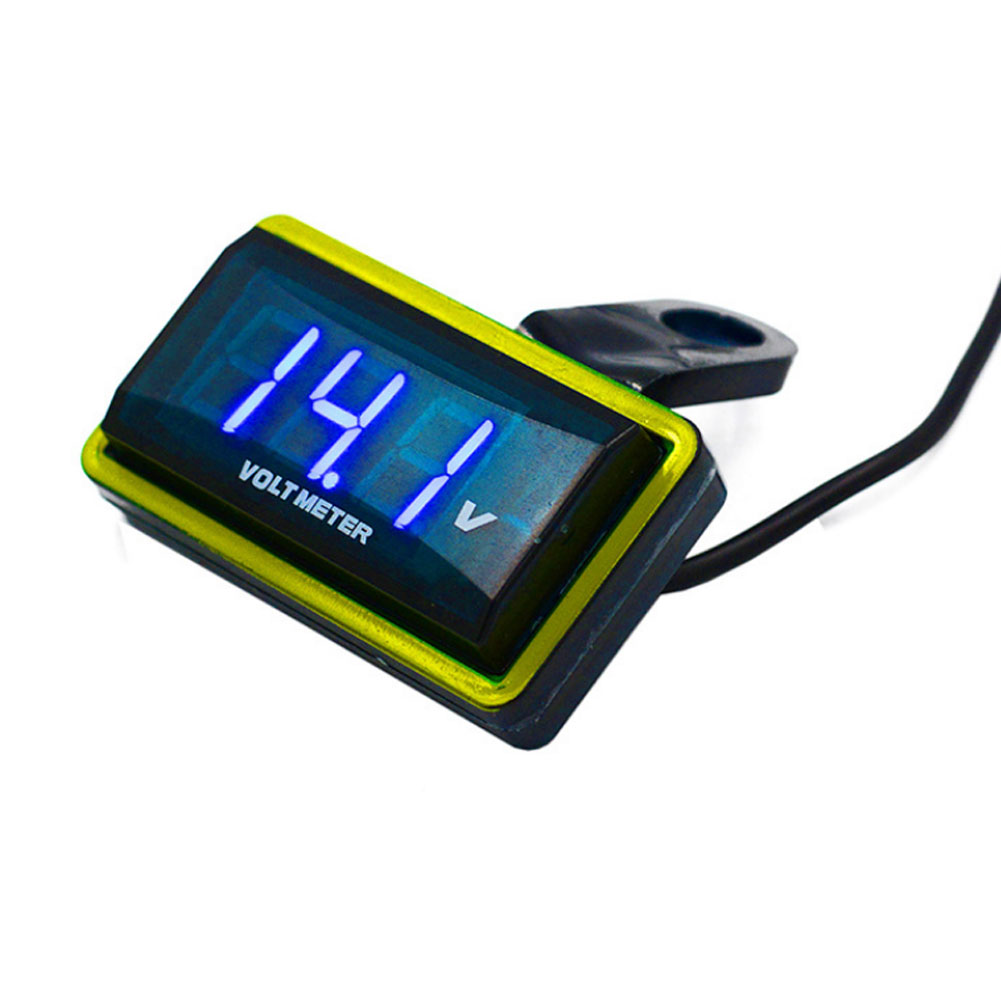
12V Car Voltmeter with Digital LED Display
Original price was: $20,030.60.$20.60Current price is: $20.60.
Add to cartPopular items in this category
Meterk 6-Tooth Wood Carving Disc – 16mm Bore Angle-Grinder Attachment
Price range: $12.08 through $26.62
Select options
Motorcycle accessories
$6.33
Add to cart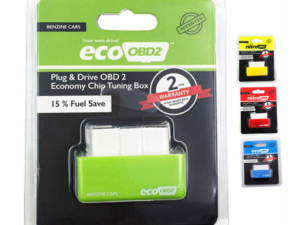
ECO OBD2 Plug-In Vehicle Module – Fuel-Saving Claims Not Verified
Price range: $2.67 through $14.61
Select options
Motorcycle-Style Leather Jacket – Black, Brown and Dark Brown
$26.88
Select optionsSimilar items you might like
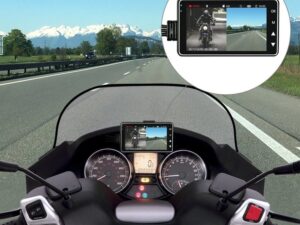
Products related to this item

Motorcycle Handguard Hand Guard Protector for Kawasaki Suzuki Honda black
$20.80
Add to cart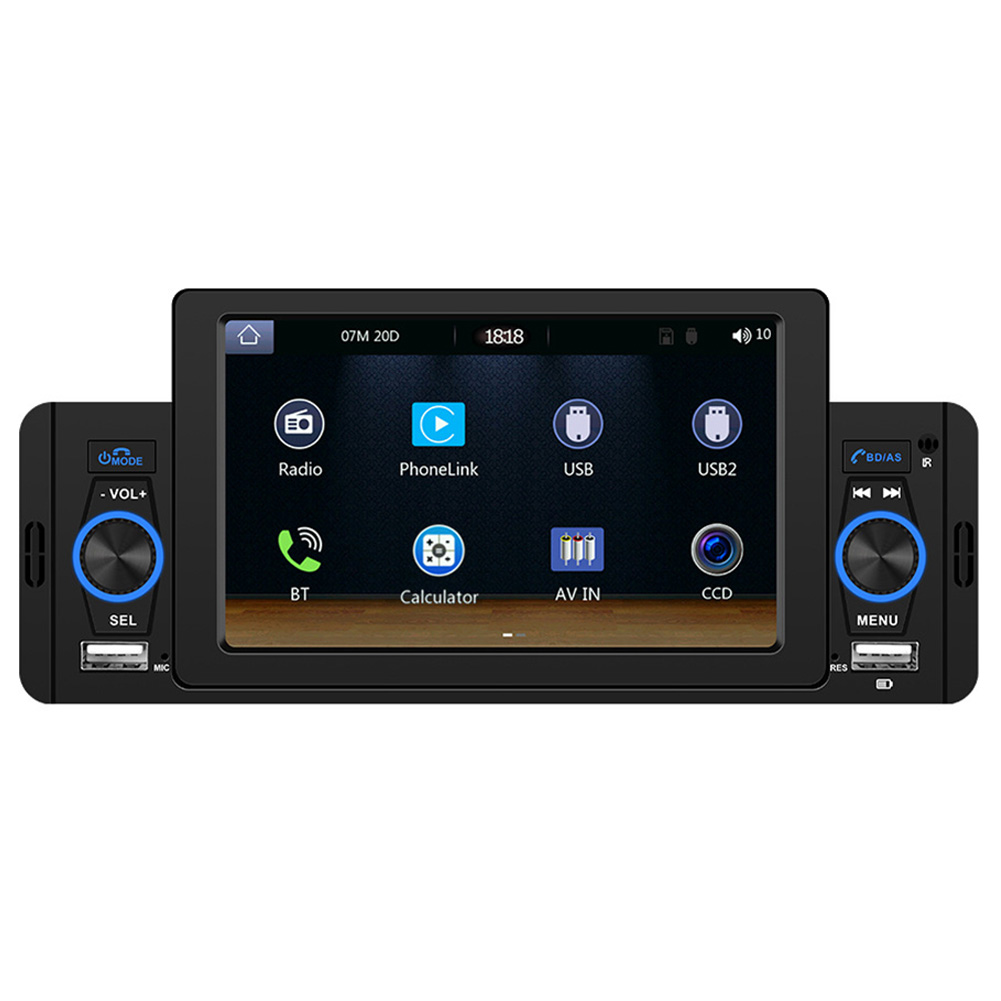
5" HD Screen Car MP5 Audio Player
$159.10
Add to cart2k HD Driving Recorder with Wifi
$133.30
Add to cart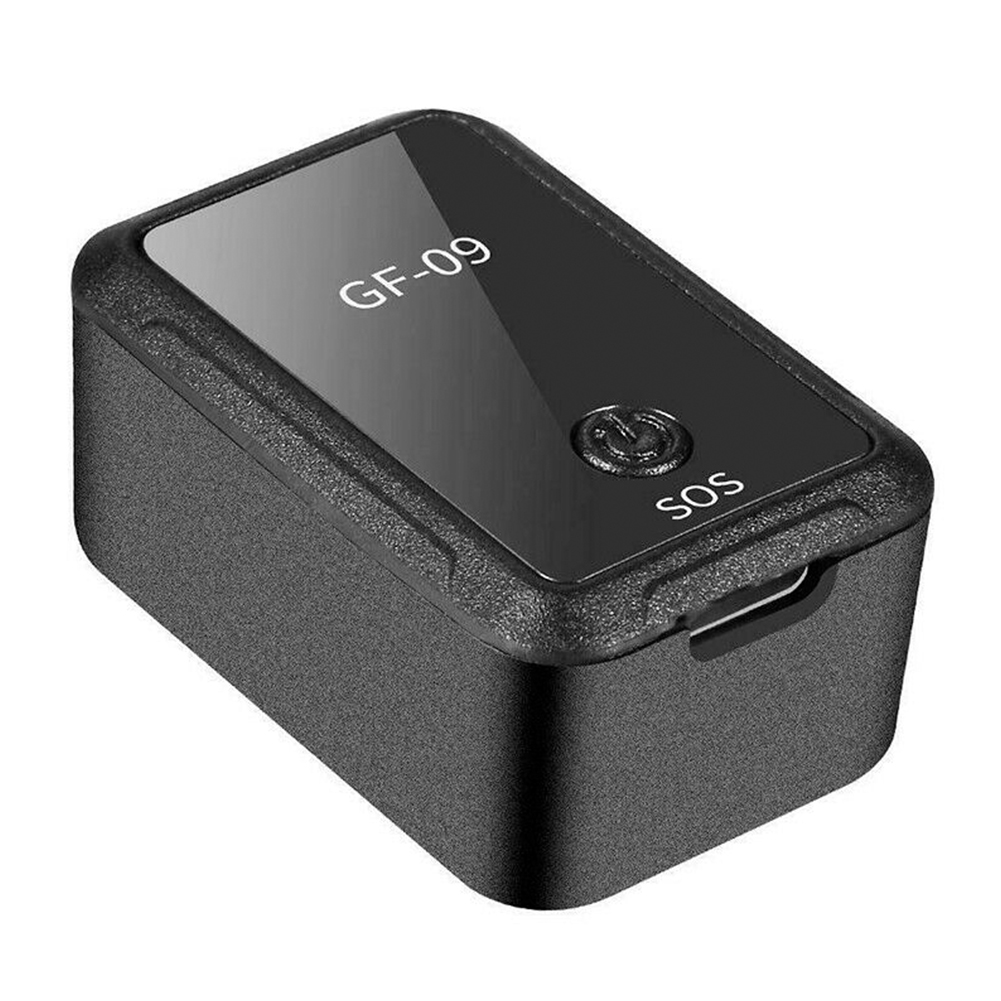
Magnetic Mini Vehicle Car GPS Anti-thief Tracker APP Control Real Time Tracking USB black
$50.80
Add to cartProducts you may also like

Magnetic GPS Tracker with Long Standby
$26.90
Add to cart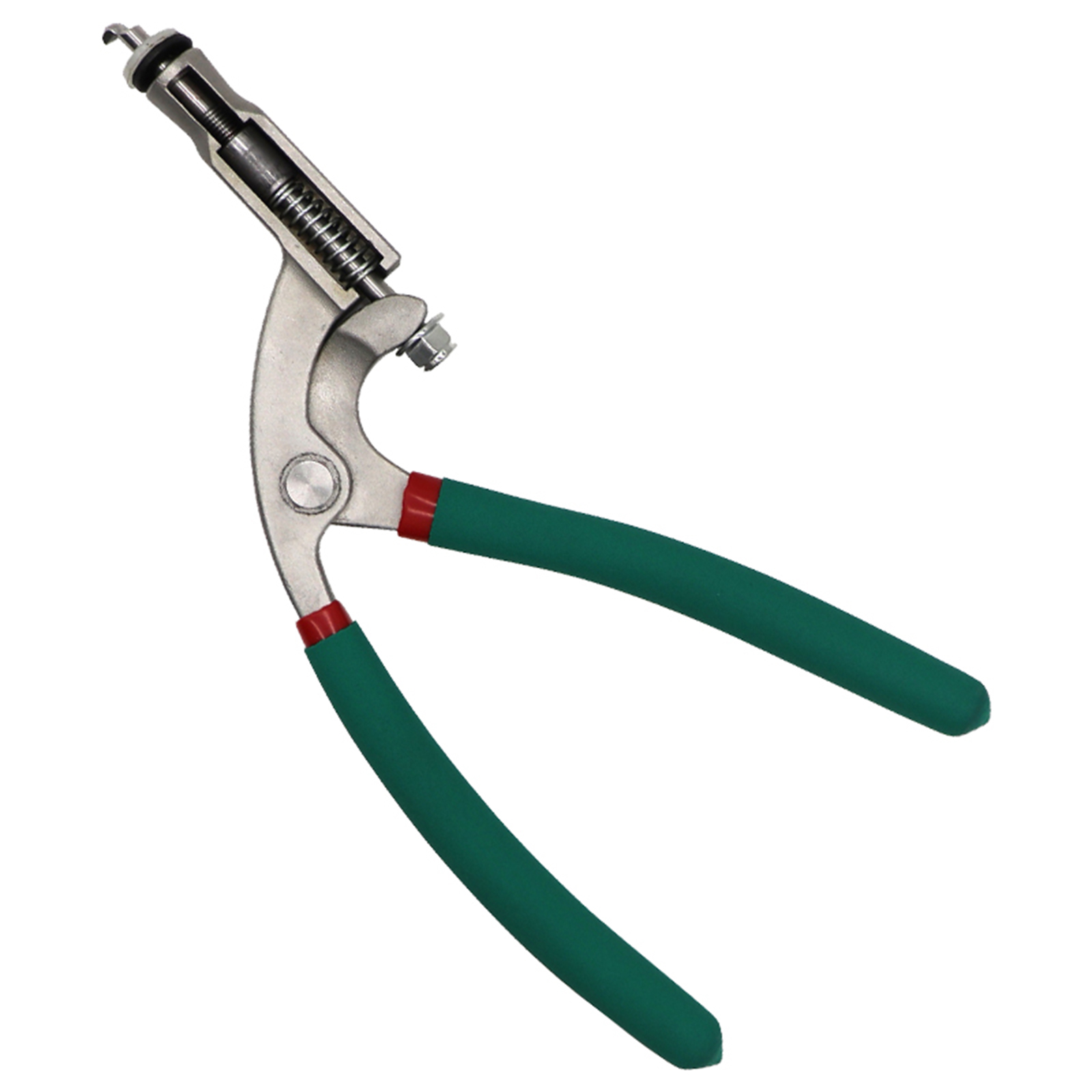
Unlock Your Potential US Car Hood Repair Tool Body Hood Pliers Automobile Depression Pit Removal Tool Sheet Metal Clamping Edge Pliers Green flat hole pliers
$90.30
Add to cart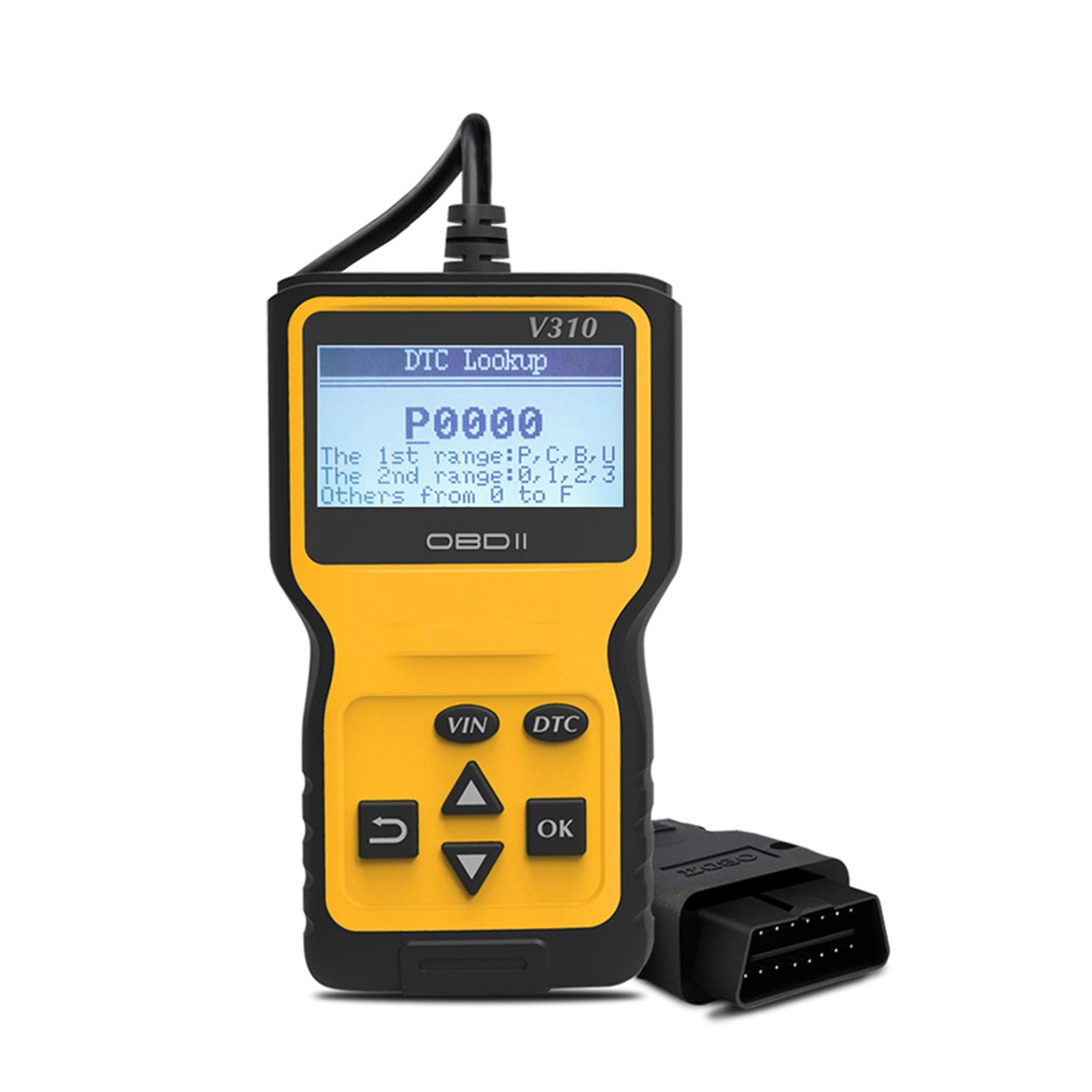
Obd2 Scanner Car Engine Fault Code Reader Obd Ii Tester Auto Diagnostic Scan Tool Screen Display Decoder Detector Yellow
$65.80
Add to cart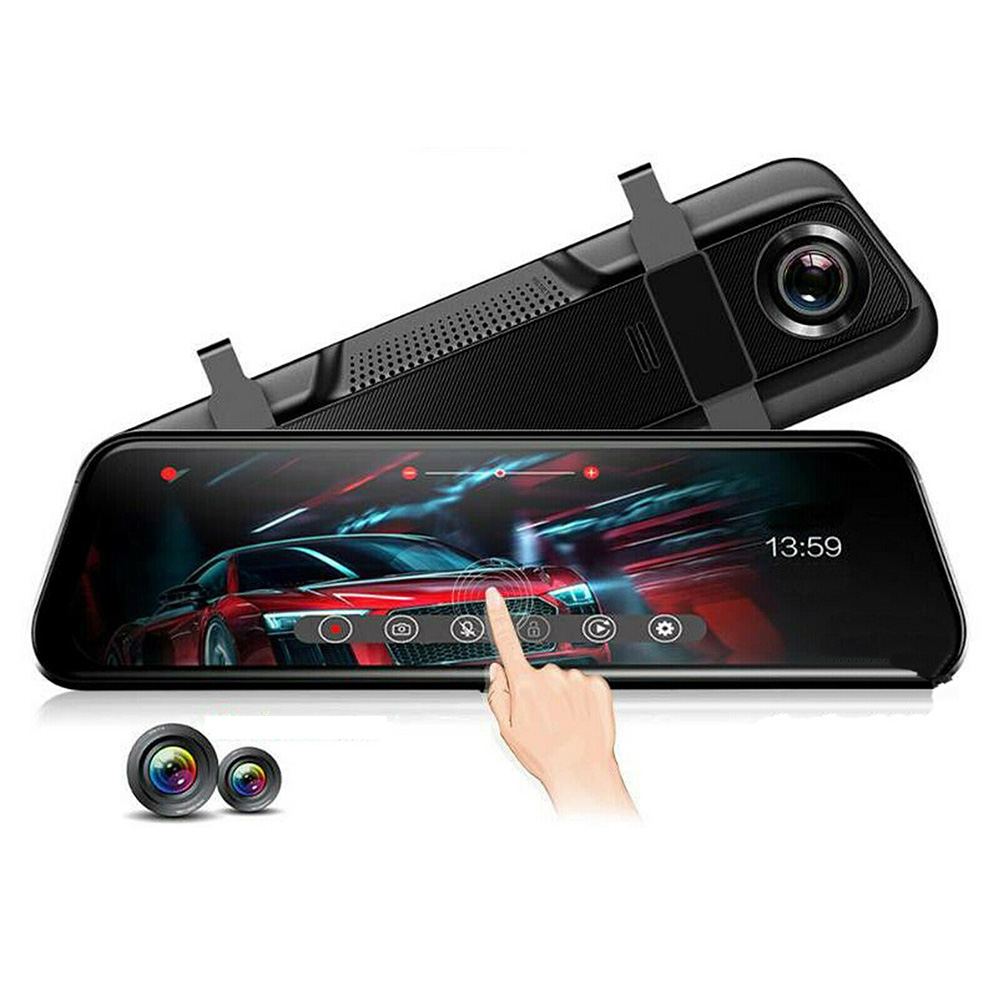
10-inch Streaming Media Rearview Mirror Recorder 1080P HD 2.5d Full Screen Reversing Recorder Black
$151.20
Add to cartRecommended for You
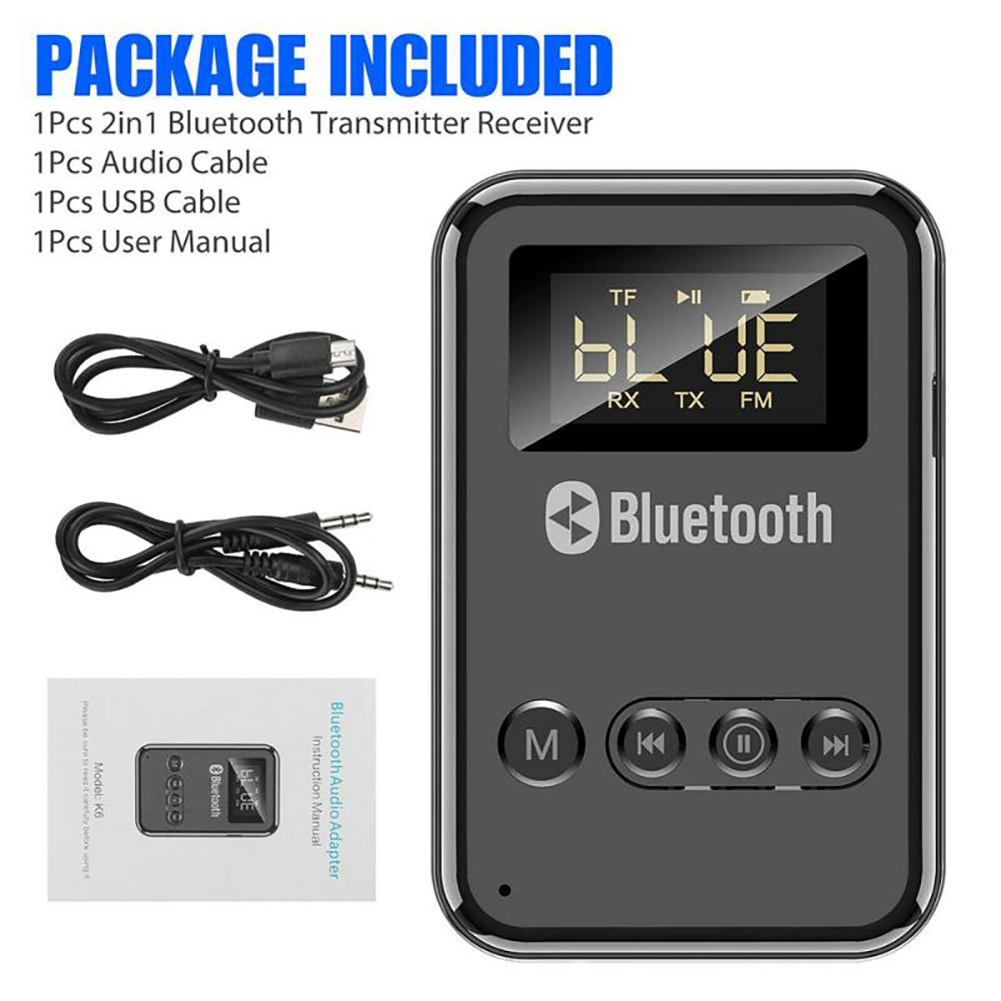
K6 Bluetooth 5.0 Transmitter Receiver Aux 3.5mm Jack Wireless Adapter Fm Outputs Black
$49.40
Add to cart
Best Buy Offer Liquid Glass 9H Nano Hydrophobic Ceramic Coating Car Polish Anti-scratch Auto Protector
$23.70
Add to cart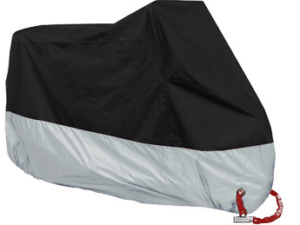
Waterproof Motorcycle Cover
Price range: $11.00 through $17.89
Select options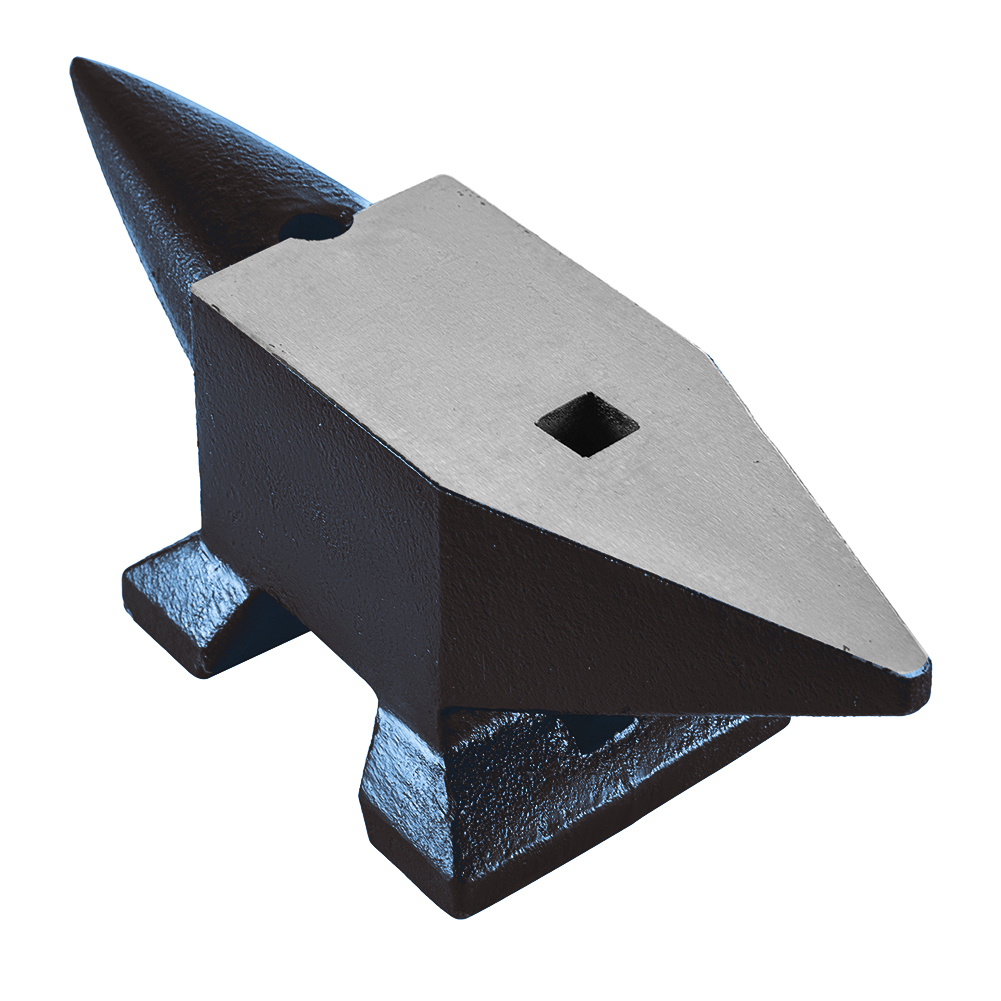
Exceptional US Cast Steel Anvil Anvil Blacksmith for Sale Forge Tools Jewelers Metalsmith Blacksmith Tool Blue 132 Lbs
$1,783.90
Add to cartRelated products
-
Obd2 Scanner Car Engine Fault Code Reader Obd Ii Tester Auto Diagnostic Scan Tool Screen Display Decoder Detector Yellow
$65.80 -
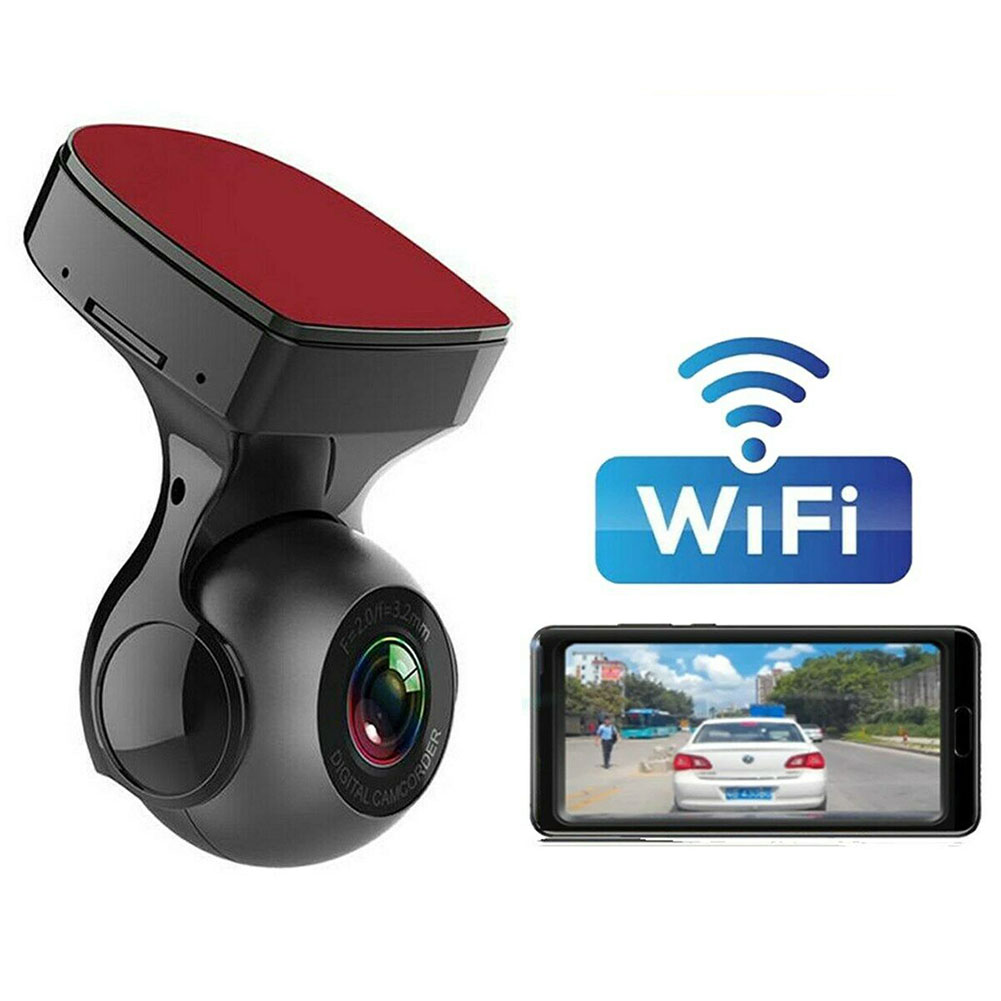
Wifi Car DVR Recorder 1080p Dash Cam
$68.90 -
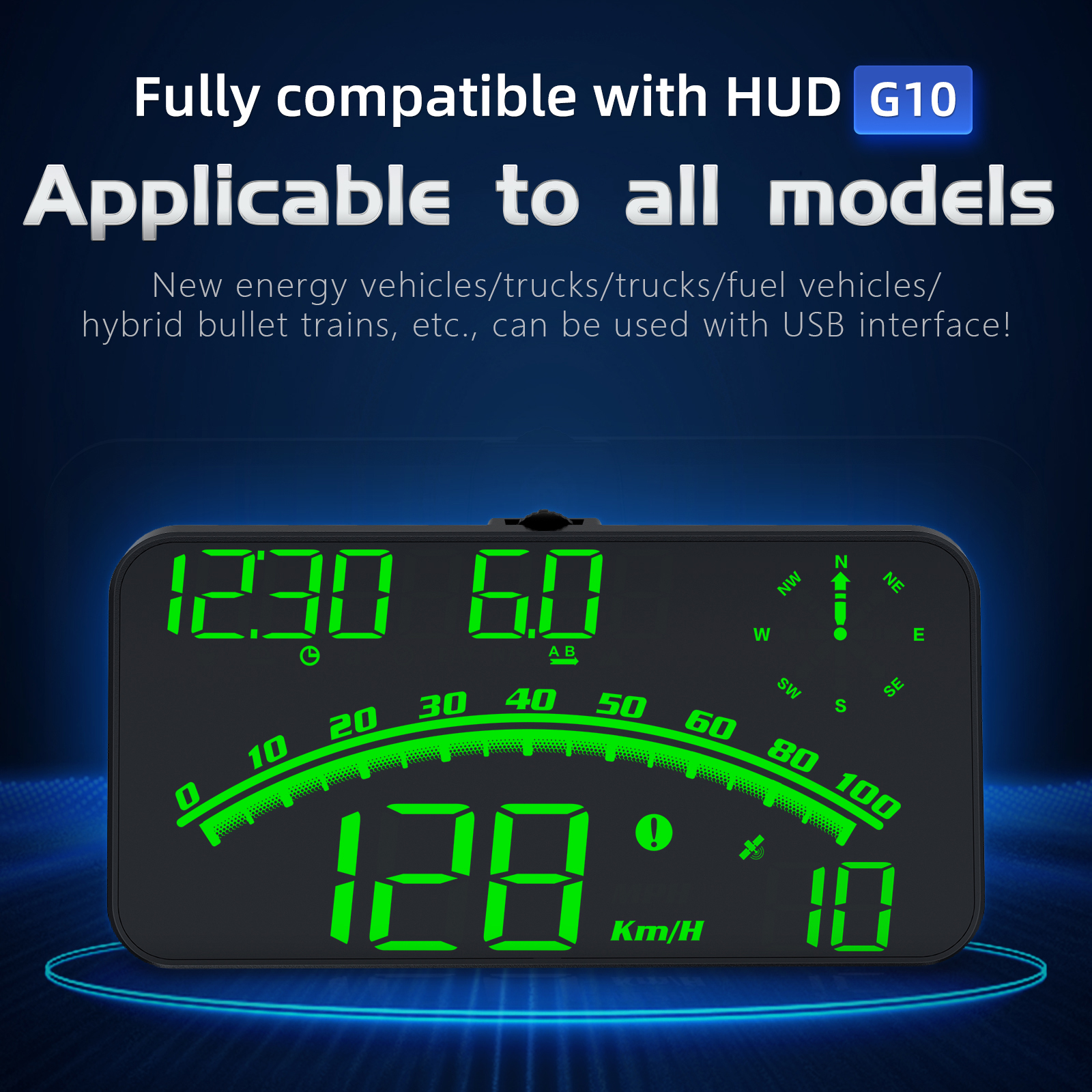
G10 Hud Gps Head Up Display Speedometer Overspeed Led Monitor Green Light
$70.10 -
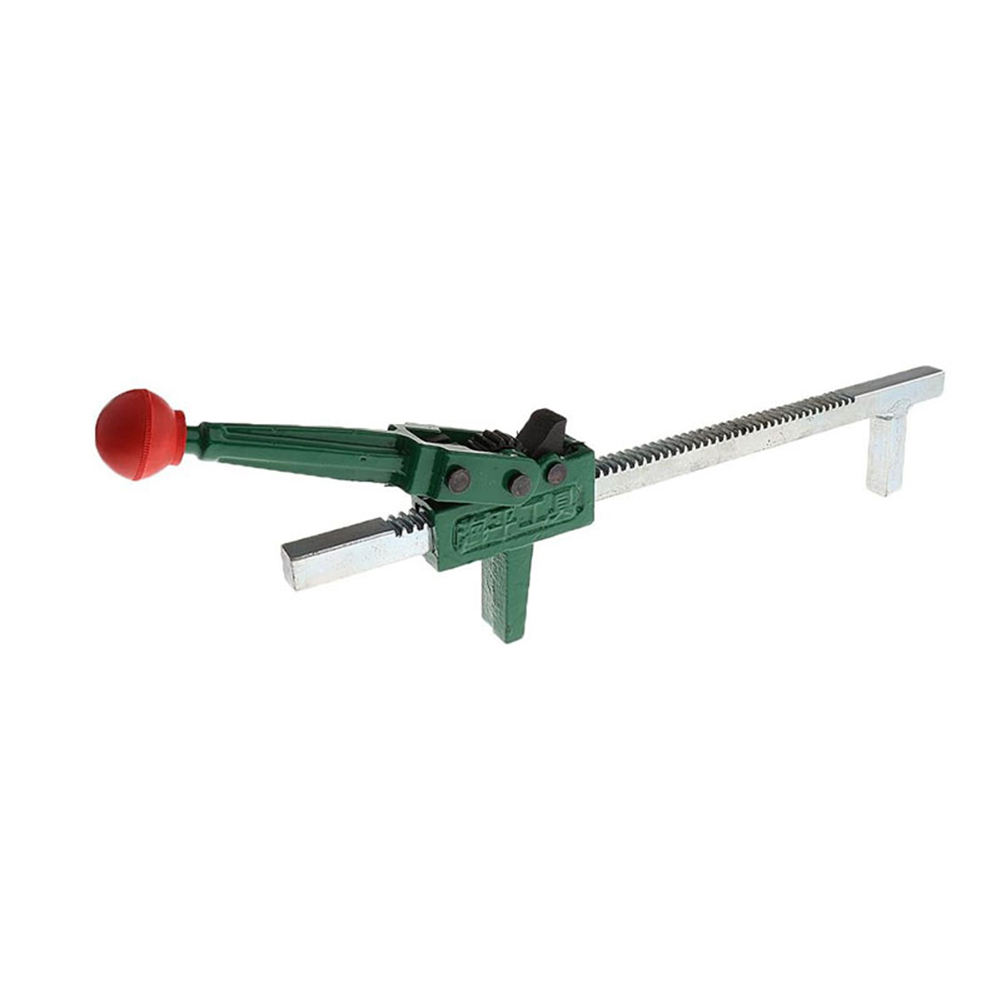
Manual Tire Expander Repair Tool Portable Wheel Tire Manual Hand Expander Tool Automotive Maintenance Parts 40cm
$89.90

Reviews
There are no reviews yet.