
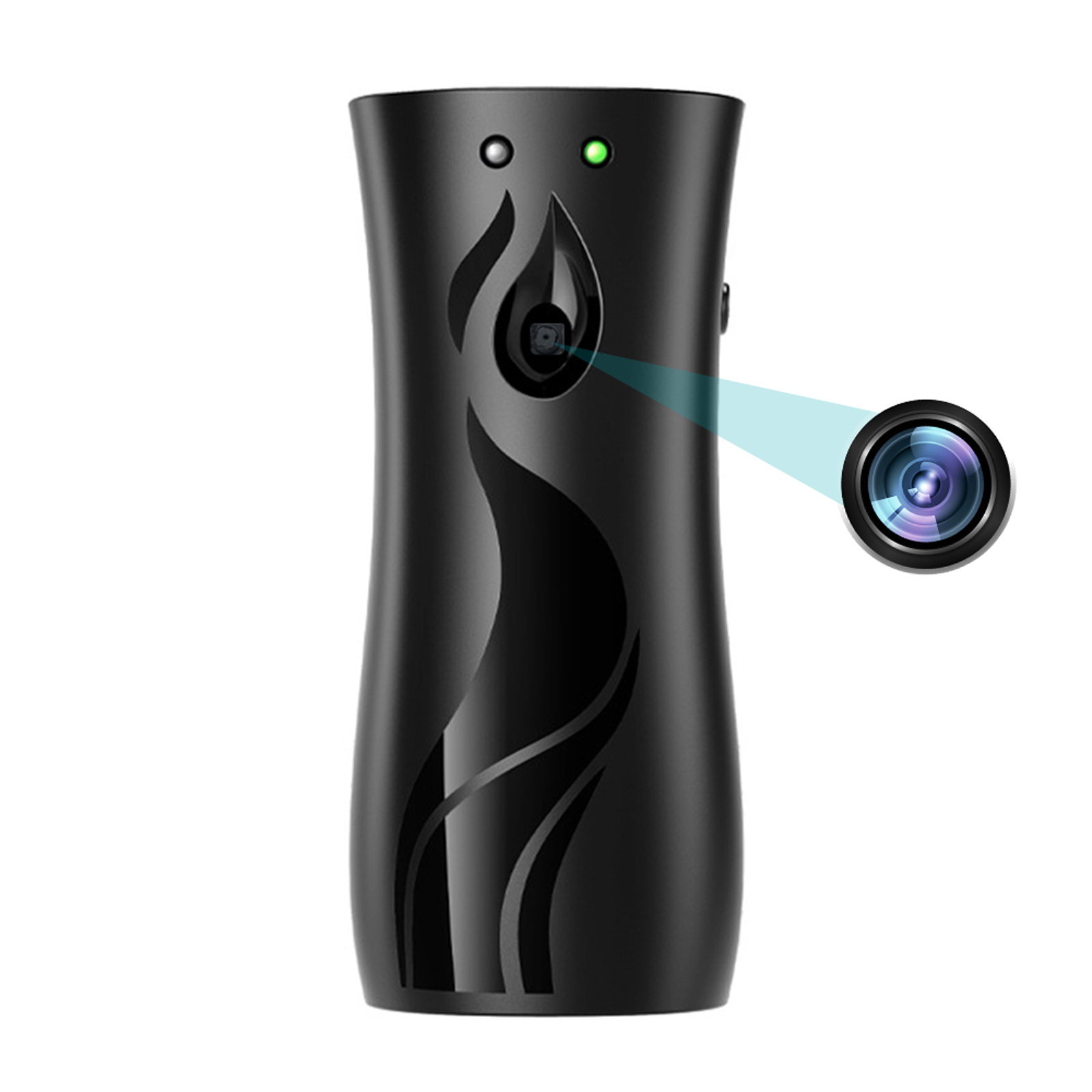

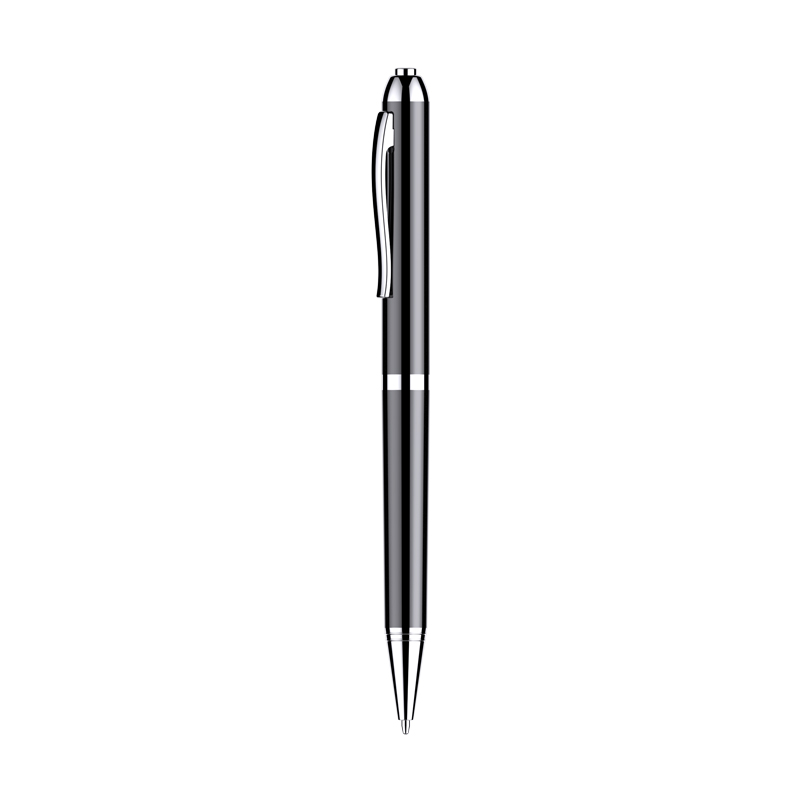
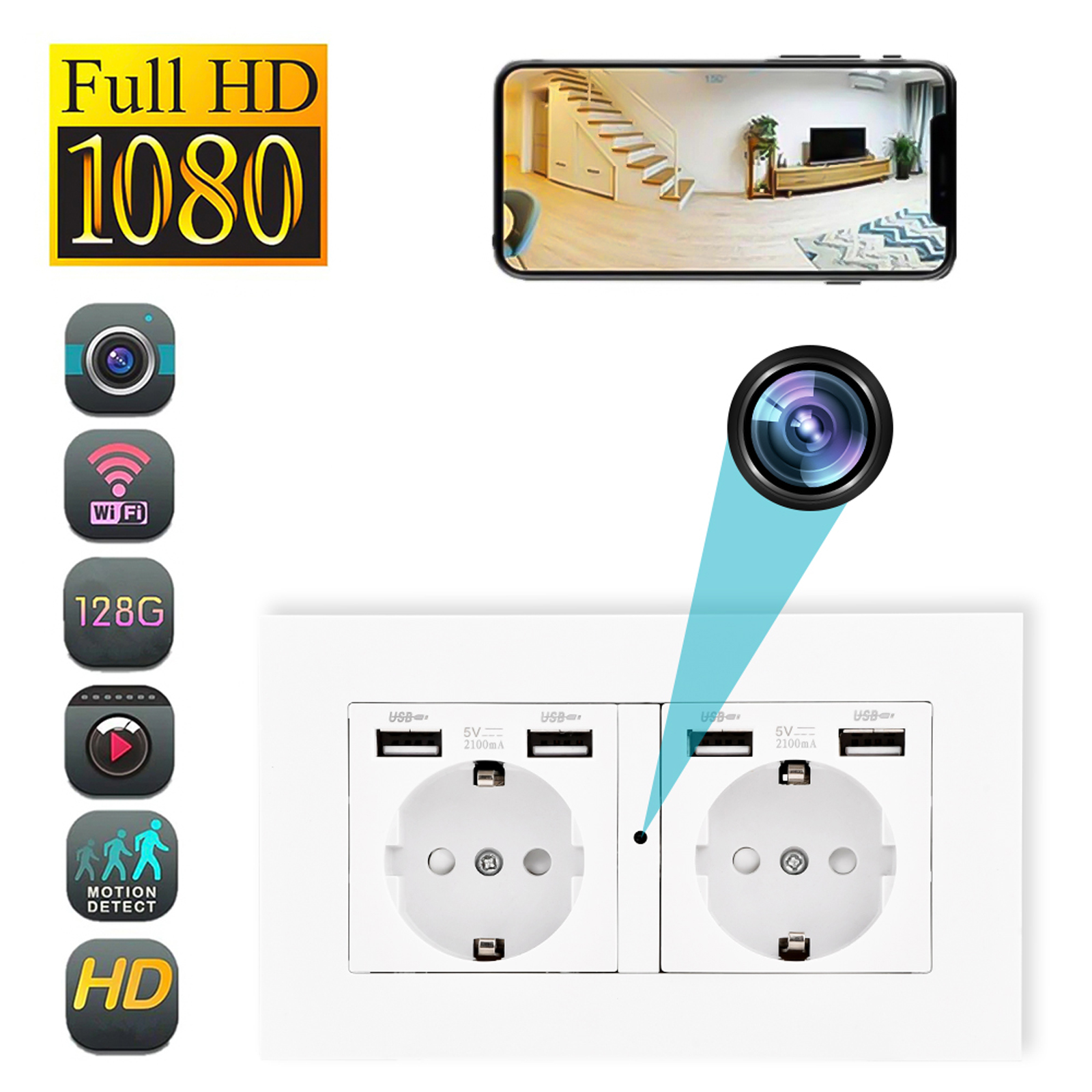
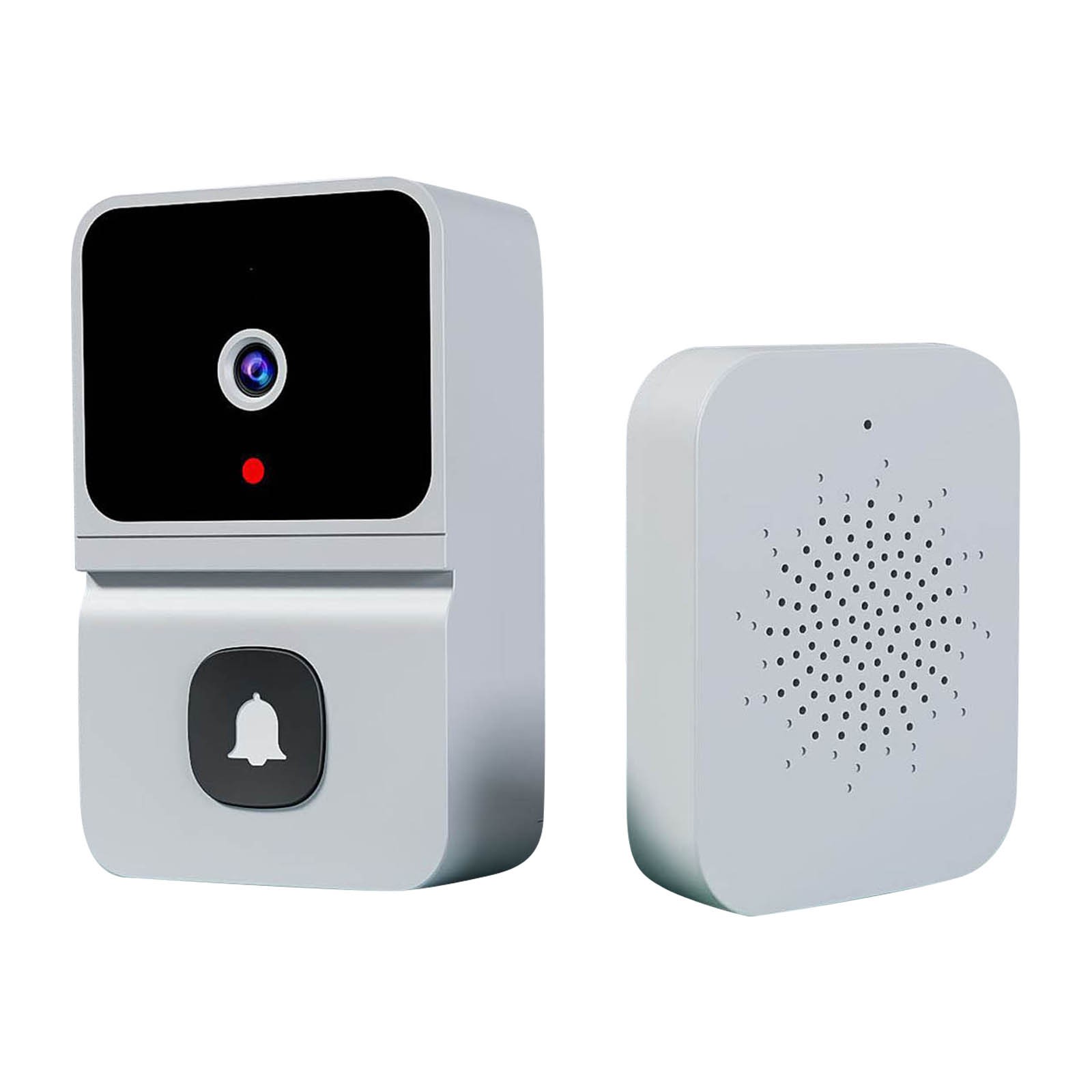
Black Aroma Diffuser Design Mini Camera – 1080P HD, Wifi, Night Vision, Home Security Video Surveillance Recorder,
How to Use the 1080P HD Mini Camera Aroma Diffuser Design Wifi Night Vision Home Security Video Surveillance Recorder
Step 1: Initial Setup
- Place the camera aroma diffuser near a power source.
- Connect the power adapter to the camera aroma diffuser and plug it into a wall outlet.
- Download and install the accompanying mobile app from the App Store or Google Play Store.
- Register an account and log in to the app.
Step 2: Connect to Wi-Fi
- Open the app and go to the Wi-Fi settings on your phone.
- Connect to the camera aroma diffuser’s Wi-Fi network (SSID: [camera SSID]).
- Return to the app and wait for the camera aroma diffuser to connect to your phone.
Step 3: Configure Camera Settings
- On the app home screen, tap on the camera icon.
- Tap on “Settings” to access the camera configuration.
- Set up your desired camera settings, such as motion detection sensitivity and night vision mode.
- Save the settings.
Step 4: View and Record Surveillance Footage
- To view live surveillance footage, go to the app home screen and tap on the camera icon.
- Tap on “Live View” to start streaming the camera’s video feed.
- To record surveillance footage, insert a TF card into the camera aroma diffuser’s TF card slot.
- On the app home screen, tap on the camera icon and select “Playback”.
- Select the desired date and time to view recorded footage.
Step 5: Receive Motion Detection Alerts
- Ensure that your phone’s notification settings allow the app to send push notifications.
- When motion is detected within the camera’s field of view, you will receive a push notification on your phone.
- Open the app to view the alert and access the camera’s live view.
For further assistance or troubleshooting, refer to the user manual or contact our customer support.
, ,

Reviews
There are no reviews yet.